How to Make a Job Card for Production (Format and Filled Example)
A job card tells the shop floor what to make, how many, from which materials, and gives them a place to write what was made and rejected. Here is the format, a filled example and three ways to make one.
A production job card is a one-page sheet that travels with a job on the shop floor. It names the product, the quantity to make, the materials required and the dates, and it has a table where operators write what was made and rejected. You can make one by hand, in a spreadsheet, or print it from a work order.
A job card is the simplest production document there is, and in many small factories it is the only one the shop floor ever sees. This guide explains what belongs on a job card, shows a filled example, and gives three ways to make one: on paper, in a spreadsheet, and printed from a work order in a free offline desktop app.
What is a job card in production?
A job card is the shop floor copy of a work order. The work order is the office record that says "make 10 of this product by this date". The job card is the printed sheet that goes to the people doing the work, so they know what to make, how many, from which materials, and where to write down what they finished.
Factories use different names for it: job sheet, job ticket, production card or works order. The idea is the same. One job has one card, and the card stays with the job until it is finished. When the job is done, the card comes back to the office with the real numbers written on it.
A job card has two halves. The top half is filled in by the office before work starts. The bottom half is filled in on the floor while the work is done.
What goes on a production job card?
A useful job card format answers every question an operator would otherwise walk to the office to ask. These are the fields most small factories need.
Field
What it says
Filled in by
Job or work order number
A unique number, so the card can be matched to the office record
Office
Product and product code
Exactly what is being made
Office
Quantity to make
How many good units are wanted, with the unit
Office
Customer or sales order
Who the job is for, if it is made to order
Office
Planned start and due date
When to begin and when it must be ready
Office
Instructions
Anything special: finish, drawing number, packing
Office
Materials required
Each material, the quantity per unit and the total for the job
Office
Daily production
Date, operator, good units, rejected units and notes
Shop floor
Two of these are often left out and then missed. The first is the total quantity of each material, which lets the storekeeper hand over the right amount in one go. The second is a column for rejected units. Without it, rejects are either counted as good or never written down, and the materials they used cannot be explained later.
What does a filled job card look like?
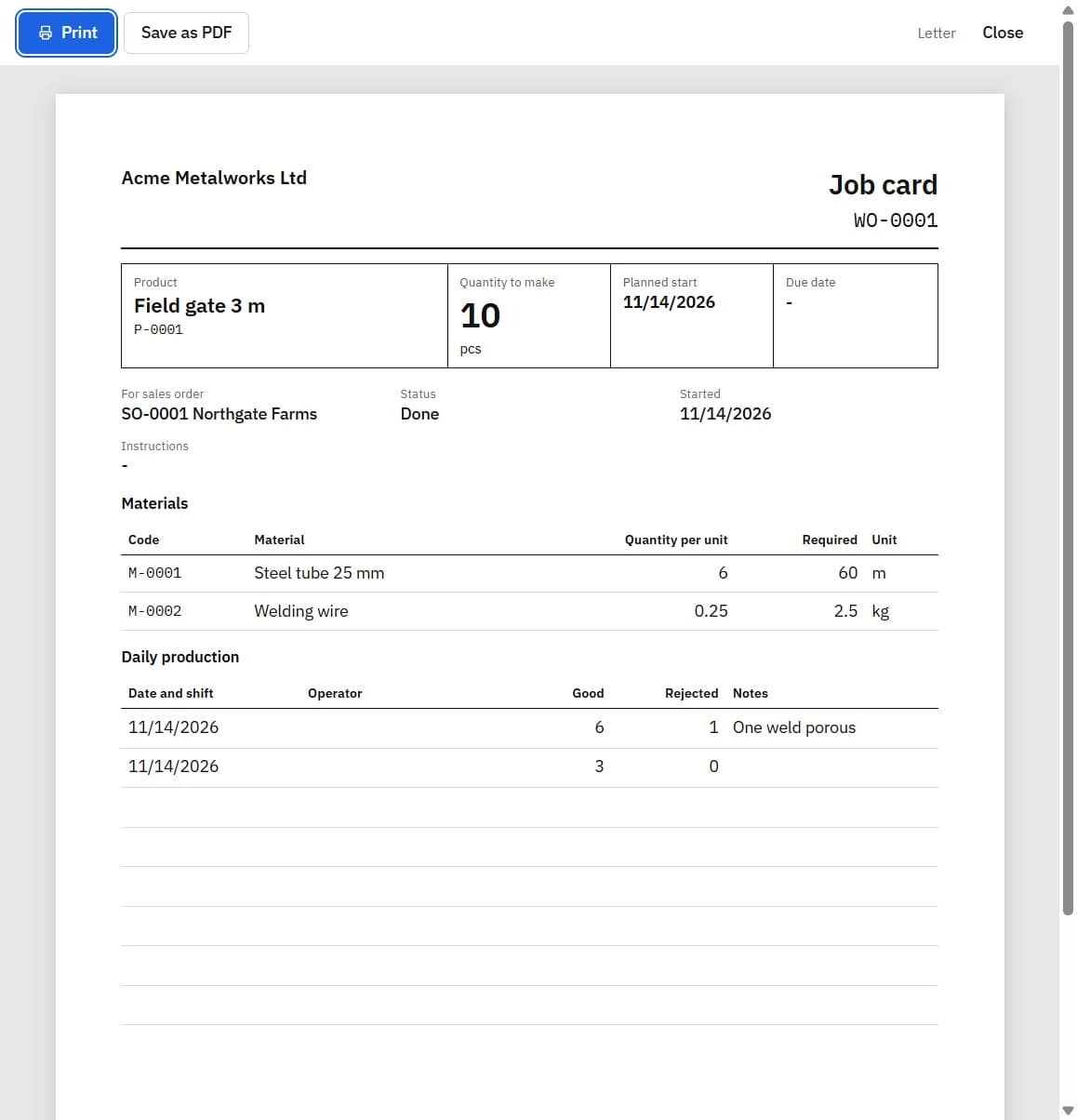
Here is a filled example for a made-up metal workshop making 10 steel field gates, each 3 m wide. It follows the layout of the sample job card (PDF) printed by Timeline Factory Manager.
The header, filled in by the office:
Field
Example
Work order
WO-0001
Product
Field gate 3 m (P-0001)
Quantity to make
10 pcs
For sales order
SO-0001
Planned start
The day the job should begin
Due date
The day the gates must be ready
Instructions
Any special notes for the floor
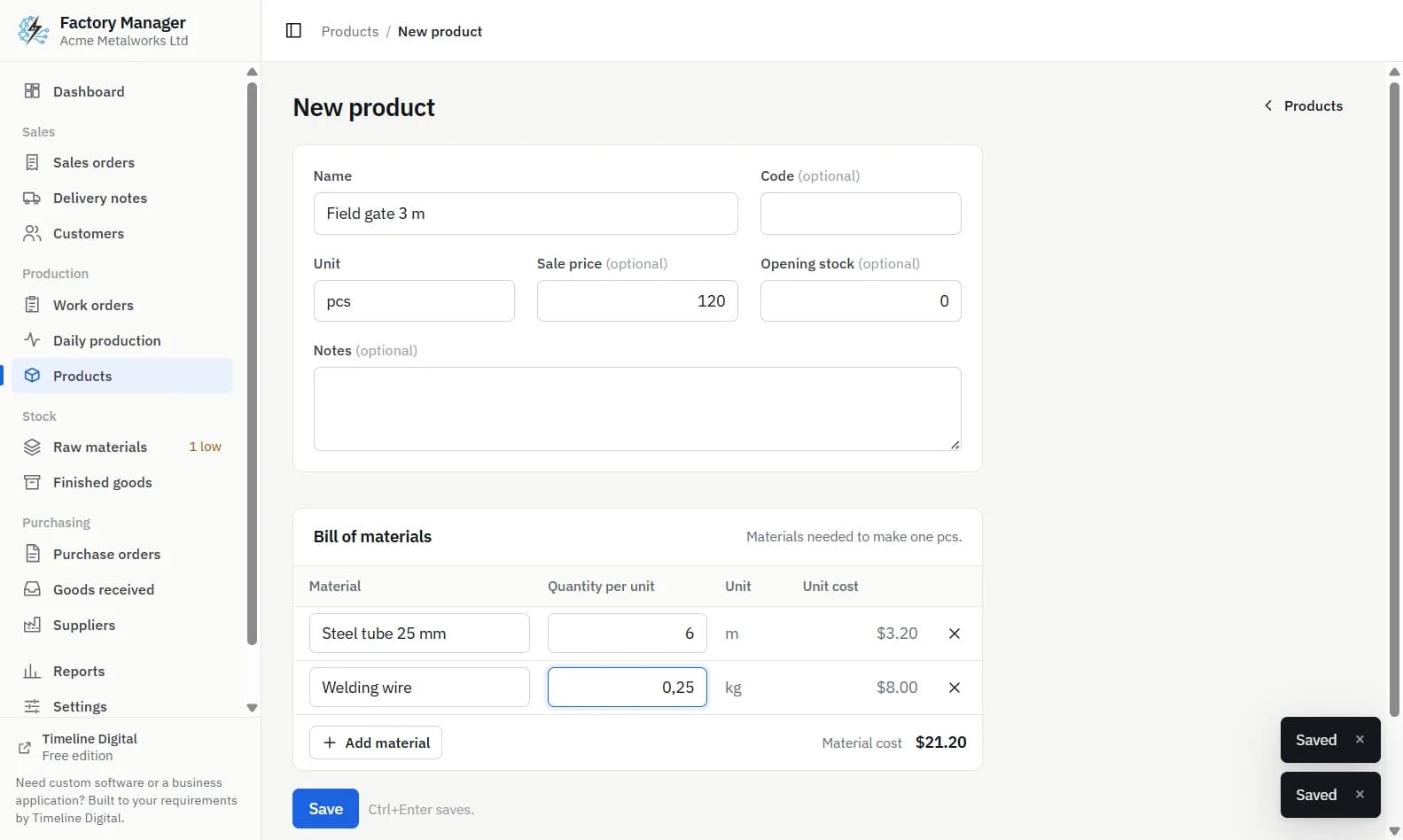
The materials required. Each gate needs 6 m of steel tube and 0.25 kg of welding wire, so a job of 10 gates needs 60 m and 2.5 kg:
Code
Material
Quantity per unit
Required
Unit
M-0001
Steel tube 25 mm
6
60
m
M-0002
Welding wire
0.25
2.5
kg
The daily production table, filled in as the work is done:
Date and shift
Operator
Good
Rejected
Notes
First entry
Name or initials
6
1
One weld porous
Second entry
Name or initials
3
0
After two entries the card shows 9 good gates and 1 rejected. The office can see that the job is one good gate short of the 10 wanted, and the note says why.
How do you make a job card by hand or in a spreadsheet?
You need the product's bill of materials first, because the materials section of the card is the bill of materials multiplied by the quantity to make. If you do not have one yet, read what a bill of materials is, with an example.
Give the job a number. Keep a running list of job numbers so the same number is never used twice.
Write the header: product, product code, quantity to make, customer or sales order, planned start and due date.
Add any instructions the floor needs that are not obvious from the product name.
List each material from the bill of materials with its quantity per unit.
Multiply each quantity per unit by the quantity to make, and write the total in a "Required" column.
Rule a daily production table with columns for date, operator, good, rejected and notes, and leave enough blank rows for the days the job will take.
Print the card and send it to the floor with the materials.
When the card comes back, add up the good and rejected units, then update your stock records: take the materials used out of raw material stock and add the good units to finished goods.
In a spreadsheet, build this once as a template. Put the quantity to make in one cell and let a formula multiply each material line by it. Save a new copy of the file for each job, named with the job number.
Where do paper and spreadsheet job cards go wrong?
A paper or spreadsheet job card works well in a workshop that runs a few jobs at a time. The problems start when there are more jobs than one person can hold in their head.
Nothing checks the store. The card says the job needs 60 m of tube, but printing it does not tell you whether 60 m is on the shelf, or whether another job is about to use it.
The bill of materials is copied by hand each time, so a wrong quantity on one card is easy to make and hard to notice.
Step 8 gets skipped. The card comes back, goes in a folder, and the stock records are never updated.
Rejects are forgotten. The materials used by rejected units have left the store but appear nowhere.
How does Timeline Factory Manager print a job card from a work order?
Timeline Factory Manager is a free offline desktop app by Timeline Digital for small factories and workshops. It runs on Windows 10 and 11 (64-bit) and on Macs with Apple silicon, on one computer for one user, with no account and no internet connection needed. In the app you do not type a job card. You print it from the work order, and the materials section is worked out for you.
Add your raw materials and the product with its bill of materials. This is done once per product.
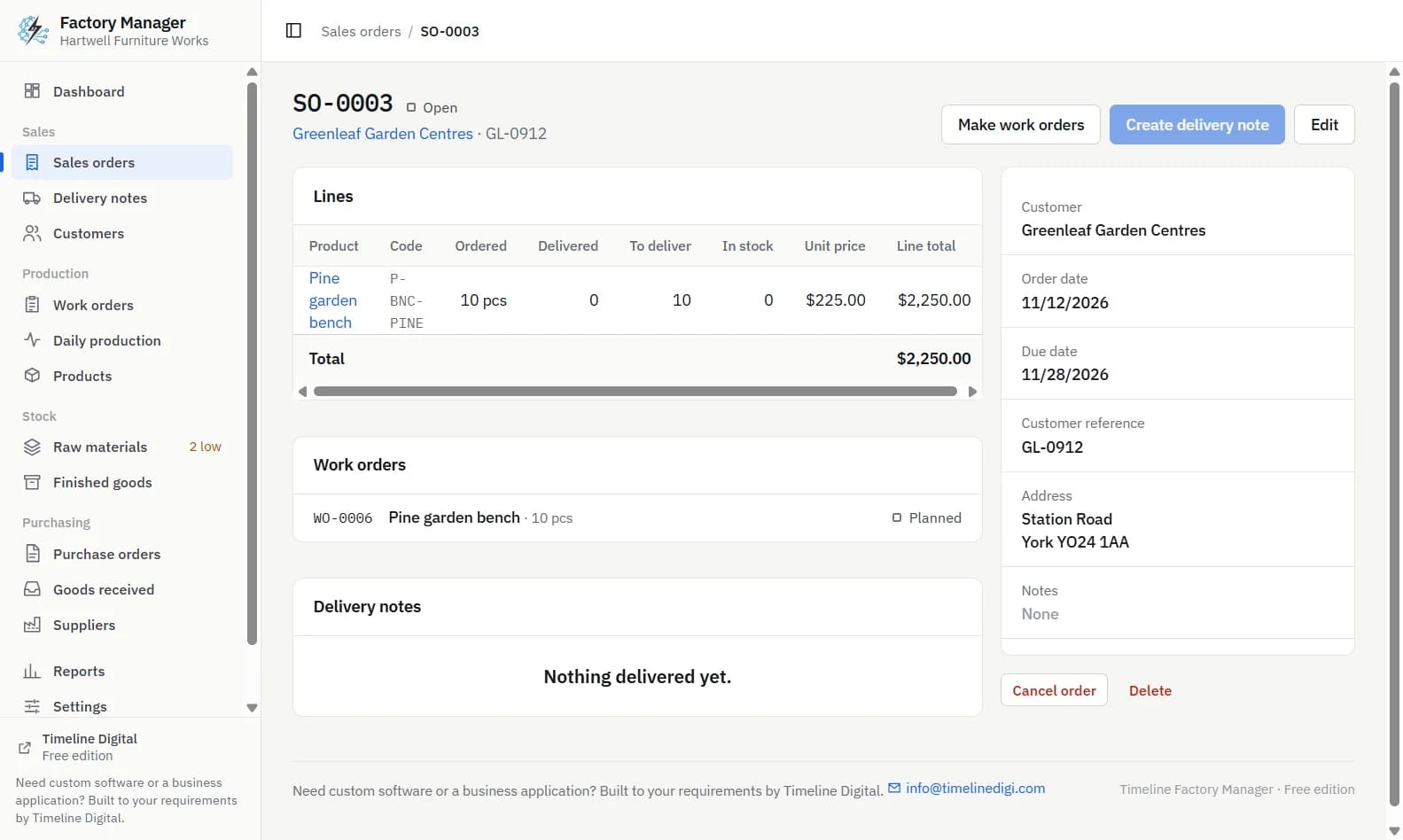
Create a work order for the product and quantity, or open a sales order and click Make work orders.
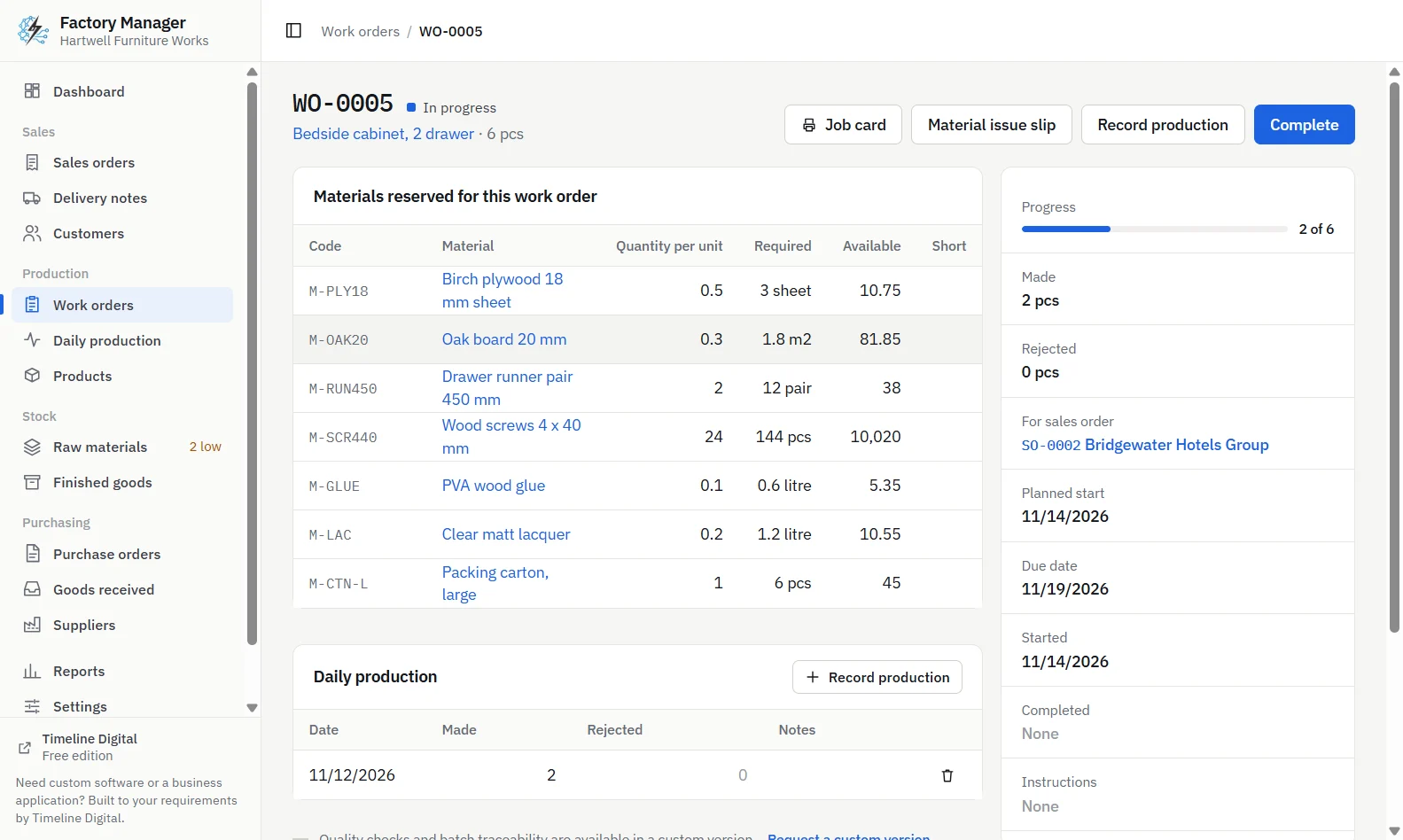
Click Start. The materials from the bill of materials are reserved. If there is not enough available stock, starting is refused and each short material is named, so you know what to buy.
On the work order page, click Job card (or use the row menu on the Work orders list). A preview window opens with Print and Save as PDF.
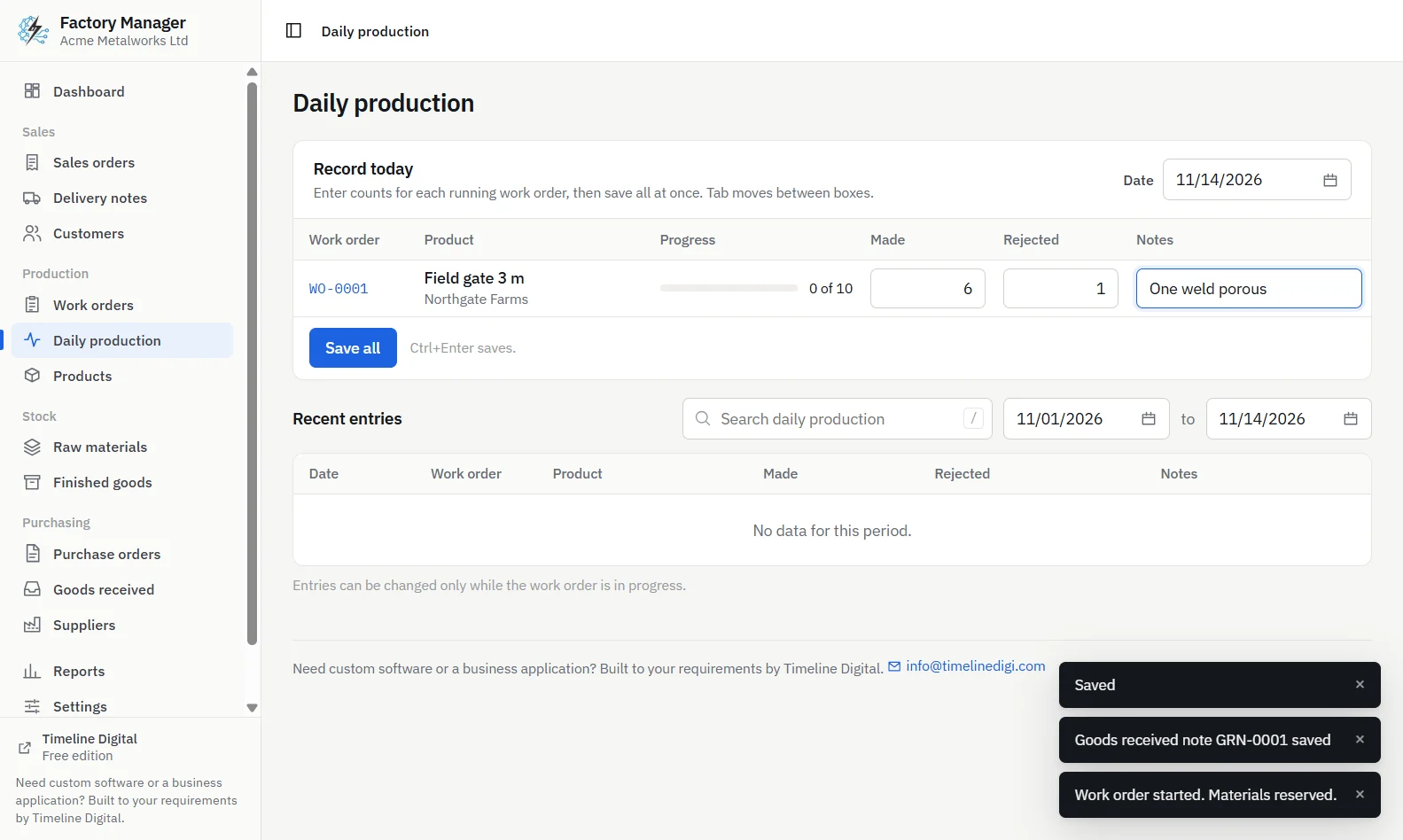
Each day, enter the made and rejected counts in Daily production.
Click Complete. The materials used, for everything made and rejected, are taken out of stock, and the good units are added to finished goods.
The printed job card shows the product, quantity to make, planned start, due date, sales order, instructions, the materials required and a daily production table. It carries your company name, address, contact details, tax number and logo from Settings, on A4 or US Letter paper.
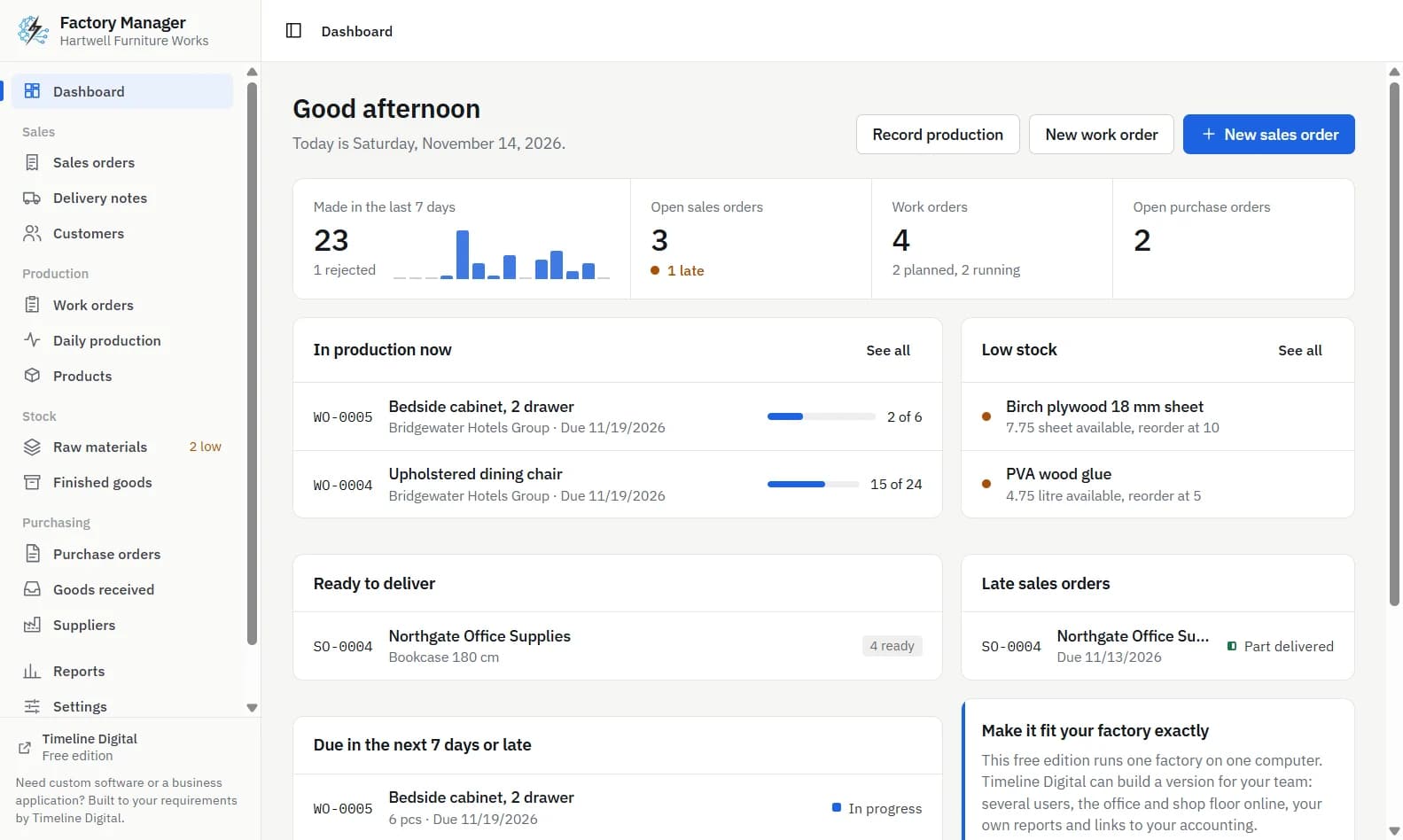
Timeline Factory Manager, work order page with materials reserved, production recorded and buttons for the job card and material issue slipTimeline Factory Manager, daily production screen with made and rejected boxes for each running work order
Who needs more than a printed job card?
The free app prints a job card and records daily production on one computer. It does not have routings and operations, machine and shift planning, barcode or QR code scanning, quality checks, labour costing, or several users. If your operators need to record production on shop-floor tablets, or each job has to pass through named operations, that is custom work. Timeline Digital builds custom manufacturing systems to a factory's own requirements, starting with a free pilot. Tell us what your shop floor needs.
Frequently asked questions
What is a job card in production?
A job card is the shop floor copy of a work order. It names the product, the quantity to make, the materials required and the dates, and it has a table where operators write the good and rejected units for each day. One job has one card, and the card returns to the office with the real numbers when the job is finished.
What should a production job card include?
A production job card should include a job or work order number, the product and its code, the quantity to make, the customer or sales order, the planned start and due date, any special instructions, each material with its quantity per unit and total required, and a daily production table with date, operator, good units, rejected units and notes.
How do I make a job card in Excel?
Build one template sheet with a header for the job number, product, quantity and dates. List each material from the bill of materials with its quantity per unit, and use a formula to multiply it by the quantity to make. Add an empty daily production table below, then save a copy of the file for each new job.
What is the difference between a job card and a work order?
A work order is the office record that instructs the factory to make a quantity of one product by a date, and it is where status and stock are tracked. A job card is the printed sheet made from that work order for the shop floor. The work order holds the record, and the job card carries it to the people doing the work.
Can I print a job card with free software?
Yes. Timeline Factory Manager is a free offline desktop app for Windows and Apple silicon Macs that prints a job card from any work order, or saves it as a PDF. The materials required are worked out from the bill of materials, and the card shows your company details and logo. It runs on one computer for one user.
Describe what is slowing your team down. We will help you work out what to build, and how a free pilot lets you judge our work before the full project.