Timeline Restaurants POS · v2.0.1 · Windows and Mac
Every feature of the free offline restaurant POS, explained
Timeline Restaurants POS is a free restaurant point-of-sale app for one Windows PC or Mac. It takes dine-in, takeout and delivery orders, manages tables, records cash and card payments, prints receipts and kitchen tickets, tracks stock, runs promotions and closes the day with a Z-report. It works without the internet. Here is everything it can do.
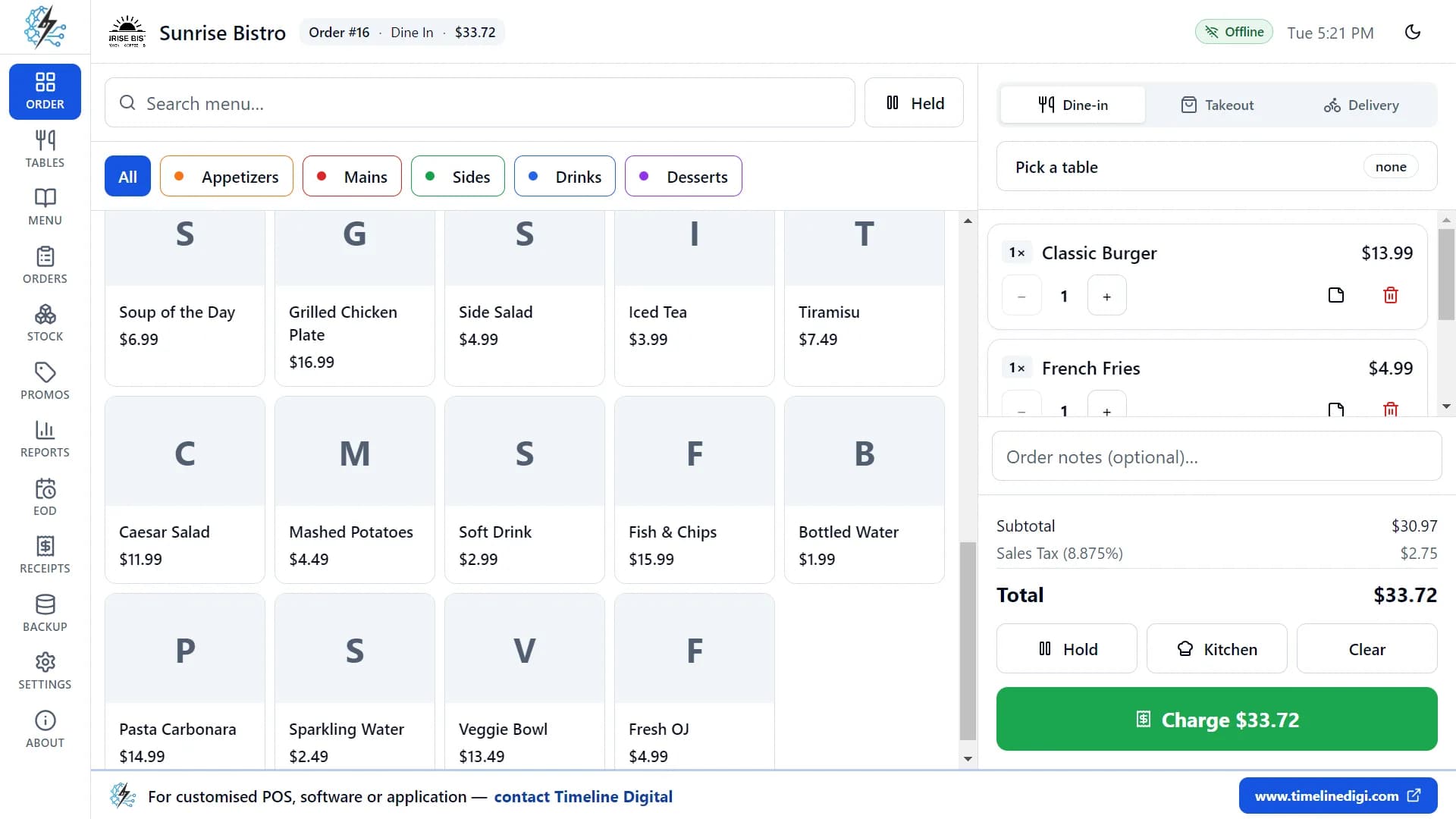
Lesson 2: A quick tour of the main screen (4:34). Prefer to watch? All 18 lessons are on the how to use it page.
Feature 1 of 17
Quick setup
The first time you open the app, a short three-step wizard sets everything up.
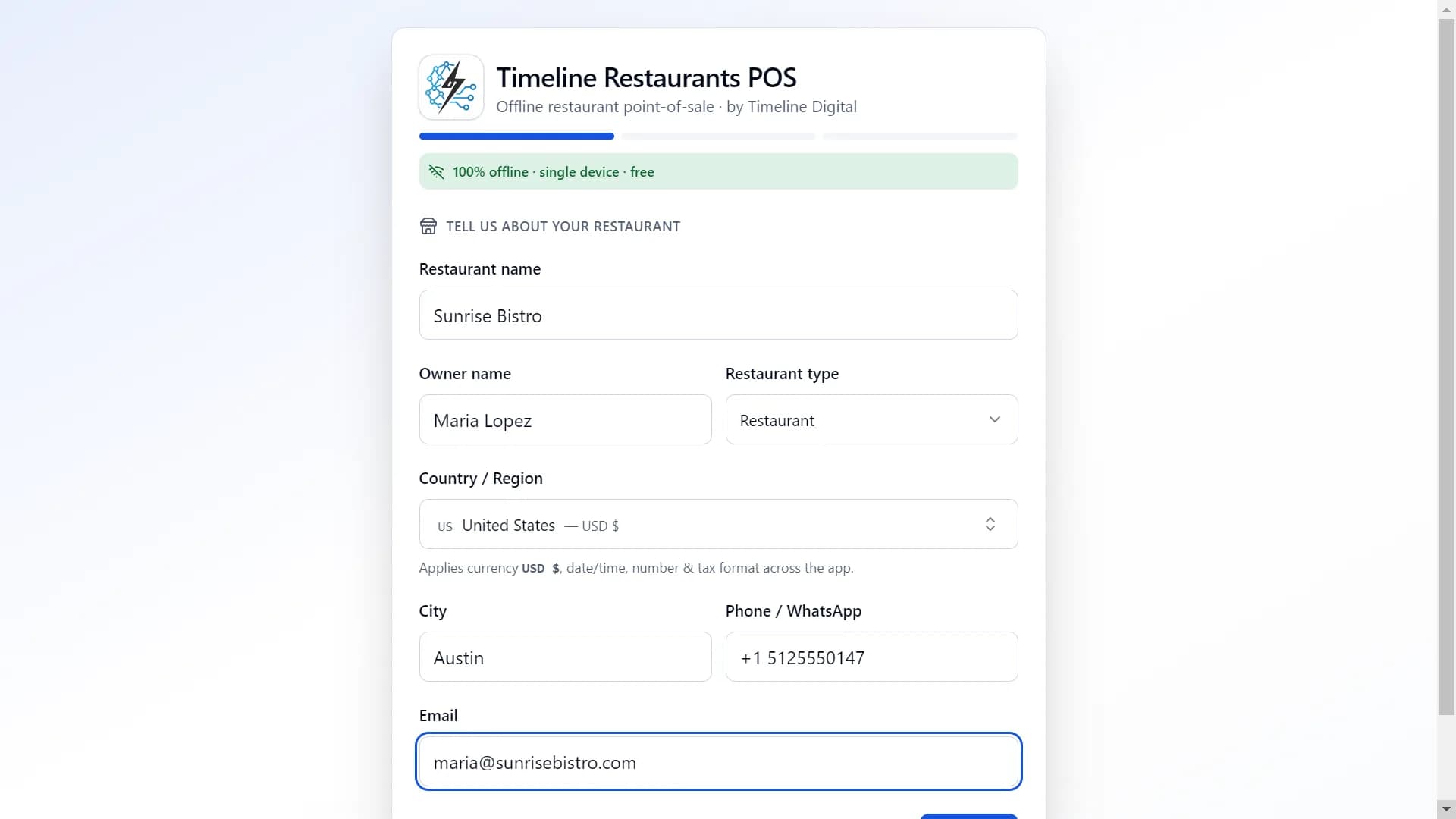
Step 1: your restaurant
- Enter your restaurant's name, the owner's name, city, phone or WhatsApp number, and email.
- Choose your type of business: Restaurant, Café / Coffee Shop, Fast Food, Bakery, Bar / Pub, Food Truck, Cloud Kitchen, Cafeteria, Fine Dining, or Other.
- Pick your country from a searchable list of 173 countries and regions.
- The app then sets your currency and symbol, number and date formats, a 12 or 24 hour clock, and a starting tax rate.
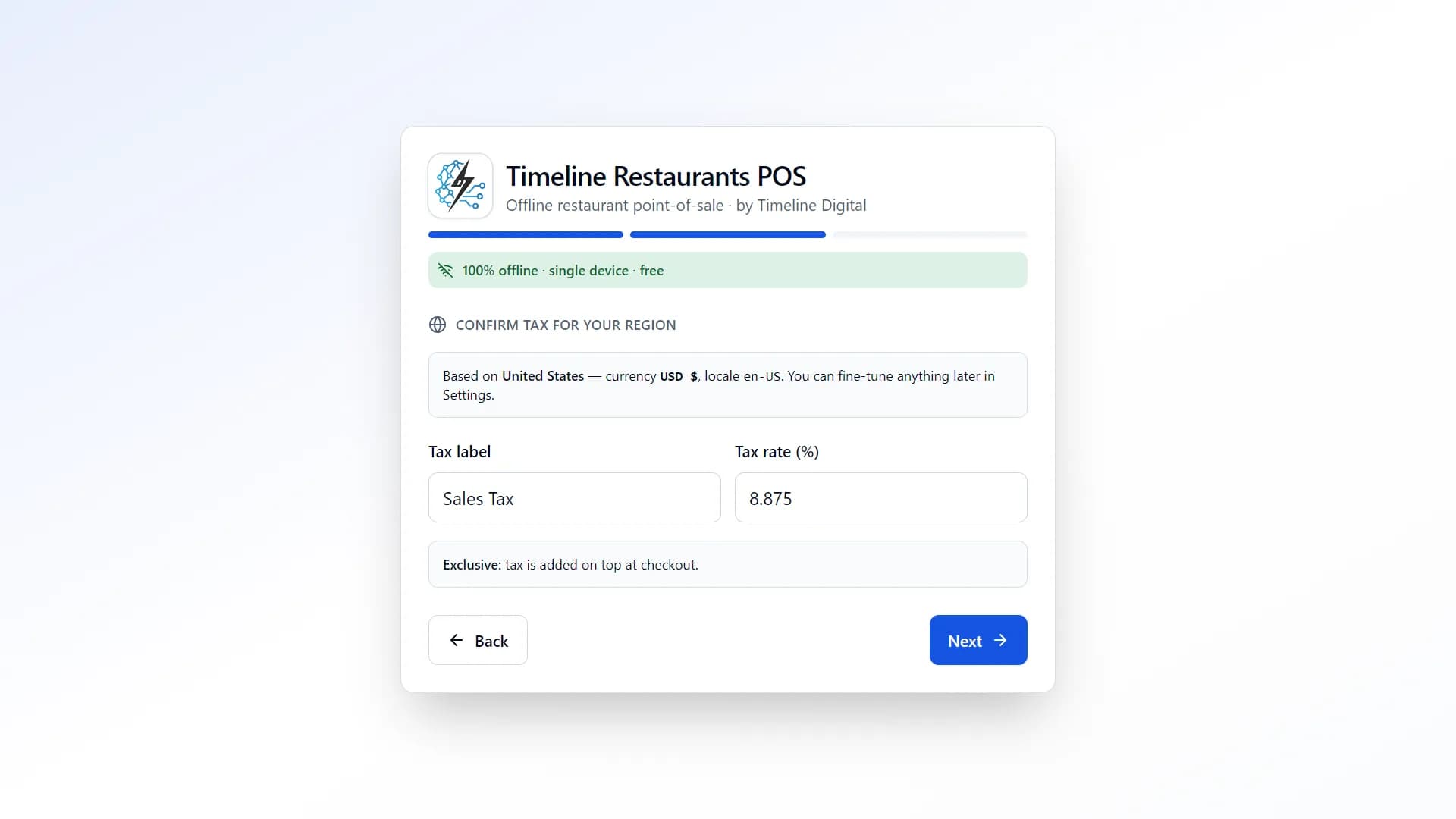
Step 2: your tax
Check the tax name and rate for your country, and change them if needed.
- United States: "Sales Tax", added at checkout.
- Germany: "MwSt" 19%, included in prices.
- Mexico: "IVA" 16%, included in prices.
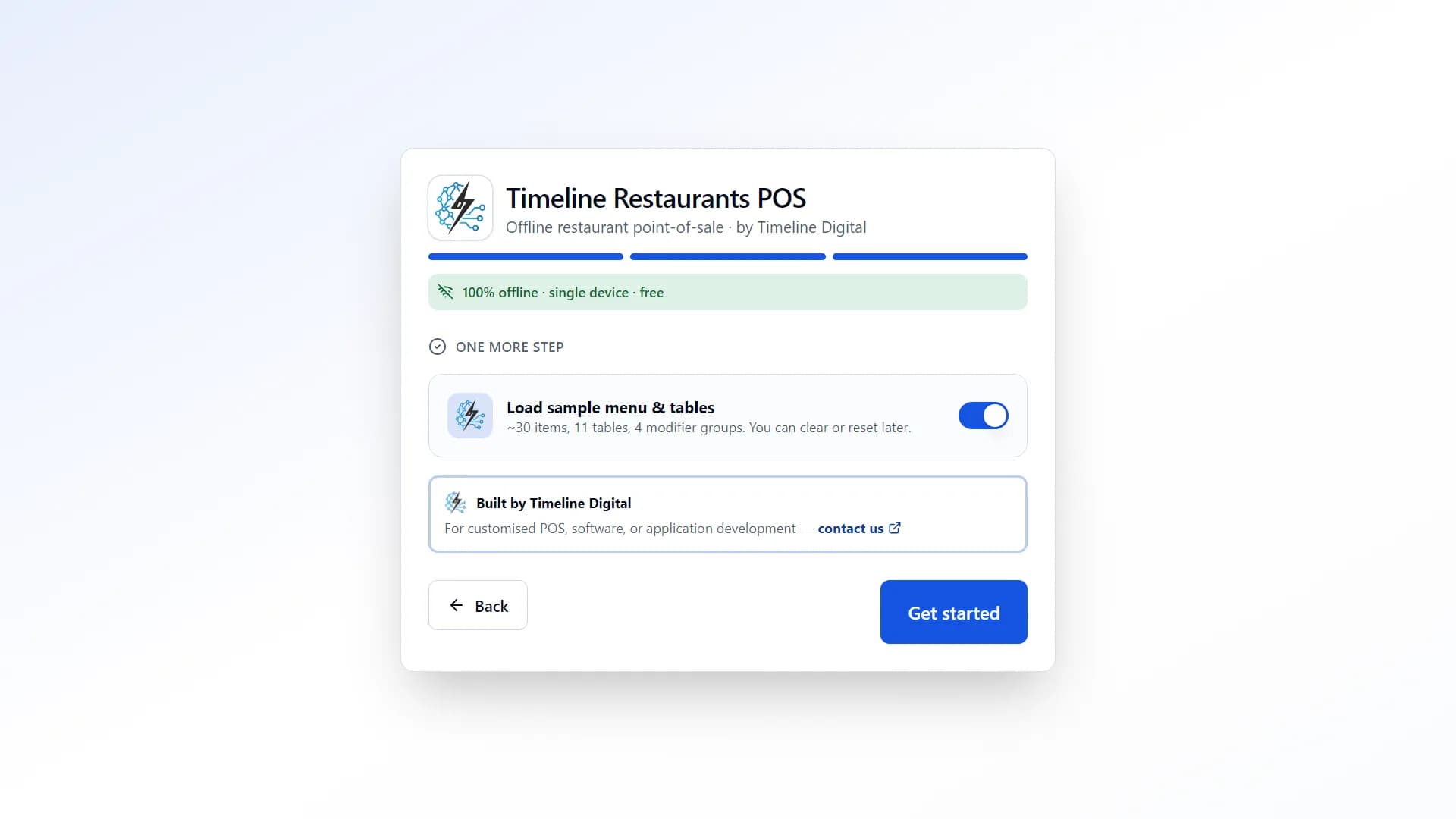
Step 3: sample data
With one switch, load a complete sample menu and floor plan, so you can practise straight away. You can delete the sample data later.
- 34 items in 5 categories.
- 4 modifier groups.
- 11 tables.
Feature 2 of 17
Taking orders
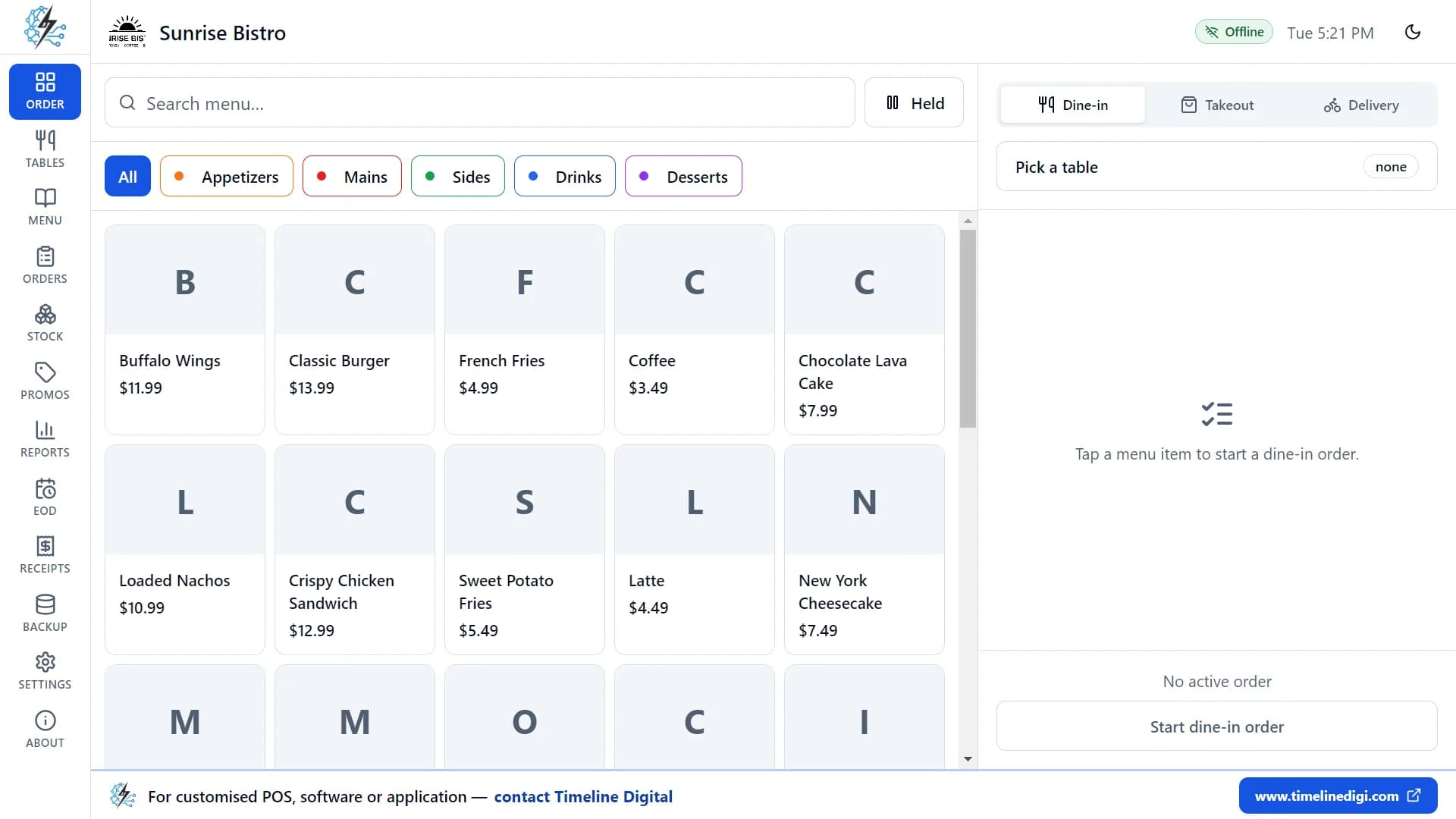
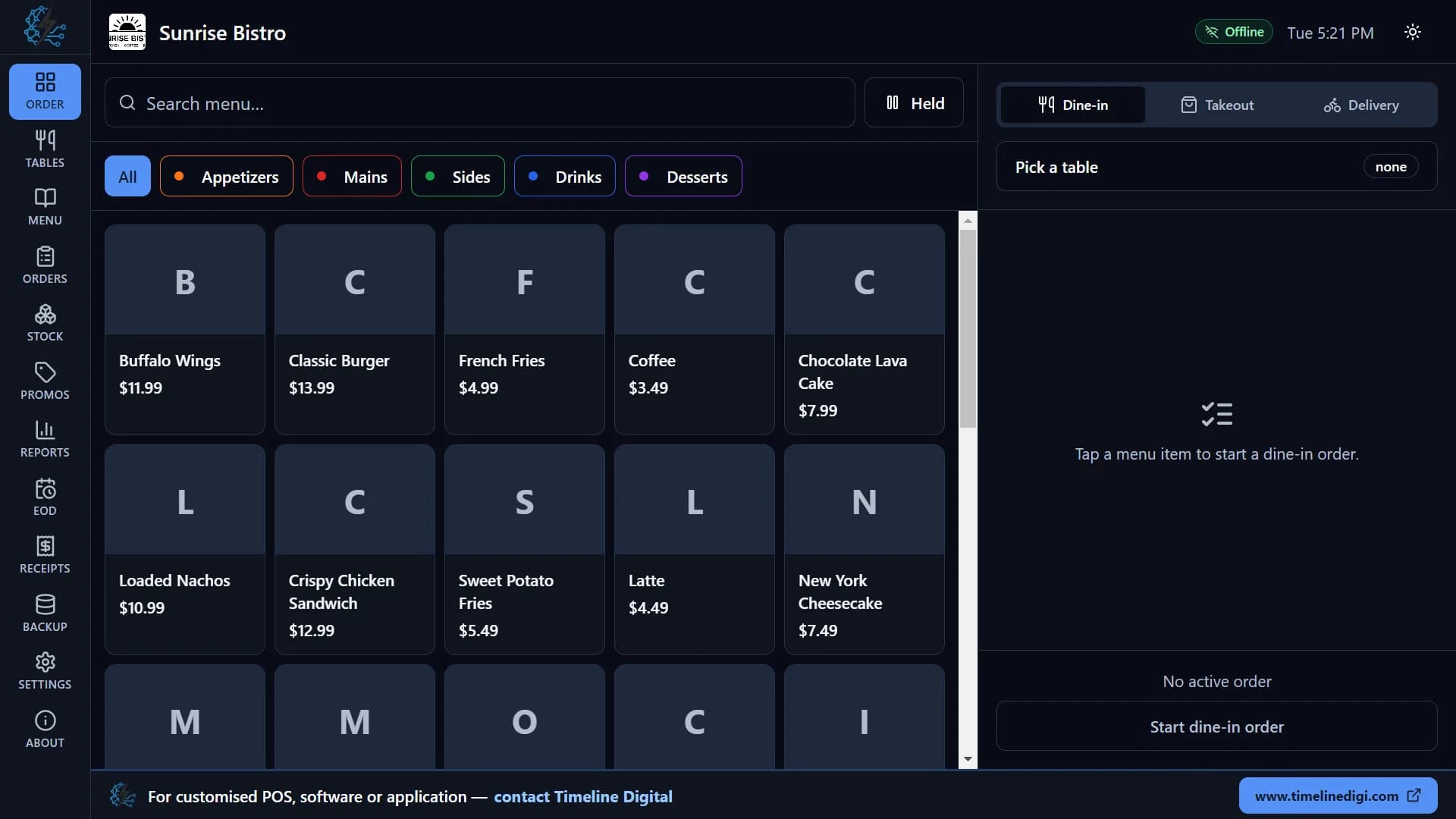
The order screen has your menu on the left and the current order on the right.
Three order types
Dine-in, Takeout and Delivery. Switch at any time, even after items are added. The app remembers the type you used last.
Find items fast
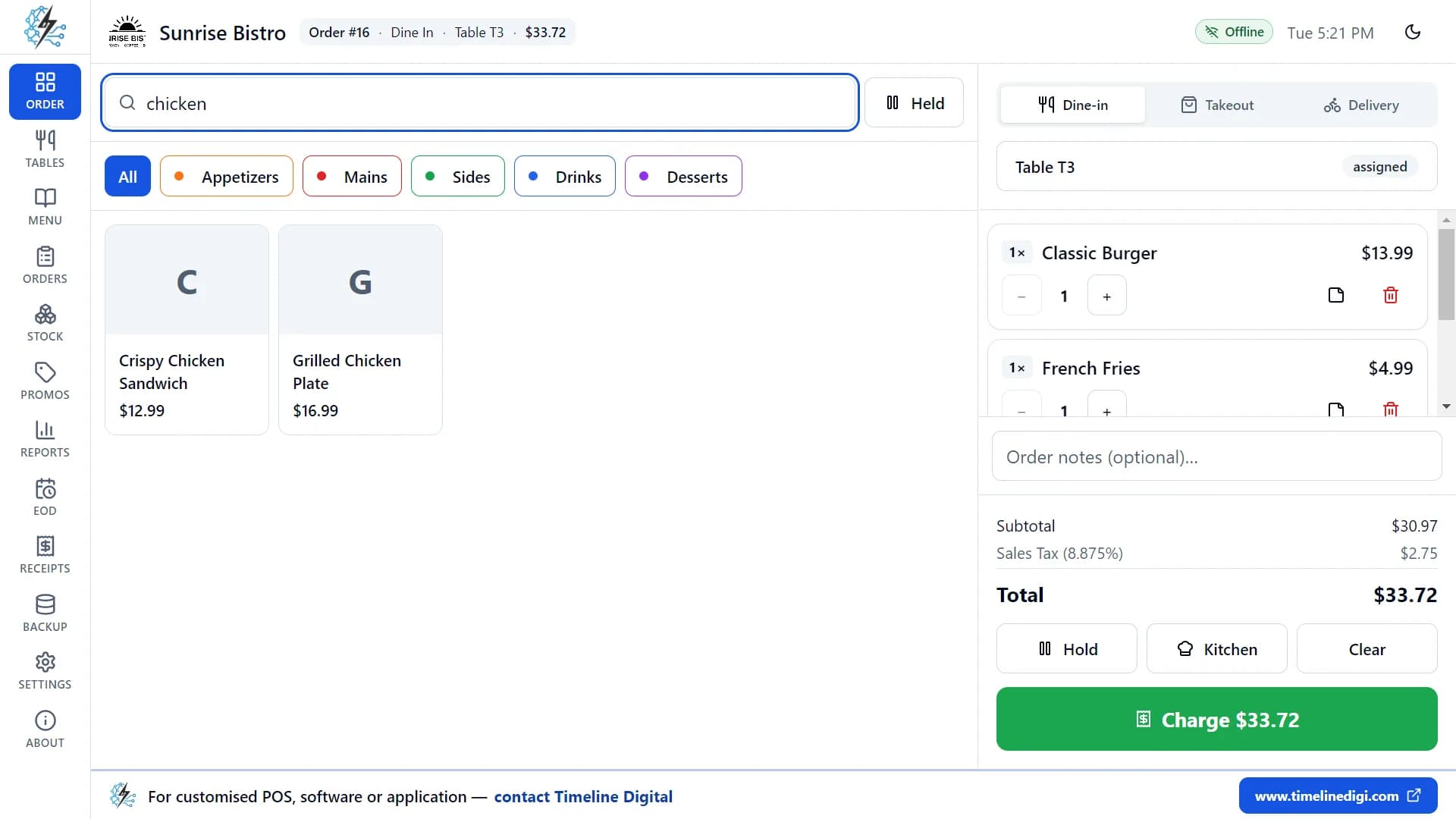
- Tap a category to filter the menu, or type in the search box to find an item by name.
- Items show a photo (or their first letter) and their price.
- Items that are sold out are hidden automatically.
Sizes and options
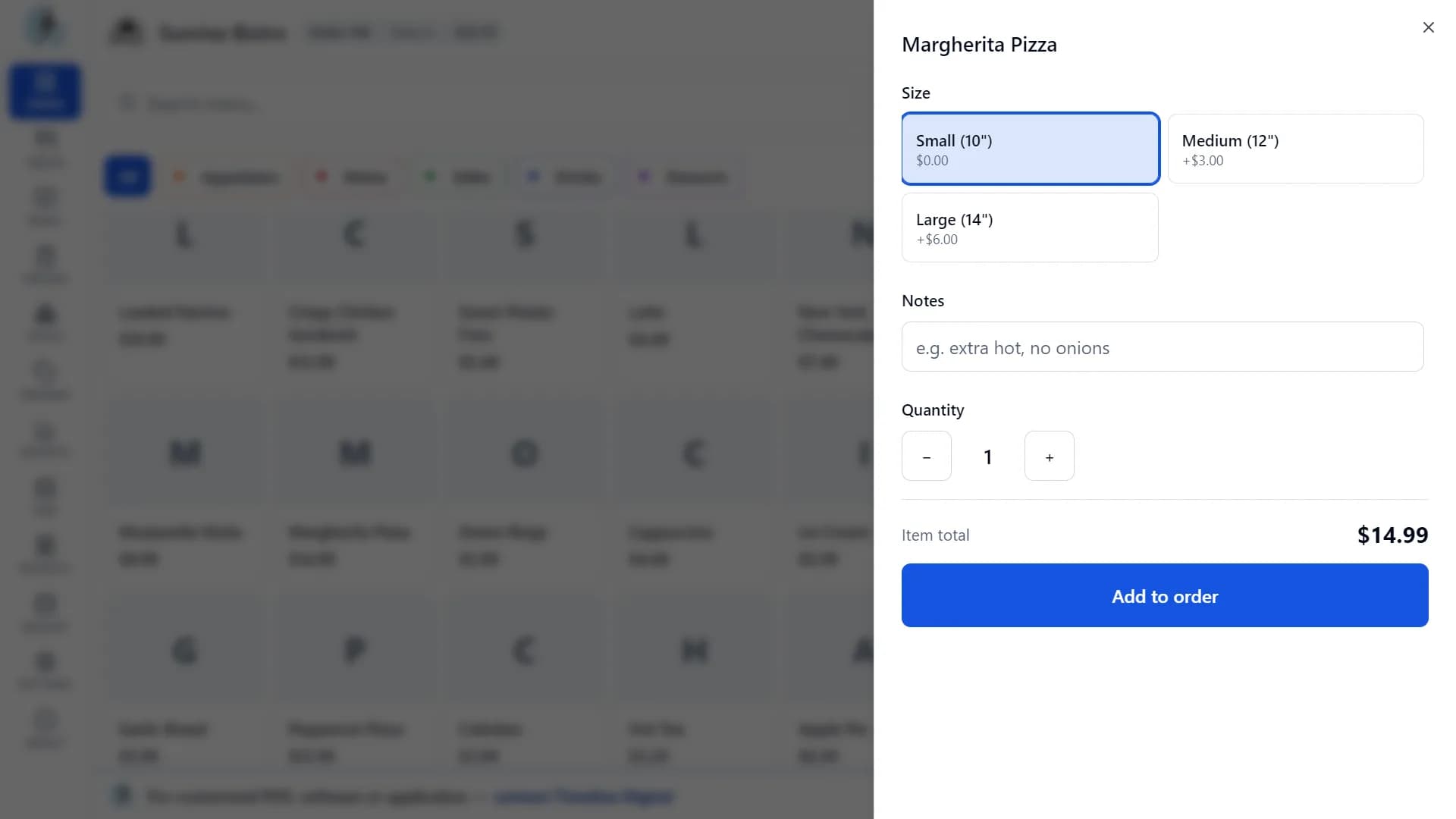
When an item has sizes or extras, a side panel opens. The item price updates as you choose.
- The size, with any price difference shown.
- Extras such as toppings, sauces or milk.
- A note, for example "extra hot, no onions".
- The quantity.
- Required choices must be picked before the item can be added, so nothing is forgotten.
Simple items in one tap
Items without options go straight into the order. Tap the same item again to add one more.
Easy changes
- Change quantities with + and -, add a note to any line, or remove a line.
- Add a note for the whole order. For takeout or delivery, this is a good place for the customer's name, phone number and address.
Live totals
The subtotal, discount, tax and total update as you go.
The top bar
It always shows your restaurant name and logo, the current order (number, type, table and total), an "Offline" badge, a live clock, and a light/dark theme switch.
Order numbers
Order numbers start again at 1 every day.
Feature 3 of 17
Hold and resume orders
A customer is still deciding, or someone else is waiting? Tap Hold.
How it works
- The order is saved and set aside, and the screen is clear for the next customer.
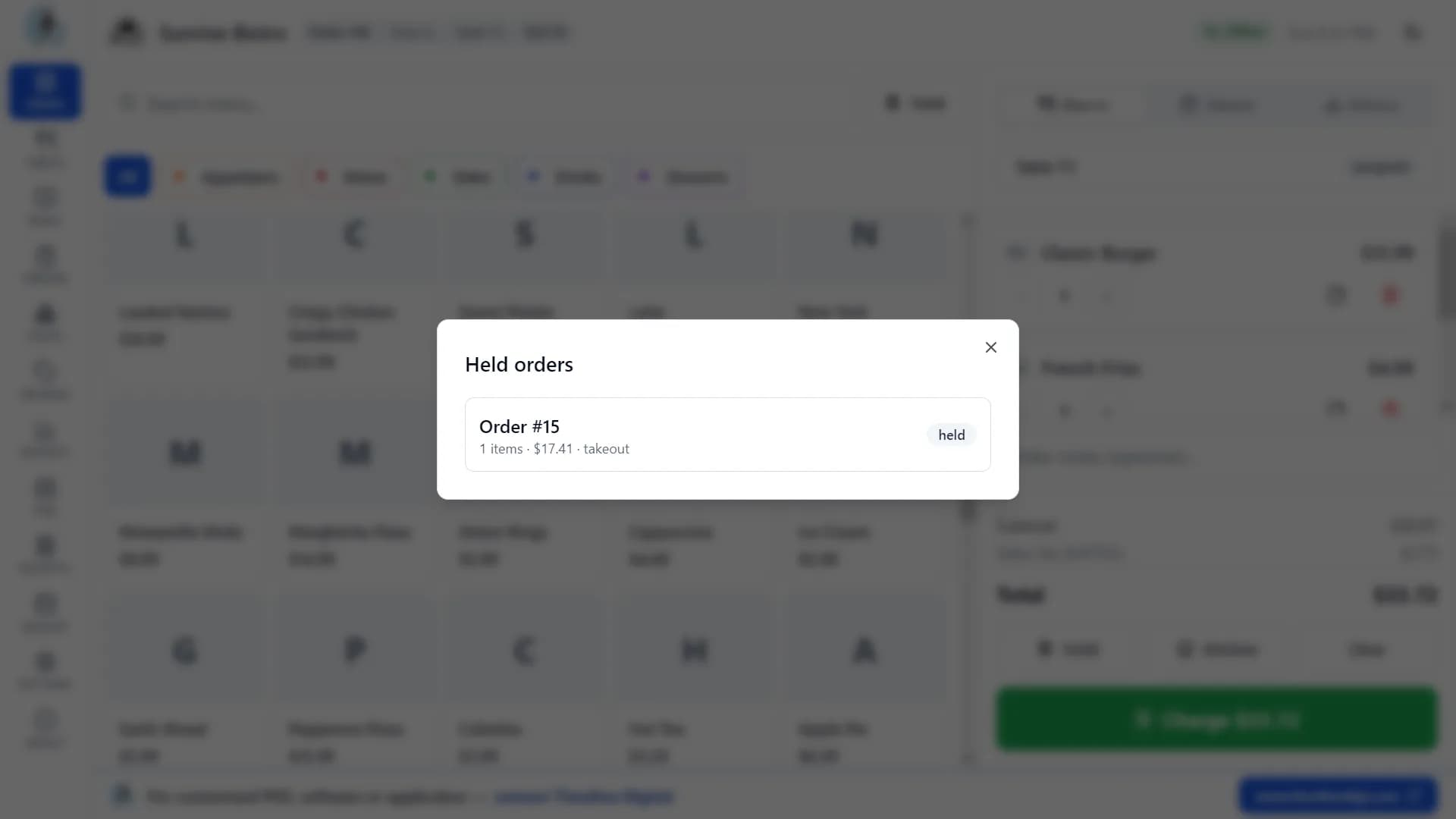
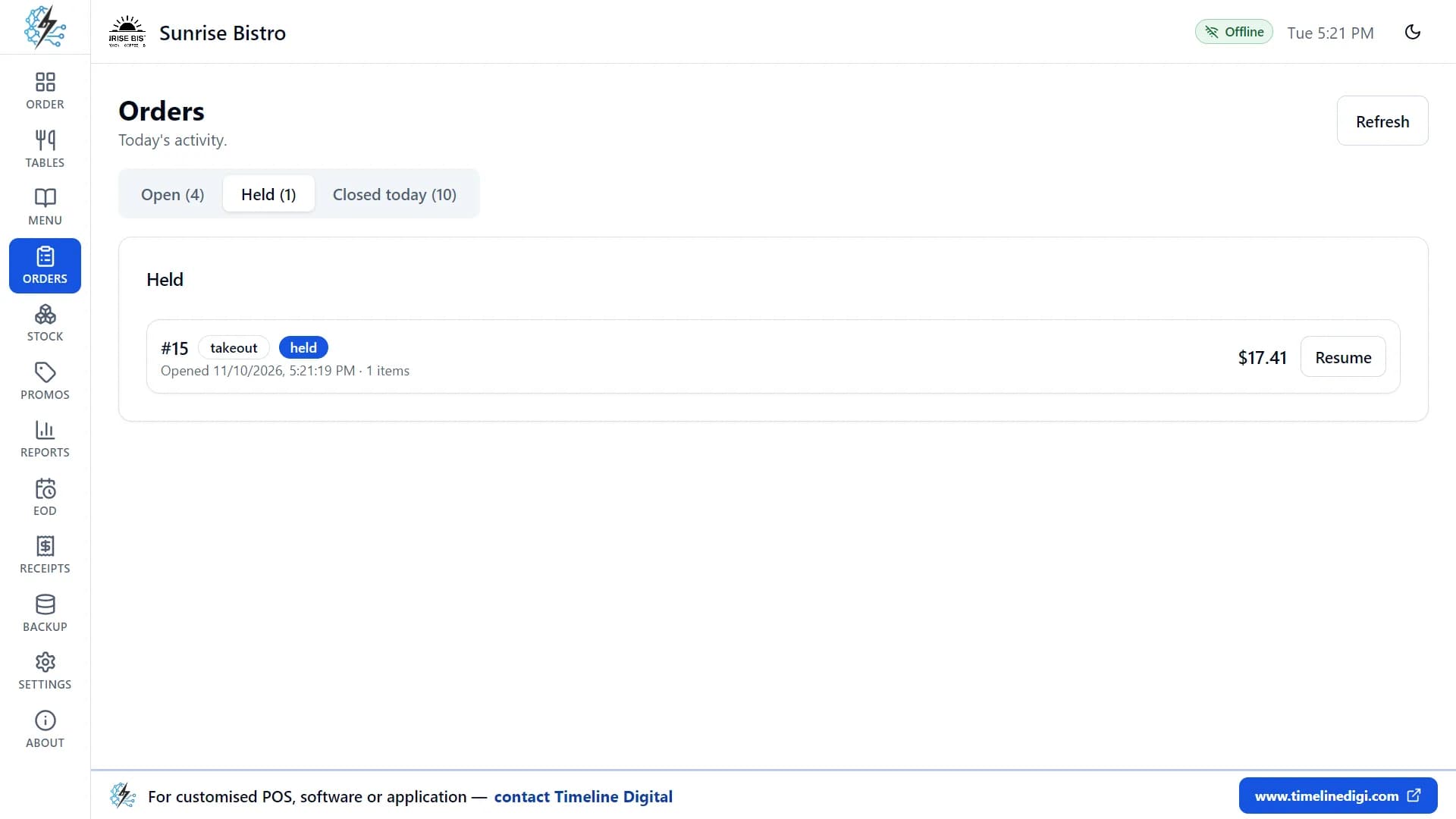
- Tap Held to see every parked order, with its item count, total and order type, and bring it back with one tap.
- If a dine-in order is held, its table is freed. When you resume it, it goes back to the same table if that table is still free.
Feature 4 of 17
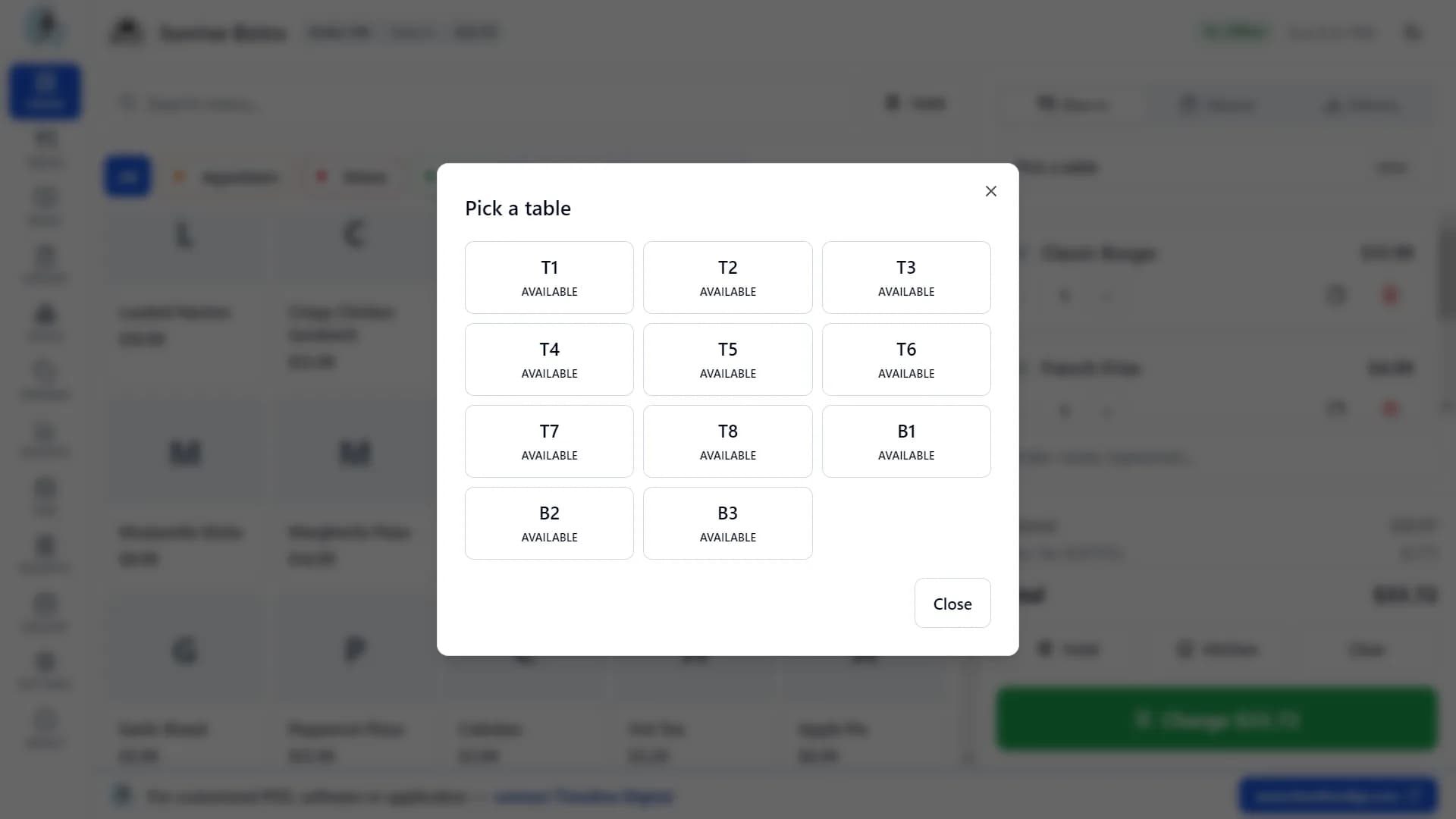
Tables and floor plan
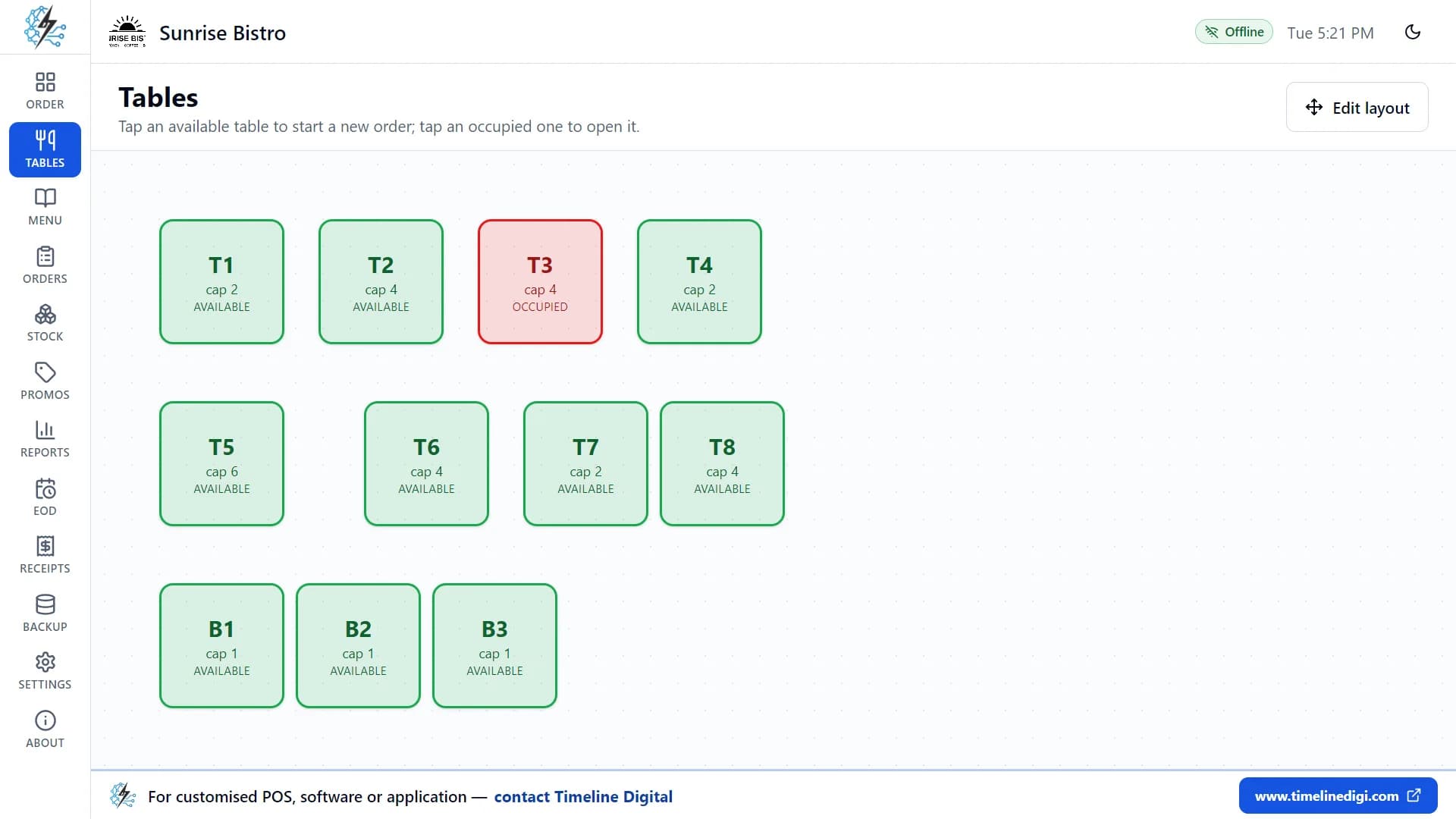
See your dining room at a glance. Every table shows its name, number of seats and status, in colour.
Table colours
- Green: available.
- Red: occupied.
- Amber: reserved.
- Blue: being cleaned.
Start an order from a table
Tap a free table to start a dine-in order for it. Tap a busy table to open its order.
Reserved and cleaning
Right-click a table to mark it reserved or being cleaned. It turns red automatically when an order is open on it, and is freed when the bill is paid.
Your own layout
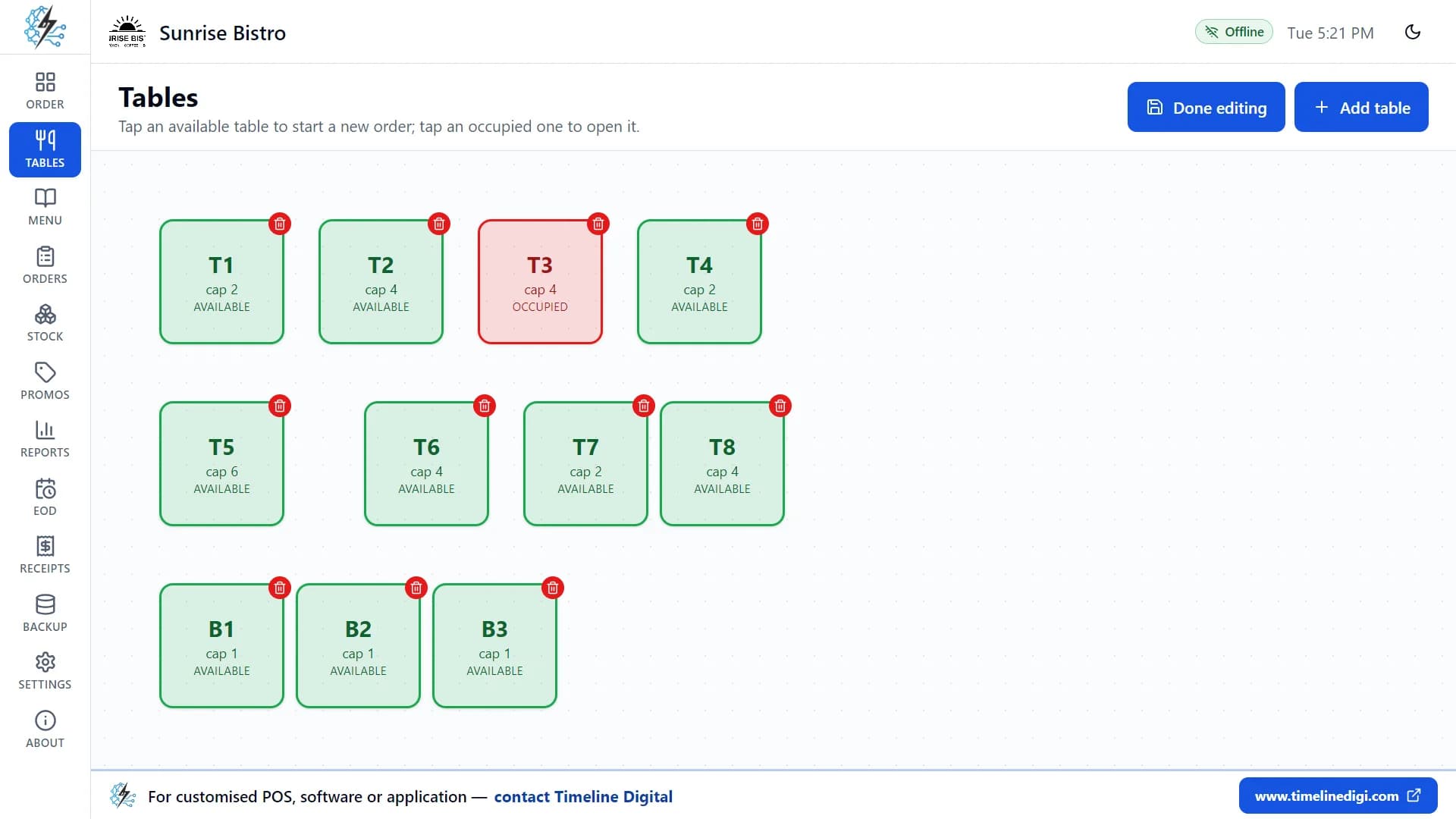
Turn on Edit layout to:
- Drag tables to where they really are.
- Add new tables with a name and number of seats.
- Delete tables you no longer use.
Feature 5 of 17
Taking payment
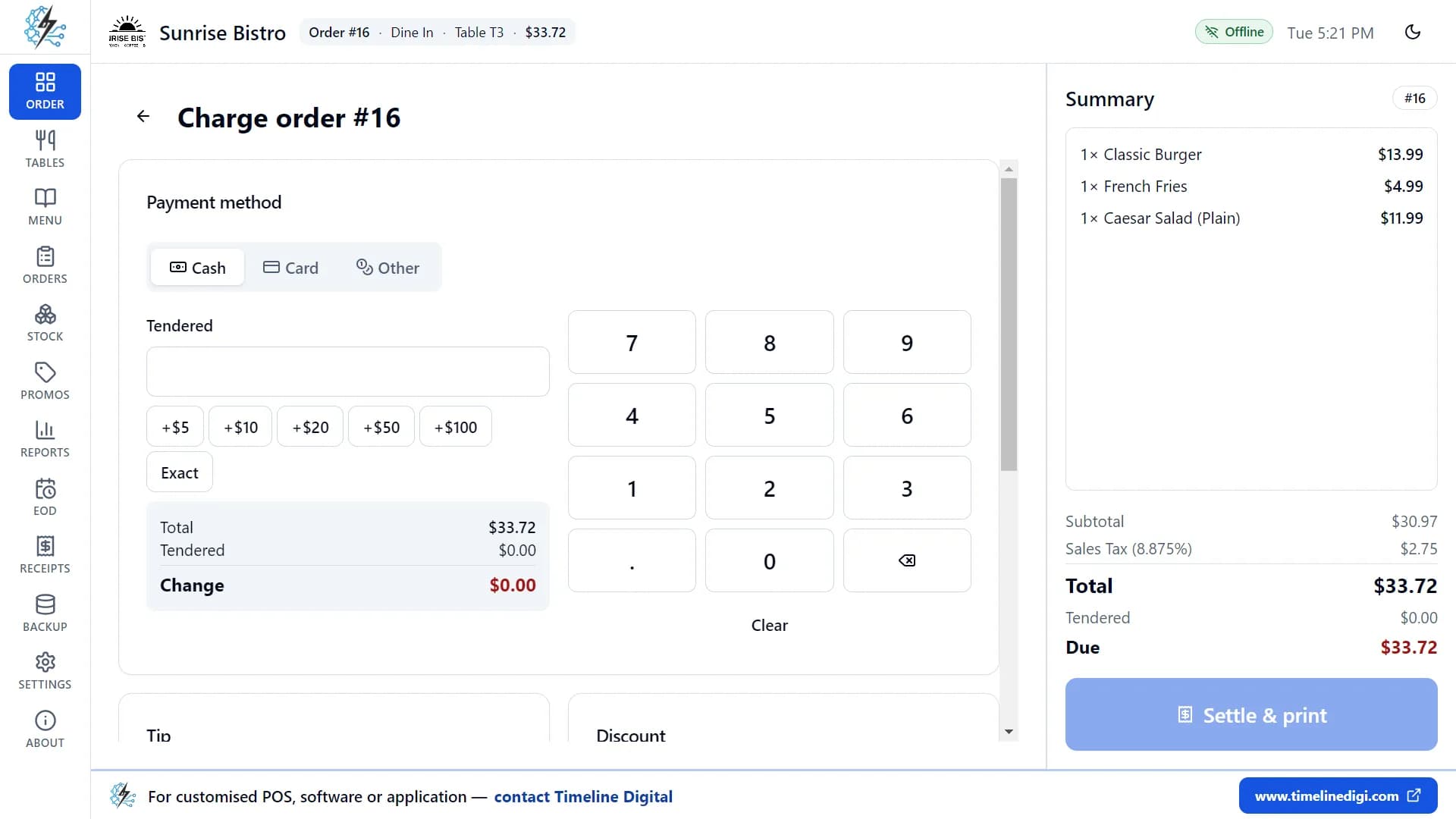
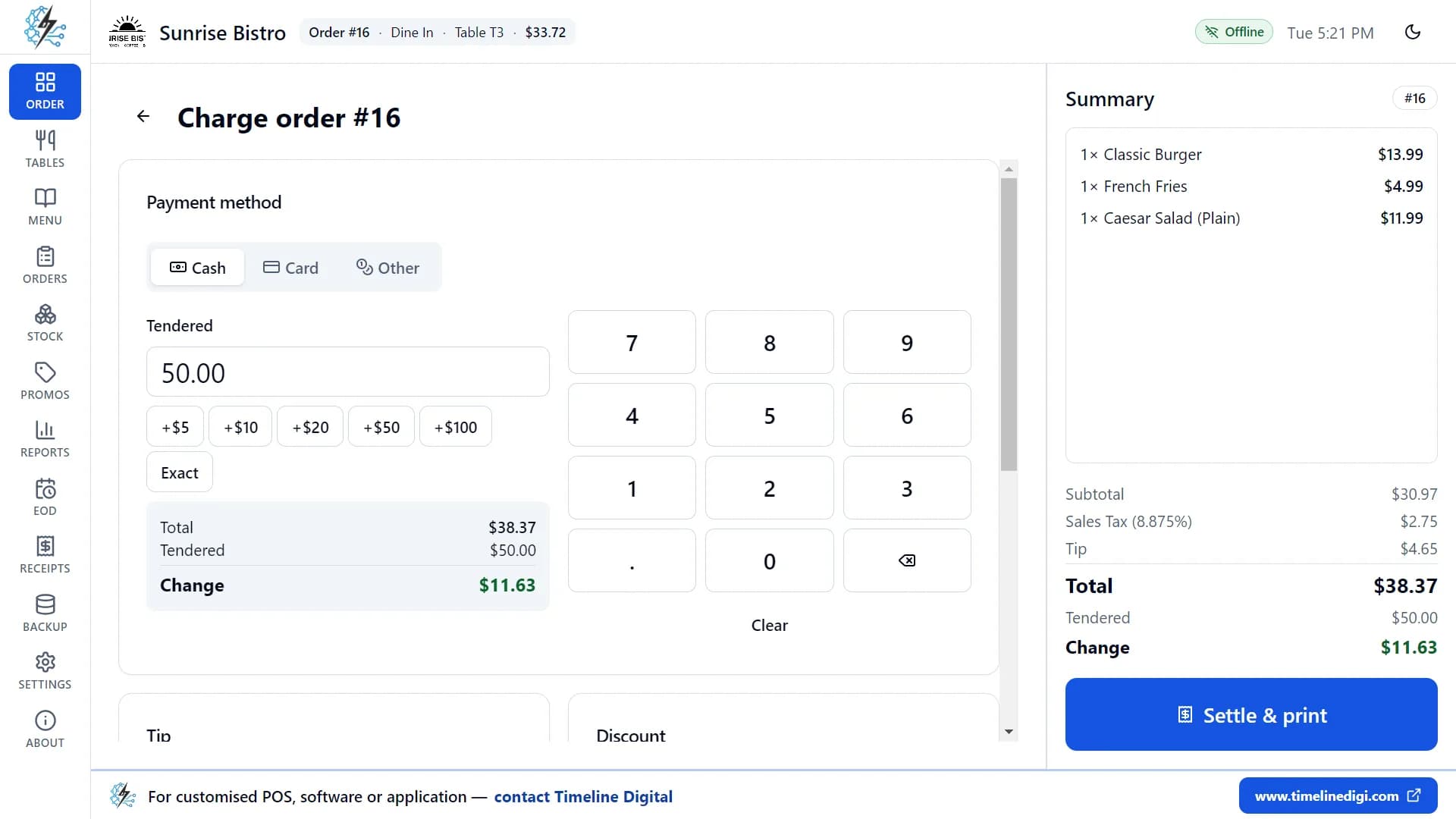
When the guests are ready to pay, tap Charge. The payment screen shows the full bill on the right and the payment options on the left.
Cash
- Type the amount the customer hands you, or use the on-screen number pad.
- Quick buttons add +5, +10, +20, +50 or +100, and "Exact" fills in the exact amount.
- The change is worked out for you, and you can't finish until enough cash is entered.
Card
- Take the card payment on your own card terminal, then mark it paid.
- You can type a reference, such as the last four digits.
- The app does not connect to card terminals or payment gateways.
Other
For gift cards, vouchers, staff meals or anything else, with an optional reference.
Tips
- One-tap tip buttons, set in Settings: 15/18/20%, 18/20/25%, 10/15%, or your own.
- Add a custom amount, or choose "No tip".
- Tips are calculated before tax and shown on the receipt.
Discounts
- Automatic promotions are applied for you, and the best one wins.
- Type a promo code to apply a code-based deal.
- Add a manual discount as a percentage or a fixed amount.
- A discount can never be more than the bill.
Settle and print
One tap finishes the sale, frees the table, updates your stock, prints the receipt, and opens the cash drawer for cash payments if you have one connected. It's safe to double-tap: the same order can never be charged twice. If the printer fails, the sale is still saved and you can reprint.
Feature 6 of 17
Kitchen tickets
Tap Kitchen on any order to print a kitchen ticket.
What the ticket shows
- The order number, table, order type and time.
- Every item with its size, extras and notes.
- The order note.
Where it prints
Kitchen tickets can go to your receipt printer or to a separate kitchen printer.
Feature 7 of 17
Orders
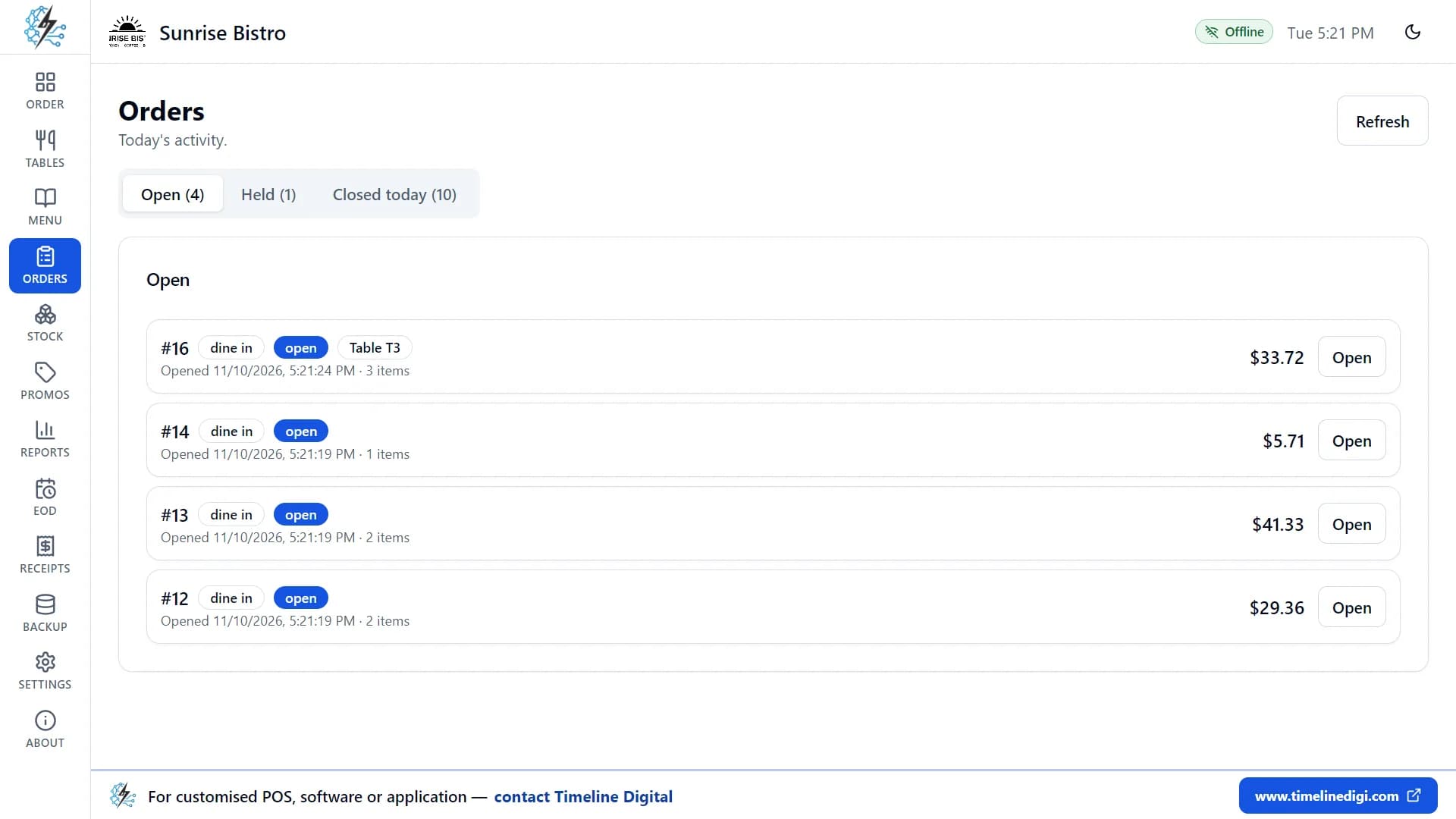
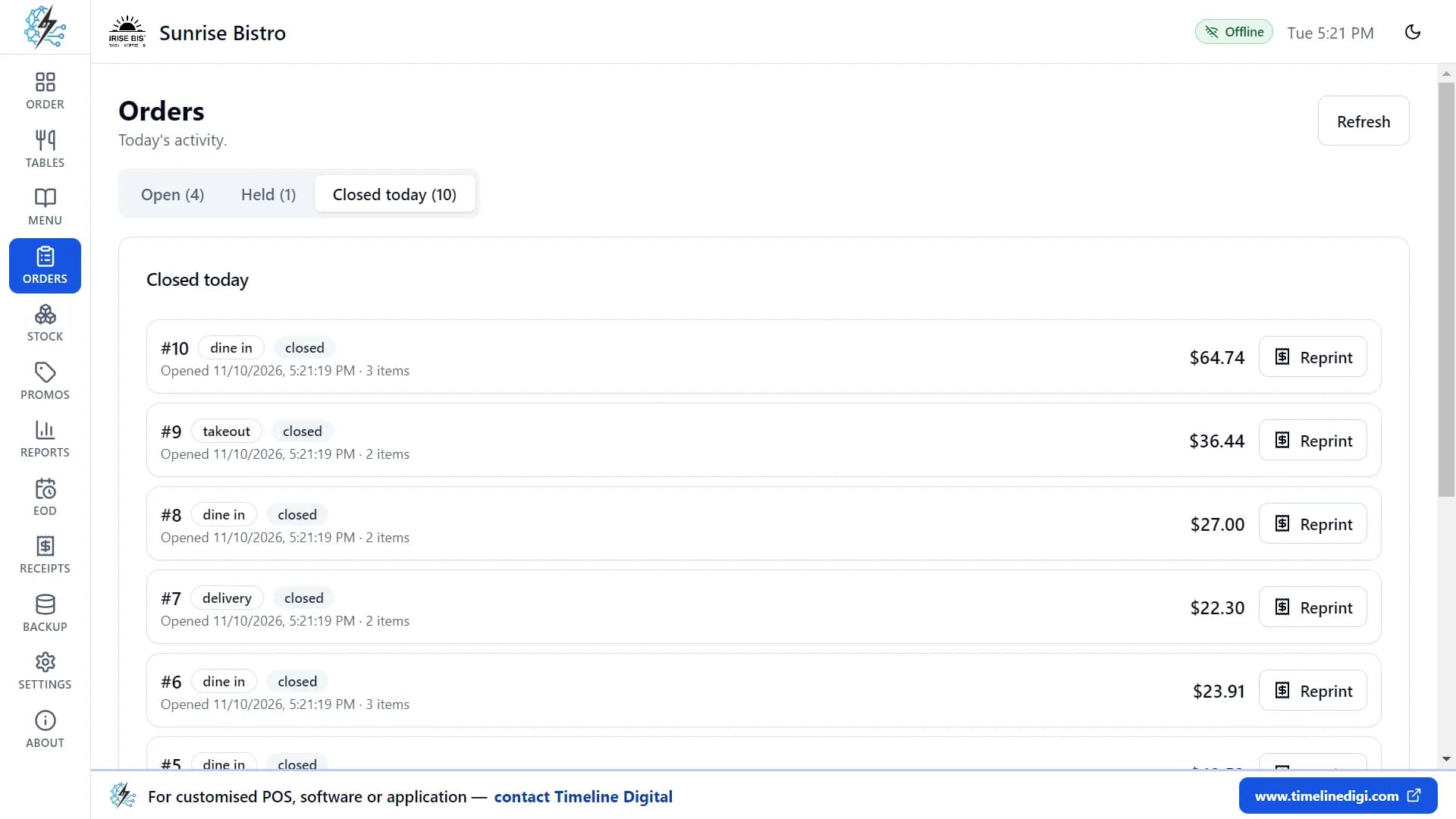
The Orders page shows today's activity in three tabs.
Three tabs
- Open: orders still running. Tap Open to continue one.
- Held: parked orders. Tap Resume.
- Closed today: paid orders. Tap Reprint to print a copy of any receipt, clearly marked "REPRINT".
What each order shows
Its number, type, status, table, the time it was opened, the number of items and the total. To look at earlier days, use Reports.
Feature 8 of 17
Menu
Build your menu from categories, items, sizes and modifier groups.
Categories
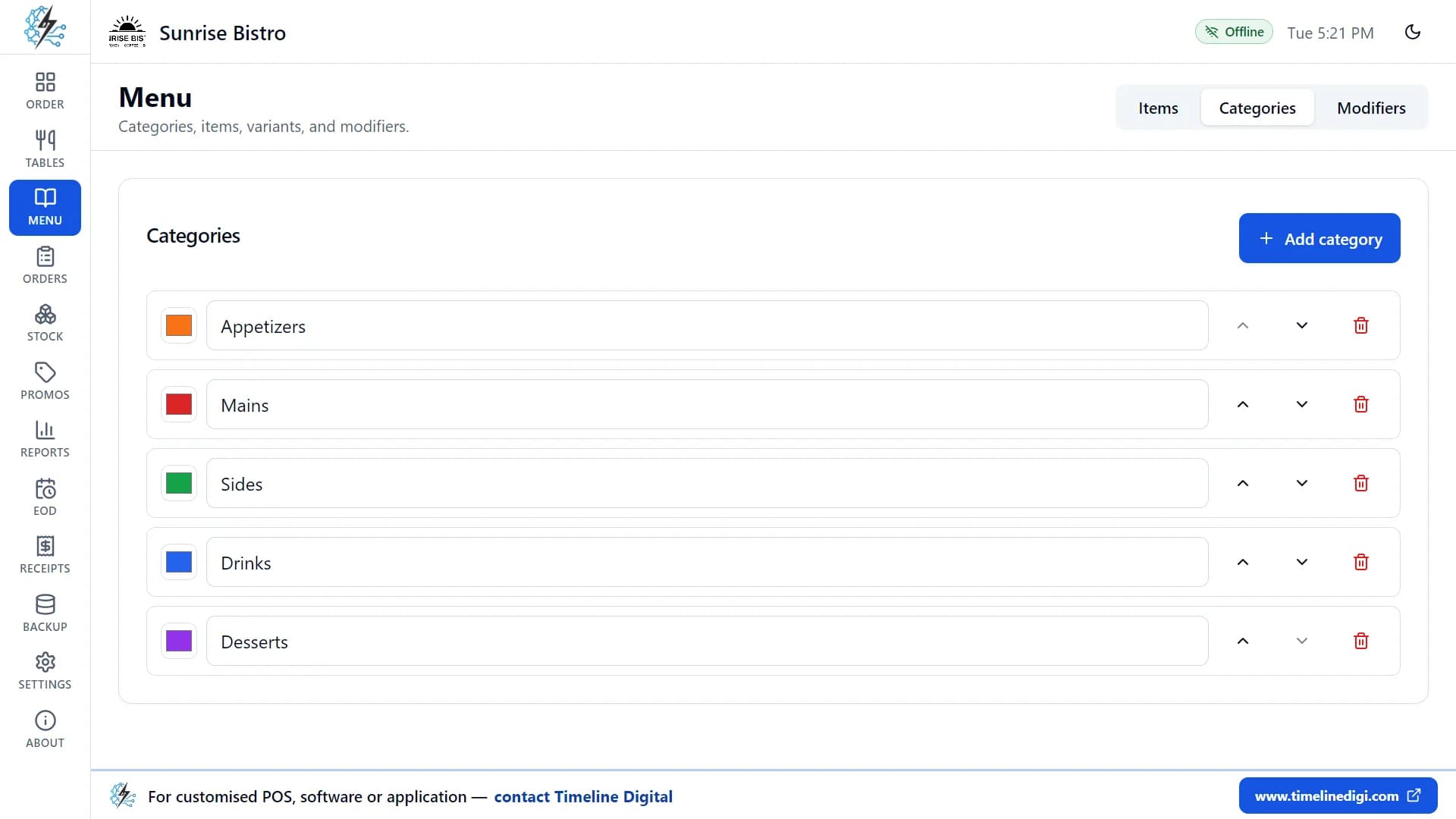
- Create categories such as Starters, Mains and Drinks.
- Give each one a colour, and arrange them in the order you like. The order screen follows your choices.
Items
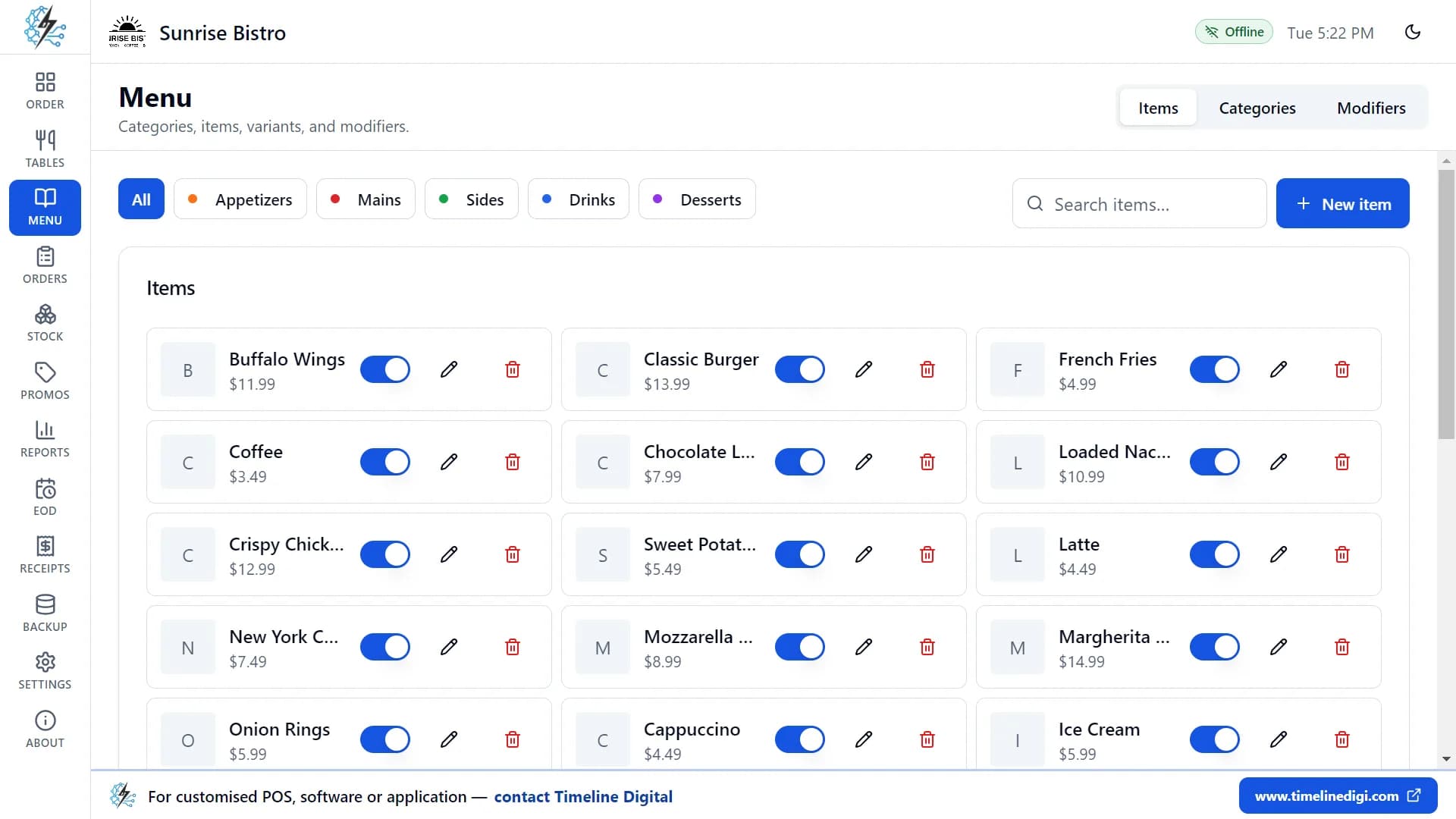
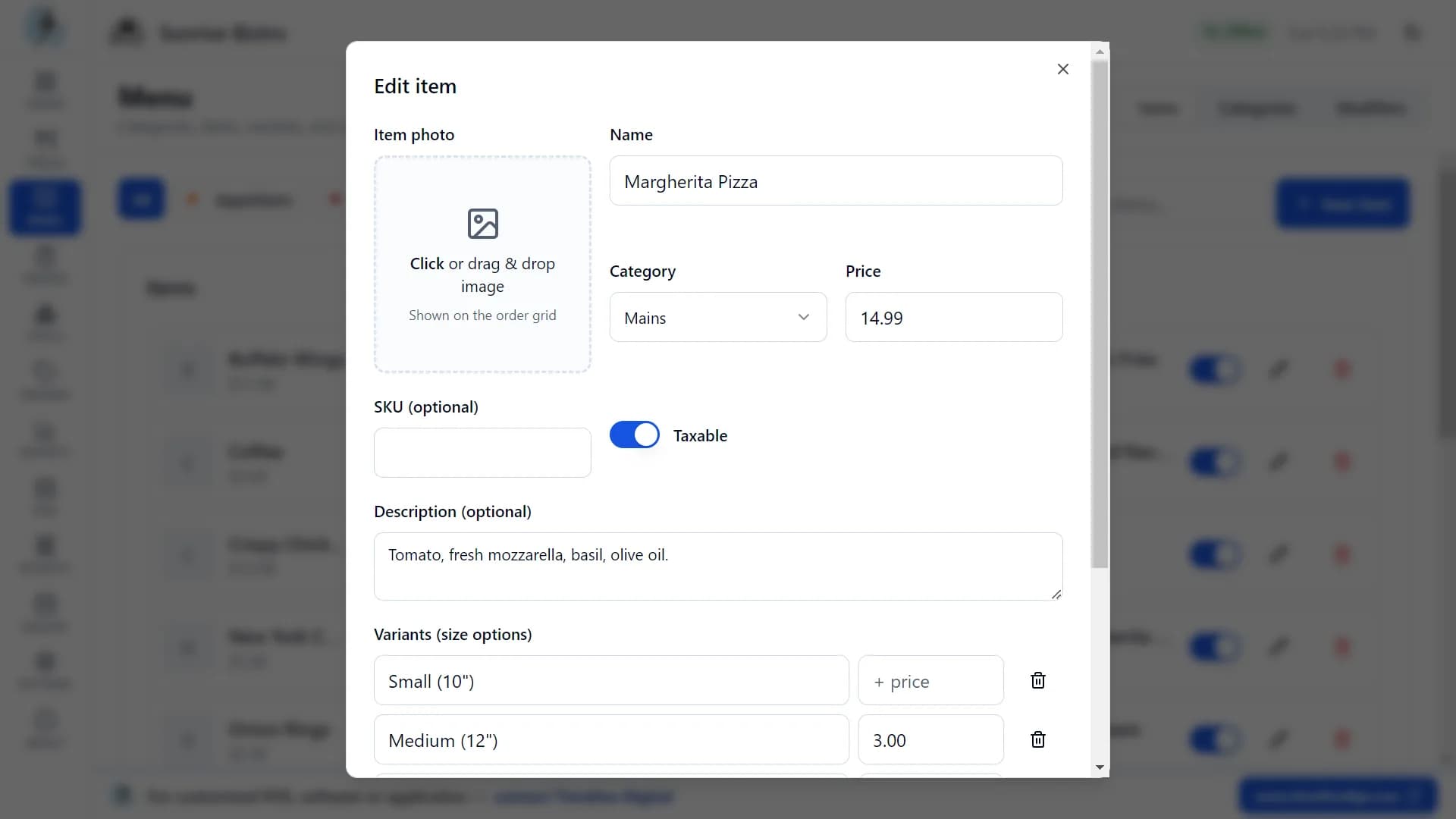
You can search the item list by name or SKU, and filter it by category. Each menu item can have:
- A name and price.
- A photo. Drag and drop a JPG, PNG, WEBP or GIF up to 5 MB.
- A category.
- An optional SKU code and description.
- Sizes, such as Small, Medium and Large, each with its own price difference.
- Modifier groups, such as toppings or spice level.
Sold out
Switch an item off and it disappears from the order screen at once. Switch it back on when it's available again.
Modifier groups
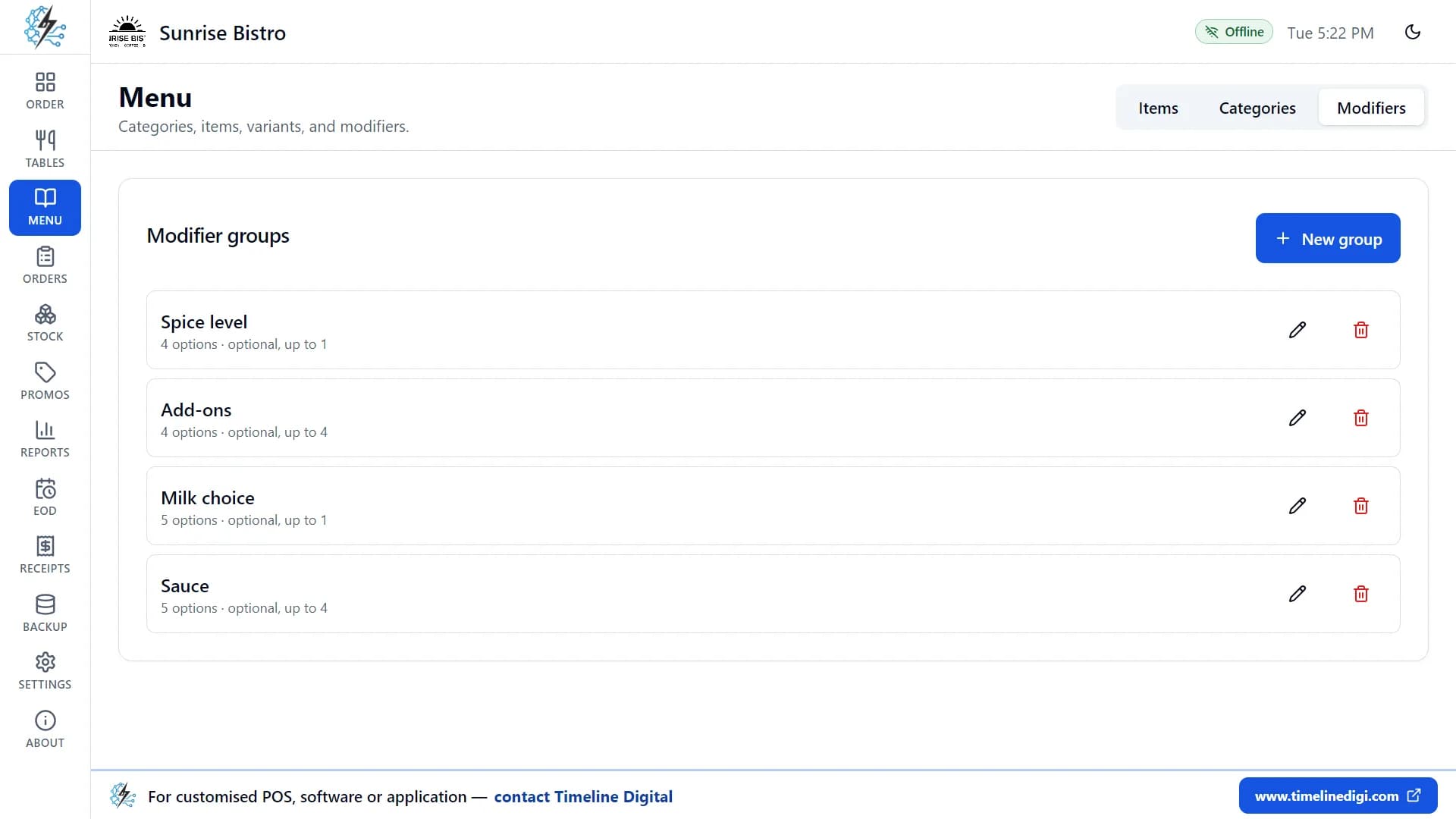
- Create groups of options, such as Spice level, Add-ons, Milk choice or Sauce. Each option can have its own extra price.
- Make a group optional ("up to 3 toppings") or required ("pick 1 sauce").
- Attach the same group to as many items as you like.
Feature 9 of 17
Stock and inventory
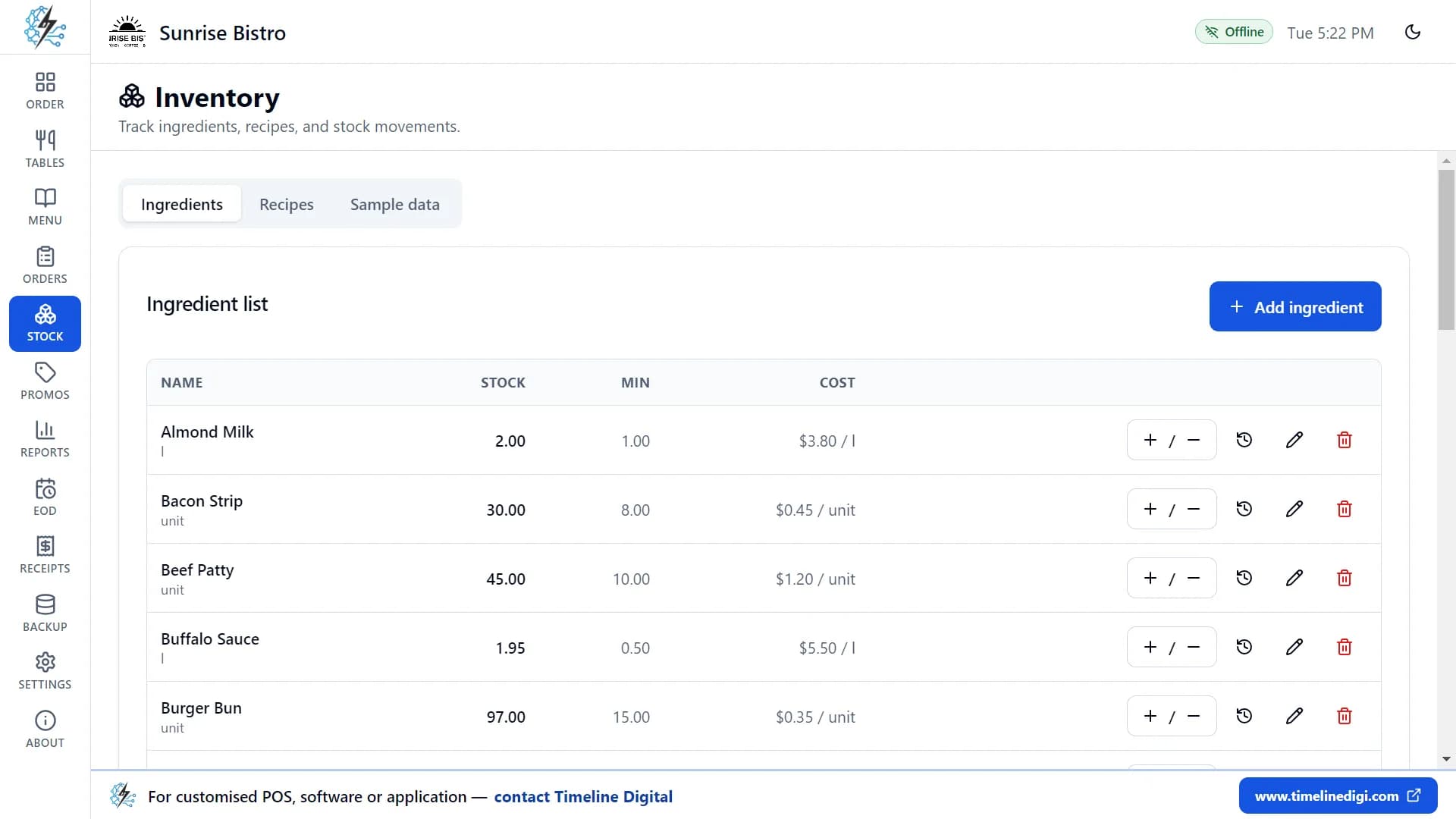
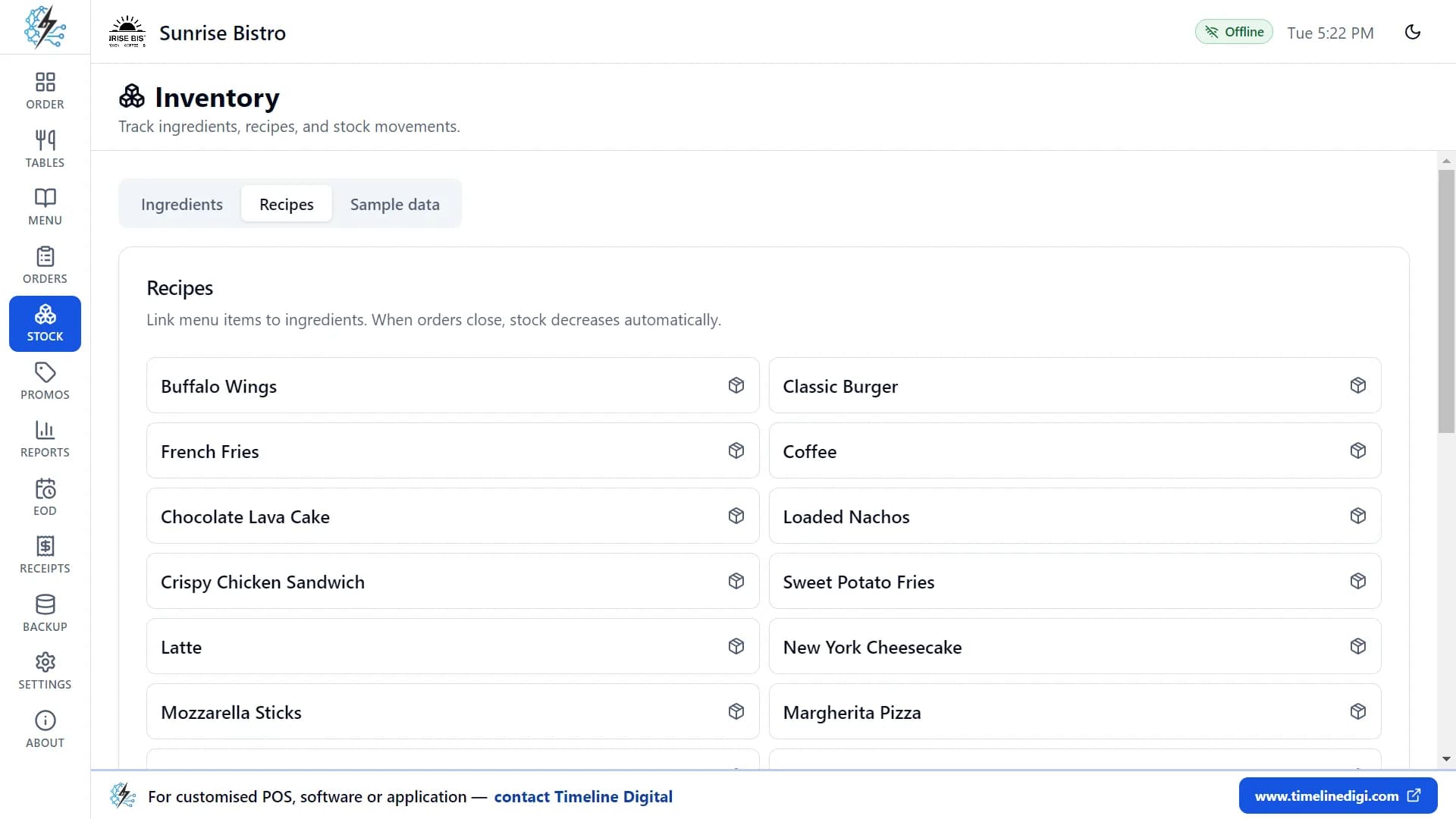
Add your ingredients and recipes, and the app keeps count for you.
Ingredients
Add your ingredients, each with a unit (kg, litre, piece), a cost per unit, how much you have in stock, and a minimum level.
Recipes
Tell the app what goes into each dish, for example one burger bun, one beef patty and two slices of cheese for a Classic Burger.
Automatic stock updates
Every time an order is paid, the ingredients in its recipes are taken out of stock automatically.
Deliveries, waste and corrections
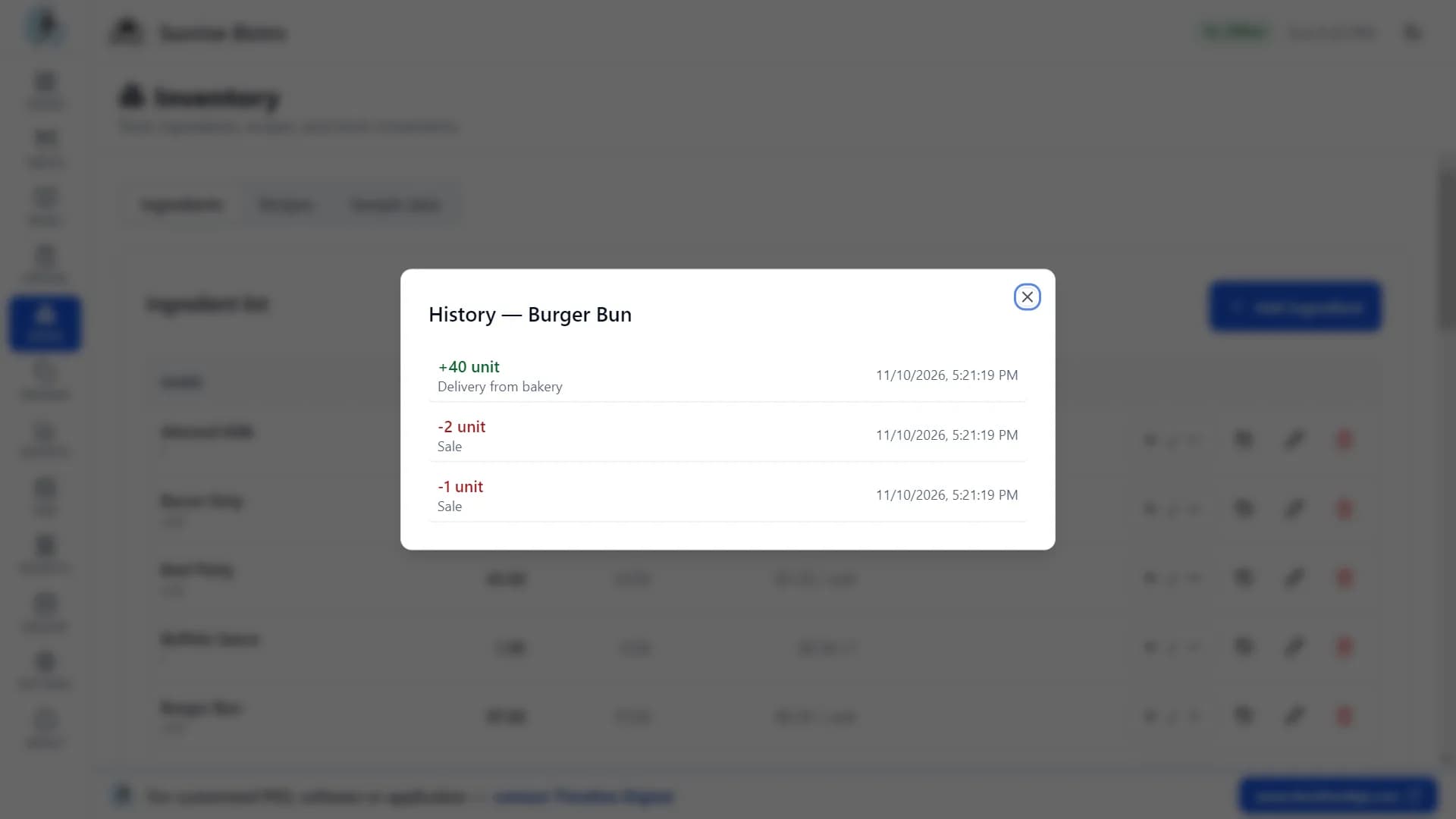
Add or remove stock at any time, with a reason such as "Delivery from bakery" or "Waste".
Stock history
See the history of every ingredient: deliveries, sales and waste, with the date and time.
Low-stock warnings
Ingredients below their minimum level are marked "Low" in red. The Stock page shows how many items are running low.
Feature 10 of 17
Promotions and promo codes
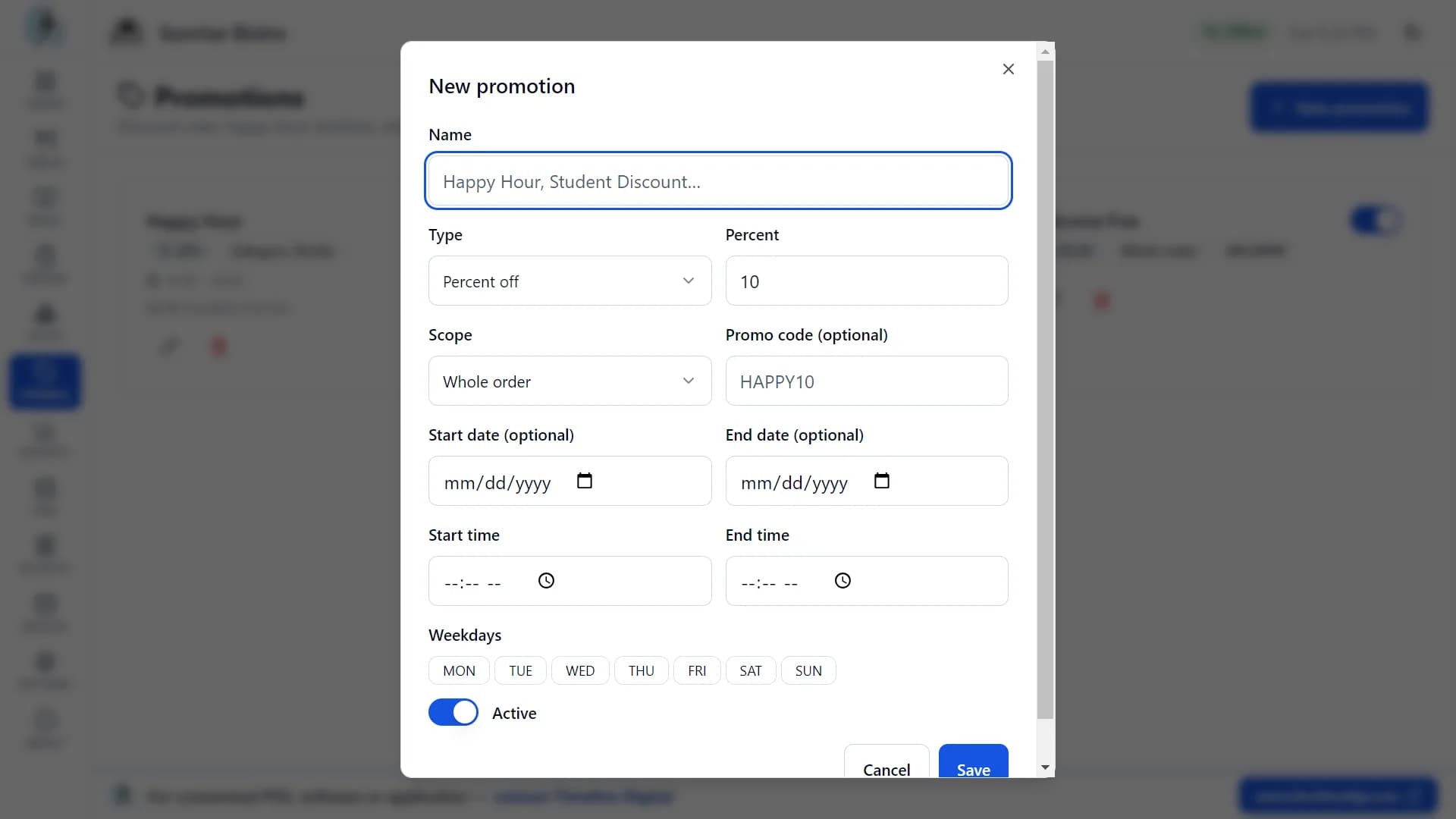
Create special offers that apply themselves at checkout.
Three types of deal
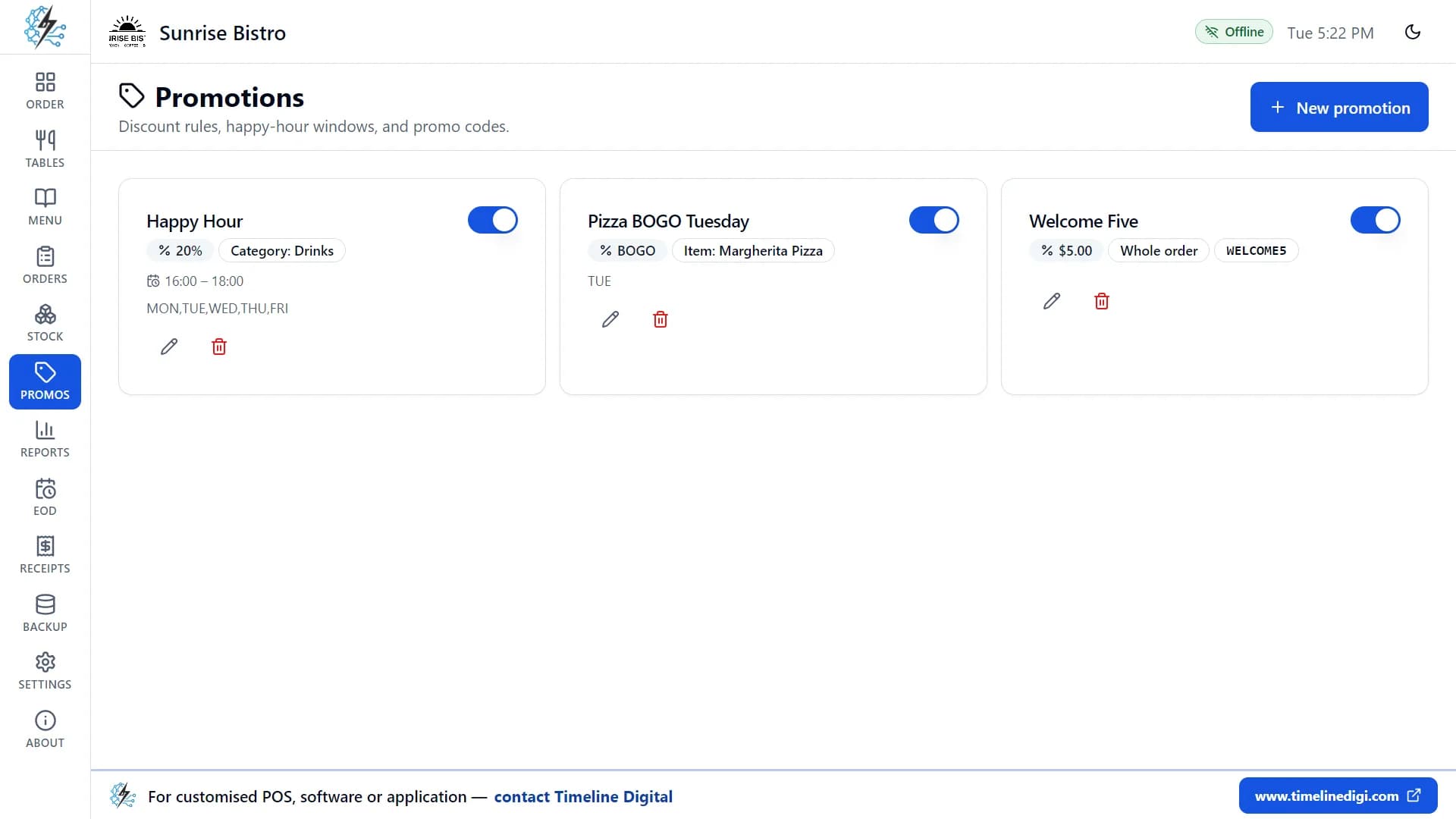
- Percentage off, for example 20% off.
- A fixed amount off, for example $5 off.
- Buy one, get one free. The cheaper item in each pair is free.
Choose what the deal covers
The whole order, one category (for example all drinks), or one item.
Schedule it
- Set start and end dates.
- Set start and end times, for example a happy hour from 4 PM to 6 PM. Times that cross midnight work too.
- Pick the days of the week.
- Switch a promotion on or off at any time. Expired promotions are clearly marked.
Promo codes
Give a promotion a code (like WELCOME5) and it applies only when the code is typed in at checkout. Codes work in upper or lower case.
Automatic deals
Promotions without a code are applied automatically when they're valid, and the app picks the best one for the customer.
Feature 11 of 17
Sales reports
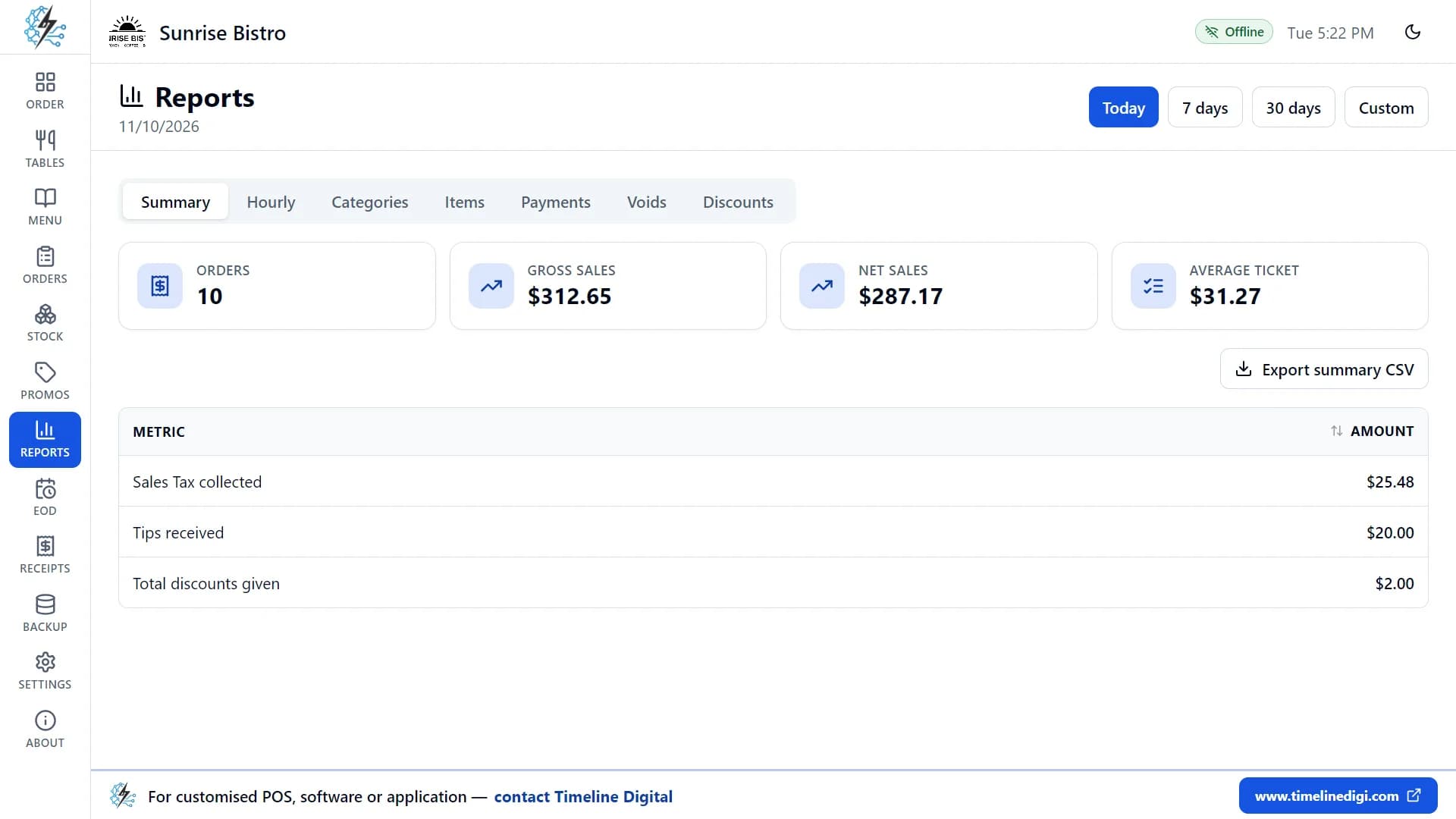
See how the day, the week or the month went.
Date ranges
Today, the last 7 days, the last 30 days, or any custom range.
Summary
- Number of orders.
- Gross sales.
- Net sales (without tax and tips).
- Average ticket.
- Tax collected, tips received and discounts given.
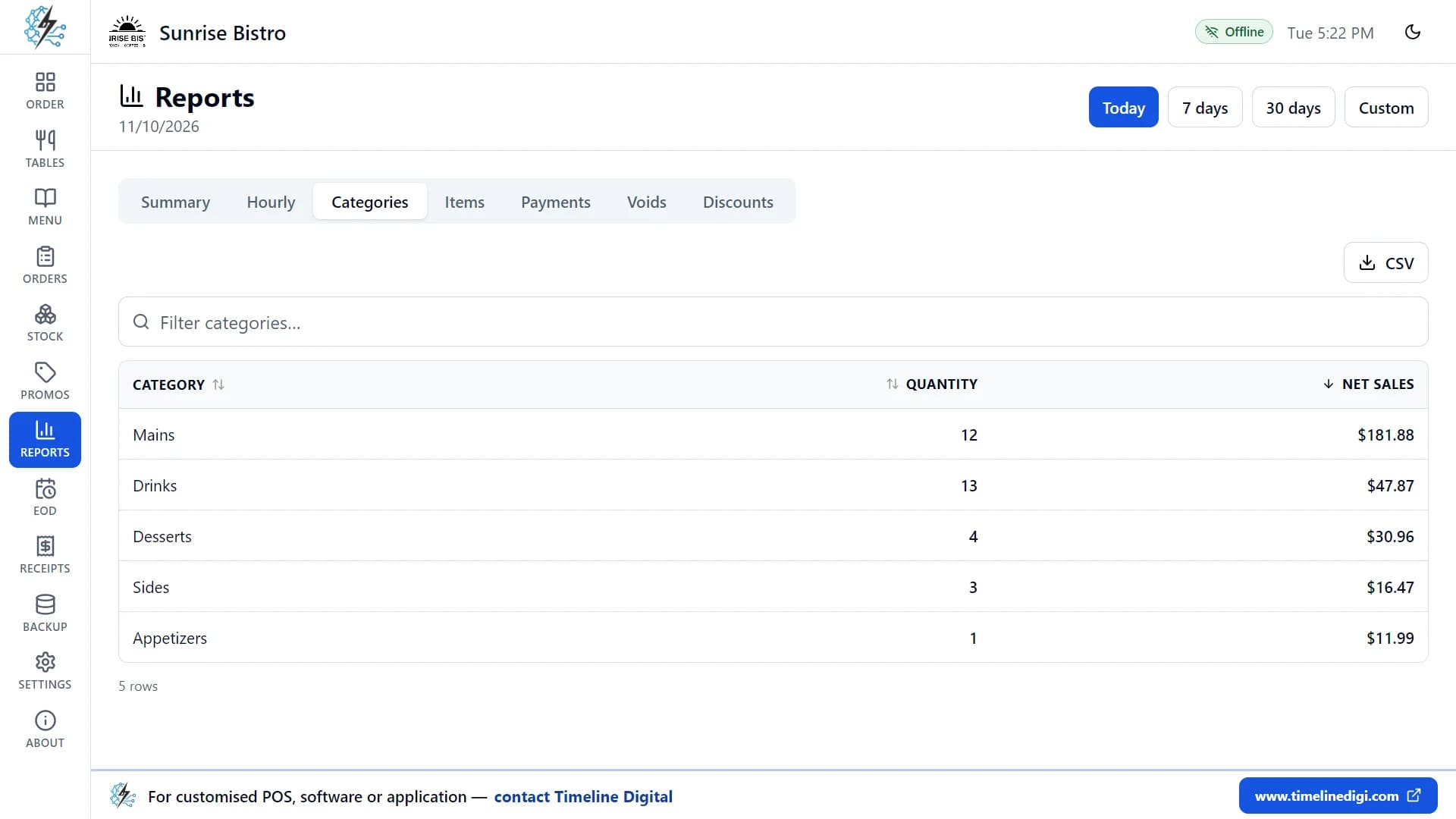
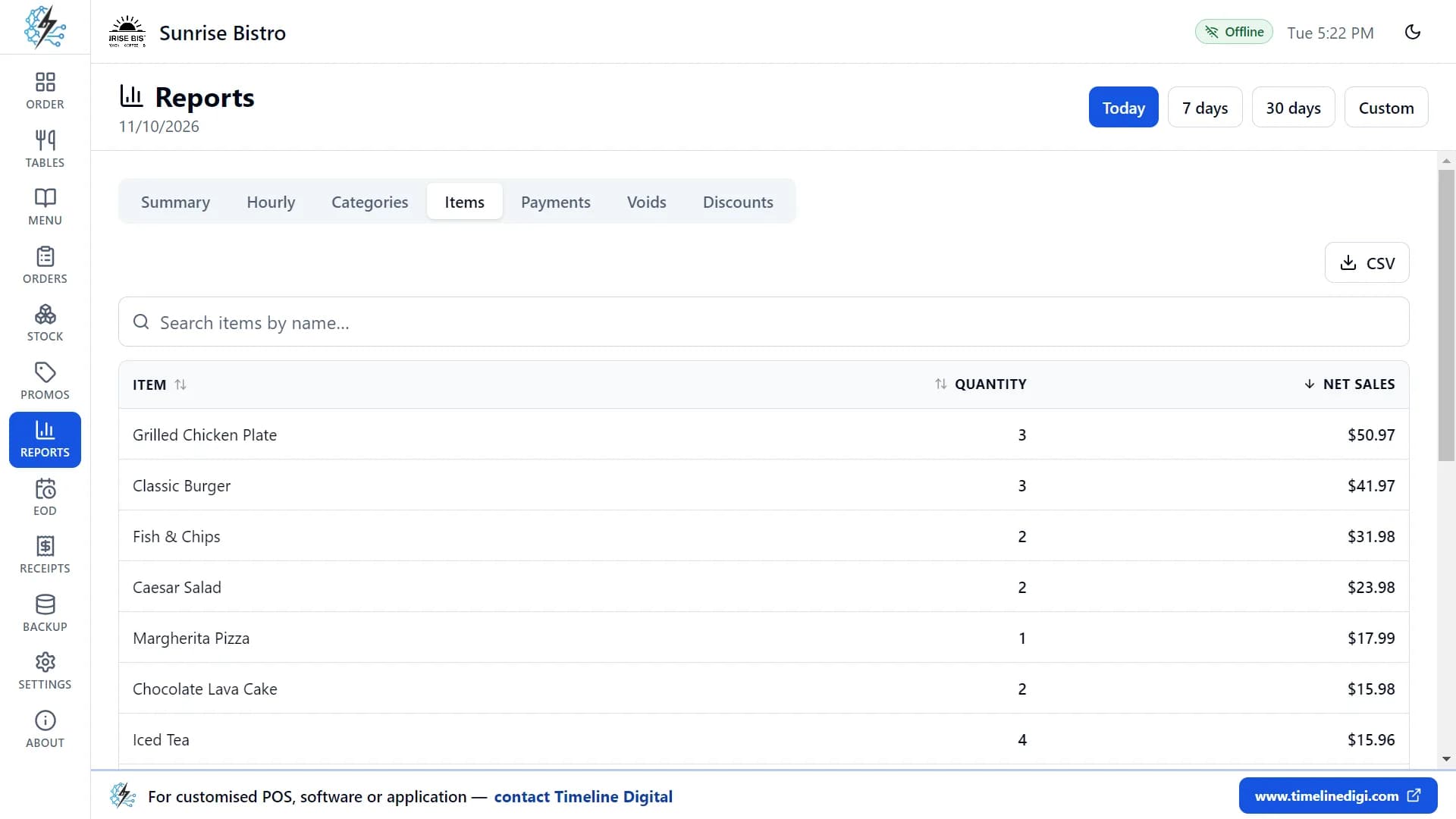
More reports
- Categories: what each category sold.
- Items: your best sellers, by quantity and sales.
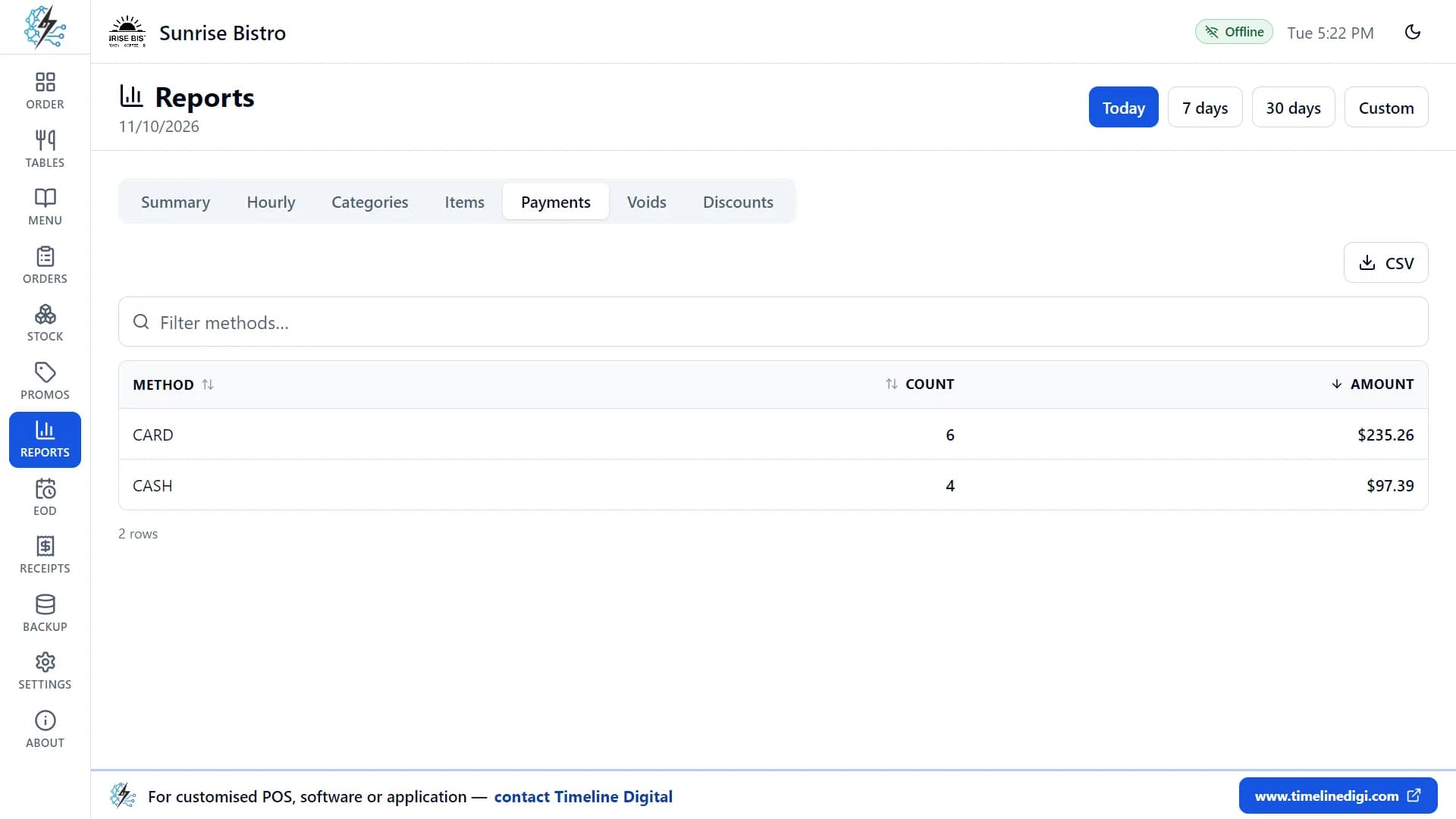
- Payments: totals for cash, card and other payments.
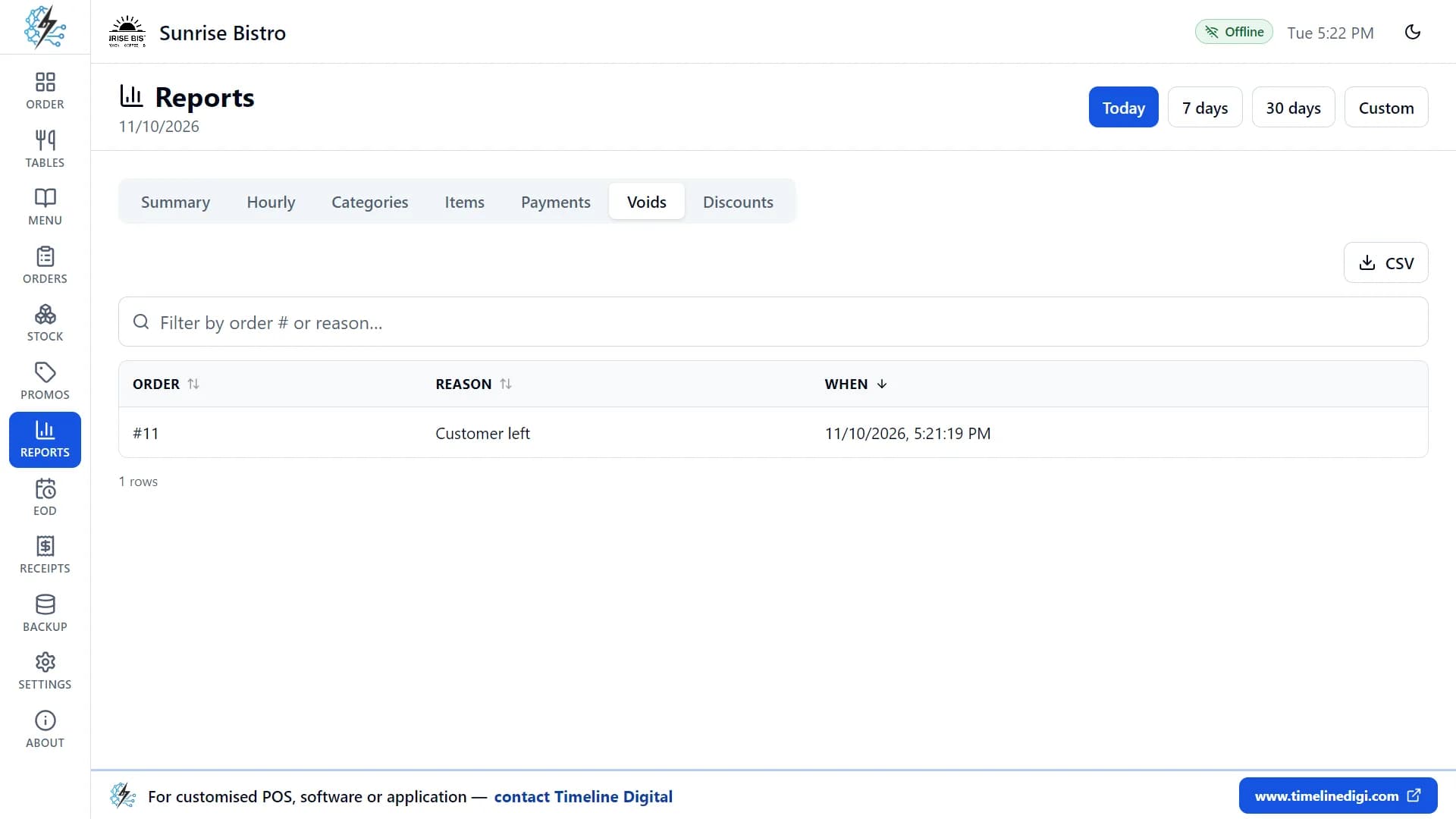
- Voids: voided orders and the reasons.
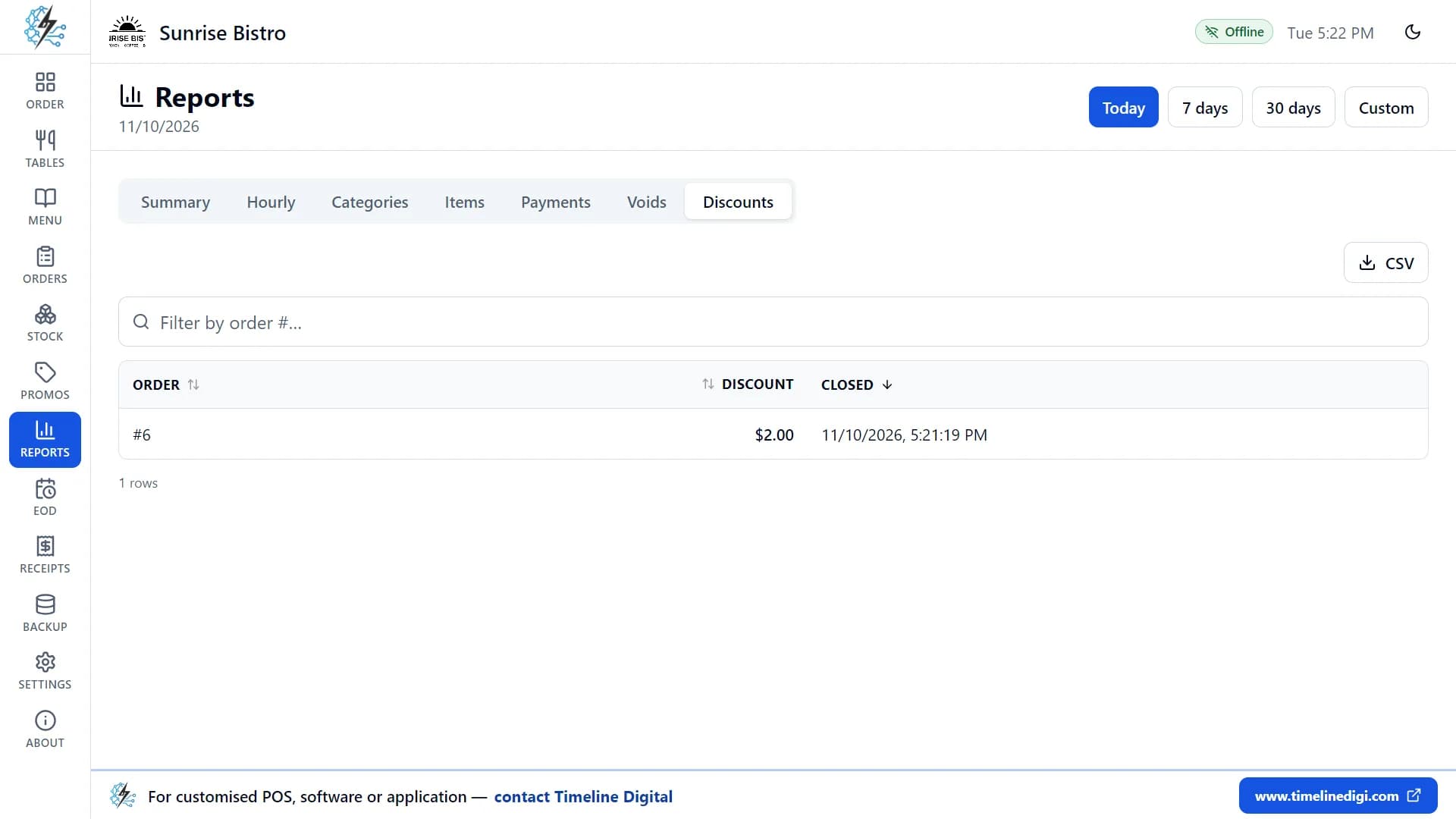
- Discounts: every discount given, by order.
Sort, filter and export
Sort or search any table. Export any report to a CSV file that opens in Excel or Google Sheets.
Feature 12 of 17
End of day and Z-report
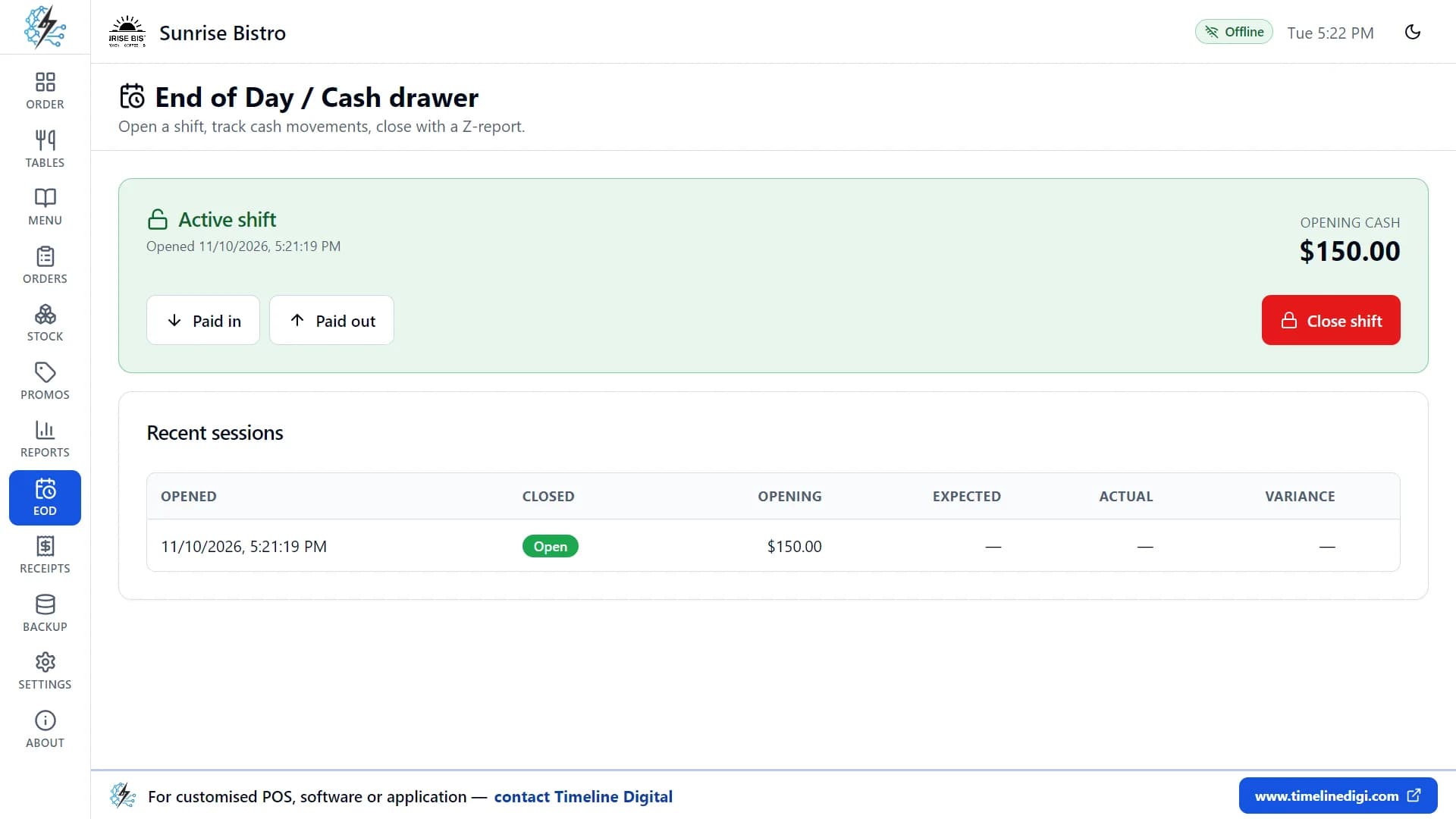
Open a shift in the morning, close it at night, and know where your cash went.
Open a shift
Start with the cash you have in the drawer.
Paid in and paid out
Record cash added to or taken from the drawer during the day, with a reason, for example "Fresh herbs from the market".
Close the shift
- Count the cash in the drawer and enter the amount.
- The app shows the expected cash, your counted cash and any difference.
- Add a note if you need to.
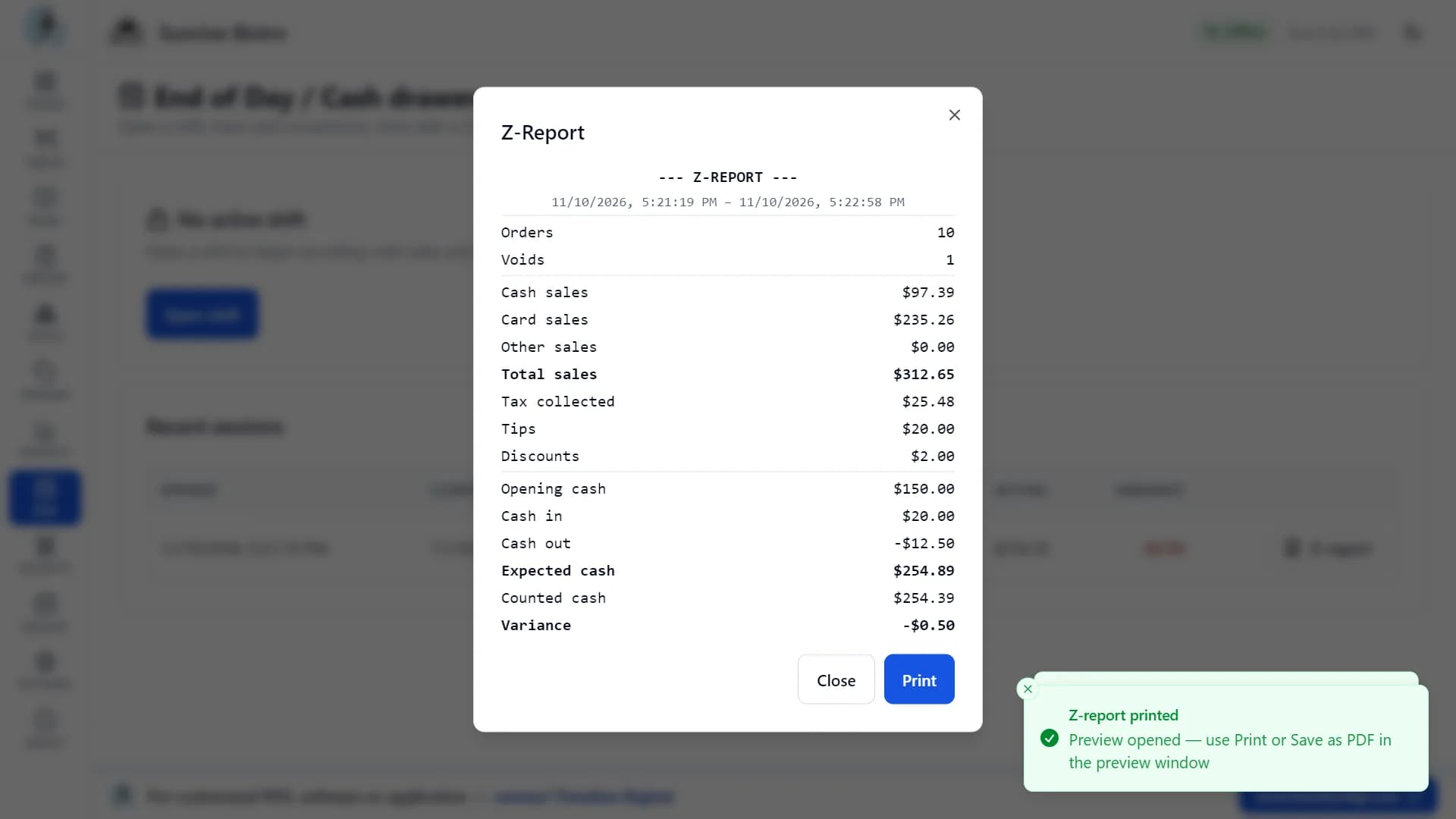
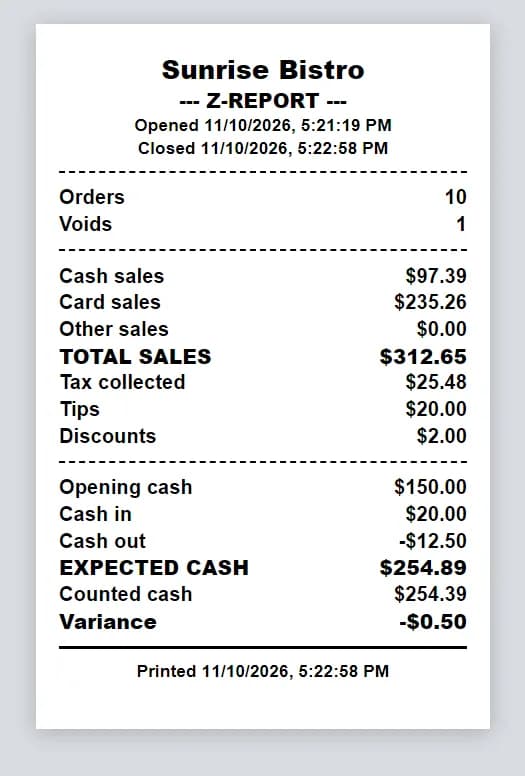
Z-report
Print the end-of-day report. It shows:
- Number of orders and voids.
- Cash, card and other sales, and total sales.
- Tax, tips and discounts.
- Opening cash, cash in and cash out.
- Expected cash, counted cash and the difference.
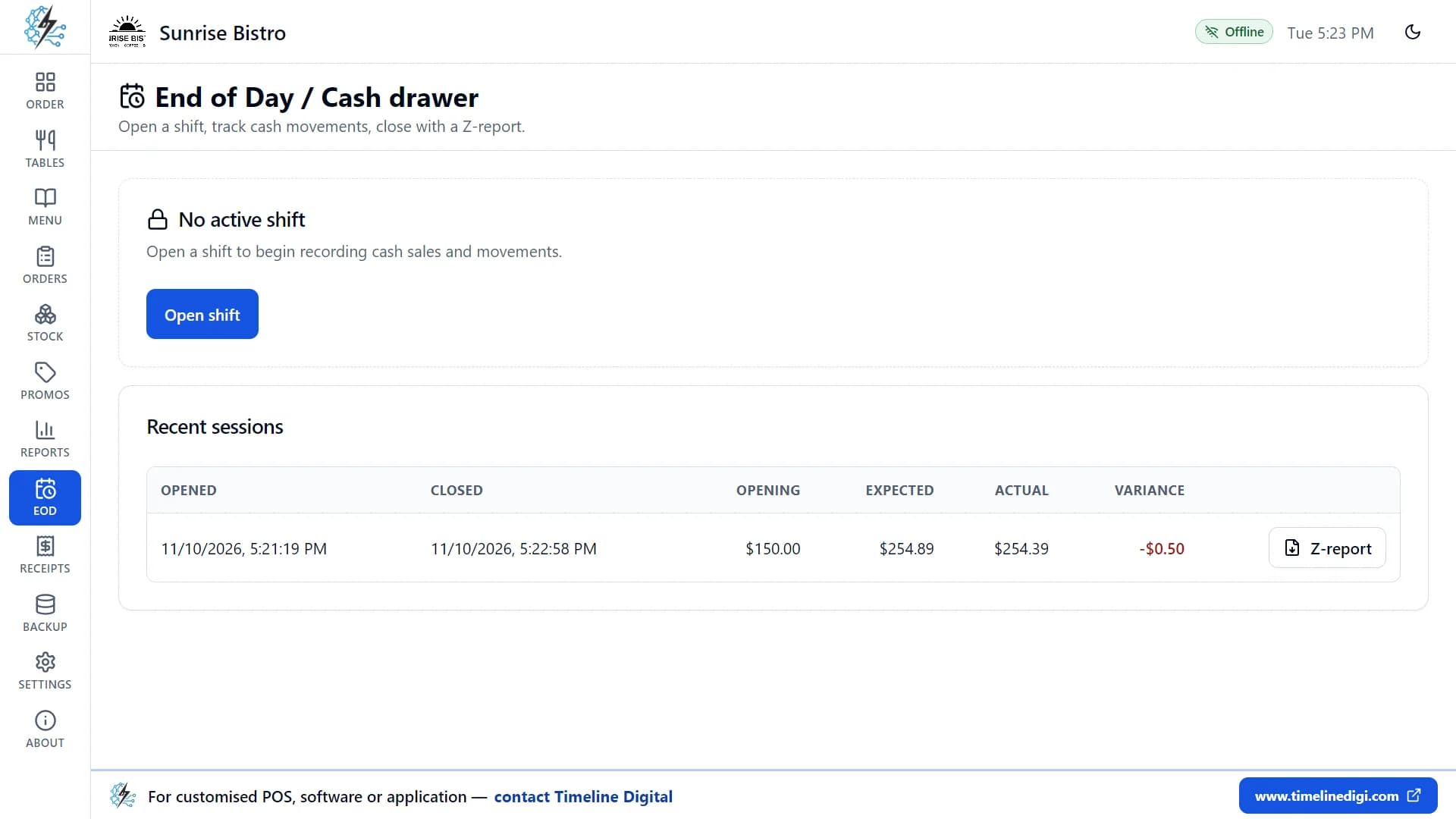
Shift history
See your recent shifts with their cash counts and differences. Reopen or reprint any Z-report.
Feature 13 of 17
Receipts
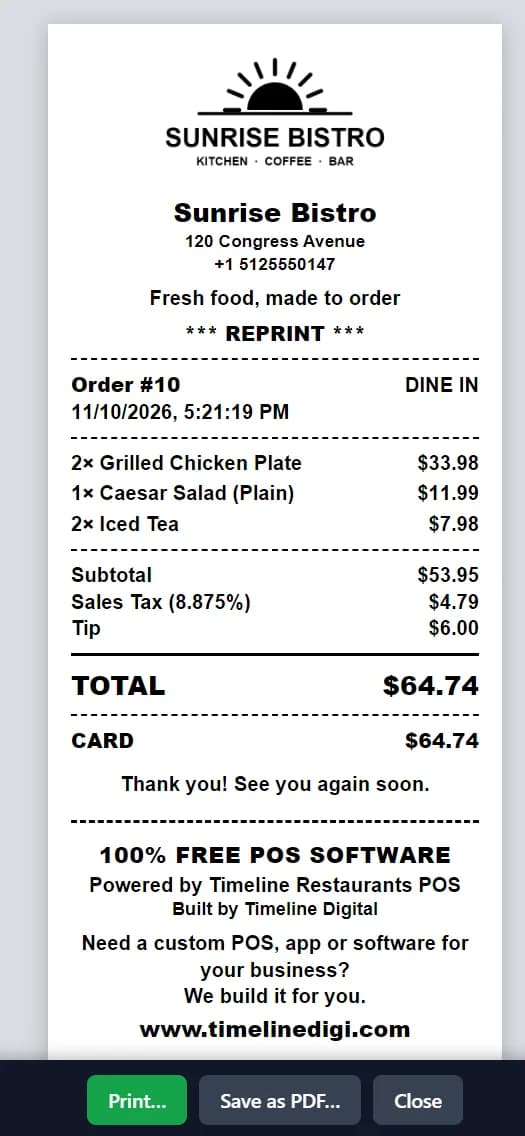
Your brand on every receipt, with everything the customer needs.
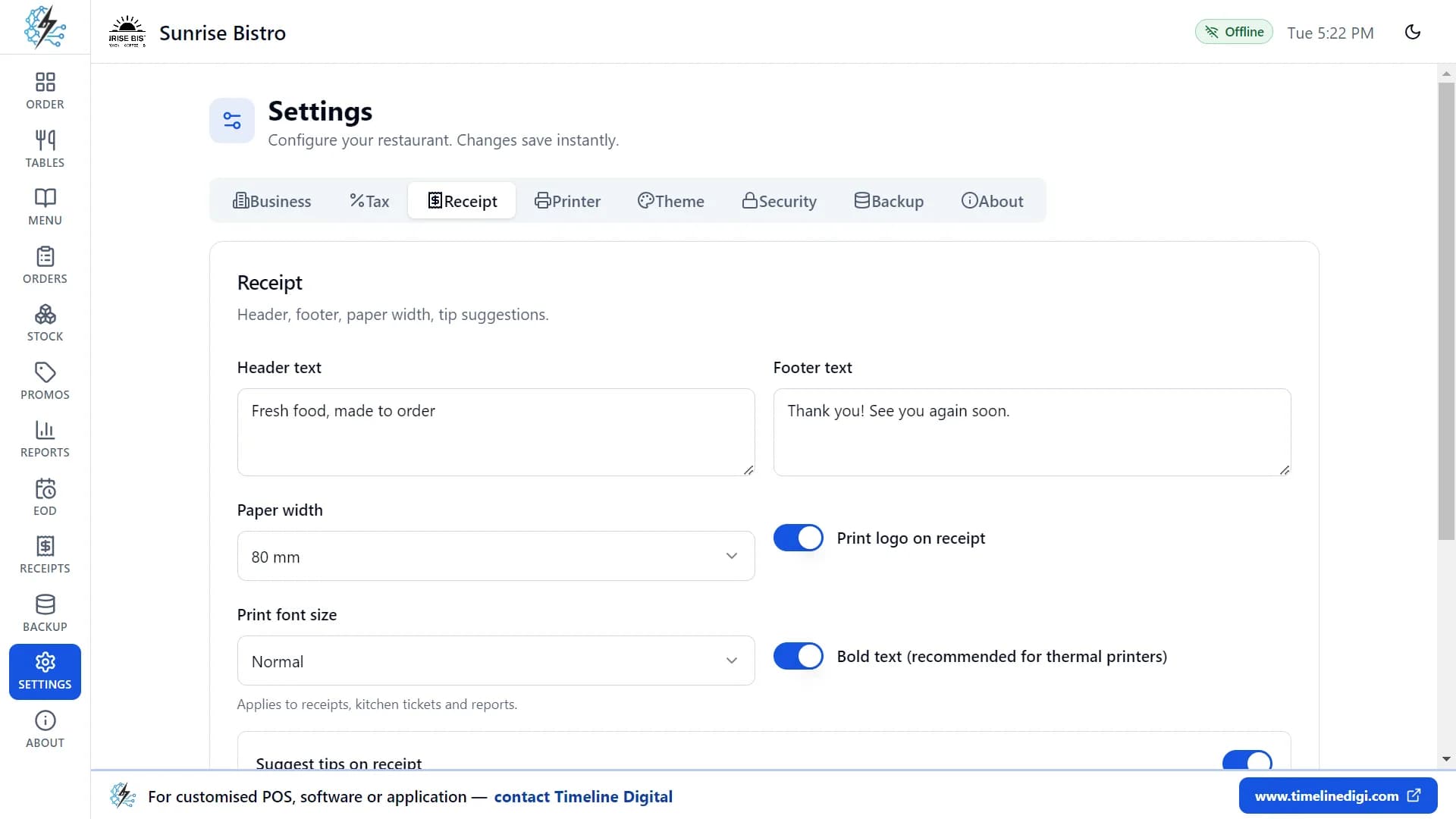
Your brand
- Your logo.
- Restaurant name, address and phone number.
- Your own header text, for example "Fresh food, made to order".
- Your own footer text, for example "Thank you! See you again soon".
Everything the customer needs
- Order number, date, order type and table.
- Every item with size, extras and notes.
- Subtotal, discount, tax, tip and total.
- Payment method, with cash tendered and change.
Paper and style
- 80 mm or 58 mm paper.
- Small, normal or large text.
- Bold text, recommended for thermal printers.
- The logo switched on or off.
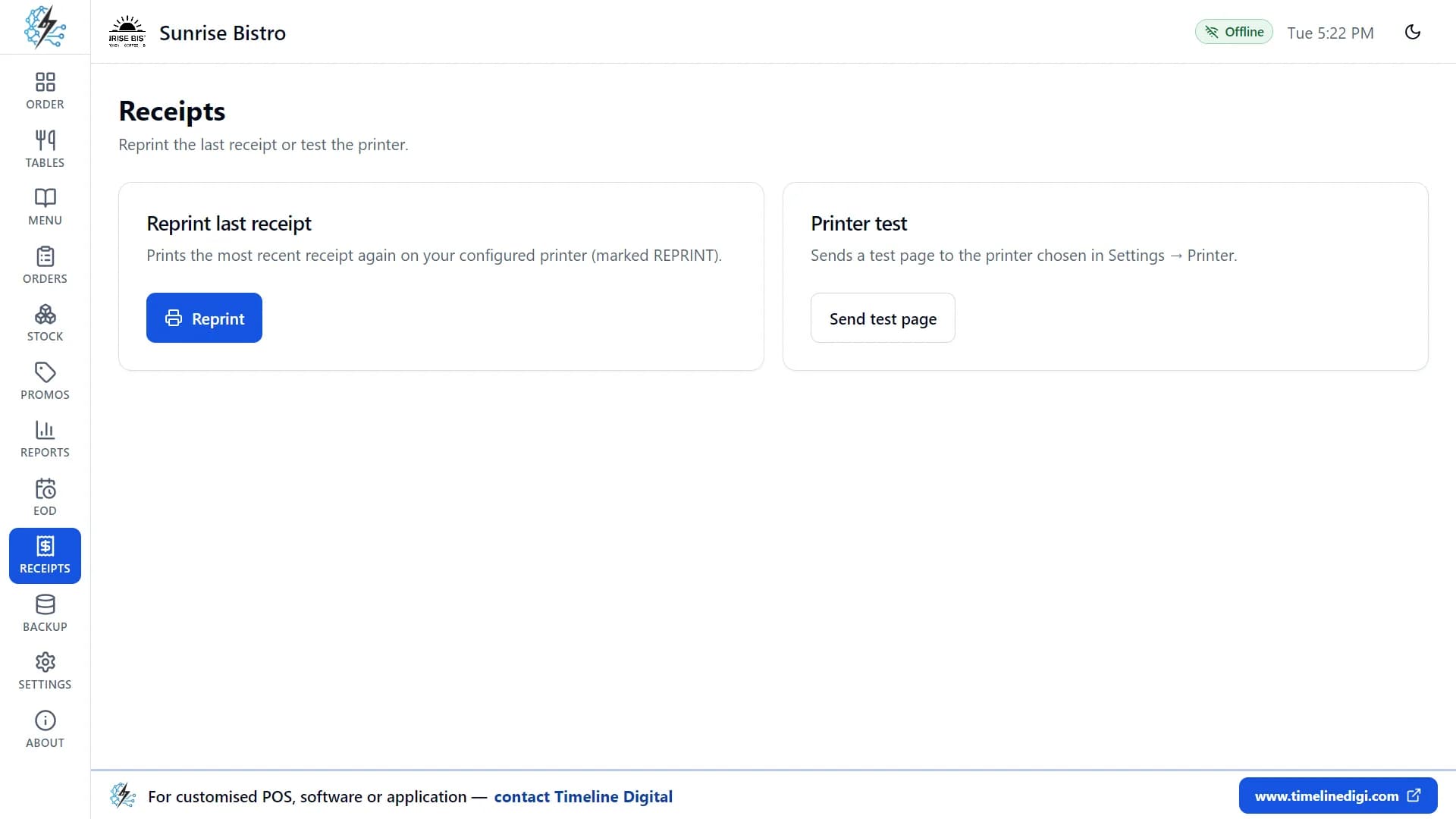
Reprints
Reprint the last receipt, or any of today's receipts, marked "REPRINT".
Good to know
The bottom of every receipt shows a short "Powered by Timeline Restaurants POS" note. This cannot be removed.
Feature 14 of 17
Printers and cash drawer
The app prints on 58 mm and 80 mm paper. Choose the connection that matches your printer.
Windows printer (recommended on Windows)
- Use any printer installed in Windows, including USB thermal printers.
- Prints silently, or shows the Windows print dialog if you prefer.
- Paper size can be the printer's default, the exact receipt length, A4 or Letter.
Network thermal printer
Print straight to a thermal printer on your network by its IP address, for example 192.168.1.50:9100.
Serial port or shared printer (Windows)
Send receipts to a COM port (for example COM3) or a shared Windows printer.
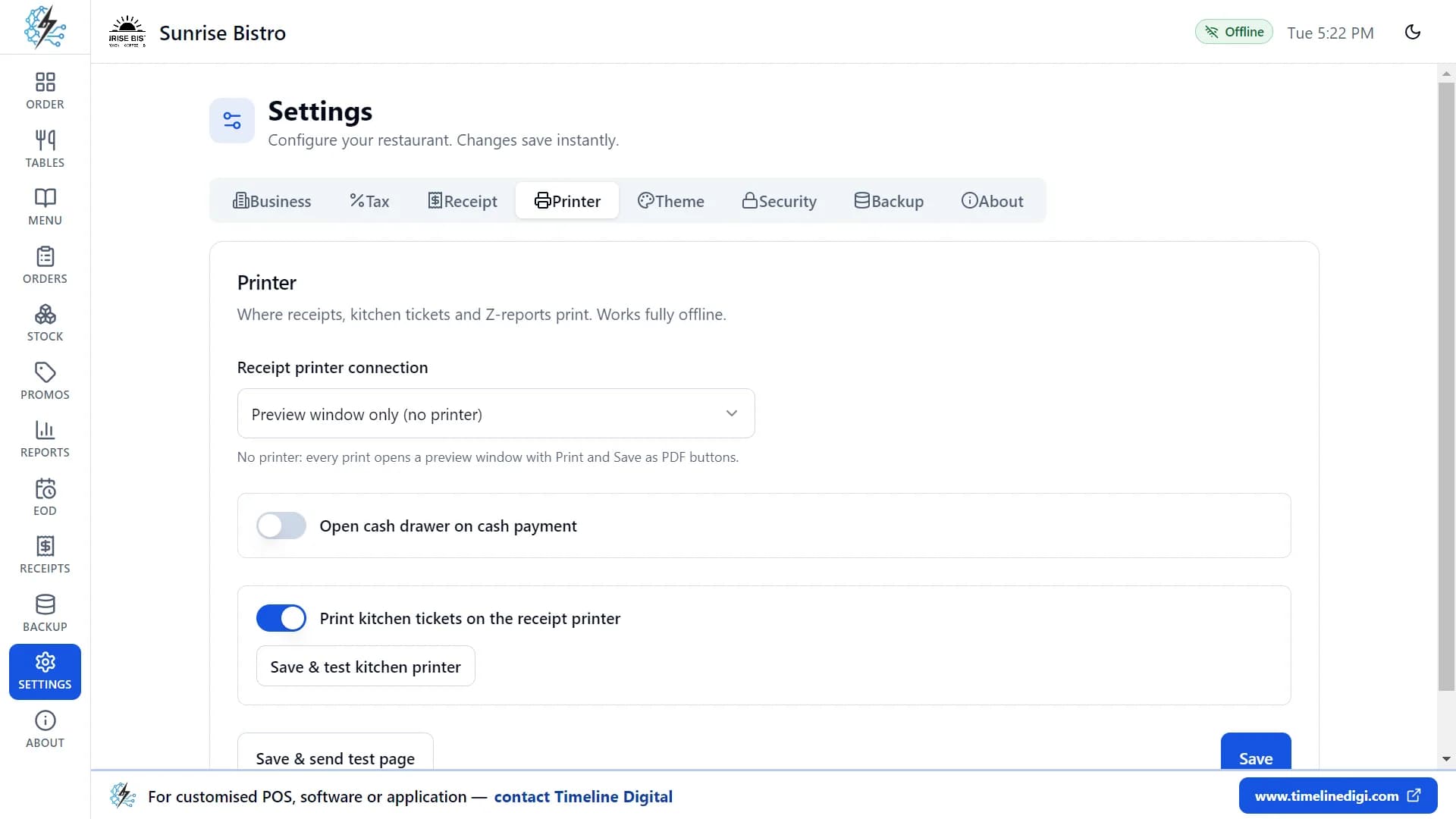
Preview window only
No printer yet? Every receipt opens in a preview window, where you can print it or save it as a PDF. This is perfect for testing.
Thermal printer support
Works with ESC/POS printers: Epson and compatible brands such as Xprinter, Rongta and Sewoo, plus Star printers.
Cash drawer
Opens the drawer automatically on cash payments. It works through your printer or a separate port, with an "Open drawer" test button.
Kitchen printer
Print kitchen tickets on the receipt printer, or on a separate kitchen printer with its own settings.
Test page
Send a test page at any time to check the printer.
On a Mac, a network thermal printer connects by its IP address in the same way. For other printers on a Mac, see the printer setup guide and the video lesson. Open the printer setup guide.
Feature 15 of 17
Backup and restore
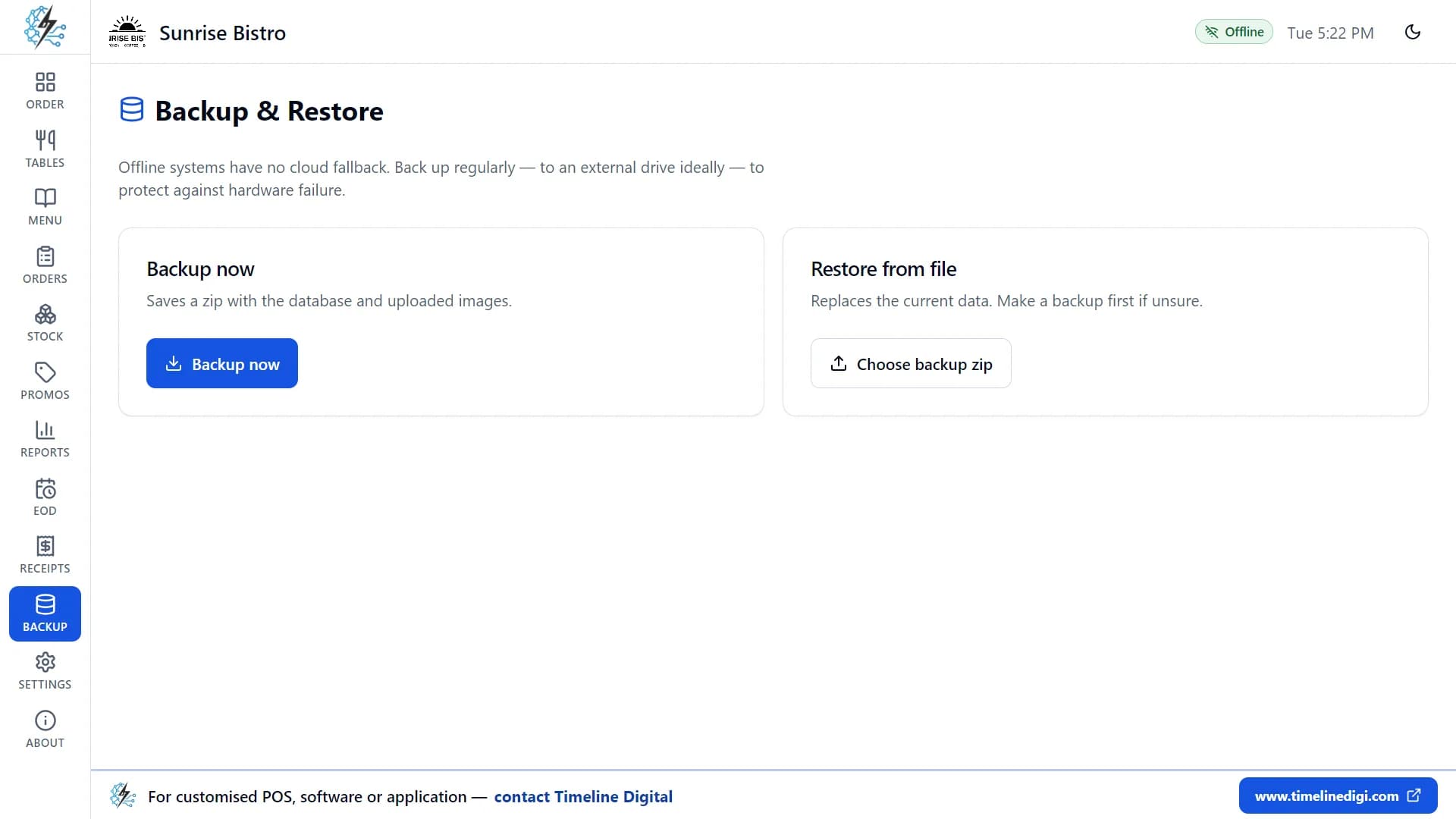
Keep a copy of your whole restaurant, and get it back when you need it.
One-click backup
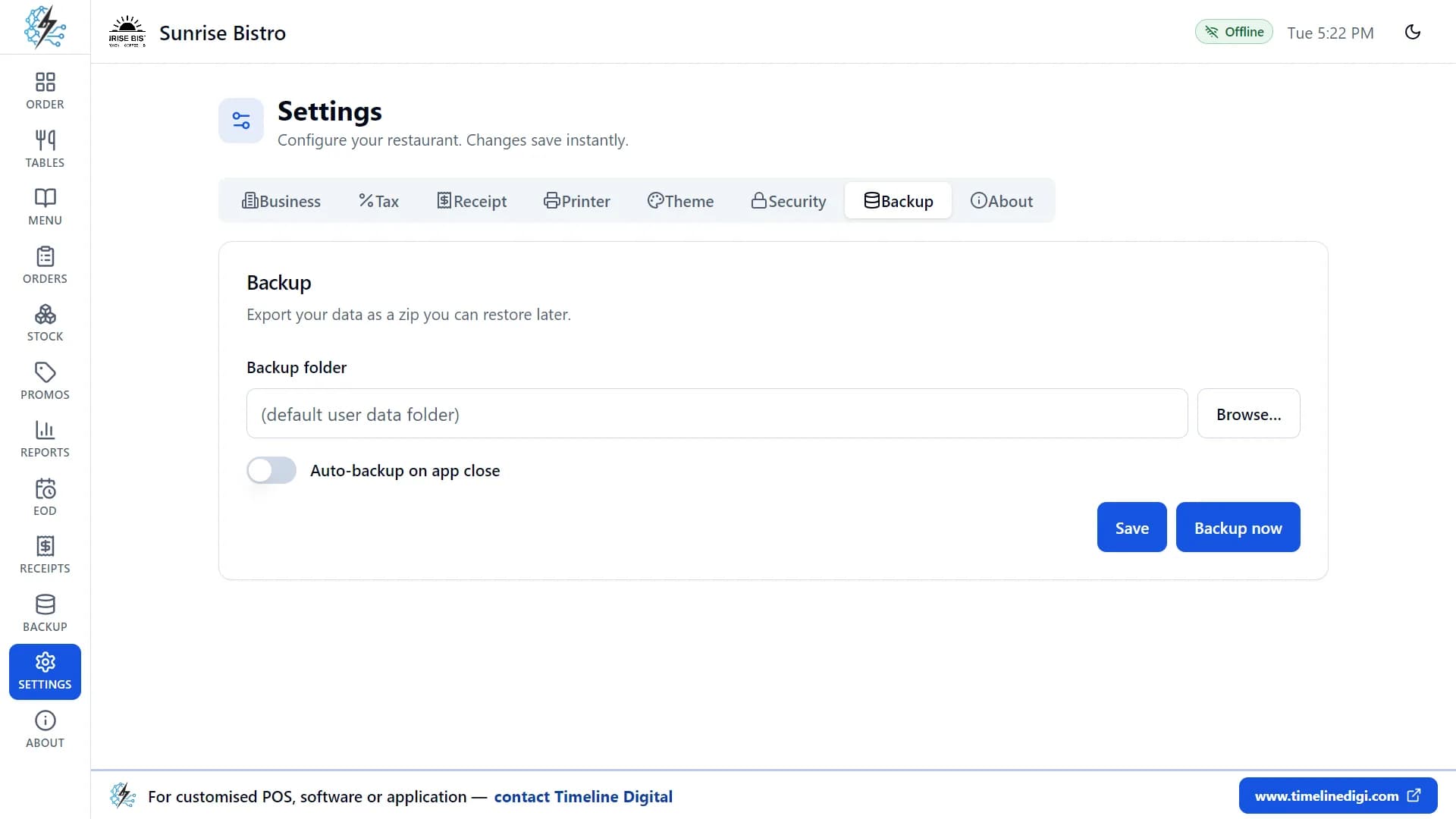
Tap Backup now to save your whole restaurant (database and photos) into one zip file. Every backup gets the date and time in its name, so older backups are kept.
Choose where backups go
Save backups to a folder you choose, such as a USB drive. If the drive isn't plugged in, the app tells you instead of saving somewhere else.
Automatic backup
Turn on "Auto-backup on app close" and a fresh backup is made every time you close the app.
Safe restore
Pick a backup zip to restore your data. The app checks the backup first. It also saves a safety copy of your current data before replacing anything, and goes back to that copy if something goes wrong.
Move to a new computer
Install the app on the new computer and restore your latest backup.
Feature 16 of 17
Settings
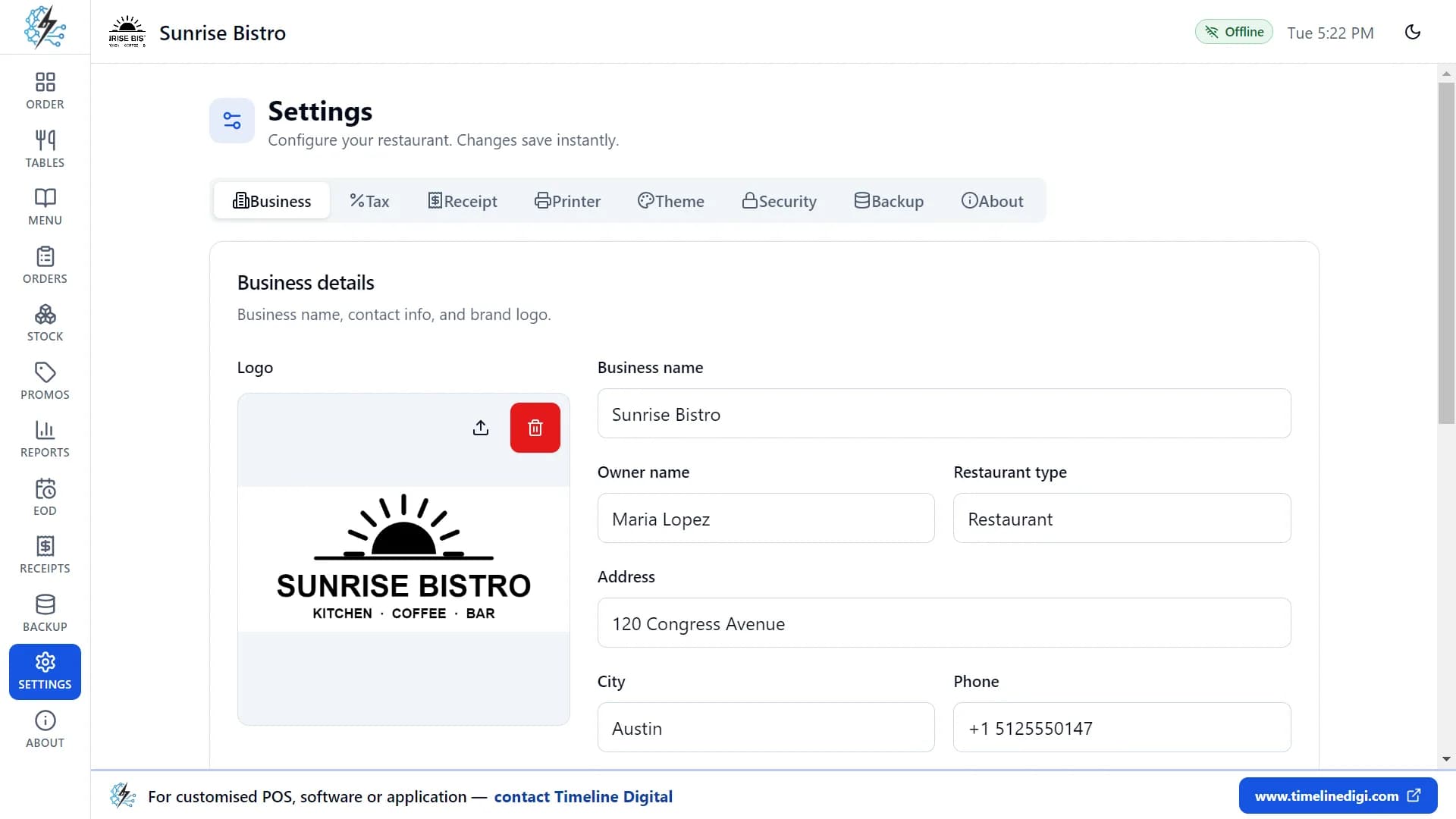
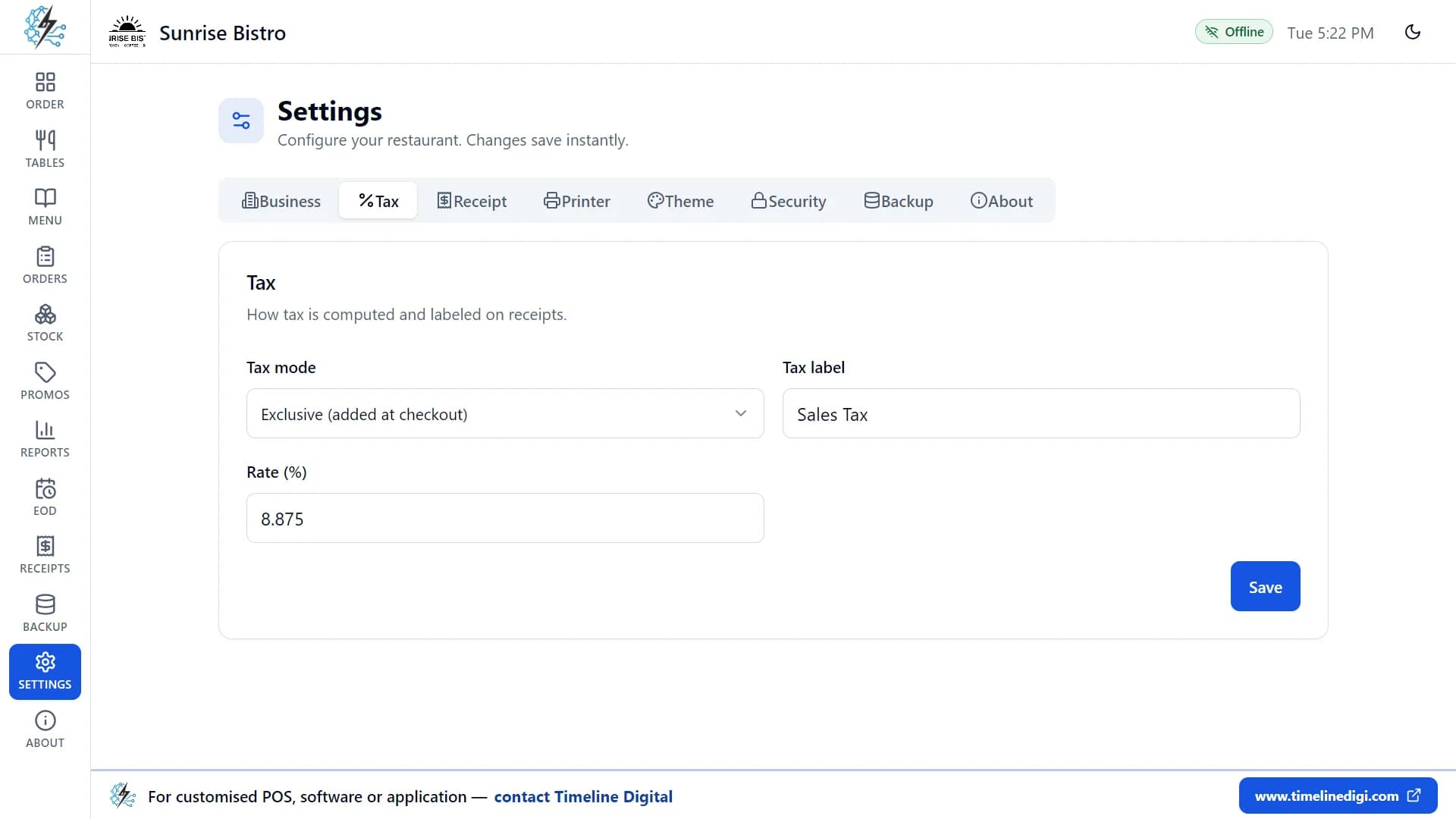
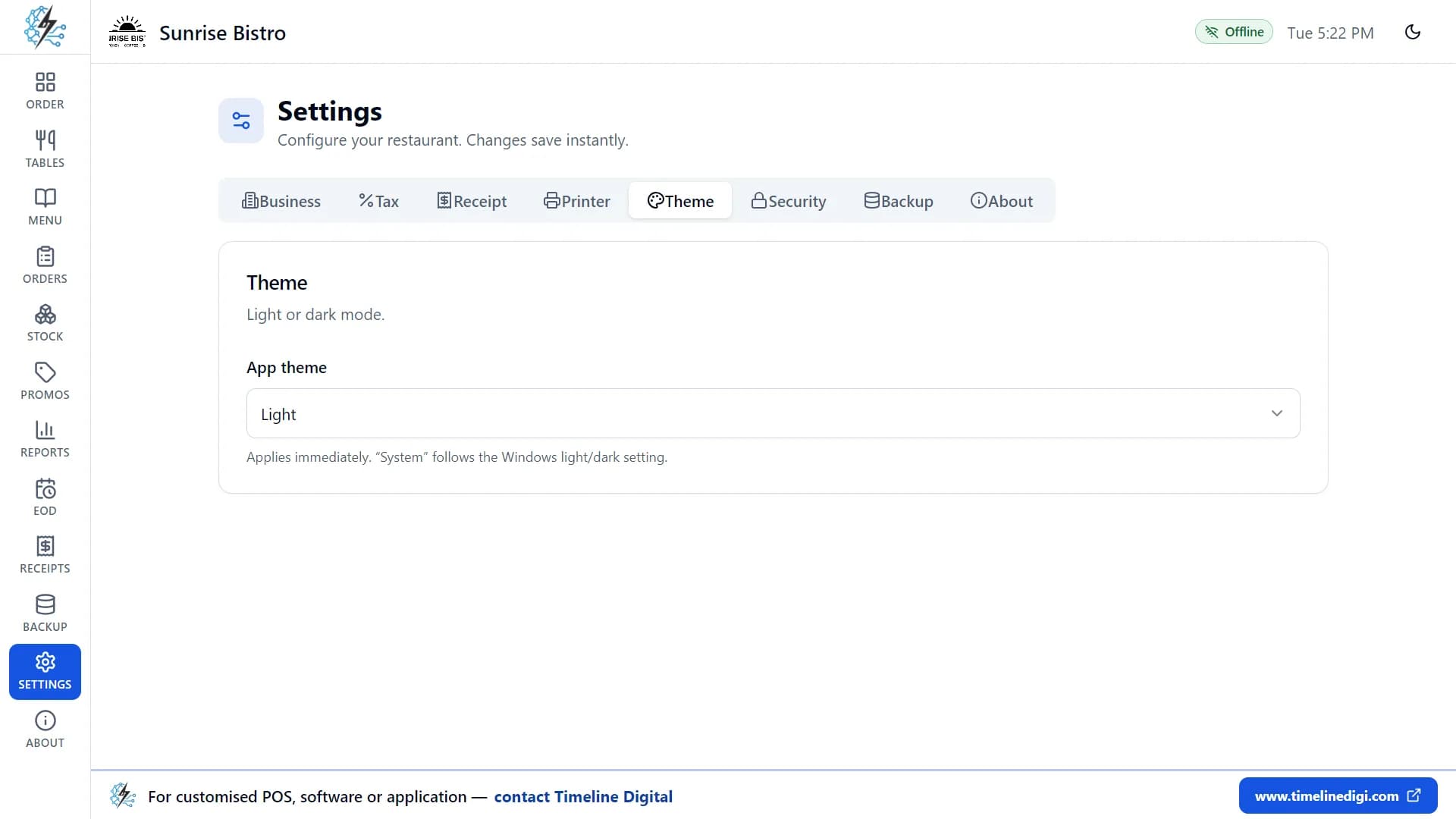
Settings has tabs for business, tax, receipt, printer, theme and backup, plus About.
Business
- Logo, business name, owner name, type of business, address, city, phone and email.
- Country or region. Changing it updates the currency, formats and tax.
- Currency code and symbol.
Tax
Choose whether tax is added at checkout (like US sales tax) or included in prices (like VAT), plus the tax name and rate.
Receipt
The receipt design, and the tip buttons shown at checkout.
Printer
Receipt printer, kitchen printer and cash drawer.
Theme
Light, dark, or follow your system. You can also switch from the top bar.
Backup
Backup folder and automatic backup.
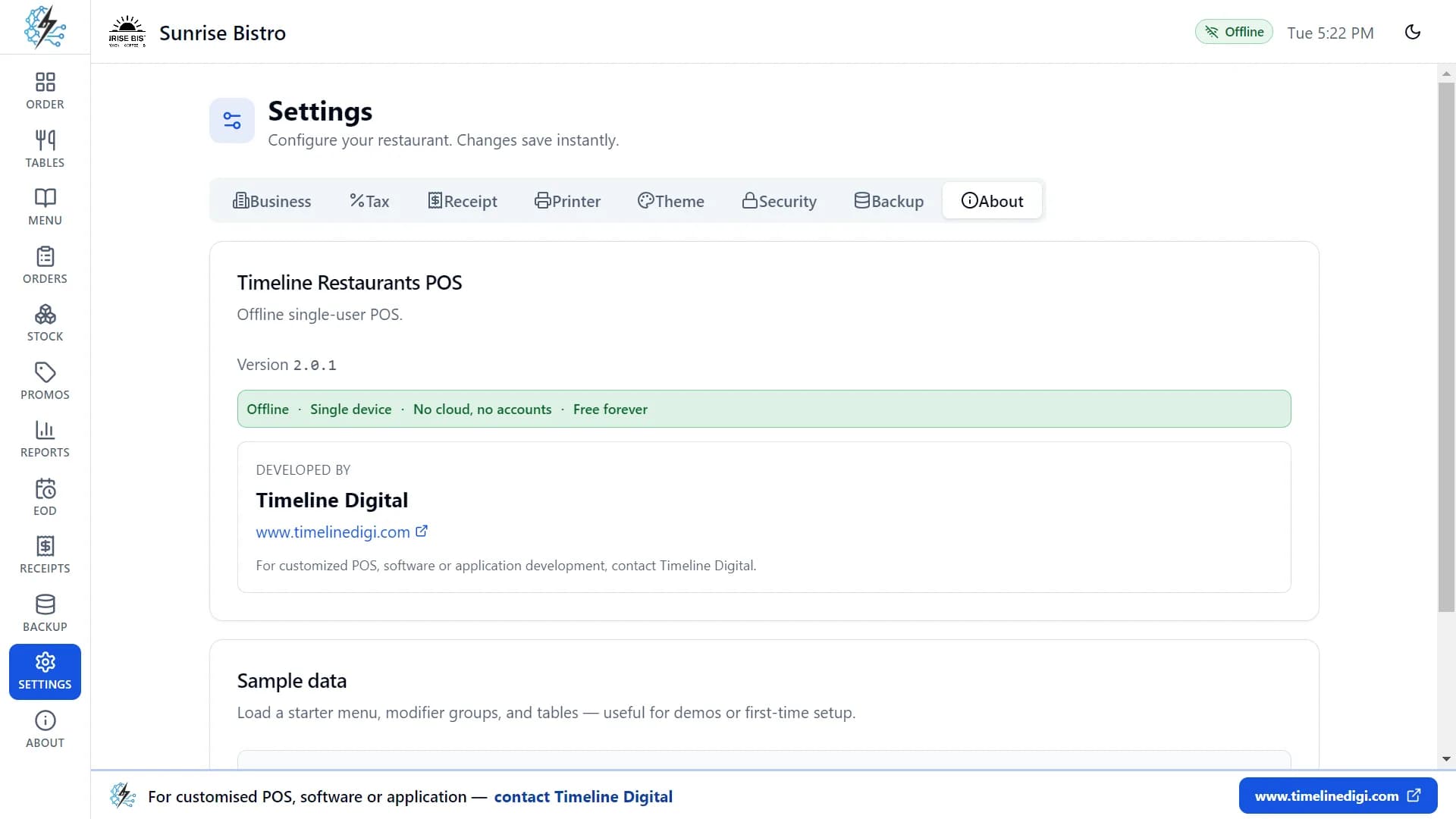
About
Version information and the sample data tools:
- Load the sample menu.
- Clear all data while keeping your settings.
- Reset everything to the sample data.
Feature 17 of 17
Built to be easy
Made for fast service, for people who are busy.
Small things that help
- Big buttons and item tiles, made for fast service.
- Light and dark themes.
- Everything on one screen, with no complicated menus.
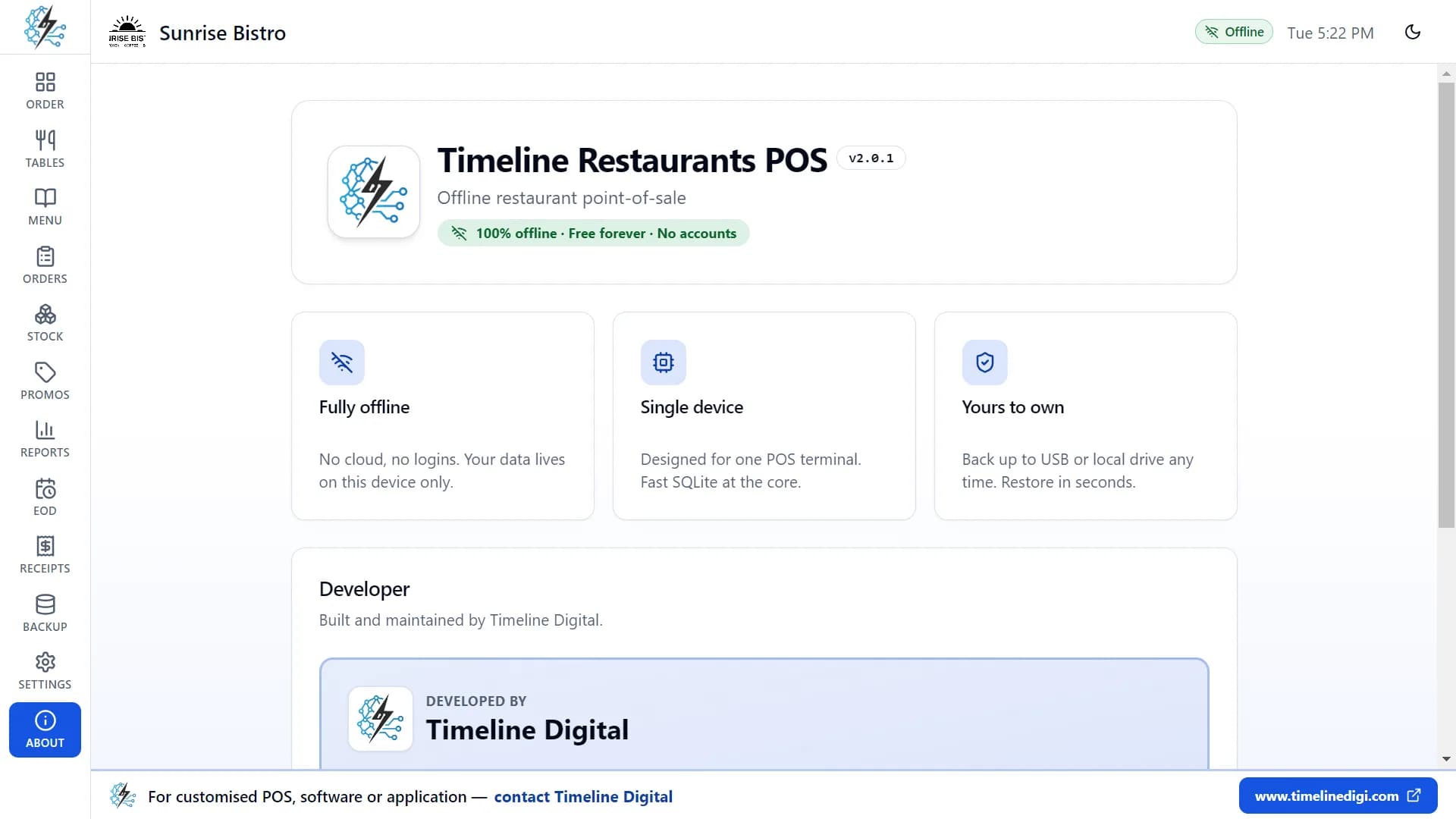
- Works without the internet, with an "Offline" badge always visible so staff know it's fine.
- Opens straight back where you left it. The window remembers its size and position, even across two monitors.
What it does not do
This is a simple POS for one counter. Before you download, check that you do not need any of these.
- iPad, Android or Linux versions. The app runs on one Windows PC or Mac.
- Several tills, tablets or phones sharing the same data. There is no cloud sync and no remote access.
- Staff logins, user roles, cashier names or a time clock.
- Splitting a bill, or taking part payments.
- Refunds, or voiding orders and items from the screen.
- Online ordering, QR menus or links to delivery apps.
- Built-in card payments. Card payments are recorded only. The customer pays on your own terminal.
- A kitchen display screen, or automatic or per-station kitchen printing.
- Charts or graphs in reports, and PDF or Excel report export. Export is CSV, which opens in Excel.
- X-reports (mid-shift reports).
- A customer database, loyalty points, or email and SMS receipts.
- Barcode scanning, purchase orders, suppliers, or food-cost and profit reports.
- Languages other than English.
- Automatic updates. To update, you download the new version and install it over the old one.
Need one of these?
Timeline Digital builds custom restaurant and POS systems, made for the way your business works. The pilot is always free. See custom POS software development or restaurant management software development.
Common questions
Is it really free?
Yes. There is no subscription, no paid plan and no trial period. Download it and use every feature for free.
Do I need the internet?
No. Every feature works offline. You only need the internet to download the app.
Does it work on Mac, iPad or Android?
It works on a Windows PC or a Mac. There are two Mac downloads: one for Apple Silicon (M1 and later) and one for Intel. There is no iPad, Android or Linux version.
Can I use it on more than one computer or tablet?
Not at the same time. Timeline Restaurants POS is designed for one computer at one counter. You can move your data to another computer with a backup and restore.
Does it take card payments?
You take the card payment on your own card terminal and record it in the app. The app does not connect to card terminals or payment providers.
Can customers split the bill?
Not at the moment. Each order is paid with one payment method.
Which printers work?
Almost any receipt printer. On Windows you can use any printer installed in Windows (including USB thermal printers) or a printer on a serial (COM) port. A network thermal printer connects by its IP address. ESC/POS printers from Epson, Xprinter, Rongta, Sewoo and Star are supported, on 58 mm and 80 mm paper. No printer? Receipts open in a preview window where you can save them as PDF.
Does it handle tax for my country?
The app knows the currency and a starting tax rate for 173 countries and regions. You can change the rate, and choose whether tax is added at checkout or included in your prices. One tax rate applies to all items.
Free download · v2.0.1
Try every feature today. It's free.
No subscription. No account. Load the sample menu and take your first order in a few minutes.
Not sure which Mac you have? Apple Silicon means M1 and later. Install steps are on the download page. You can also watch all the lessons on the YouTube playlist.
More about Timeline Restaurants POS
- Timeline Restaurants POSThe product page: what the app is and who it is for.
- Download pageGet the Windows or Mac file and see how to install it.
- How to use it18 short video lessons, about 74 minutes in total.
- Printer setup guideConnect your receipt printer, kitchen printer and cash drawer.