Free for Mac · v2.0.1 · Works offline
Free restaurant POS for Mac
Timeline Restaurants POS is a free point-of-sale app that runs on your Mac. Take dine-in, takeout and delivery orders, manage tables, take payment and print receipts on one MacBook, iMac or Mac mini. It works without the internet. There is no subscription and no account. Pick the download for your Mac below.
Apple Silicon means M1 and later. Not sure which Mac you have? See the 10-second check. Using Windows? Go to the Windows download page.
Which Mac do I have?
- 1. Click the Apple menu in the top-left corner of your screen.
- 2. Choose About This Mac.
- 3. Look at the line that says Chip or Processor.
- Chip: Apple M1, M2, M3 or newer
- Download the Apple Silicon file (116 MB).
- Processor: Intel
- Download the Intel file (123 MB).
- Free forever
- Works offline
- No account
- Apple Silicon and Intel
How to install the POS on your Mac
Four steps. It takes a few minutes, most of it the download.
- 1
Download the right file
Pick Apple Silicon or Intel above. The file ends in .dmg and is saved to your Downloads folder.
- 2
Open the .dmg
Double-click the file. A small window opens with the app inside.
- 3
Drag the app to Applications
Drag Timeline Restaurants POS onto the Applications folder. Wait for the copy to finish.
- 4
Open the app
Open your Applications folder and double-click Timeline Restaurants POS.
If your Mac says the app cannot be opened
macOS may say the app cannot be opened because the developer cannot be verified. Right-click the app in your Applications folder and choose Open. Then click Open again in the message that appears. If that does not work, open System Settings, go to Privacy & Security, and click Open Anyway.
The first time the app opens, a short setup asks for your restaurant's name, type and country. It then sets your currency and a starting tax rate for you, from a list of 173 countries and regions. With one switch you can load a sample menu of 34 items and 11 tables, so you can practise before you add your own dishes.
A full restaurant day, on your Mac
From the first order in the morning to the cash count at night.
Orders
Dine-in, Takeout and Delivery, with sizes, extras and notes.
Tables
A floor plan that shows which tables are free, busy, reserved or being cleaned.
Payments
Cash with the change worked out, card, gift cards and vouchers, plus tips and discounts.
Menu
Categories, items with photos, sizes and modifier groups such as toppings.
Stock
Ingredients and recipes. Every paid order takes the ingredients out of stock.
Promotions
Happy hours, buy-one-get-one deals and promo codes.
Reports
Sales, best sellers, payments and discounts. Export any report as a CSV file.
End of day
Open a shift, record cash in and out, count the drawer and print a Z-report.
Backup
Save your whole restaurant into one zip file, for example on a USB drive.
The app has light and dark themes, or it can follow your system. It is in English. See every feature, explained or go to the Timeline Restaurants POS product page.
What Mac users should know
This app suits a small restaurant, cafe, bar or food truck with one Mac at the counter. Here is what it does not do.
One Mac at one counter
The app runs on a single Mac. It does not share orders between two computers, and it has no staff logins. Anyone at the Mac can use it.
No iPad or iPhone app
It is a desktop app for a MacBook, iMac or Mac mini. There is no iPad, iPhone or Android version, so waiters cannot take orders on a tablet.
Card payments are recorded only
You take the card payment on your own card terminal, then mark the order as paid by card in the app. The app does not connect to card terminals or payment providers.
Printing on a Mac
The app can print straight to a network thermal printer by its IP address, on 58 mm or 80 mm paper. No printer yet? Choose the preview window and every receipt opens on screen first.
For the printer settings, read the printer setup guide and watch lesson 16, “Connecting your printer”, in the video tutorials. Some connection types in the guide are for Windows only, and they are labelled that way.
What the app looks like
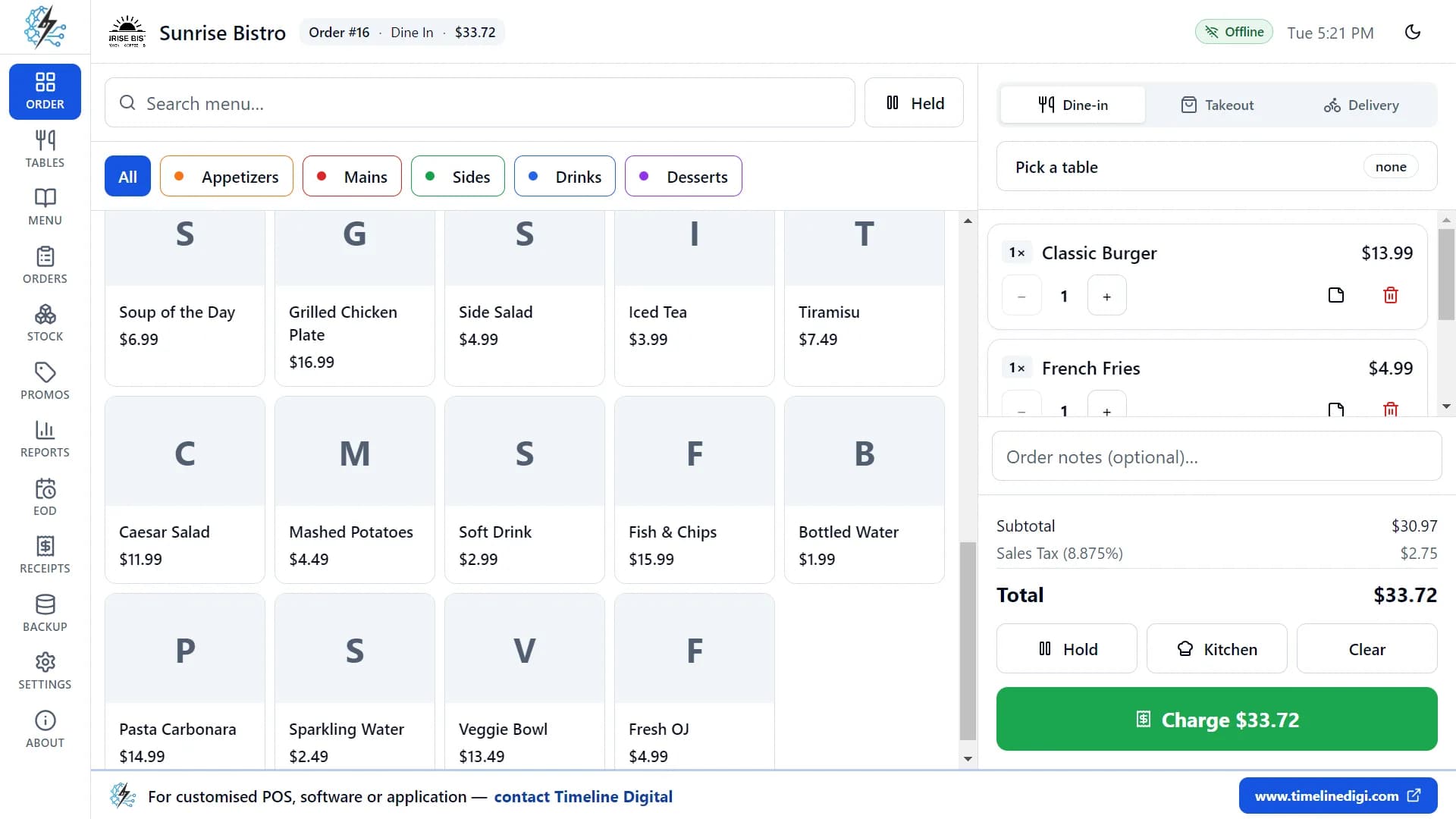
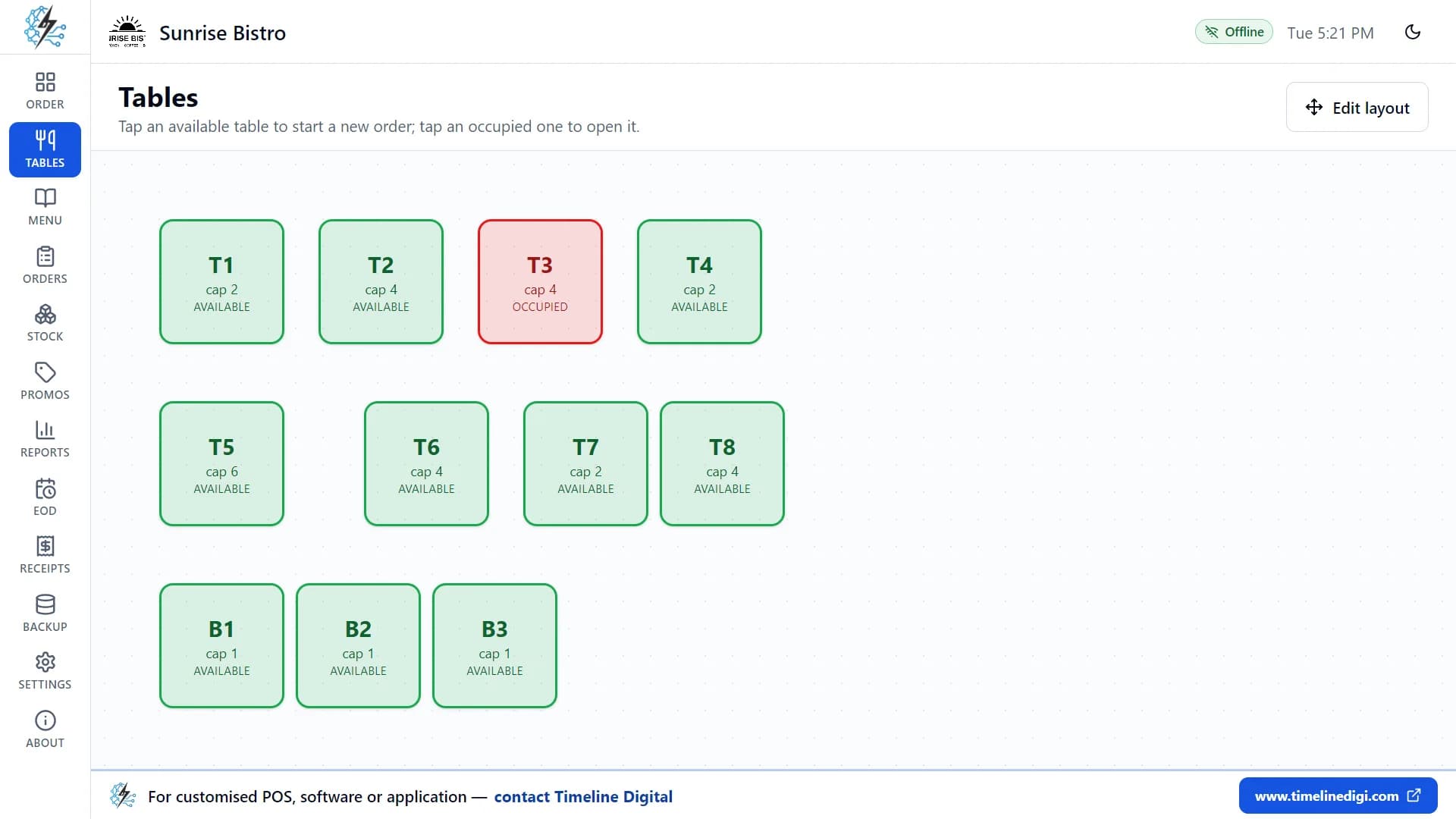
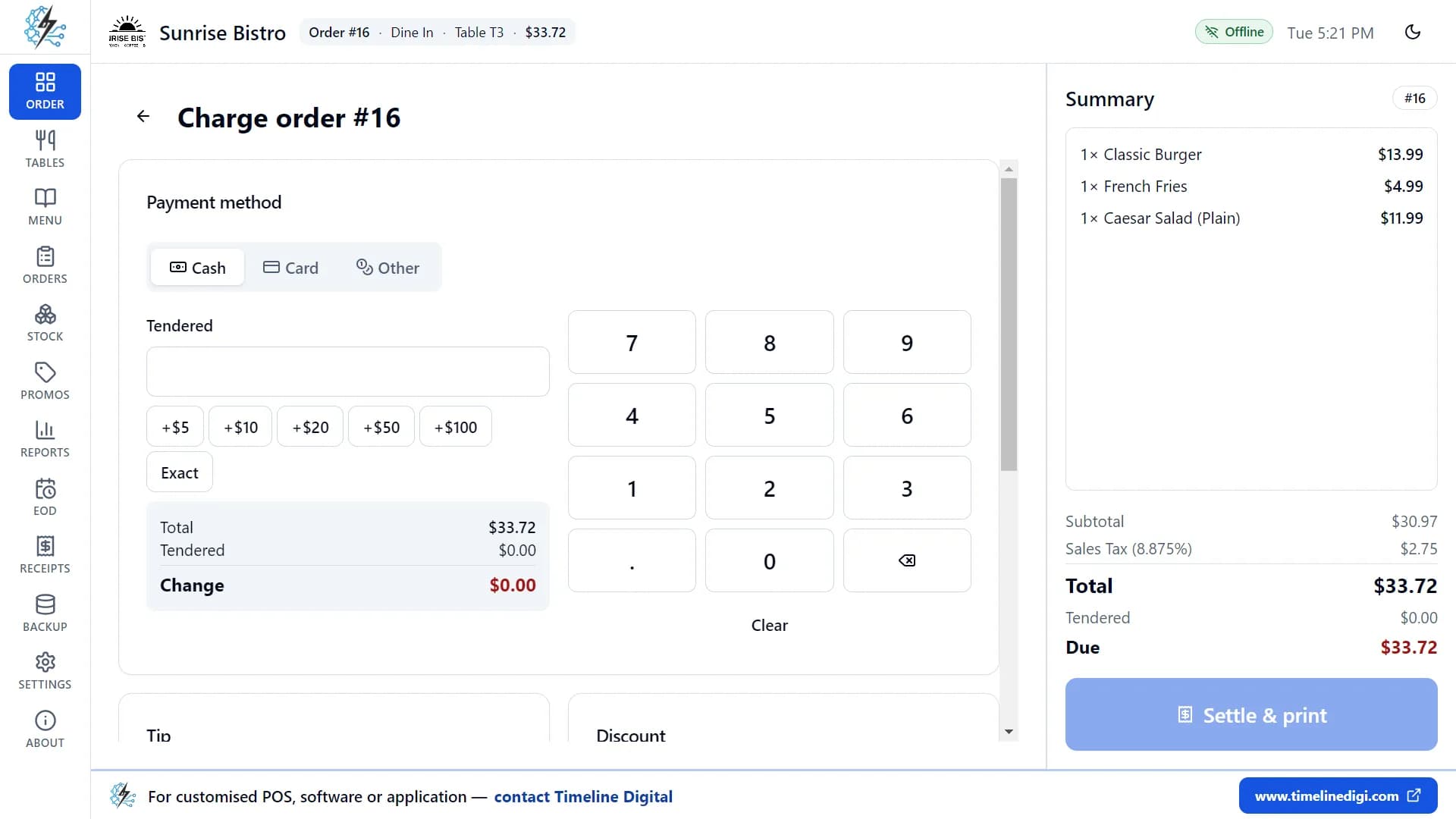
The screenshots show a demo restaurant. The names and numbers in them are made up.
Watch the first lesson
Lesson 1, “First-time setup” (3:03): set up your restaurant, tax and sample menu.
There are 18 free lessons, about 74 minutes in total. Each one shows the real app, step by step.
Timeline Restaurants POS on Mac vs cloud iPad POS systems
Both kinds of POS are useful. They fit different restaurants. These are the general differences.
| Timeline Restaurants POS on Mac | Cloud iPad POS systems | |
|---|---|---|
| Cost of the software | Free. No subscription and no paid plan. | Usually a monthly fee, or a free plan with paid extras. |
| Internet | Works offline. You only need the internet to download it. | Most features need a working internet connection. |
| Where your data is kept | Your orders, sales, menu, stock and reports are stored on your Mac. | Stored on the vendor’s servers, in the cloud. |
| Devices | One Mac at one counter. | Often several iPads and phones that share the same orders. |
Cloud systems differ from one vendor to the next, so check each vendor's own site. If you need several devices, waiters with tablets or card payments built in, a cloud POS or a custom system will suit you better than this app.
Questions from Mac users
Is there a free restaurant POS for Mac?
Yes. Timeline Restaurants POS 2.0.1 is free and runs on a Mac. There are two downloads: one for Apple Silicon Macs (M1 and later) and one for Intel Macs. There is no subscription, no paid plan and no trial period.
Which download do I need, Apple Silicon or Intel?
Click the Apple menu in the top-left corner of your screen and choose About This Mac. If you see "Chip" with a name such as Apple M1, M2 or M3, download the Apple Silicon file. If you see "Processor" with the word Intel, download the Intel file.
How do I install it on my Mac?
Open the .dmg file you downloaded, drag the app to your Applications folder, then open it. If macOS says the app cannot be opened because the developer cannot be verified, right-click the app, choose Open, then click Open again.
Does it work without the internet?
Yes. You need the internet to download the app. After that you can take orders, take payment, print receipts and read reports with no connection.
Can I use it on an iPad or iPhone?
No. It is a desktop app for Mac and Windows computers. There is no iPad, iPhone, Android or Linux version.
Can I use it on two Macs at the same time?
Not with shared data. The app is made for one computer at one counter. Each Mac you install it on keeps its own separate data, and the two do not sync.
Does it take card payments on a Mac?
You take the card payment on your own card terminal and record it in the app as a card payment. The app does not connect to card terminals or payment providers.
Which receipt printer can I use with a Mac?
The app can print to a network thermal printer by its IP address, on 58 mm and 80 mm paper. If you have no printer yet, choose the preview window and each receipt opens on screen. The printer guide and video lesson 16 show the printer settings step by step.
Free download for Mac
Put a POS on the Mac you already own.
Version 2.0.1. Free, with no subscription and no account.
Apple Silicon Mac
M1 and later · 116 MB
Download for Apple SiliconFile: TimelineRestaurantsPOS-Mac-arm64-2.0.1.dmg
Intel Mac
Macs with an Intel processor · 123 MB
Download for IntelFile: TimelineRestaurantsPOS-Mac-x64-2.0.1.dmg