School administration software is the system a school office uses to run its non-teaching work: student records, admissions, attendance, fee collection, exam results, staff files and accounts. It replaces paper registers and spreadsheets with one database, so the office can see who is enrolled, who has paid and who is present. An LMS, by contrast, runs teaching.
Most schools searching for "school management software" are actually shopping for this office layer first, because that is where the manual work piles up: the fee ledger, the attendance register, the admissions file, the results sheet a clerk retypes every term. This guide explains what the category manages, how it differs from an SIS, an LMS, and a school ERP, which setup fits your school size, what offline Windows software honestly trades away, and how to implement and migrate your data without losing a fee cycle.
What school administration software manages
The category covers the recurring office work that eats a registrar's or clerk's week:
- Student records and admissions. One profile per student: enrollment details, class and section, parent contacts, admission documents, and status changes when students join or leave mid-term.
- Attendance. Daily marking for students and staff, with monthly summaries you can produce for parents or an education-department inspection without re-counting registers.
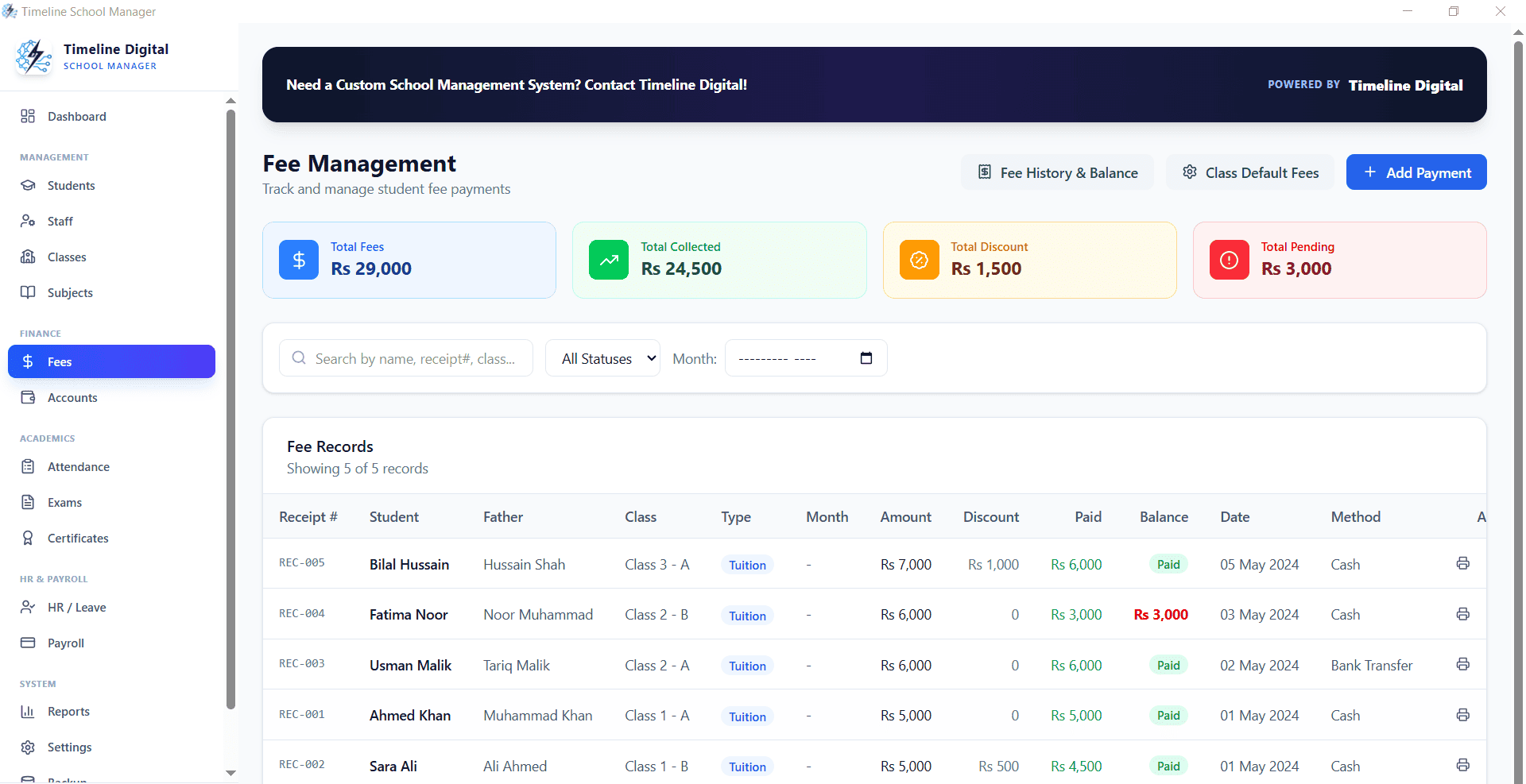
- Fees and receivables. Fee structures by class or head, receipts at the desk, and an outstanding-balance list that tells you exactly which families to follow up this week.
- Exams and results. Mark entry against each student and subject, term result compilation, and printable result cards.
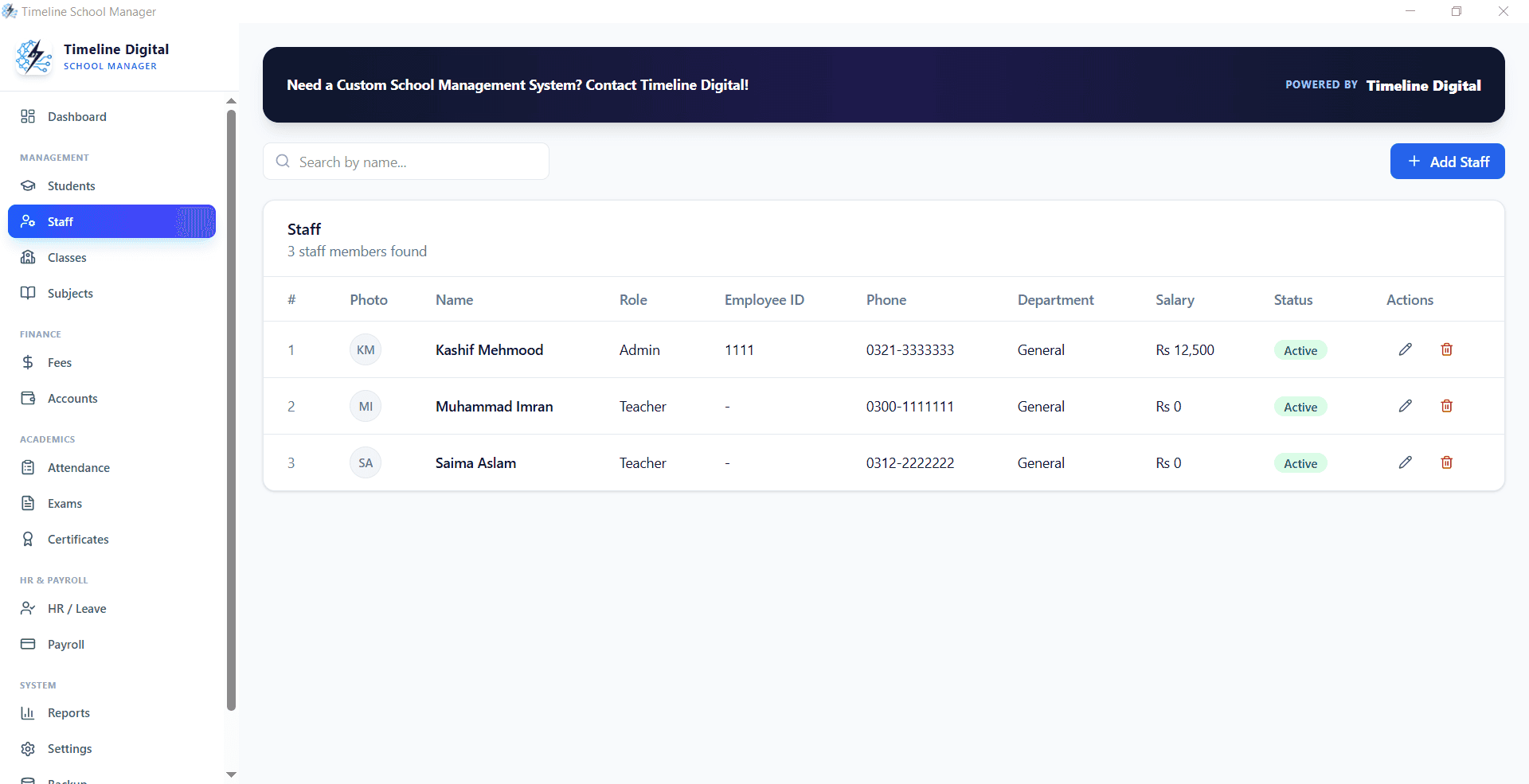
- Staff files. Teacher and non-teaching staff records, joining dates, and the documents schools are required to keep on file.
- Accounts and reporting. Collections, expenses, and the enrollment and fee summaries a principal needs for board meetings and audits.
What it does not do is deliver lessons. Teaching platforms such as Google Classroom or Moodle handle lesson delivery, assignments, and grading workflows for teachers. They do not track which families have paid the March tuition invoice, store staff contracts, or produce the fee reports a principal needs for an audit. Administration software covers that office side. Most schools eventually need both categories, but the office is usually where the backlog hurts first.
Vendors use these labels loosely, and mislabeled shopping is the most common reason schools buy the wrong tool. The three categories answer different questions:
| Student information system (SIS) | Learning management system (LMS) | School ERP |
|---|
| The system of record for students: enrollment, demographics, attendance, grades, and transcripts. Cloud SIS platforms add parent portals and multi-campus databases. | The teaching platform: lesson delivery, assignments, submissions, and grading workflows. Google Classroom and Moodle are the best-known examples, both with free tiers. | The everything system: an SIS core plus finance, HR, payroll, inventory, transport, and hostel modules, sold per student, per module, or per year. |
| Buy this when clean student records, attendance, fees, and results are the daily pain. | Buy this when lesson delivery and assignment tracking are the pain, not the office ledger. | Buy this when several departments and campuses need one integrated database, and budget exists for it. Pricing is usually per student, per module or per year, so get a written quote that includes setup and data migration. |
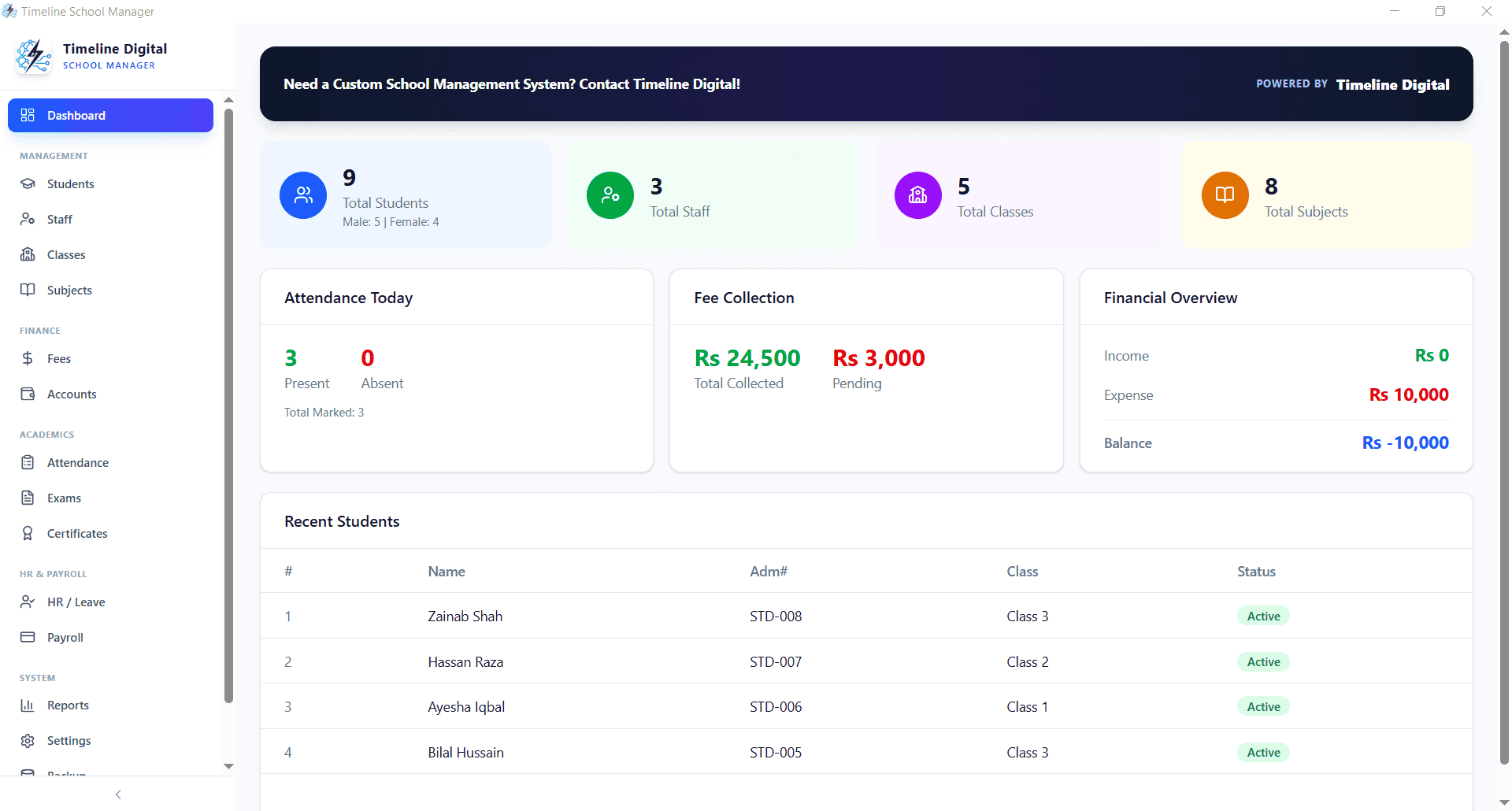
Timeline School Manager, made by Timeline Digital in Islamabad, belongs to the first family, with an honest qualifier: it is a free desktop student-records and administration app for Windows 10 and 11 (64-bit), not a cloud SIS. It keeps student records, attendance, fees, exams, staff, and accounts in one local database on the school PC. There is no parent or student portal, no SMS alerts, no online fee payment and no multi-campus sync, so weigh it as an office records system that costs nothing, not as a like-for-like replacement for a hosted SIS platform. It is not a UK MIS and does not produce UK census or US state reports.
Which setup fits your school size
Around 100 students, single campus. The office is one desk and one computer, and the daily jobs are receipts, attendance, and result cards. A desktop student-records app covers this without per-student fees, and a full SIS subscription is usually paying for portals nobody asked for yet. The student information system for small private schools guide walks through this case in detail.
Around 500 students, single campus. Desktop administration software still works well if the office runs through one hub computer, and the zero subscription matters at this size because per-student SIS pricing starts to bite. The trigger to consider a cloud SIS is a workflow need, not headcount: parents demanding online access to fees and results, or teachers needing to enter marks from their own devices.
2,000+ students or multiple campuses. At this scale you have several offices writing to the same records, and a single-PC database becomes the bottleneck. This is genuine cloud SIS or school ERP territory, and it is fair to pay for central hosting, role-based access, and campus-level reporting. The evaluation question shifts from price to data ownership: confirm you can export everything before you sign.
Offline Windows software: benefits and limits
Offline desktop software is the route most free administration tools take, and it deserves an honest ledger of both sides.
The benefits are real. The software keeps working through internet outages and load-shedding, which matters most during fee week when the queue is at the desk. The database lives on the school's own PC, so records stay in the building rather than on a vendor's server. And the cost is genuinely $0: no subscription, no per-student fee, no module unlock.
The limits are equally real. The app runs on a single PC, so two office staff cannot work from different rooms against the same live database. There is no parent portal, so families still ring the office to ask about fees and results. And there is no multi-branch sync, so a second campus means a second, separate database. If any of those three limits describes a need you have today, a paid cloud system is the honest recommendation. For the single-office school, the free offline school management software for Windows 10 page covers how the offline route runs day to day.
Core modules every school administration system needs
Whatever vendor you evaluate, check the tool covers this baseline before you commit a term of data to it:
- Student records with unique IDs and parent contact details
- Admissions and enrollment status tracking
- Daily attendance for students and staff
- Fee structures, receipt printing, and receivables tracking
- Exam scheduling, mark entry, and result cards
- Staff records and basic payroll figures
- An accounts view of collections and expenses
- Printable reports: defaulter lists, collection summaries, enrollment counts
Anything less and the office will be back in spreadsheets within a month, keeping shadow registers for whatever the tool missed.
As a concrete example, Timeline School Manager covers this checklist on one Windows PC: students, classes and subjects, attendance, fees with outstanding-balance tracking, staff, exams and results, and accounts, with a dashboard summarizing enrollment, collections, and today's attendance. The full module tour is on the school management system page.
Implementation and data migration
Implementation is where school software projects actually fail, and almost always for the same reason: dirty data loaded in the wrong order. A routine that works for a single-campus school:
- Collect what you have into clean lists. Get every existing register out of Excel or the old system into plain spreadsheets or CSV files: one for students, one for classes, one for fee balances. Paper registers get typed once, into these lists. If the new system offers an import, load from them; if not, the clean lists make data entry quick and consistent.
- Clean names and IDs before import. Fix duplicate students, standardize name spellings, and assign a unique ID to every student and staff member. This is the single highest-value hour of the whole project; inconsistent IDs are the most common cause of a failed migration.
- Load in dependency order: classes, then students, then fee structures. Classes and sections must exist before students can be assigned to them, and students must exist before balances can be attached. Loading in this order avoids orphan records.
- Parallel-run one full fee cycle. For one month, issue receipts from the new system while keeping the old register going. At month end, reconcile the two totals. If they match, retire the paper; if not, you have found your data problems while the old system still works.
- Set a weekly backup routine. With a desktop app, copy the data folder to a USB drive or a second machine every week, dated, and keep at least four generations. Timeline School Manager keeps its records in a local SQLite database, so a backup is a folder copy and a restore is copying it back. This is the discipline that makes local-first software safe.
Budget two to four weeks of part-time office effort for the whole routine at a small school. Attendance and exam history can start fresh from go-live; migrating years of old marks is rarely worth the retyping.
The bottom line
Buy for the office you have, not the school you might become. If the daily pain is receipts, registers, and result cards on one campus, school administration software on a Windows PC solves it, and the free desktop route means the decision costs nothing to test: Timeline School Manager (version 2.5.0, an installer of about 105 MB) is downloadable from the school management software page. The installer is not code-signed, so Windows SmartScreen may ask you to confirm on first run. For the fee side in more depth, see how to manage student fees and accounts. If the pain is parent access, multi-campus records, or department-level finance, shop the cloud SIS and school ERP categories with a clear list of the workflows you are paying for.