Windows 10 and 11
Free offline cash register software for PC (Windows)
Timeline Digital publishes two free cash register apps that turn one Windows PC into a till. Timeline POS is for shops and retail counters. Timeline Restaurants POS is for restaurants, cafes and takeaways. Both work offline, with no monthly fee, and each has its own download below.
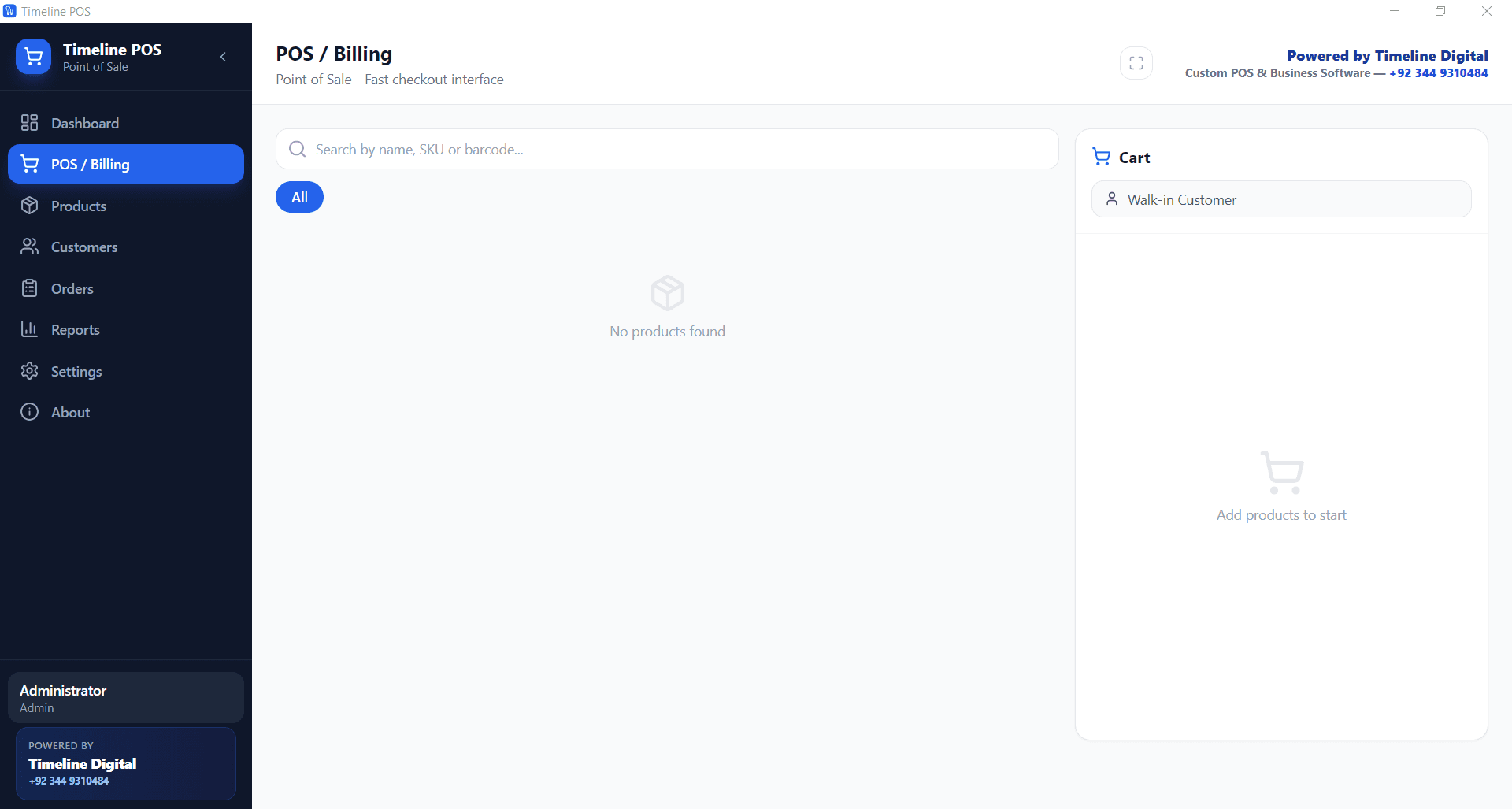
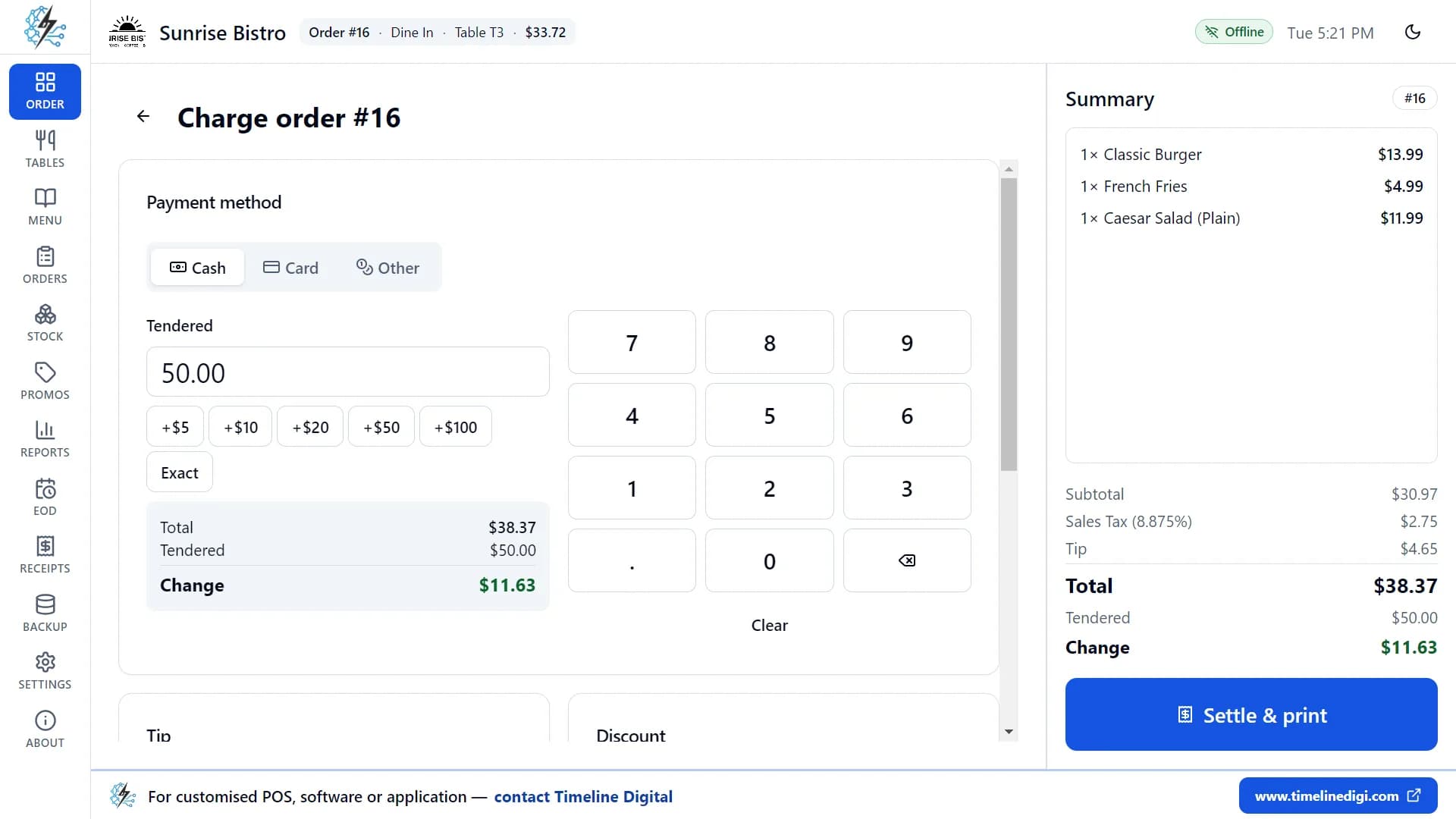
On day one you get a sales screen, a product list or menu, tax worked out on every sale, a receipt you can print or preview, and a record of each sale that you can look up later. A receipt printer is optional and can be added when you are ready.
Key facts
- Price
- Free. No subscription, no trial period and no account to create.
- Runs on
- One Windows 10 or Windows 11 PC or laptop. Timeline POS is Windows only. Timeline Restaurants POS needs 64-bit Windows and is also published for Mac.
- Internet
- Needed to download the installer. Selling, receipts and reports work offline.
- For shops and retail
- Timeline POS 1.0.7, Windows only, installer ~164 MB
- For restaurants and cafes
- Timeline Restaurants POS 2.0.1, Windows and Mac, Windows installer about 96 MB
- Made by
- Timeline Digital, a custom software company founded in 2013 in Islamabad, Pakistan
Which one is for me?
These are two different apps, not two editions of one. Find your business in the table and use the app beside it.
| Your business | Use this app | Runs on |
|---|---|---|
| Retail shop, boutique, clothing, mobile, electronics or hardware shop | Timeline POS | Windows only |
| Grocery or convenience store, supermarket, liquor store or pharmacy | Timeline POS | Windows only |
| General store or service counter | Timeline POS | Windows only |
| Restaurant, cafe, coffee shop, bar or pub | Timeline Restaurants POS | Windows and Mac |
| Bakery, ice cream shop, pizza shop, fast food, takeaway, food truck or cafeteria | Timeline Restaurants POS | Windows and Mac |
What does cash register software do on a PC?
A cash register has four jobs: ring up the sale, work out the money, print a receipt and total the day. This is how each free app does them.
| Job at the till | Timeline POS (shops) | Timeline Restaurants POS (food service) |
|---|---|---|
| Ring up a sale | Search a product by name, SKU or barcode, add it to the cart, apply a discount and close the sale | Tap menu items to build an order, with sizes, extras and notes. Order types: Dine-in, Takeout and Delivery |
| Work out the total and the change | Totals the cart with your tax rate and records the amount paid and any balance still due | Subtotal, discount, tax and total update live. For cash, type the amount handed over and the change is worked out for you |
| Print a receipt | Prints an invoice or receipt from the Windows PC, with your own receipt footer message | Prints on 58 mm and 80 mm paper with your logo, header and footer. No printer yet? Receipts open in a preview window |
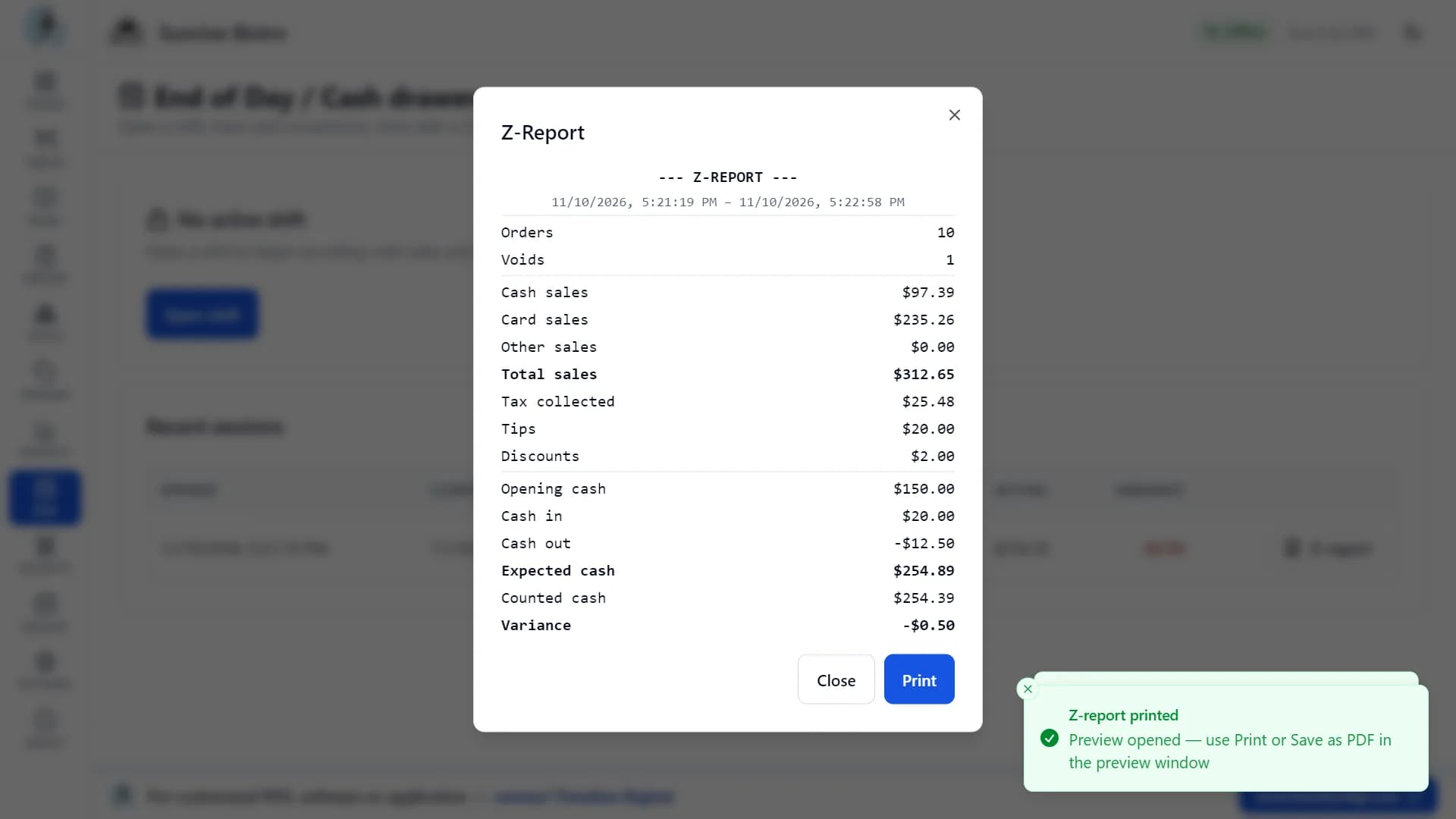
| Total the day | Sales reports with export to PDF or CSV, plus an order history you can filter by date range | Open a shift, record cash in and out, count the drawer and print a Z-report |
| Keep a record of every sale | Order history with date, customer, items, discount, amount paid and status | Today's open, held and closed orders, with a reprint of any paid receipt |
| Track stock | Products with cost price, selling price and stock level, plus low stock alerts | Ingredients and recipes, so every paid order reduces stock |
Shop or restaurant: which free till software do you need?
Both are free and both run on one Windows computer. The difference is what you sell and how you take the order.
For shops and retail: Timeline POS
Runs on Windows 10 and 11 only. There is no Mac version.
For retail shops, grocery and convenience counters, pharmacies, boutiques, salons and service desks. You sell products from a catalogue, by search or barcode.
- Billing with discounts, walk-in or registered customers
- Products, categories and stock levels with low stock alerts
- Customer records with order history and balances
- Sales reports with PDF and CSV export
Version 1.0.7 · Free · Works offline · Windows only
For restaurants and cafes: Timeline Restaurants POS
Runs on Windows 10 and 11 (64-bit) and on Mac (Apple Silicon and Intel).
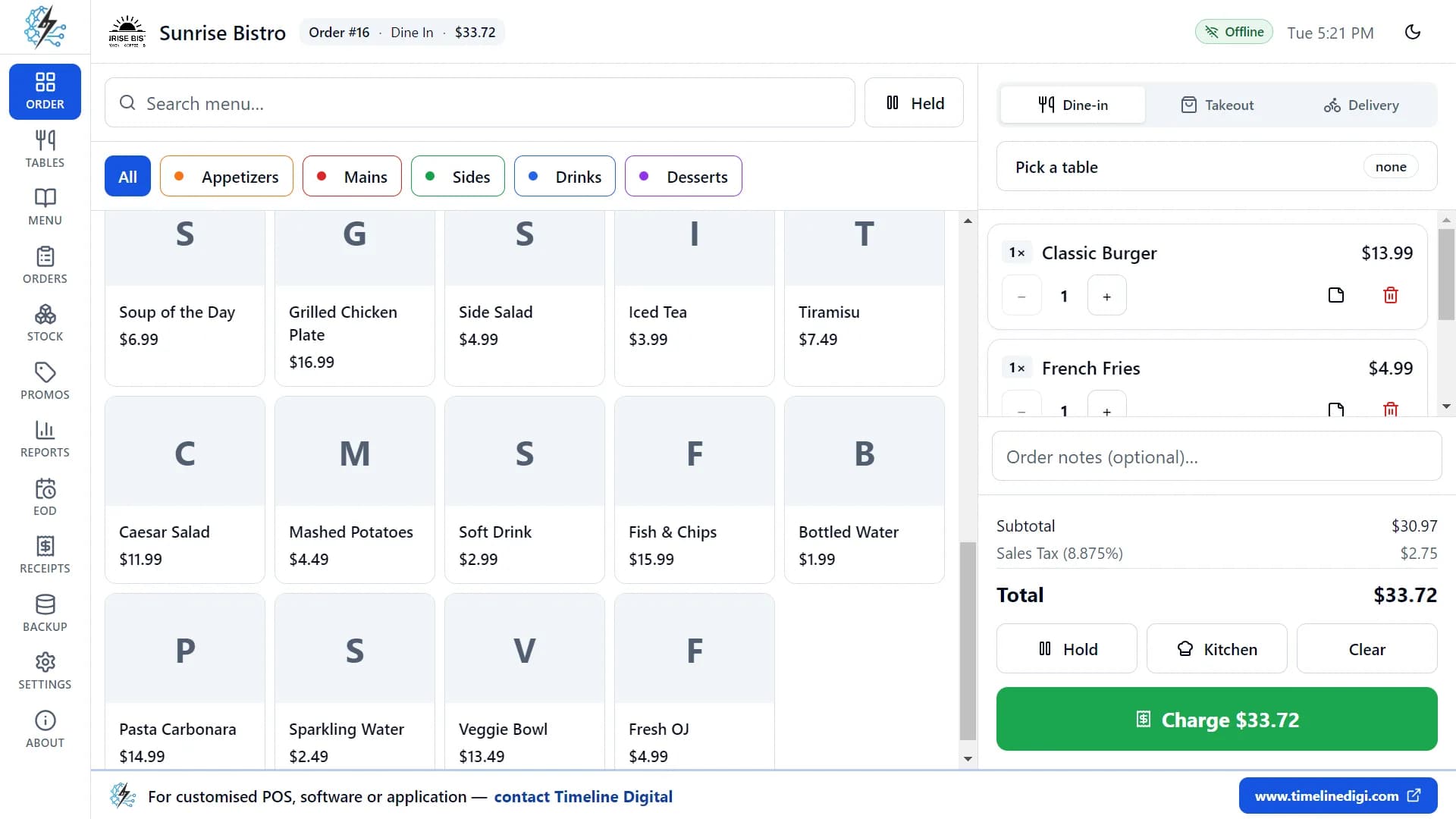
For restaurants, cafes, bakeries, bars, food trucks and takeaways. You take orders from a menu, by table or for takeout and delivery.
- Dine-in, takeout and delivery orders with a table floor plan
- Kitchen tickets sent to the receipt printer or a separate kitchen printer
- Cash with change, card and other payments, plus tips and discounts
- End of day: shifts, cash in and out, drawer count and Z-report
A cafe, bakery or takeaway should use Timeline Restaurants POS, even with no tables: it is the one with a menu, sizes and extras. Only Timeline Restaurants POS is published for Mac, on the free restaurant POS for Mac page. Timeline POS has no Mac version. For both Windows apps side by side, see free POS software for Windows.
What do you need to use a PC as a cash register?
A Windows PC, and a receipt printer if you want paper receipts. There is no special till hardware to buy before you can start.
| Computer | A PC or laptop with Windows 10 or Windows 11. Windows 7, 8 and 8.1 are not supported. |
|---|---|
| For the restaurant app | 64-bit Windows, about 400 MB of free disk space and a screen of at least 1024 by 700. |
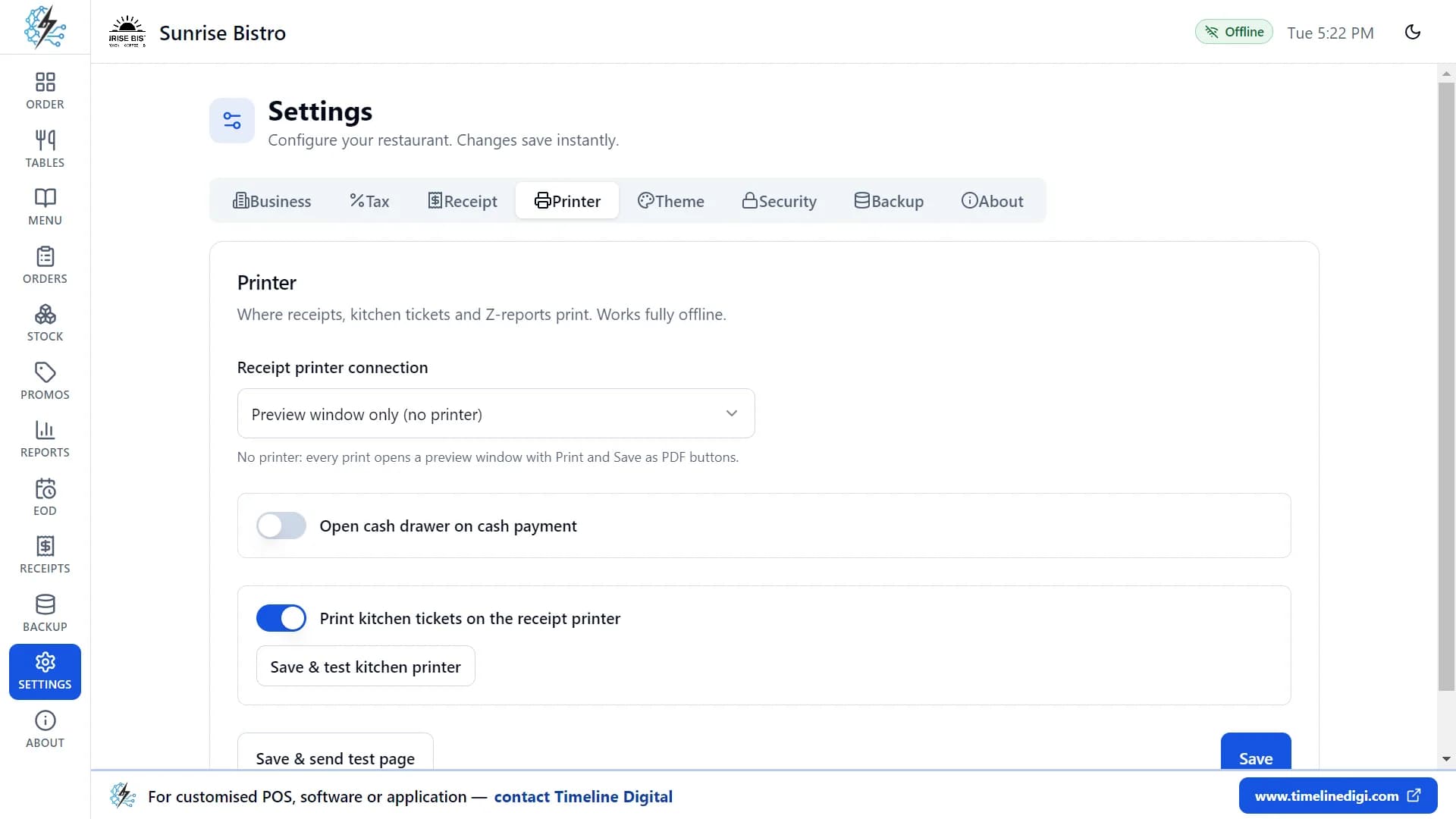
| Receipt printer | Optional. The restaurant app prints on 58 mm and 80 mm thermal paper through any printer installed in Windows, a network thermal printer or a serial port. Without a printer, its receipts open in a preview window. |
| Cash drawer | Optional. The restaurant app can open a drawer on cash payments, through the receipt printer or a separate port. |
| Internet | Needed once, to download the installer. Not needed to sell. |
| Not needed | An account, card details or dedicated till hardware. A barcode scanner is optional for the shop app. |
Connecting a printer or a cash drawer to the restaurant app is covered step by step in the printer setup guide.
How do you turn your PC into a cash register?
Four steps, from download to the first receipt.
Download and run the installer
Pick the app for your business above: Timeline POS for a shop, Timeline Restaurants POS for food service. The installers are not code-signed yet, so Windows may show a blue "Windows protected your PC" message. Check that the file came from timelinedigi.com, then choose More info and Run anyway.
Enter your business details
In the restaurant app a short setup wizard asks for your name and country, then fills in the currency, number format and a starting tax rate for 173 countries and regions. In the shop app you enter your business name, currency symbol and tax rate in Settings.
Add what you sell
In the restaurant app one switch loads a sample menu of 34 items and 11 tables, so you can practise before adding your own. In the shop app you add your products with prices and stock levels.
Ring up a test sale
Make one sale from start to finish and print or preview the receipt. If the total, the tax and the receipt look right, the PC is ready to work as your till.
The restaurant app comes with 18 short video lessons, about 74 minutes in total. Start with lesson 1, “First-time setup”, on the how to use Timeline Restaurants POS page.
How do you take payment and cash up? Watch it.
Three lessons recorded in Timeline Restaurants POS: billing and payment, the end of day and Z-report, and designing your receipt. There are no video lessons for Timeline POS yet.
Lesson 5: Billing and payment (4:57)
Cash, card, tips, discounts and receipts.
Lesson 14: End of day and Z-report (3:59)
Shifts, cash in and out, cash count, Z-report.
Lesson 15: Designing your receipt (4:00)
Logo, header, footer and paper size.
All 18 lessons with written steps · Watch the playlist on YouTube
How do you cash up at the end of the day?
Count the drawer and print the Z-report. This is how the end of the day works in Timeline Restaurants POS.
- Open a shift. Start the day by entering the cash float you put in the drawer.
- Record cash in and out. When cash is added to or taken from the drawer during the day, record it with a reason.
- Count the drawer. At closing time, count the cash and type in the amount. The app shows the expected cash, your counted cash and any difference.
- Print the Z-report. The end-of-day report lists orders, cash, card and other sales, tax, tips, discounts and the cash count. Past shifts stay in a history you can reprint.
Timeline POS, the shop app, does not have shifts or a Z-report. There you total the day from the sales reports, which you can export to PDF or CSV, and from the order history, which you can filter by date range and which lists every sale with the amount paid.
Is till software the same as cash register software and EPOS?
In British English the cash register is usually called the till, so “till software for PC” and “cash register software for PC” are the same search. “EPOS” stands for electronic point of sale and means the same kind of system. The restaurant app follows your country: pick it in setup and prices show in your currency, with tax either added at checkout or included in prices, as VAT is. If you are comparing EPOS options, read our free POS software comparison.
Who is this for, and who is it not for?
A free till on one PC suits a single counter. It does not replace a networked system.
A good fit when
- You have a spare Windows PC or laptop and one counter to serve from.
- You want to stop writing sales in a notebook or adding them up on a calculator.
- You do not want a monthly software fee or a contract.
- You already have a card terminal from your bank, or you take mostly cash.
- Your internet is unreliable and the till must keep working without it.
Not the right tool when
- You need two or more tills, tablets or phones sharing the same sales and stock.
- You want card payments taken inside the software. Both apps only record a card sale; the customer pays on your own terminal.
- You need a separate login for each cashier. The restaurant app has no staff logins or user roles.
- You want to see sales from home or from another branch. There is no cloud sync or remote access.
- You need a till on an iPad or Android tablet. These are desktop apps.
The restaurant app also does not split a bill, take part payments or process refunds from the screen, and it is in English only. If the second list describes your business, a system built for you is the better route: custom POS software development.
Outgrown one till? How the free pilot works
Before you commit to the full project, we build 2 to 3 of your key modules as working software, free of charge, ready in about 2 days. Your team tests the pilot, and the full build starts only after you approve it.
See how the free pilot worksUnderstand
We learn your requirements and how your organisation works today.
Select pilot modules
Together we choose 2 to 3 key modules that prove the solution.
Build the working pilot
We build those modules as real, working software, free of charge.
You test it
Your team uses the pilot. The full project starts only after you approve it.
Free cash register software questions
Can I turn my computer into a cash register for free?
Yes. Install free cash register software on a Windows 10 or Windows 11 PC or laptop and it rings up sales, totals them with tax, prints receipts and keeps a record of the day. Timeline Digital publishes two free apps for this: Timeline POS for shops and Timeline Restaurants POS for food service.
Is this the full version or a trial?
It is the full version. Neither app has a trial period, a paid plan or features locked behind an upgrade. You download the installer, run it and use every feature for free, with no account and no card details.
Does the free cash register software work on Windows 10?
Yes. Both apps run on Windows 10 and Windows 11. Timeline Restaurants POS needs a 64-bit version of Windows. Windows 7, 8 and 8.1 are not supported, so an older counter PC needs a newer version of Windows first.
Does it work without the internet?
Yes. You need a connection to download the installer. After that, selling, printing receipts and running reports all work offline, because the sales records are stored on the PC itself. A dropped connection does not stop the till.
Are there cash registers without monthly software payments?
Yes. A Windows PC running a free desktop app has no monthly software payment, because the app is installed on your own computer and does not need a subscription. Both Timeline apps work this way. Card processing is separate: you keep your own card terminal and whatever your bank or provider charges for it.
Does it open a cash drawer?
Timeline Restaurants POS does. In Settings, on the Printer tab, turn on "Open cash drawer on cash payment" and the drawer opens each time you take a cash payment, through your receipt printer or a separate port. An "Open drawer" button lets you test it. See the printer setup guide. We do not list cash drawer support for the retail app, so do not plan around it there.
Which receipt printers work with it?
Timeline Restaurants POS prints through any printer installed in Windows, including USB thermal printers, a network thermal printer by IP address, or a serial (COM) port, on 58 mm and 80 mm paper. Timeline POS prints invoices and receipts from the Windows PC. A printer is optional for both: you can start without one.
Is till software the same as cash register software?
Yes. "Till" is the usual British English word for a cash register, and "EPOS" means an electronic point of sale system. All three describe software that records sales and takes payment at the counter. Our free POS software comparison covers EPOS options.
Can it take card payments?
It records them. You take the card payment on your own card terminal or bank card reader, then record the sale in the app. In Timeline Restaurants POS you mark the order as paid by card and can type a reference. Neither app connects to a card terminal or a payment provider, so there is no card fee from the software.
Where are my sales records kept?
On your own computer, in a local database that you back up yourself. For the restaurant app: Your orders, payments, menu, stock, reports and backups are stored only on your computer and are never uploaded. When you finish setting up the app, it sends Timeline Digital your registration details once (restaurant name, type, country and city, owner name, phone or WhatsApp number, email, currency, tax settings and app version) so we know who is using it and can offer support. If you are offline, they are sent the next time the computer is connected. We do not sell or share these details.
What if I need more than one till?
The free apps run on one computer each and do not share data between counters. If you need several tills, branches, staff logins or a cloud dashboard, that is a custom system. See custom POS software development. Timeline Digital does not publish prices for custom software, because every project is custom.
Download the free cash register software
Two free apps, each with its own installer. Both have no subscription and work offline on one computer. Pick the one for your business.
For shops and retail: Timeline POS
Windows 10 and 11 only. There is no Mac version.
Download for WindowsWindows 10 and 11 · ~164 MBVersion 1.0.7 · Free · Works offline · Windows only
For restaurants and cafes: Timeline Restaurants POS
Windows 10 and 11 (64-bit) and Mac (Apple Silicon and Intel).
Version 2.0.1 · Free · Works offline
The Windows installers are not code-signed, so Windows may ask you to click More info, then Run anyway. The Mac app of Timeline Restaurants POS is not notarized, so right-click it and choose Open the first time. If you need tills that share stock, staff logins or branches, tell us how your counter works on the contact page. We reply with the modules we would pilot, or tell you the free app is enough.
Updated
About this page
Published by Timeline Digital, which makes both apps described here. The features and limits are taken from the current versions, Timeline POS 1.0.7 and Timeline Restaurants POS 2.0.1. The Windows installers are not code-signed and the Mac app of Timeline Restaurants POS is not notarized, and no certification or tax compliance is claimed on this page: check the tax rate the app suggests against your own local rules.
Author
Usama Asif
CEO and CTO, Timeline Digital.
Related free POS pages
Timeline POS
The free retail app: billing, products, customers, orders and reports on a Windows PC.
Read this nextTimeline Restaurants POS
The free restaurant app: orders, tables, kitchen tickets, payments and the Z-report.
Read this nextFree POS Software for Windows
Both free Windows apps compared side by side, with requirements.
Read this nextFree POS Software, Best Options Compared
How the free options compare, including EPOS and till software for UK shops.
Read this nextFree Offline POS Software Download for PC
What to check before you download an offline POS for a Windows computer.
Read this nextCustom POS Software Development
For shops that outgrow a single till: several counters, branches and integrations.
Read this nextFree Software from Timeline Digital
All the free Windows tools we publish and maintain.
Read this next