Free offline restaurant POS for Windows
Timeline Restaurants POS is a free restaurant POS made by Timeline Digital. It runs on one Windows 10 or 11 PC and works without the internet. No subscription and no account.
Version 2.0.1 · Free · Works offline · Using a Mac? Get the Mac version
What do I need to run it on a Windows PC?
You need one PC with 64-bit Windows 10 or Windows 11, a screen of at least 1024 × 700 and about 400 MB of free disk space. The app is free, with no subscription. It needs the internet only for the download, and it keeps your orders, sales and menu on that one computer.
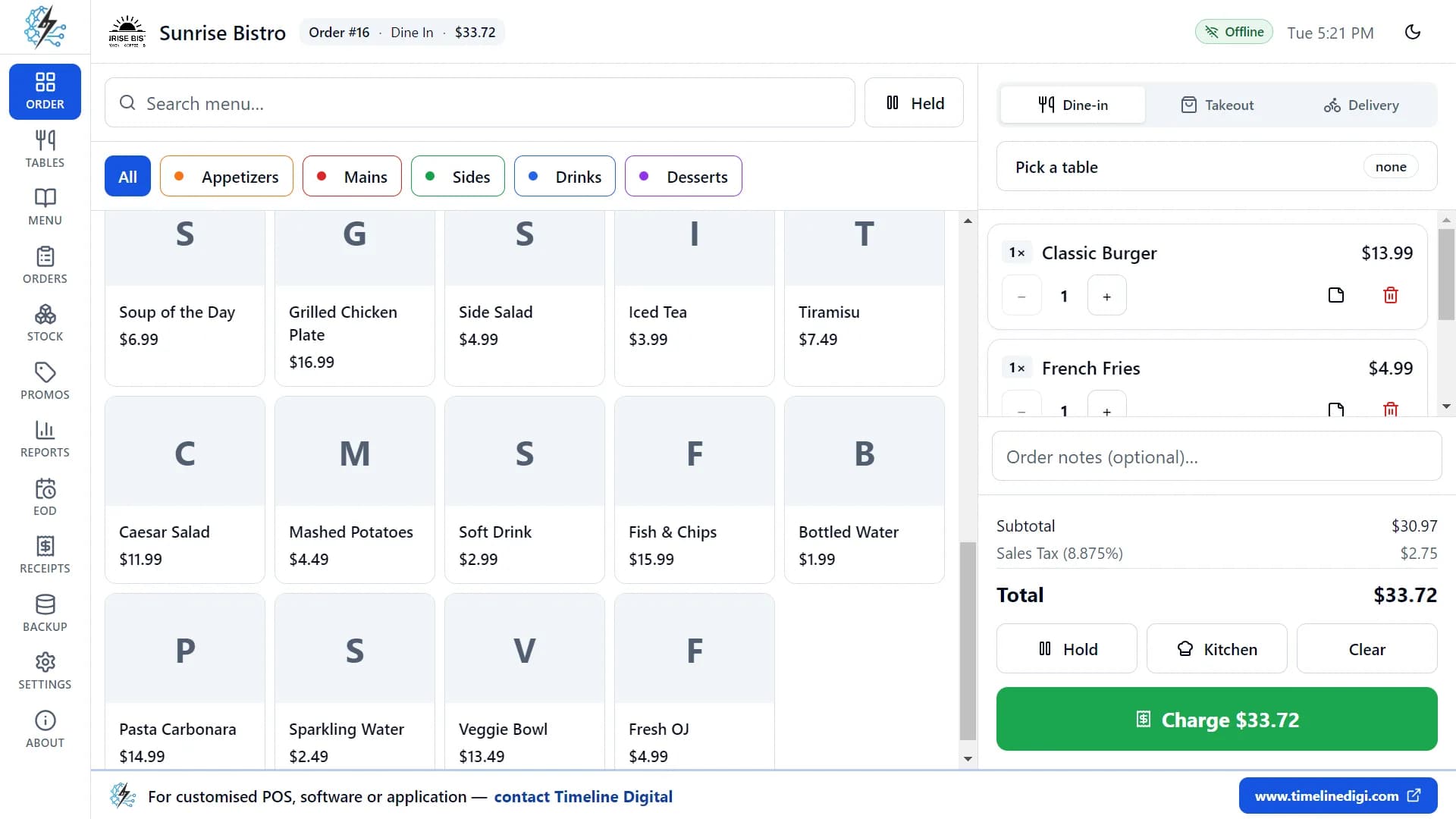
It is made for restaurants, cafés, bars, bakeries, food trucks and takeaways that serve from one counter. It takes Dine-in, Takeout and Delivery orders, manages tables, makes the bill, prints receipts and kitchen tickets, tracks stock and closes the day with a Z-report. The Timeline Restaurants POS page describes the app in full.
Running a shop or a retail counter instead of a restaurant? Use Timeline POS instead, our separate free app for shops. It runs on Windows only.
On a MacBook, iMac or Mac mini? There are two Mac files and their own install steps on the free restaurant POS for Mac page.
| Windows version | Windows 10 or Windows 11, 64-bit |
|---|---|
| Screen | At least 1024 × 700. 1366 × 768 or larger is recommended. |
| Free disk space | About 400 MB, plus room for your backups |
| Internet | Needed only to download the installer. The app itself works offline. |
| Administrator rights | Not needed. The app installs for your own Windows user. |
| Receipt printer | Optional. Without one, each receipt opens in a preview window. |
| Installer | TimelineRestaurantsPOS-Setup-2.0.1.exe, about 96 MB |
How do I install the restaurant POS on Windows 10 or 11?
Download the installer, open it and follow four short steps. The installer is not code-signed, so Windows may show a blue "Windows protected your PC" message: click More info, then Run anyway. You do not need administrator rights, an account or a license key.
Download the installer
Click Download for Windows. The file TimelineRestaurantsPOS-Setup-2.0.1.exe (about 96 MB) is saved to your Downloads folder.
Open the file
Double-click it. If a blue "Windows protected your PC" message appears, click More info, then Run anyway.
Choose the folder
Keep the default folder or pick your own, then finish. The installer adds Desktop and Start Menu shortcuts.
Start the app
The app opens by itself when the install ends. Right-click its icon on the taskbar and choose "Pin to taskbar" to keep it one click away.
The blue SmartScreen message
The Windows installer is not code-signed. Windows SmartScreen asks before it runs a file it does not know yet, and shows "Windows protected your PC".
- Click More info.
- Click Run anyway.
Only do this for a file you downloaded from timelinedigi.com.
Version 2.0.1 · Free · Works offline
What happens the first time I open it?
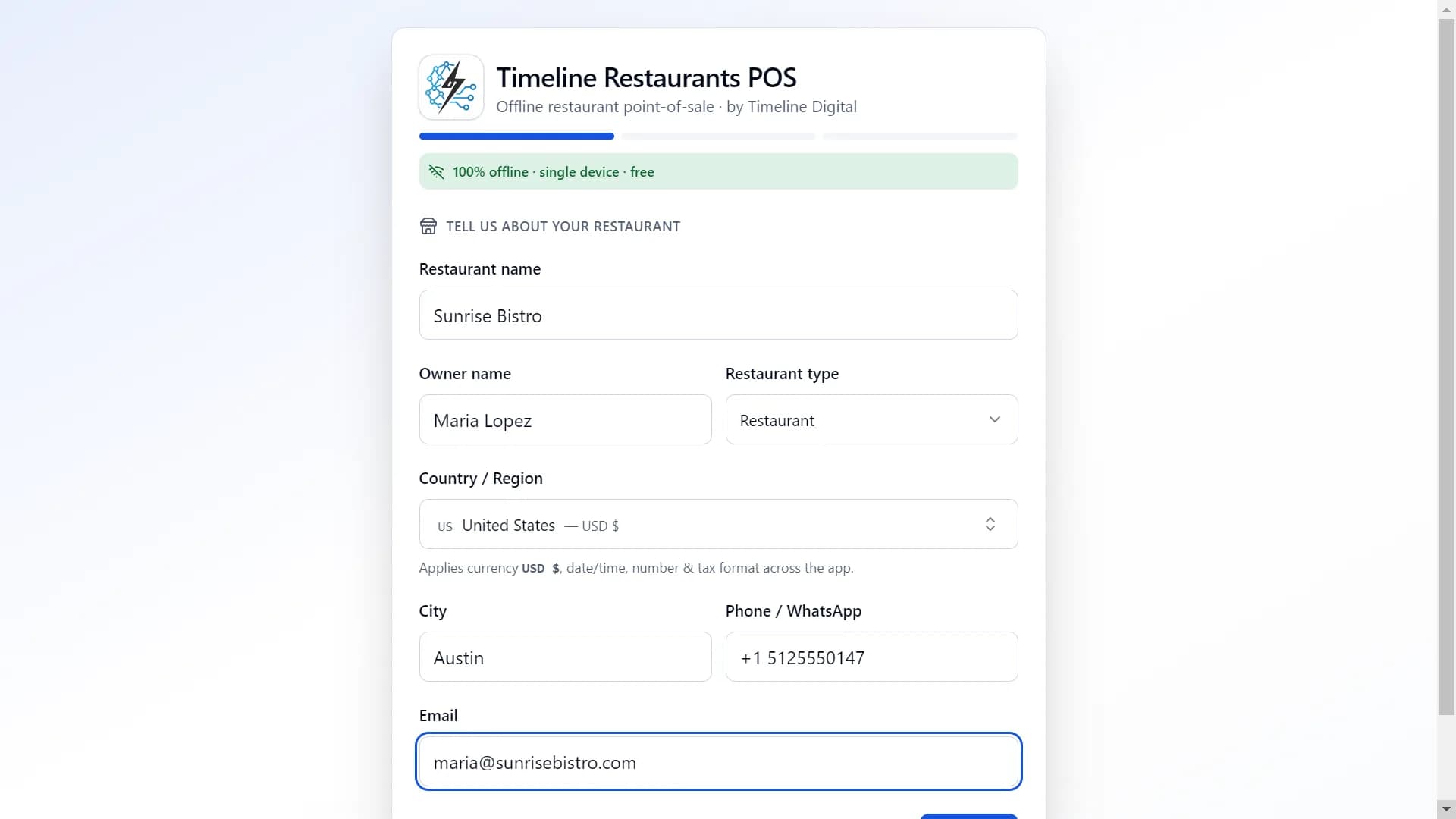
A setup with three steps opens. It takes about two minutes.
- Your restaurant. Type the restaurant name, owner name, city, phone or WhatsApp number and email. Choose the type of business and pick your country from 173 countries and regions. The app sets the currency, the number and date formats and a starting tax rate.
- Your tax. Check the tax name and rate and change them if you need to.
- Sample data. One switch loads a sample menu of 34 items in 5 categories and 11 tables, so you can practise. You can delete it later.
When setup ends, the app sends your registration details to Timeline Digital once. See what the app sends.
How do I print receipts on Windows?
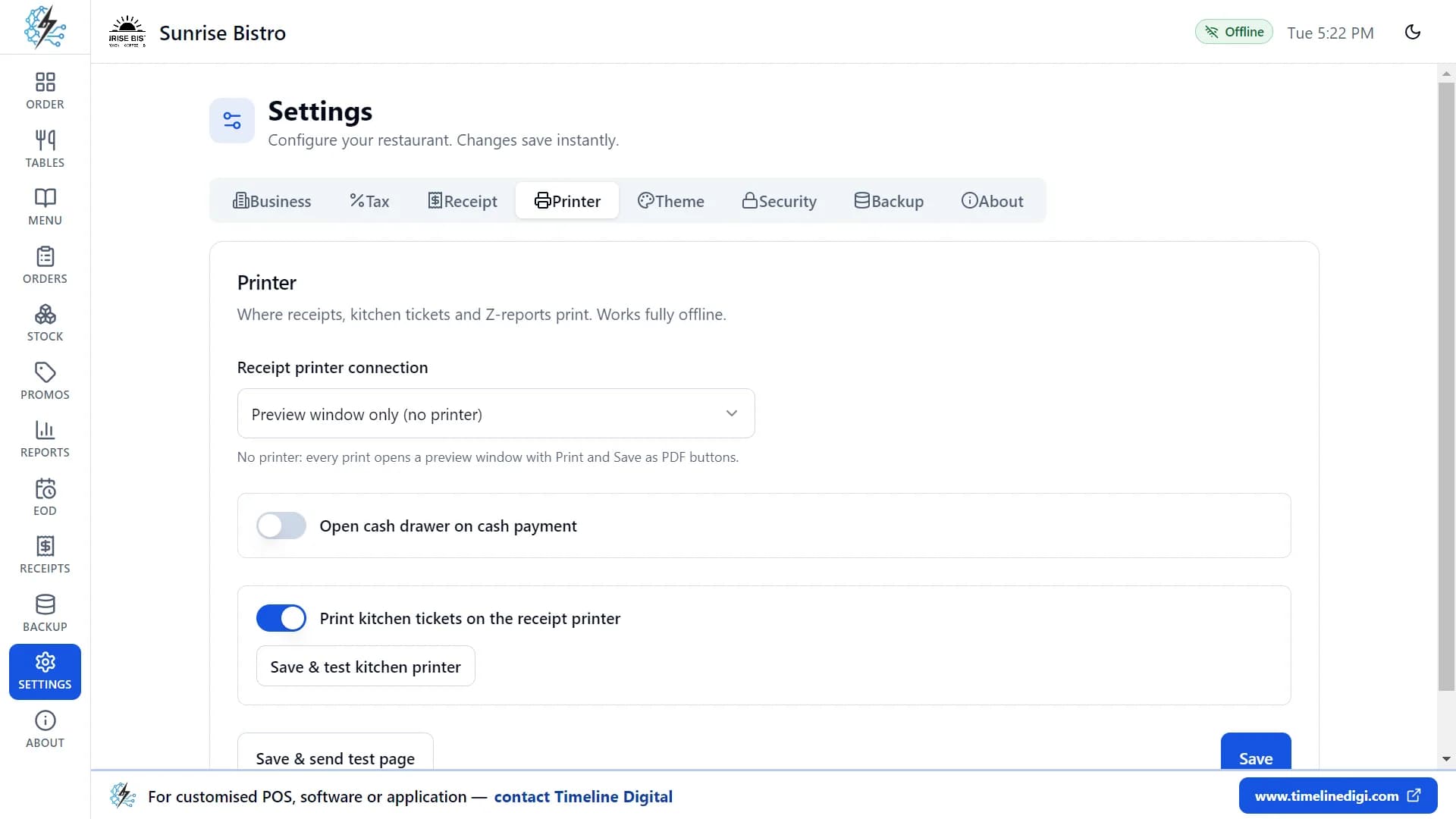
Open Settings, go to the Printer tab and choose how your printer is connected. The app prints on 58 mm and 80 mm paper and works with ESC/POS printers: Epson and compatible brands such as Xprinter, Rongta and Sewoo, plus Star printers. Click Save & send test page to check it.
- Windows printer (recommended)
- Any printer installed in Windows, including USB thermal printers. Install the printer driver first, then pick the printer from the list in the app.
- Network thermal printer
- Prints straight to a thermal printer on your network by its IP address, for example 192.168.1.50:9100.
- Serial port or shared printer
- Sends receipts to a COM port, for example COM3, or to a shared Windows printer.
- Preview window only
- For a PC with no printer yet. Each receipt opens on screen, where you can print it or save it as a PDF.
A cash drawer can open on each cash payment, through the printer or a separate port. Kitchen tickets print on the receipt printer or on a separate kitchen printer. The printer setup guide has each connection step by step.
What is inside the free download?
The whole app. No screen is locked and there is no paid plan.
- Orders
- Dine-in, Takeout and Delivery, with sizes, extras and notes. Hold an order and bring it back later.
- Tables
- A floor plan that shows each table as available, occupied, reserved or being cleaned.
- Payments
- Cash with the change worked out, card, or other payment such as a voucher. Tips and discounts are on the same screen.
- Kitchen tickets
- Tap Kitchen on an order to print a ticket on the receipt printer or on a separate kitchen printer.
- Menu
- Categories, items with photos, sizes and modifier groups. Switch an item to sold out and it leaves the order screen.
- Stock
- Ingredients and recipes. Each paid order takes its ingredients out of stock, and low items are marked.
- Promotions
- Happy hours, buy-one-get-one deals and promo codes, with dates, days and hours.
- Reports
- Sales summary, categories, best-selling items, payments and discounts. Export any report as a CSV file.
- End of day
- Open a shift, record cash in and out, count the drawer and print the Z-report.
Receipts carry your logo, address, header and footer. The app has light and dark themes. See every feature, explained.
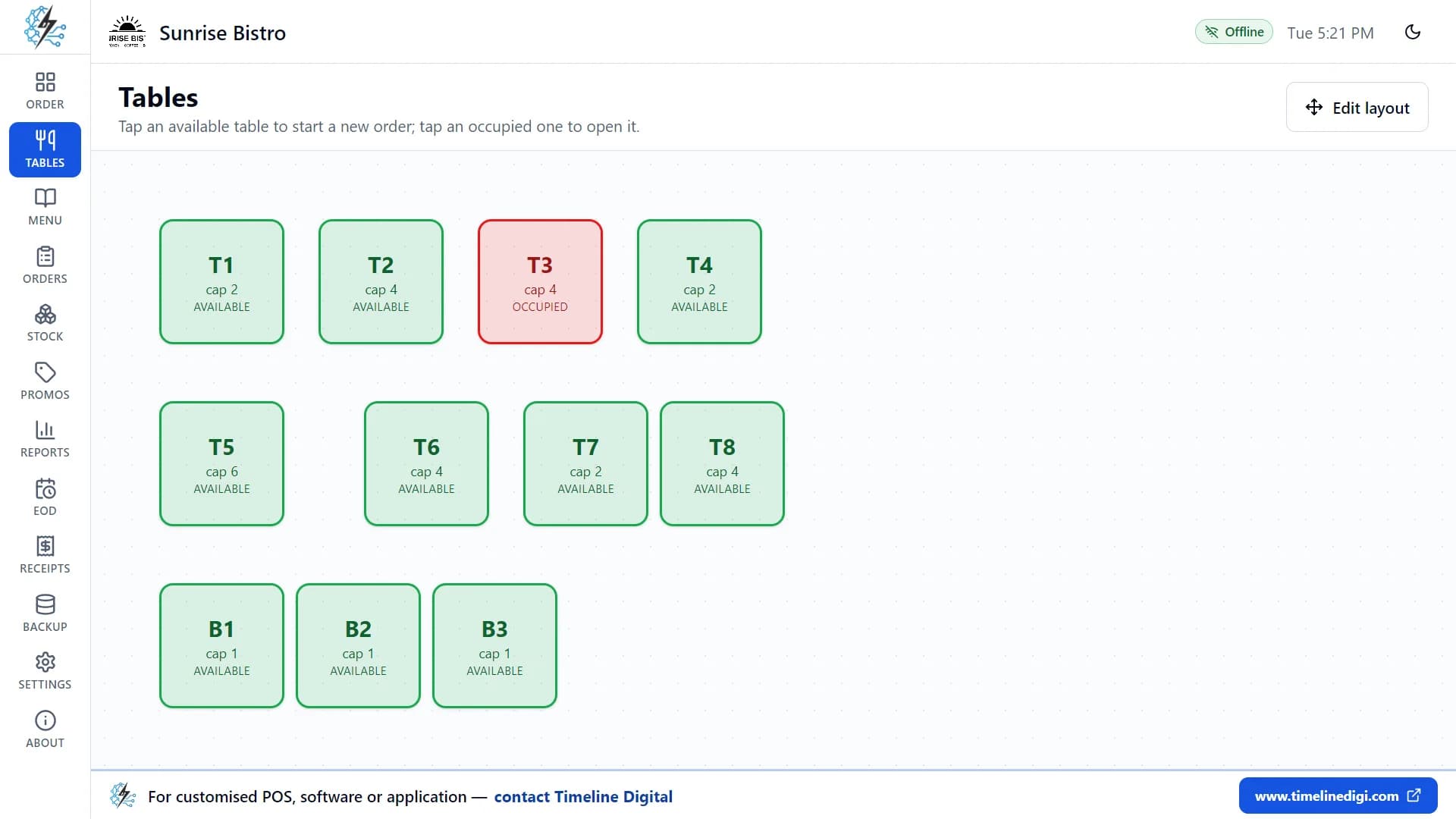
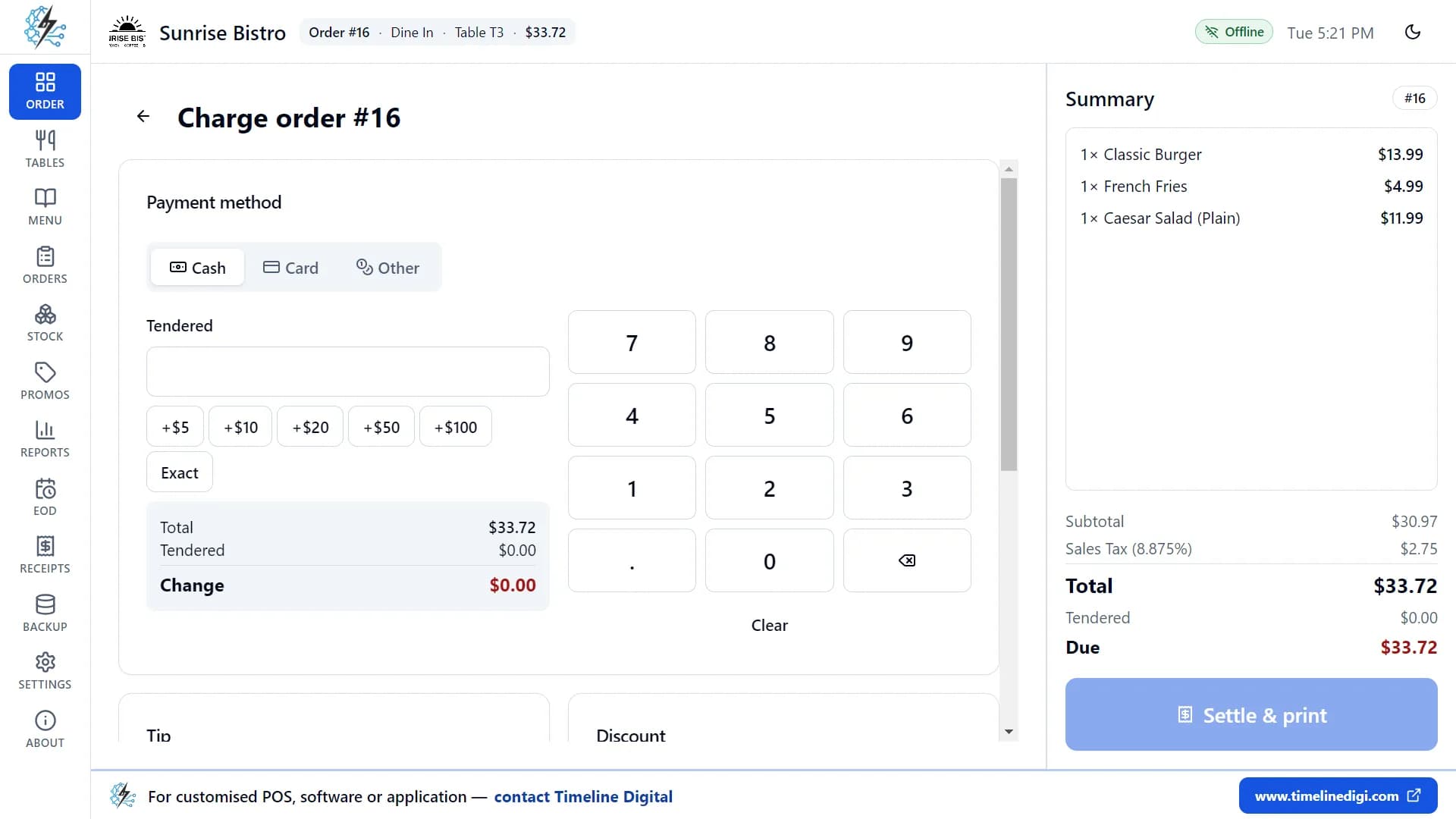
The screenshots on this page show a demo restaurant. The names and numbers in them are made up.
What does the app not do?
It is a POS for one computer at one counter. It does not share orders between several tills or tablets, has no staff logins, does not split bills and does not take card payments by itself. If you need those, this app is not the right fit.
| Topic | What it does | What it does not do |
|---|---|---|
| Computers | Runs on one Windows PC at one counter. | Does not share orders between tills, tablets or phones. No cloud sync and no remote access. |
| Staff | Anyone at the PC can use it. | No staff logins, user roles or time clock. |
| Paying a bill | One payment method for each order: cash, card or other. | No split bills and no part payments. |
| Card payments | Records a card payment that you took on your own card terminal. | Does not connect to card terminals or payment providers. |
| Ordering | Orders are entered at the counter PC. | No online ordering, QR menus or delivery-app links. |
| Kitchen | Prints a kitchen ticket when you tap Kitchen. | No kitchen display screen. |
| Reports | Tables on screen, with CSV export that opens in Excel. | No charts, and no PDF or Excel report files. |
| Language | English. Currency, numbers and dates follow your country. | No other languages. |
| Updates | You install a new version over the old one and your data is kept. | No automatic updates. |
How do I set it up and take the first order? Watch it.
Three of the 18 free lessons: first-time setup, a dine-in order and connecting a printer on Windows.
Lesson 1: First-time setup (3:03)
Set up your restaurant, tax and sample menu.
Lesson 3: Taking a dine-in order (5:14)
Tables, options, sizes, notes and kitchen tickets.
Lesson 16: Connecting your printer (4:43)
Windows, network and serial printers; cash drawer.
All 18 lessons with written steps · Watch the playlist on YouTube
How do I back up, update or uninstall it?
Backup
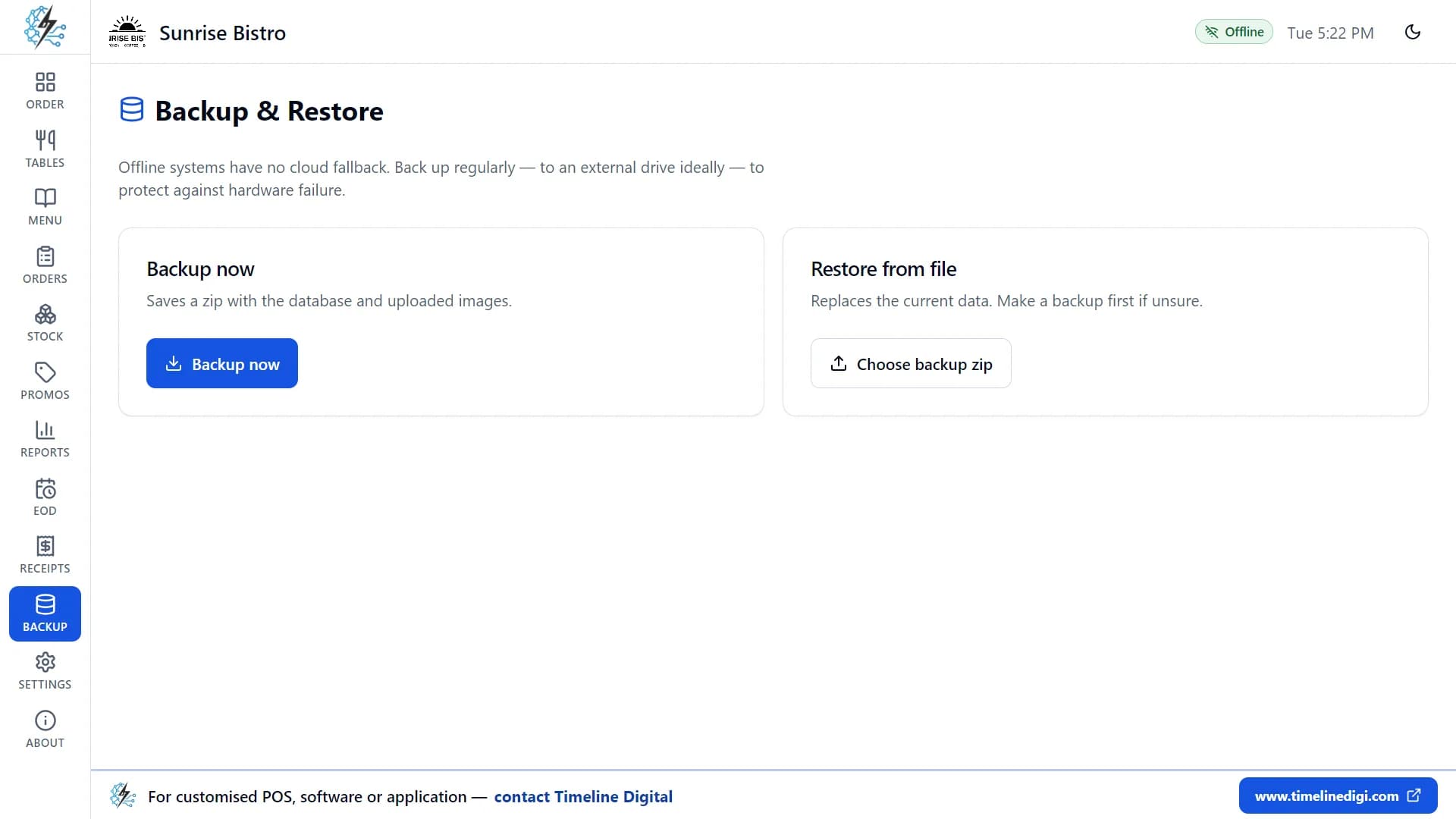
Tap Backup now to save the database and photos into one zip file, in a folder you choose, such as a USB drive. You can also switch on a backup each time the app closes. A PC can fail, so keep a copy away from it.
Updating
The app does not update itself. Download the new installer from this page and run it over the old version. Your data is kept. Make a backup first.
Uninstalling
Uninstalling the app does not delete your data. To move to a new PC, install the app there and restore your latest backup.
Questions from Windows users
Is there free restaurant POS software for Windows?
Yes. Timeline Restaurants POS 2.0.1 by Timeline Digital is free restaurant POS software for Windows 10 and Windows 11. It runs on one PC and works offline. There is no subscription, no paid plan, no trial period and no account.
Is this restaurant billing software a free download for PC?
Yes. The download is one installer, TimelineRestaurantsPOS-Setup-2.0.1.exe, about 96 MB. It makes the bill with tax, tips and discounts, takes cash, card or other payment, and prints the receipt on 58 mm or 80 mm paper. You do not sign up or enter card details to download it.
Does the offline restaurant POS work on Windows 10?
Yes. It works on Windows 10 and on Windows 11, in the 64-bit editions. You need the internet once, to download the installer. After that you take orders, take payment, print receipts and read reports with no connection.
Does it work on Windows 7 or Windows 8?
No. The app is made for 64-bit Windows 10 and Windows 11. Windows 7, Windows 8 and 32-bit Windows are not supported, so please do not rely on it there.
What kind of PC do I need for this free restaurant POS software?
An ordinary desktop or laptop is enough: 64-bit Windows 10 or 11, a screen of at least 1024 × 700 (1366 × 768 or larger is better) and about 400 MB of free disk space. A receipt printer is optional.
Why does Windows say "Windows protected your PC"?
The installer is not code-signed, so Windows SmartScreen asks before it runs a file it does not know yet. Click More info, then Run anyway. Download the file only from timelinedigi.com.
Do I need administrator rights to install it?
No. The app installs for your own Windows user and adds Desktop and Start Menu shortcuts. You can keep the default folder or choose another one.
Which receipt printers work on Windows?
Any printer installed in Windows, including USB thermal printers, plus network thermal printers by IP address and printers on a serial (COM) port. ESC/POS printers such as Epson, Xprinter, Rongta and Sewoo, and Star printers, are supported on 58 mm and 80 mm paper.
Can it open my cash drawer?
Yes. Turn on "Open cash drawer on cash payment" in Settings, on the Printer tab. The drawer opens through your receipt printer or a separate port, and there is an Open drawer button to test it.
Can I use it on two PCs or on a tablet?
You can install it on more than one PC, but each PC keeps its own separate data and they do not share orders. The app is made for one computer at one counter. There is no iPad or Android version.
Does it take card payments?
You take the card payment on your own card terminal, then mark the order as paid by card in the app. You can type a reference such as the last four digits. The app does not connect to card terminals or payment providers.
How do I update the app or move it to a new PC?
The app does not update itself. To update, download the new installer and run it over the old version. Your data is kept. To move to a new PC, tap Backup now, install the app on the new PC and restore the backup zip file there.
Download the restaurant POS for Windows
One installer for Windows 10 and 11, 64-bit. Free, with no subscription and no account.
Version 2.0.1 · Free · Works offline · Using a Mac? Get the Mac version