A thermal receipt printer is a printer that makes text and images by heating special heat-sensitive paper, so it uses no ink, toner or ribbon. Restaurants use thermal printers for receipts and kitchen tickets because they are fast, quiet and simple to run. The main choices are the paper width, 58 mm or 80 mm, and the connection.
This guide is for owners of restaurants, cafés, bars, bakeries and food trucks who are buying a first receipt printer or connecting one to a point of sale (POS) system. It explains how the printer works, which paper width suits which counter, how the printer talks to the POS, and what to check before you buy. Near the end it shows the same task in Timeline Restaurants POS, a free restaurant POS app that prints on both paper widths.
Key takeaways
- A thermal printer has no ink. A heated print head darkens a coating on the paper.
- 58 mm paper suits short receipts and small counters. 80 mm paper suits longer orders, logos and kitchen tickets.
- A receipt printer connects by USB, network (LAN or Wi-Fi), serial port or Bluetooth. Your POS must support the connection you choose.
- ESC/POS is the command language most receipt printers understand. Check that both the printer and the POS list it.
- A cash drawer usually plugs into the printer and opens when the POS sends a command.
- Thermal prints fade with heat, light and time. Keep anything you need long term as a copy or a digital record.
What is a thermal printer?
A thermal printer is a printer that uses heat instead of ink. Its print head holds a row of tiny heating elements. As the paper passes, the elements heat chosen points, and the paper's coating turns dark at those points. This method is called direct thermal printing, and it is how most receipt printers work.
Two things follow from this design:
- Low running effort. There is no cartridge or ribbon to replace. The only supply is the paper roll.
- Special paper. Plain paper will not print. The roll must be thermal paper, and only its coated side reacts to heat.
A second type, the thermal transfer printer, melts ink from a ribbon onto the label. It is used for long-lasting labels, not for restaurant receipts. In this guide, "thermal printer" means the direct thermal type.
What is a thermal receipt printer used for in a restaurant?
A thermal receipt printer in a restaurant prints the customer's receipt at the counter, kitchen tickets for the cooks, and end-of-day reports for the owner. The same kind of printer can do all three jobs. Many restaurants use one printer at the till and a second one in the kitchen.
| Job | Where it prints | What matters most |
|---|
| Customer receipt | At the counter | A clear total, your logo and details, a clean cut |
| Kitchen ticket | In or near the kitchen | Large text, notes and extras that are easy to read |
| End-of-day report | At the counter or in the office | All totals on one slip |
58mm vs 80mm: which thermal printer paper size should I choose?
Choose 58 mm thermal printer paper when receipts are short and counter space is tight, and 80 mm paper when orders are long or the ticket must be read from a distance. The number is the width of the paper roll. A wider roll fits more characters on each line, so long item names wrap less often.
| 58 mm paper | 80 mm paper |
|---|
| Roll width | 58 mm | 80 mm |
| Characters per line, standard font | About 30 to 35 | About 42 to 48 |
| Printer size | Smaller, often portable | Larger, usually a counter model |
| Long item names | Wrap onto a second line more often | Usually fit on one line |
| Logo and large text | Limited room | More room |
| Good fit | Food trucks, kiosks, small cafés, short receipts | Dine-in restaurants, kitchen tickets, long orders |
The character counts are general figures. The exact number depends on the printer model and the font, so check the printer's manual. The printable area is also a little narrower than the roll: one common 80 mm model, for example, lists a print width of about 72 mm.
A printer is built for one width. Some 80 mm printers include a guide that lets them take 58 mm rolls, but a 58 mm printer cannot take an 80 mm roll. Decide the width before you buy the printer, not after.
How does a receipt printer connect to a POS?
A receipt printer connects to a POS in one of four ways: a USB cable, the network (a LAN cable or Wi-Fi), a serial port, or Bluetooth. USB is the simplest for one computer at one counter. A network printer suits a kitchen, because it can stand far from the computer.
| Connection | How it works | What you need | Best for |
|---|
| USB | A cable from the printer to the POS computer | A free USB port and, usually, the printer's driver | One computer at one counter |
| Network (LAN or Wi-Fi) | The printer joins your network and has its own IP address | A router or switch, and the printer's IP address and port | A kitchen printer, or a printer away from the till |
| Serial (RS-232) | An older cable type that appears as a COM port on a PC | A serial port or adapter, and matching port settings | Older printers and tills |
| Bluetooth | A wireless link paired with one device | A POS that supports Bluetooth printers | Tablets, phones and mobile stalls |
A few points make the network row easier to understand. A network printer does not need the internet. It only needs to be on the same local network as the POS computer. Many POS programs send the print job straight to the printer's IP address on port 9100, a port widely used for this kind of direct printing. Most thermal printers print their IP address on a self-test page.
Whatever the connection, check the POS first. A printer with Bluetooth is no help if the POS software has no Bluetooth setting.
Do I need a thermal printer driver?
You need a thermal printer driver when the POS prints through the operating system, the way a word processor does. The driver is the small program from the printer's maker that lets Windows or macOS see the printer. A POS that sends commands straight to a network address or serial port may not need one.
Download the driver from the printer maker's own website, and pick the one for your exact model and operating system. After installing it, print a test page from the computer before you open the POS. If the test page fails, the problem is the printer, cable or driver, not the POS.
What is ESC/POS?
ESC/POS is a command language for receipt printers, created by Epson. A POS program sends short codes that tell the printer to print a line, switch to bold, cut the paper or open the cash drawer. Many other printer makers support the same commands, which is why one POS can work with many brands.
Support is not identical on every model. Budget printers often describe themselves as "ESC/POS compatible", and most everyday commands work the same way. Star printers have their own command mode as well, and many Star models can be set to an ESC/POS mode. When you compare printers, look for ESC/POS in the specification, and look for the same word in your POS software's list of supported printers.
How does a cash drawer open through the printer?
A cash drawer opens through the printer by a cable that runs from the drawer to a drawer socket on the back of the printer. When a cash sale is finished, the POS sends an open-drawer command, and the printer passes an electrical pulse down the cable to release the drawer.
This means the drawer itself does not connect to the computer. Three things must match for it to work:
- The drawer and the printer. The cable wiring differs between brands, so buy a drawer sold as compatible with your printer.
- The POS setting. The POS must have an option to open the drawer on cash payments.
- The printer connection. The command travels the same path as the receipt, so the printer must already be printing correctly.
What is the difference between a receipt printer and a kitchen printer?
A receipt printer and a kitchen printer are often the same thermal model used in two places. The receipt printer sits at the counter and prints what the customer paid. The kitchen printer sits near the cooks and prints what to prepare, with sizes, extras and notes in larger text and usually without prices.
Kitchens add two concerns. First, distance: the printer is usually far from the till, which is why kitchen printers are often network models. Second, heat: thermal paper darkens when it gets hot, so keep the printer and the printed tickets away from grills, fryers and heat lamps. Some kitchens use impact printers, which strike an ink ribbon onto plain paper, for this reason.
How do I care for thermal printer paper, and why do receipts fade?
Thermal printer paper fades because the print is a chemical change in the coating, not ink. Heat, sunlight, moisture, rubbing and some chemicals can lighten the print or darken the whole slip. Store rolls and printed receipts somewhere cool, dry and dark, and they stay readable for much longer.
- Buy the right roll. Match the width (58 mm or 80 mm) and the largest roll diameter your printer's manual allows.
- Load it the right way round. Only the coated side prints. If receipts come out blank, the roll is probably upside down.
- Store spare rolls well. Keep them in their wrapping, away from windows, ovens and hot vehicles.
- Copy what you must keep. For any record you need to keep for a long time, photograph or scan the slip, or rely on the report saved in your POS. Ask your accountant how long records must be kept where you trade.
- Keep the print head clean. Pale or streaky print is often dust on the head. Follow the cleaning steps in the printer's manual.
Worked example: one order on 58 mm and 80 mm paper (illustrative)
This example is made up to show how paper width changes a ticket. The item, the price and the line widths of 32 and 48 characters are examples only. Your printer and font may give different numbers.
A café prints this line for one item: "2 x Grilled Chicken Burger Large" followed by the price "24.00". The text is 32 characters and the price with its spacing needs 7 more, which makes 39 characters.
| 58 mm paper (example: 32 characters per line) | 80 mm paper (example: 48 characters per line) |
|---|
| The item line of 39 characters | Wraps onto 2 lines | Fits on 1 line |
| One line of extras under it, such as "No onions" | 1 line | 1 line |
| Lines for one item | 3 | 2 |
| Lines for an order of 6 similar items | 18 | 12 |
In this example the 58 mm ticket is half as long again as the 80 mm ticket, and each item is split across lines. At a takeaway window with two-item orders, that hardly matters. On a kitchen ticket for a table of six, the 80 mm version is quicker to read. Shorter item names on the menu reduce wrapping on either width.
How do I choose a thermal receipt printer for a POS?
Choose a thermal receipt printer for a POS by checking five things in this order: that your POS software supports it, the paper width, the connection, the cash drawer port, and the cutter. Brand matters less than compatibility. A printer your POS cannot talk to is the wrong printer at any price.
Use this as a buying checklist:
- POS compatibility. Does your POS list the printer, or list ESC/POS printers in general? Epson, Xprinter, Rongta, Sewoo and Star are examples of brands that make ESC/POS-capable models.
- Paper width. 58 mm or 80 mm, decided from your longest typical order.
- Connection. USB for one counter, network for a kitchen or a distant printer. Confirm the POS supports that connection on your operating system.
- Driver. Is there a driver for your version of Windows or macOS on the maker's website?
- Cash drawer port. If you use a drawer, the printer needs a drawer socket, and the drawer must be wired for that printer.
- Cutter. An automatic cutter saves time at a busy till. A tear bar is enough for low volumes.
- Paper supply. Can you buy the right rolls easily where you are?
- Where it will sit. Check the size, the cable length, and whether it will be near heat, steam or spills.
- Returns. Buy from a seller who will take it back if it does not work with your POS.
Printer prices change often and differ by country, so they are not listed here. For the wider budget, see our guide to how much a POS system costs.
What are the common mistakes with thermal receipt printers?
The common mistakes with thermal receipt printers are buying the printer before checking the POS, choosing a paper width the printer cannot take, and skipping the test page. Most "the printer does not work" problems come from a mismatch between the printer, the connection and the software settings, not from a faulty printer.
- Wrong paper. Plain paper rolls or the wrong width will not print or will not fit.
- Roll loaded upside down. The paper feeds, but the receipt is blank.
- Width set wrongly in the POS. An 80 mm layout sent to a 58 mm printer cuts off the right side of every line.
- A changing IP address. If the router gives a network printer a new address, printing stops. Ask whoever set up your network to give the printer a fixed address.
- A Bluetooth printer for a desktop POS. Not every desktop POS program supports Bluetooth printing, so check the POS before you buy.
- Relying on thermal slips as the only record. They fade. Keep the digital report.
A thermal receipt printer is also the wrong tool for some jobs. Full-page invoices need an ordinary A4 or Letter printer. Product labels that must last need a label printer. And a business that sends every receipt by email or message may not need a receipt printer at all.
Glossary: direct thermal, printing by heating coated paper with no ink; print head, the row of heating elements that marks the paper; ESC/POS, the command language most receipt printers understand; driver, the program that lets an operating system use a printer; IP address, a printer's address on your local network; port 9100, the network port commonly used for direct printing; COM port, the name Windows gives a serial connection; drawer kick, the pulse a printer sends to open a cash drawer; auto cutter, the blade that cuts each receipt.
How to do this in Timeline Restaurants POS
Timeline Restaurants POS is a free restaurant POS app that works without the internet. It prints receipts and kitchen tickets on 58 mm and 80 mm paper, and works with ESC/POS printers: Epson and compatible brands such as Xprinter, Rongta and Sewoo, plus Star printers. You can get it from the free restaurant POS download page.
The app runs on a Windows PC or a Mac and has four connection choices, all in one place. These steps are from the Windows version.
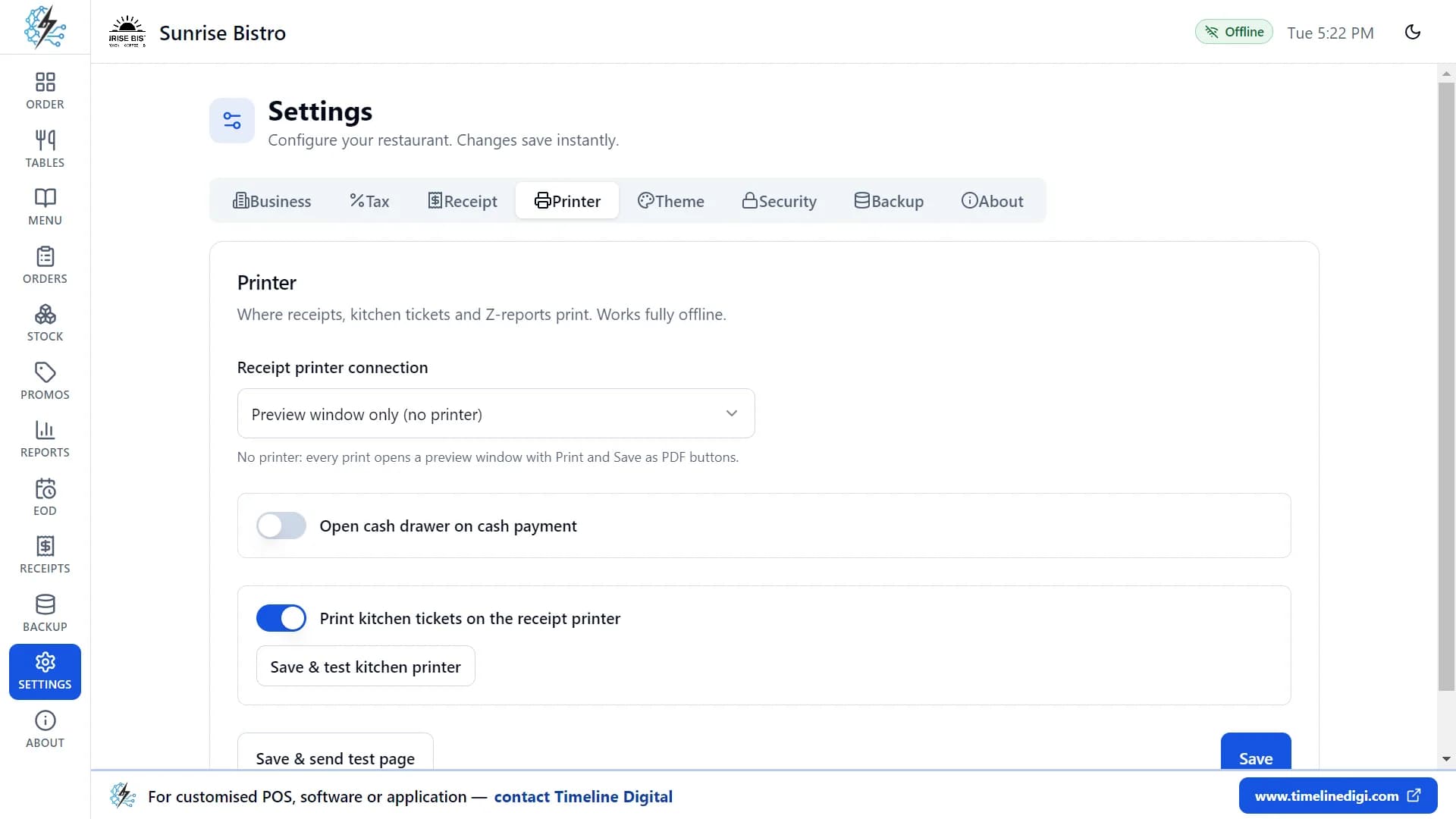
- Open the printer settings. Go to Settings, then the Printer tab.
- Choose the connection that matches your printer.
- Windows printer (recommended). For a USB thermal printer or any printer installed in Windows. Install your printer's Windows driver first, then choose your printer from the list.
- Network thermal printer. Enter the printer's IP address and port, for example 192.168.1.50:9100. Most thermal printers print their IP address on a self-test page.
- Serial port / shared printer. Enter the port, for example COM3, or the shared printer path.
- Preview window only. For when you have no printer yet. Every receipt opens in a preview window, where you can print it or save it as a PDF.
- Send a test page. Click "Save & send test page" and check that it prints.
- Set the paper width. In Settings, on the Receipt tab, choose 80 mm or 58 mm paper to match your roll. You can also choose small, normal or large text, and bold text, which is recommended for thermal printers.
- Connect the cash drawer. On the Printer tab, turn on "Open cash drawer on cash payment", then use the "Open drawer" button to test it. The drawer works through your printer or a separate port.
- Set the kitchen printer. Kitchen tickets can print on the receipt printer, or on a separate kitchen printer with its own settings. Tap Kitchen on an order to print its ticket.
If the printer fails during a sale, the sale is still saved and you can reprint the receipt afterwards.
Lesson 16 of the free video course, Connecting your printer, shows these screens step by step. The printer setup guide has the steps for each connection type and notes for the Mac version.
What the app does not do for this task:
- There is no Bluetooth choice. The connections are the four listed above.
- A kitchen ticket prints when you tap Kitchen. There is no automatic kitchen printing, no printing by kitchen station, and no kitchen display screen.
- Receipts are printed or saved as a PDF from the preview. The app does not send receipts by email or SMS.
- Card payments are recorded only. You take the card on your own terminal, and the app does not connect to it.
- It runs on one computer. Several tills cannot share one set of data.
- Every receipt ends with a short "Powered by Timeline Restaurants POS" line, which cannot be removed.
When a restaurant needs more than a free POS
Some restaurants need things a single-computer app does not offer, such as several tills, tickets sent to each kitchen station, or a link to other systems. Timeline Digital is a custom software development company founded in 2013 and headquartered in Islamabad, Pakistan, that builds custom POS software and restaurant systems as managed projects. There is no fixed timeframe: the schedule for a restaurant POS is set from your requirements in the Plan step. The free pilot of 2 to 3 key modules is ready in about 2 days, and with 1,200+ developers we have the capacity to deliver a focused system in as little as 2 weeks. Timeline Digital does not publish prices for custom software, because every project is custom. The price is set in three steps: we analyse your requirements, build a free pilot of 2 to 3 key modules, and after you approve the pilot we agree the scope, milestones and commercial terms in writing. Any change request outside the approved scope is reviewed and agreed with you before extra work begins.