A POS system is the software and equipment a business uses to record a sale and take payment at the moment a customer buys. POS stands for point of sale. In a restaurant, the POS system takes the order, sends it to the kitchen, works out the bill, records the payment, prints the receipt and totals the day.
This guide is for owners of restaurants, cafés, bars, bakeries, food trucks and takeaways who keep hearing "you need a POS" and want it explained in plain words. It covers the meaning, the parts, how an order moves through the system, the main types, and how to choose. Near the end it shows the same day of work in Timeline Restaurants POS, a free app for one Windows computer or Mac.
Key takeaways
- POS means point of sale: the place and moment where a customer pays. A POS system is the tool that records that sale.
- EPOS means electronic point of sale. It is the usual word in the UK, and in everyday use it means the same thing as POS.
- A POS system is software first. The printer, cash drawer and card terminal are added around it.
- In a restaurant, one order passes through seven steps: order, kitchen ticket, bill, payment, receipt, stock, and the reports that close the day.
- An installed POS keeps taking orders without internet. A cloud POS lets you see sales from anywhere. Each has a cost.
- Free POS software can be enough for one counter. Paid systems earn their fee when you need several devices, staff logins or connected card payments.
What is a POS system?
A POS system is the combination of software and equipment that records each sale and the payment for it. The software holds your menu or products and prices, adds up the bill, applies tax and discounts, and saves every sale. The equipment around it prints receipts, holds cash and reads cards.
A POS system replaces three older tools at once: the paper order pad, the calculator and the cash register. Because every sale is saved, the same system can also tell you what you sold, how customers paid and how much cash should be in the drawer.
What does POS stand for, and what does POS mean?
POS stands for point of sale. The point of sale is the place and the moment where a customer pays for goods or a service, such as the counter of a café or the table in a restaurant. "POS system" and "point of sale system" mean the same thing: the tool used at that point.
People use the short form in a few ways. "The POS" can mean the software, the screen at the counter, or the whole setup with its printer and drawer. When a card company says "POS terminal", it usually means only the card machine. The meaning is clear from the context.
What is EPOS, and is it different from a POS system?
EPOS stands for electronic point of sale. It is the common term in the United Kingdom and Ireland, while POS is the common term in North America. In everyday use the two words describe the same thing: a computer-based till system that records sales, takes payment and reports on them.
Some sellers describe EPOS as a more advanced kind of POS, with stock and reports added. That is a sales description, not a fixed technical rule. Almost every POS system sold today is electronic, so if a supplier offers you "an EPOS system", compare its features in the same way as any POS.
What are the parts of a POS system?
The parts of a POS system are the POS software, a computer or tablet to run it, a receipt printer, a cash drawer, a card terminal and, in a restaurant, a kitchen printer. Only the software and the device it runs on are essential. The other parts are added when the business needs them.
| Part | What it does | Do you need it? |
|---|
| POS software | Holds the menu and prices, builds the order, works out tax and totals, saves every sale | Yes. This is the system itself |
| Computer or tablet | Runs the software and shows the order screen | Yes |
| Receipt printer | Prints the customer's receipt, usually on a narrow roll of thermal paper | For most businesses, yes |
| Cash drawer | Holds notes and coins, and opens when a cash sale is completed | If you take cash |
| Card terminal | Reads the customer's card or phone and collects the payment through your payment provider | If you take cards |
| Kitchen printer | Prints the order as a ticket for the cooks | In restaurants with a separate kitchen |
Two points are worth knowing. First, the card terminal can be connected to the POS, so the amount is sent to it automatically, or separate, so staff type the amount in and then mark the sale as paid by card. Second, one printer can often do both jobs in a small kitchen, printing receipts and kitchen tickets.
How does a POS system work in a restaurant?
A POS system works in a restaurant by carrying one order through seven steps. Staff enter the order, the kitchen receives a ticket, the system works out the bill, the customer pays, a receipt prints, stock is reduced, and the sale is added to the reports that close the day.
- Order. Staff choose the order type, such as dine-in, takeaway or delivery, and tap the dishes on the screen. Sizes, extras and notes are added to each line.
- Kitchen ticket. The order is sent to the kitchen, on paper or on a screen, with the table and every note.
- Bill. The system adds up the items, applies any discount and works out the tax and the total.
- Payment. The customer pays by cash, card or another method, and the payment is recorded against the order.
- Receipt. A receipt prints with the items, tax, total and payment method.
- Stock. If recipes are set up, the ingredients used in each dish are taken out of stock.
- Reports and end of day. Each sale is added to the day's totals. At closing, the cash in the drawer is counted and compared with what the system expects.
For a longer look at the features that matter in a food business, see our guide to the best POS for a small restaurant.
What are the types of POS system?
The two main types of POS system are installed and cloud. An installed POS runs on one computer at your business and stores its data there. A cloud POS runs on the supplier's servers and is reached over the internet, usually from tablets. Some systems mix the two.
| Installed POS (on one computer) | Cloud POS |
|---|
| Where the software runs | On a computer at your counter | On the supplier's servers, opened through an app or browser |
| Where the data is kept | On that computer | On the supplier's servers |
| Without internet | Keeps taking orders; a card terminal may still need a connection | Stops, or runs in a limited offline mode and syncs later |
| Several tills or tablets | Often limited to one device, or needs a local network | Usually built in |
| Seeing sales from home | Usually not possible | Usually possible |
| Backups | Your job | Usually handled by the supplier |
| Updates | You install them | Applied by the supplier |
| How you pay | Often a one-time licence; some are free | Usually a monthly subscription |
Neither type is better for everyone. A single counter with unreliable internet is well served by an installed POS. A group of branches whose owner wants live figures on a phone needs a cloud system. Our guide to offline-first POS design explains how the two approaches can be combined.
What should you look for when choosing a POS system?
When choosing a POS system, look first at how it fits your service: your order types, your menu options, your kitchen and how customers pay. Then check what happens without internet, where your data is kept, which printers it works with, which reports it gives and what it costs each month.
- Order types. Dine-in with tables, takeaway and delivery should each be quick to start.
- Menu options. Sizes, extras and notes should be easy to add, because that is where order mistakes begin.
- Kitchen. Decide whether you need a printed ticket, a kitchen screen, or tickets split between stations.
- Payments. Check whether the card terminal connects to the POS or is used separately, and whether you need to split a bill.
- Internet. Ask exactly what stops working when the connection drops.
- Printers. Confirm it works with the receipt printer and paper width you have or plan to buy.
- Reports. Look for sales by day, by item and by payment method, plus an end-of-day report.
- Staff. If several people use it, ask about separate logins and what each person may do.
- Your data. Ask where it is stored, how it is backed up and how you can export it.
Is free POS software good enough, or should you pay?
Free POS software is good enough when one counter needs to take orders, print receipts and total the day. Paying makes sense when you need things free tools often leave out: several devices sharing data, staff logins, connected card payments, online ordering or support with a guaranteed response.
"Free" comes in three forms, and it helps to know which one you are looking at. Some software is free with no conditions. Some is free only if you use the supplier's card processing, so the cost sits in the card fees. Some is a free plan with limits that push you to a paid one. Read what is included before you enter your whole menu.
Worked example: one order and one closing count (illustrative)
This example is made up to show the mechanism. The figures have no currency, and the 10% tax rate is illustrative, not a real rate for any country.
A table of two orders two burgers at 12 each, one salad at 8 and two soft drinks at 3 each.
| Step | What the POS does | Figure |
|---|
| Order entered | Adds up the items: 24 + 8 + 6 | 38.00 |
| Kitchen ticket | Prints the dishes and notes for the cooks | none |
| Tax | Adds the illustrative 10% | 3.80 |
| Total | Shows the amount to pay | 41.80 |
| Cash payment | Customer hands over 50, the system shows the change | 8.20 |
| Stock | Takes 2 buns, 2 patties and the salad ingredients out of stock | none |
At closing, the same system totals the day. Say the drawer started with 100 in cash, cash sales came to 620, and 20 was taken out to pay for a delivery of herbs.
| Closing line | Figure |
|---|
| Opening cash | 100 |
| Cash sales | + 620 |
| Cash paid out | - 20 |
| Expected cash | 700 |
| Counted cash | 695 |
| Difference | - 5 |
The owner now knows the drawer is 5 short and can look into it the same night. Without a POS, that gap is usually found days later or not at all.
How to do this in Timeline Restaurants POS
Timeline Restaurants POS is a free installed POS for restaurants, cafés, bars, bakeries, food trucks and takeaways. It runs on one Windows computer or Mac and works without internet. These steps follow one order through the app, in the same sequence as the sections above.
- Open a shift. On the End of day page, open a shift with the cash you start with in the drawer.
- Start the order. On the order screen, choose Dine-in, Takeout or Delivery. For dine-in, tap a free table on the floor plan to start an order for it.
- Add items. Tap a category or type in the search box, then tap the item. If it has sizes or extras, a side panel opens for the size, extras, a note and the quantity. The subtotal, discount, tax and total update as you go.
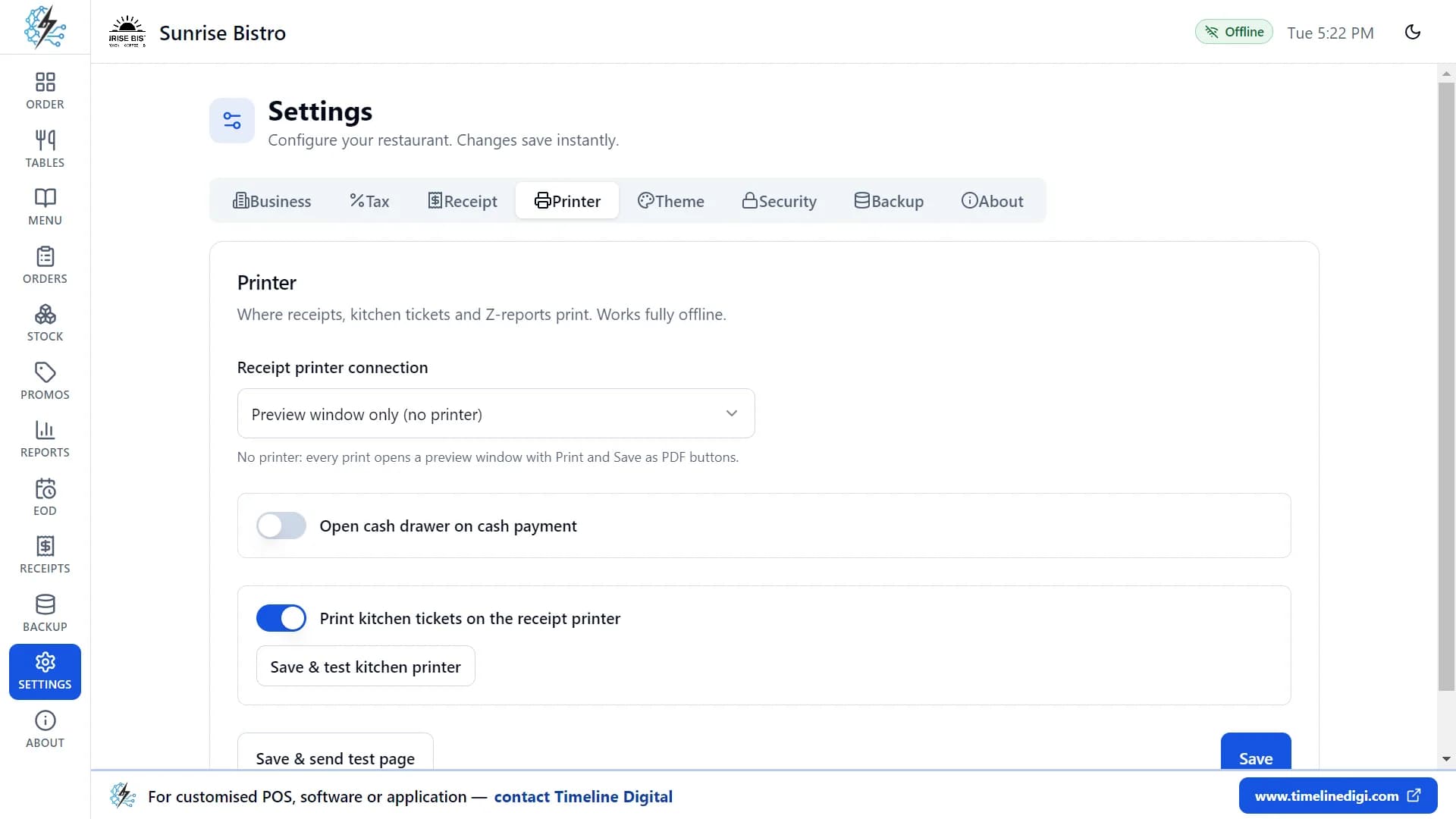
- Send it to the kitchen. Tap Kitchen to print a kitchen ticket with the order number, table, order type, time, every item with its size, extras and notes, and the order note. It prints on your receipt printer or on a separate kitchen printer.
- Take payment. Tap Charge. For cash, type the amount the customer hands you and the change is worked out. For card, take the payment on your own card terminal, then mark it paid. "Other" covers gift cards and vouchers.
- Settle and print. One tap finishes the sale, frees the table, updates your stock, prints the receipt and opens the cash drawer for cash payments, if you have one connected.
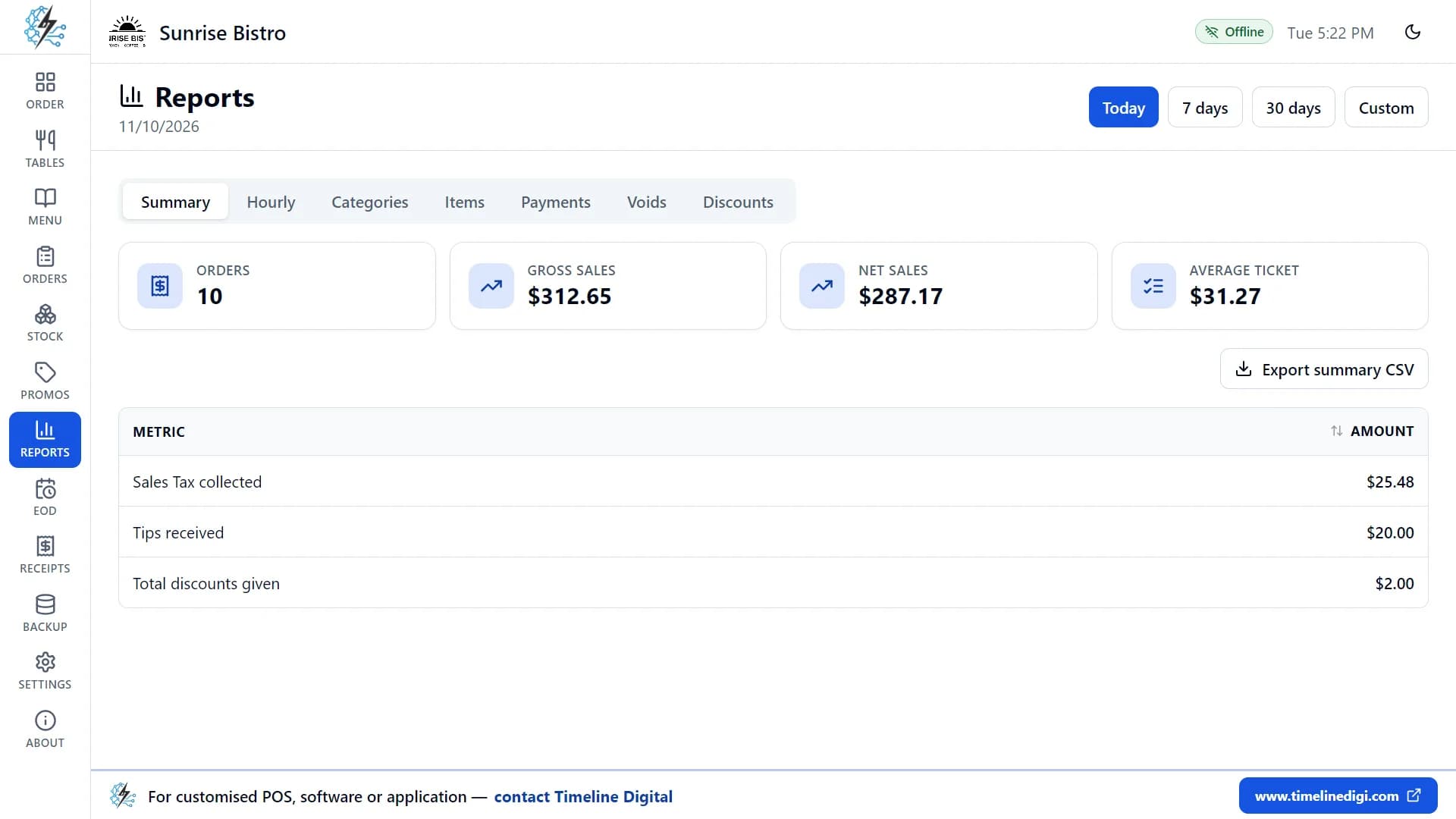
- Check the reports. The Reports page shows the number of orders, gross and net sales, average ticket, tax, tips and discounts, with sales by category, item and payment method.
- Close the day. On the End of day page, count the cash in the drawer and enter the amount. The app shows the expected cash, your counted cash and any difference, and prints a Z-report.
Video lesson 2, "A quick tour of the main screen", shows where each of these screens is. You can get the app from the free restaurant POS download page.
What the app does not do. It is made for one computer at one counter, so it has no sharing between several tills or tablets, no cloud access and no staff logins. Card payments are recorded only: the app does not connect to card terminals. It cannot split a bill, and it has no refunds, no kitchen display screen and no online ordering. Reports are tables without charts and export as CSV files, and there is a Z-report but no X-report. Your orders, sales, menu, stock and reports are stored on your own computer.
What are the common mistakes when choosing a POS system?
The common mistakes when choosing a POS system are buying equipment before choosing the software, judging by the monthly fee alone, and never testing the system during a busy service. A fourth is not making backups on an installed system, which puts every record at risk if the computer fails.
- Hardware first. Choose the software, then buy a printer and drawer it is known to work with.
- Looking only at the software price. Card fees, extra devices and add-ons often cost more than the software plan.
- Skipping the trial run. Enter ten real dishes and take twenty practice orders before the first real customer.
- No backup routine. With an installed POS, the data is yours to protect. Back up to a separate drive every day.
When a simple POS is the wrong approach. A single-computer POS does not suit a business with several branches, waiters taking orders on handheld devices, a kitchen split into stations, or a need for stock, payroll and accounts in one system. Those needs call for a larger packaged system or one built for you.
Glossary: POS, point of sale, the place and moment a customer pays; EPOS, electronic point of sale, the usual UK term for a POS system; card terminal, the machine that reads a card and collects the payment; kitchen ticket, the printed order for the cooks; modifier, an extra or choice added to a dish; Z-report, the end-of-day report that totals sales and cash; X-report, a mid-shift snapshot that closes nothing; ESC/POS, a widely used command language for receipt printers; CSV, a plain file of rows that opens in a spreadsheet.
When you need more than a free POS
Timeline Digital is a custom software development company founded in 2013 and headquartered in Islamabad, Pakistan, that builds restaurant and POS software as managed projects for owners who need more than a single-computer app; see restaurant management software development. There is no fixed timeframe: the schedule for a restaurant system is set from your requirements in the Plan step. The free pilot of 2 to 3 key modules is ready in about 2 days, and with 1,200+ developers we have the capacity to deliver a focused system in as little as 2 weeks. Timeline Digital does not publish prices for custom software, because every project is custom. The price is set in three steps: we analyse your requirements, build a free pilot of 2 to 3 key modules, and after you approve the pilot we agree the scope, milestones and commercial terms in writing. Any change request outside the approved scope is reviewed and agreed with you before extra work begins.