Free offline school fee management software
Collect fees, print a two-copy receipt, track balances and list defaulters on your own computer. Part of Timeline School Manager, a free desktop app for Windows and Mac.
Version 2.6.0 · Free · Works offline
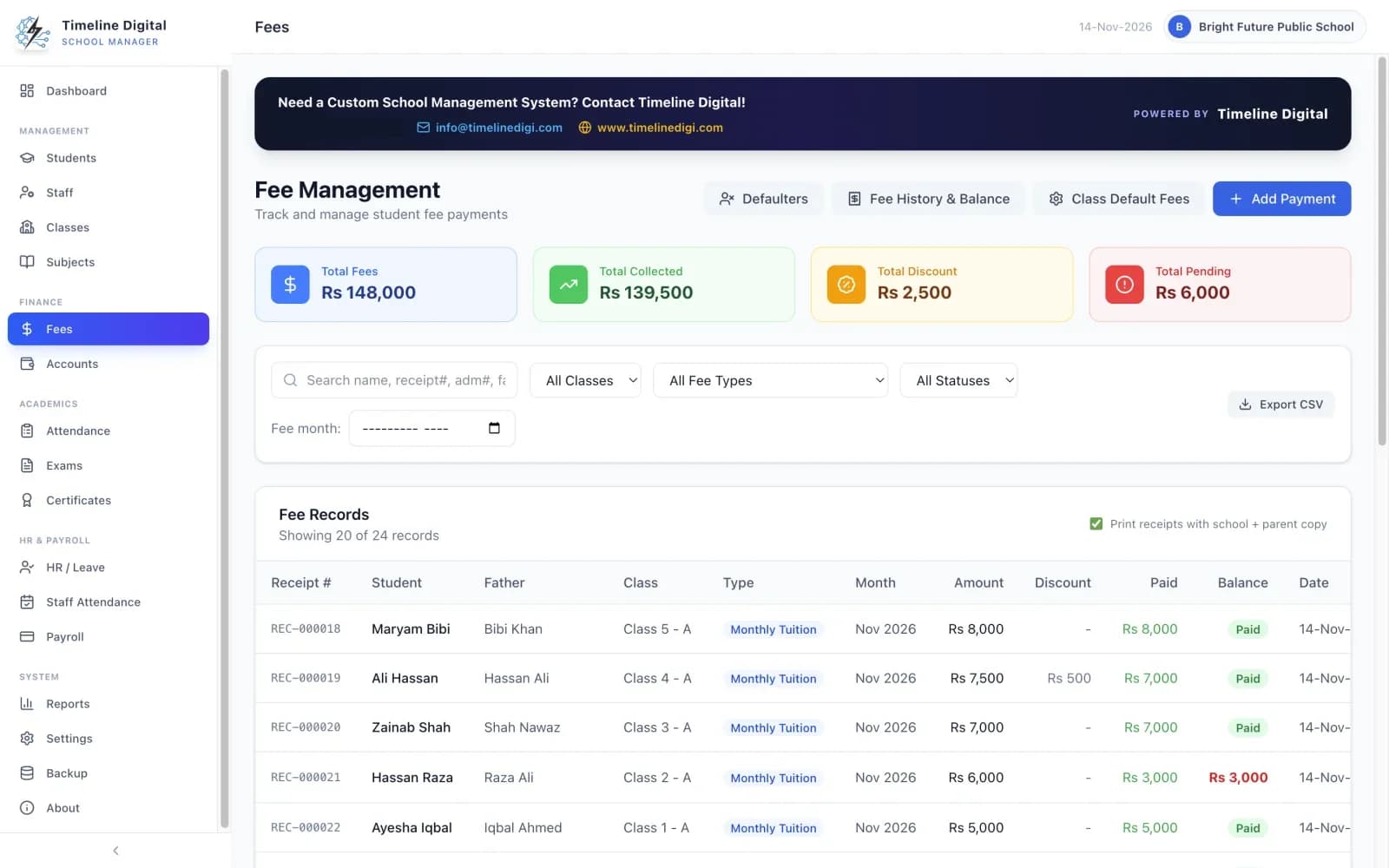
There is no separate fee-only download. Fees and Accounts are two of the 16 modules in the app, next to students, attendance, exams, certificates and payroll. The features page lists every module, and the Timeline School Manager product page covers the whole app.
Who this is for
- A school office that collects fees at one desk and wants a printed receipt for every payment.
- A clerk or accountant who keeps the fee register and the cash book in Excel or on paper today.
- A school where the internet is unreliable, so the fee desk must work offline.
- An owner who wants no monthly software bill and no charge per student.
Not a fit if
- Parents must pay fees online or by card through the software.
- You issue fee vouchers or bank challans before payment.
- Two or more people need to collect fees on different computers at the same time.
- You want late fees added by the software, or fee reminders sent by SMS.
Key facts
- App
- Timeline School Manager, version 2.6.0, published by Timeline Digital
- Price
- Free. No licence key, no trial period, no locked features and no per-student charge.
- Runs on
- Windows 10 or 11 (64-bit), or macOS 12 (Monterey) or newer, Apple Silicon or Intel
- Internet
- Not needed for daily use. You need it once to download the installer.
- Fee types
- Monthly Tuition, Admission Fee, Exam Fee, Transport, Library, Sports and other charges
- Payment methods recorded
- Cash, Bank Transfer, Online and Cheque. These are labels on a payment you record; the app does not take payments.
- Users
- One computer, one office user at a time
- Currency
- Choose your country from 84 options in Settings and the currency, date format and number format follow.
How do you collect a school fee and print a receipt?
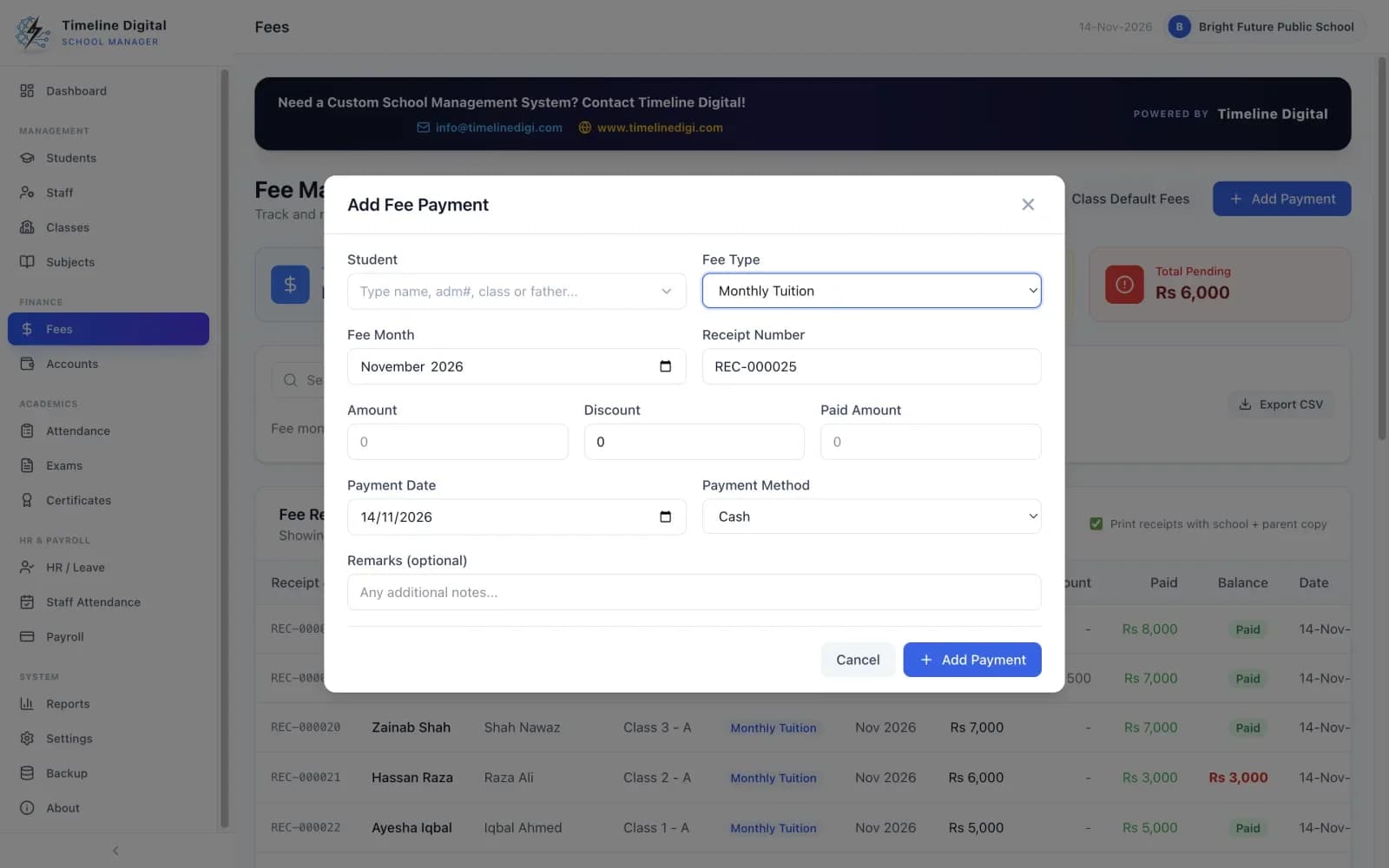
Open Fees, add a payment for the student, and choose the fee type and month. The class default amount fills in by itself. Enter any discount, the amount paid and the payment method, then print the receipt. One sheet carries a School Copy and a Parent Copy with the next receipt number.
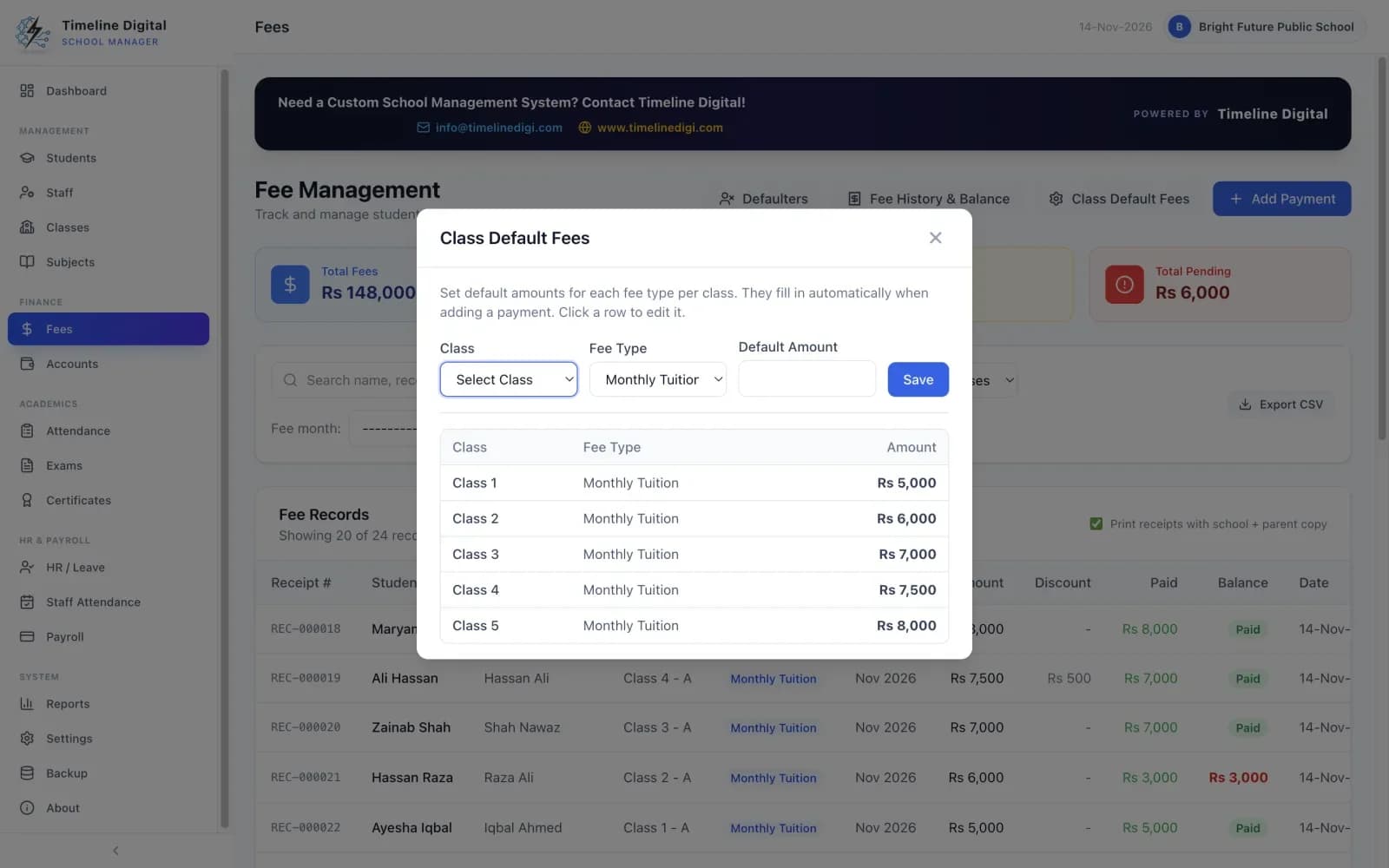
Set a default fee for each class, once
Open the class default fees and enter the usual amount for each class. After that the amount fills in by itself when you collect, so the clerk does not type it for every student.
Open Fees and add a payment
Pick the student, the fee type and the month. Fee types are Monthly Tuition, Admission Fee, Exam Fee, Transport, Library, Sports and other charges. There is also a Collect Fee shortcut on the dashboard.
Give a discount if one applies
A discount can be entered on any payment. The fee screen keeps a running total of discounts next to the totals for fees, collection and pending amounts.
Enter the amount paid and the payment method
Choose Cash, Bank Transfer, Online and Cheque. This records how the parent paid. If the parent pays less than the full amount, the rest is kept as a balance.
Print the receipt
The receipt number is the next one in sequence, set by the app. One sheet carries a School Copy and a Parent Copy with your school name, logo, address and contact details. Hand the Parent Copy to the parent and keep the School Copy for your file.
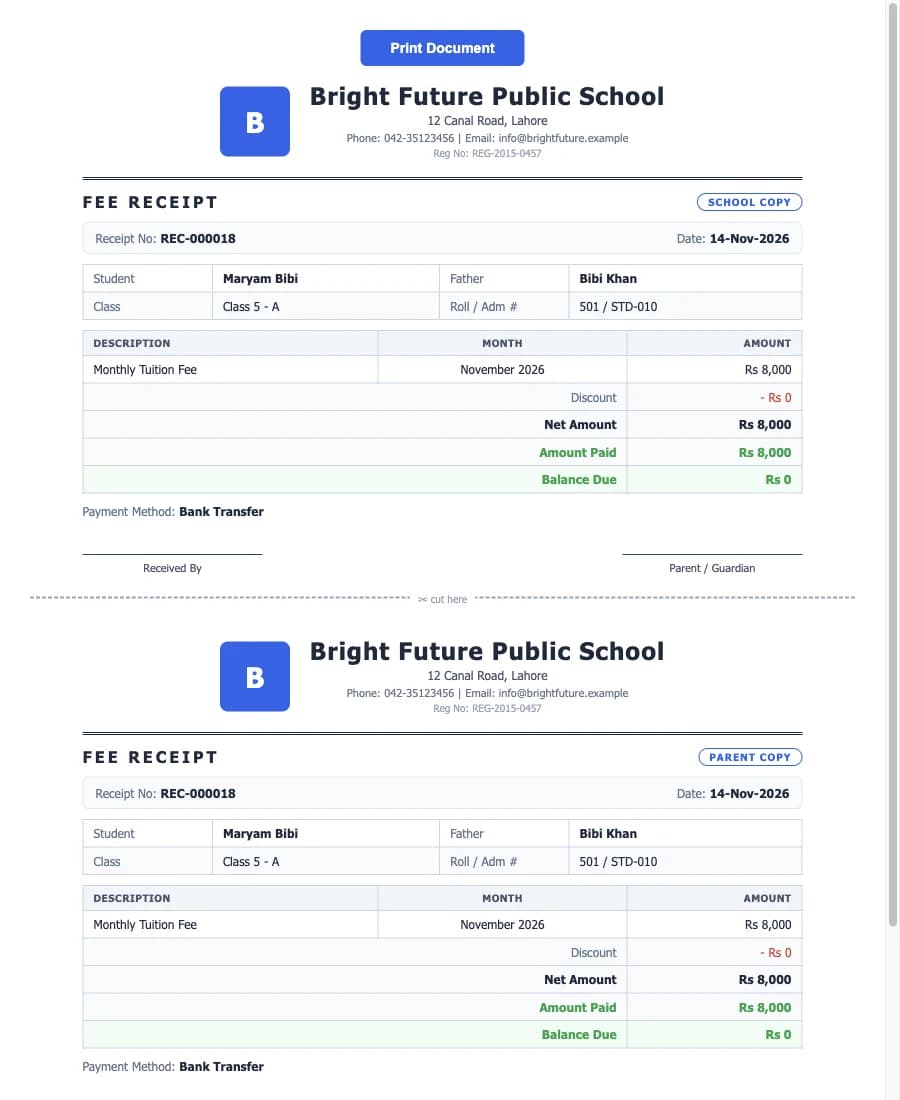
What does the printed fee receipt look like?
The fee receipt prints on one sheet with two copies: a School Copy for your file and a Parent Copy to hand over. Both carry your school's name, logo, address and contact details, and a receipt number that the app sets in sequence.
It prints on any printer installed on the computer. Upload your school logo once in Settings and it appears on every receipt and every other printed document. If you want a file copy, choose "Microsoft Print to PDF" on Windows or "Save as PDF" on a Mac in the print window.
The app prints a receipt after a payment. It does not print fee vouchers or bank challans to send home before payment.
Can a parent pay part of the fee now and the rest later?
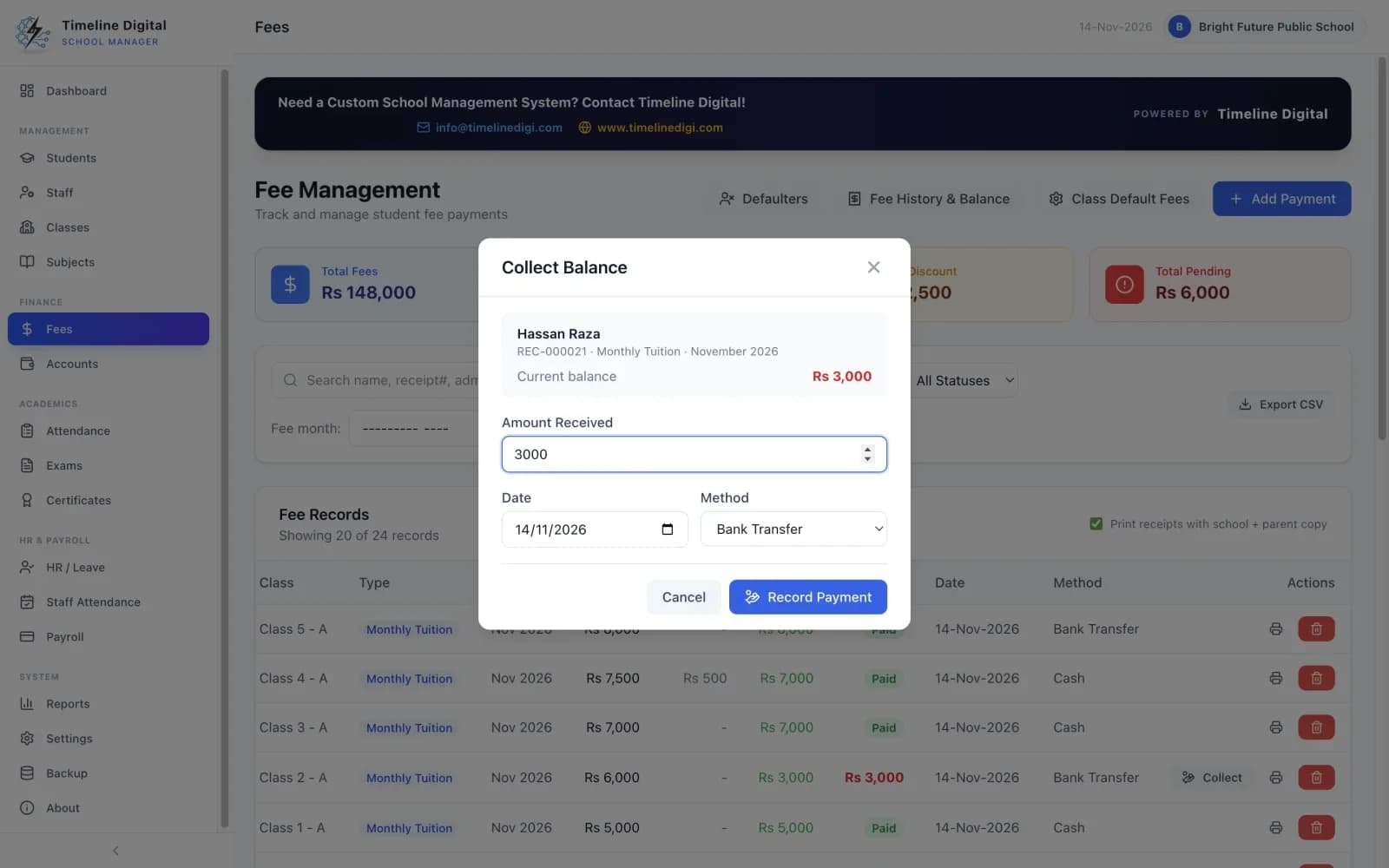
Yes. Enter the amount the parent pays today and the app keeps the rest as a balance on that fee. When the parent returns, open the part-paid fee and collect the balance. Each student's fee history shows total dues, discounts, amount paid and current balance.
How do you see which students have not paid?
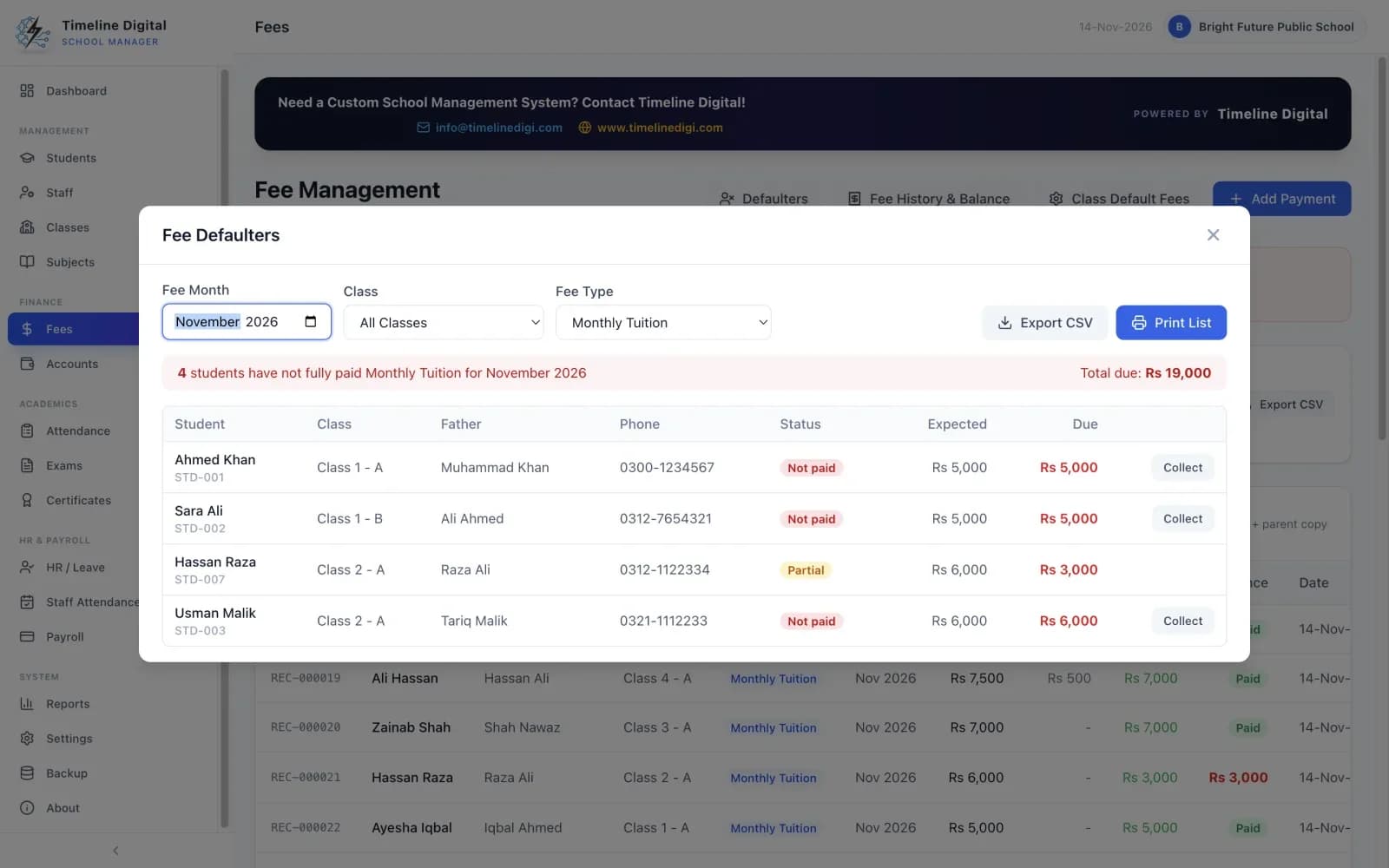
Open the fee defaulters list and choose a month. It shows every student who has not paid, or has only partly paid, for that month. Print it for the principal or the class teachers, or export it to CSV. The dashboard also reminds you how many students have no fee recorded this month.
Totals, search and filters
The fee screen shows totals for fees, collection, discount and pending amounts. Search the records and filter them by class, fee type, status and month, then export what you see to CSV to open in Excel. The app adds no late fee or fine; the office decides how to follow up.
Does it keep the school accounts as well as the fees?
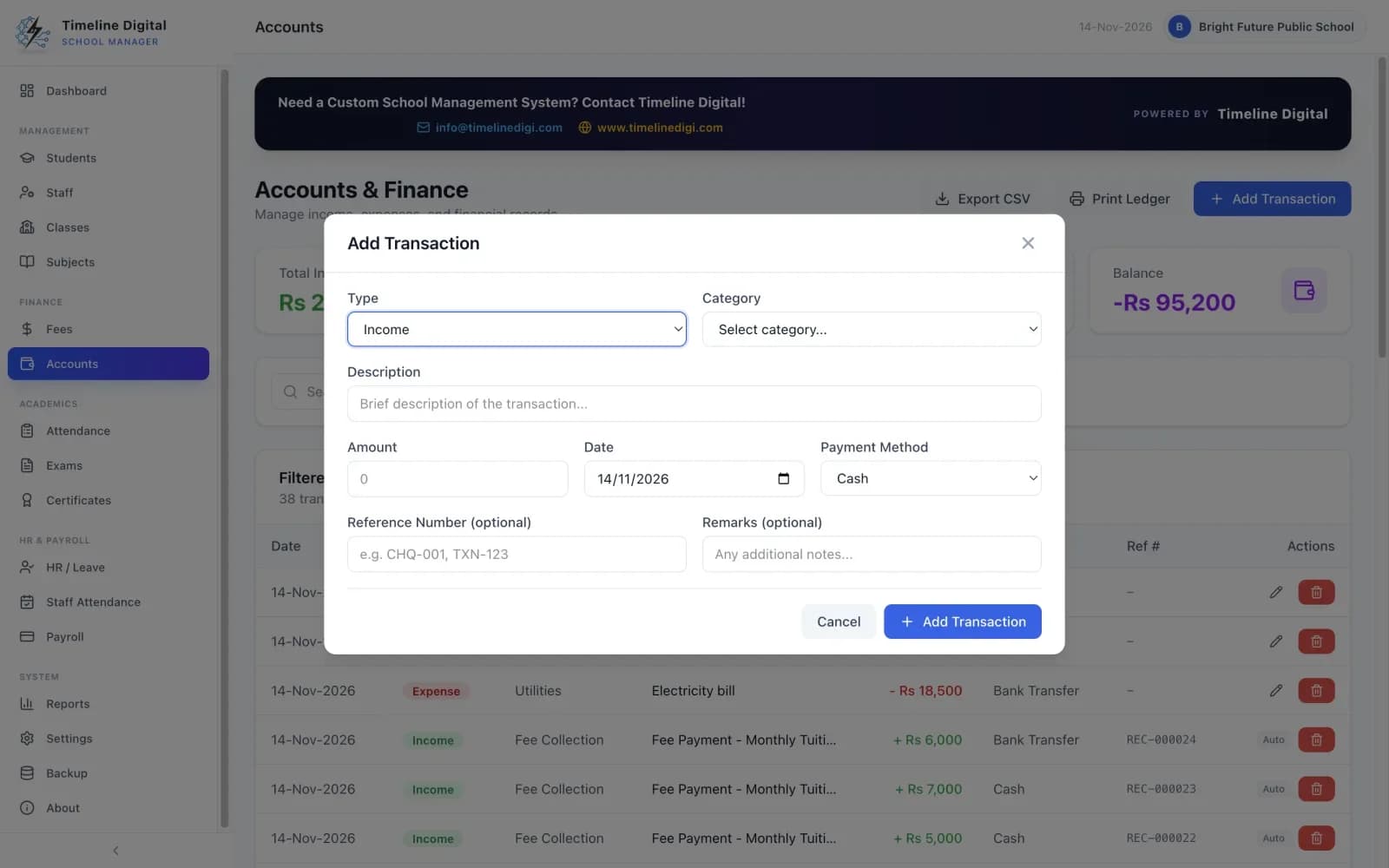
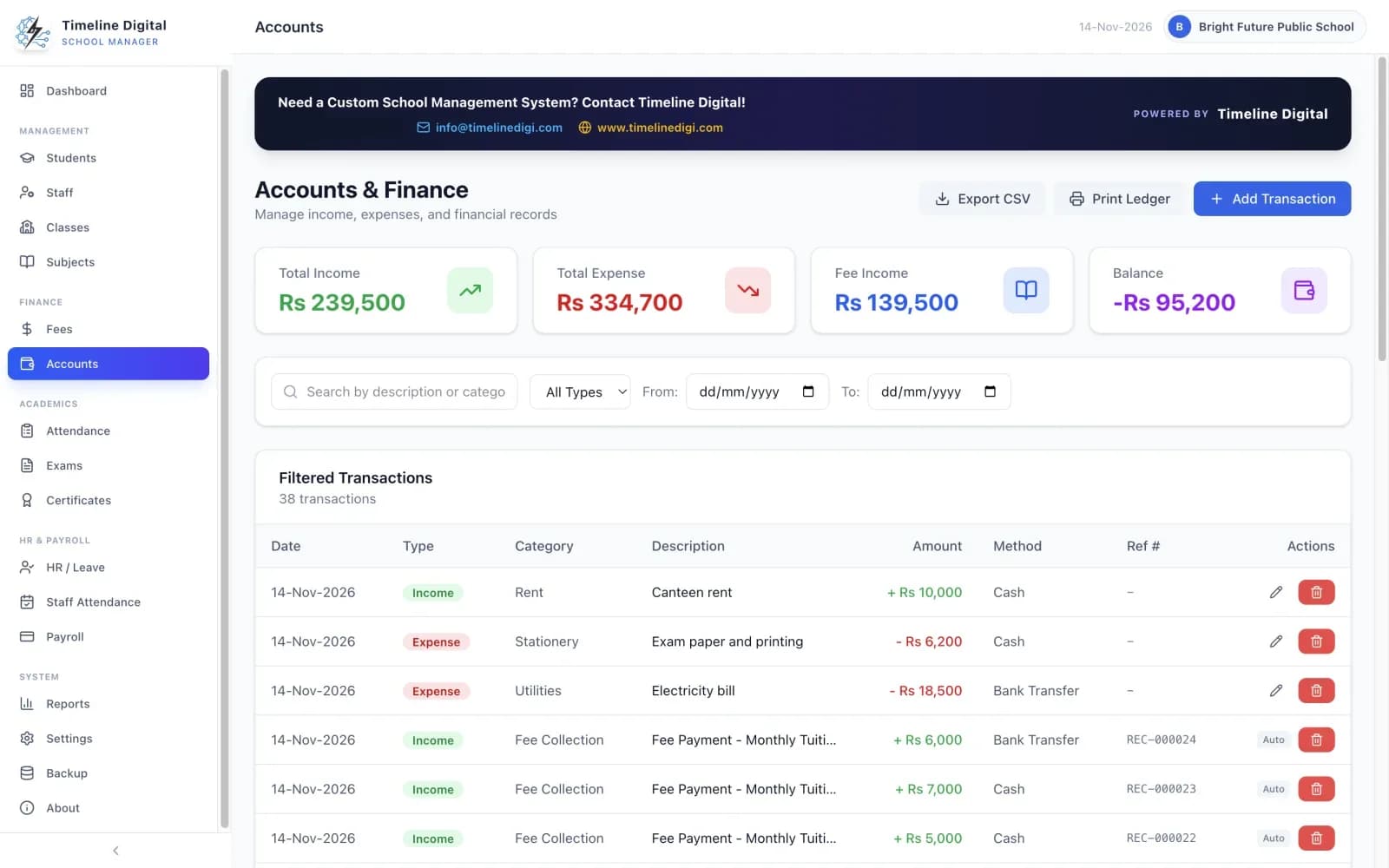
Yes. The Accounts module is a simple income and expense book. Fee payments are entered as income and paid salaries as expenses automatically. You add other income and expenses under categories, see total income, expense, fee income and balance, and print the accounts ledger or export it to CSV.
What the Accounts module holds
- Every fee payment is added to Accounts as income automatically. You do not type it twice.
- Every salary marked as Paid in Payroll is added as an expense automatically.
- Record other income such as donations, admission fees, rent and grants.
- Record expenses such as utilities, maintenance, stationery, transport and equipment.
- See total income, total expense, fee income and balance, with a summary for each category.
- Search, and filter by type and date range, then print the accounts ledger or export it to CSV.
This is an income and expense book. It is not a full accounting package. Salaries come from the Payroll module of the same app, which is described on the features page.
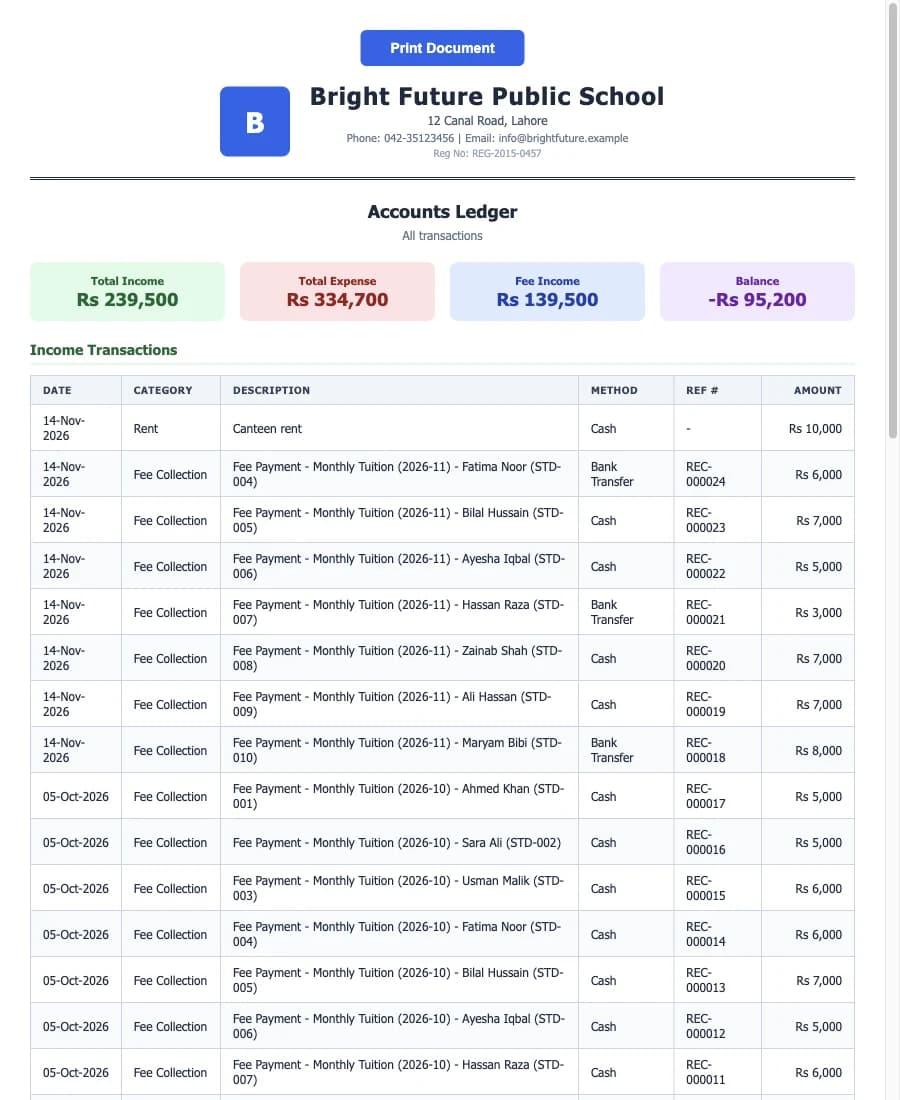
Which fee reports can you print?
The Reports module has a printable Fee Report that you narrow by date range, class and fee type. Next to it you can print the fee defaulters list for any month and the accounts ledger. The dashboard shows this month's fee collection, the total collected and the total outstanding without running a report.
The dashboard also shows this month's income, expense and balance, and a reminder for students with no fee recorded this month. The Fee Report is one of 7 printable reports in the app.
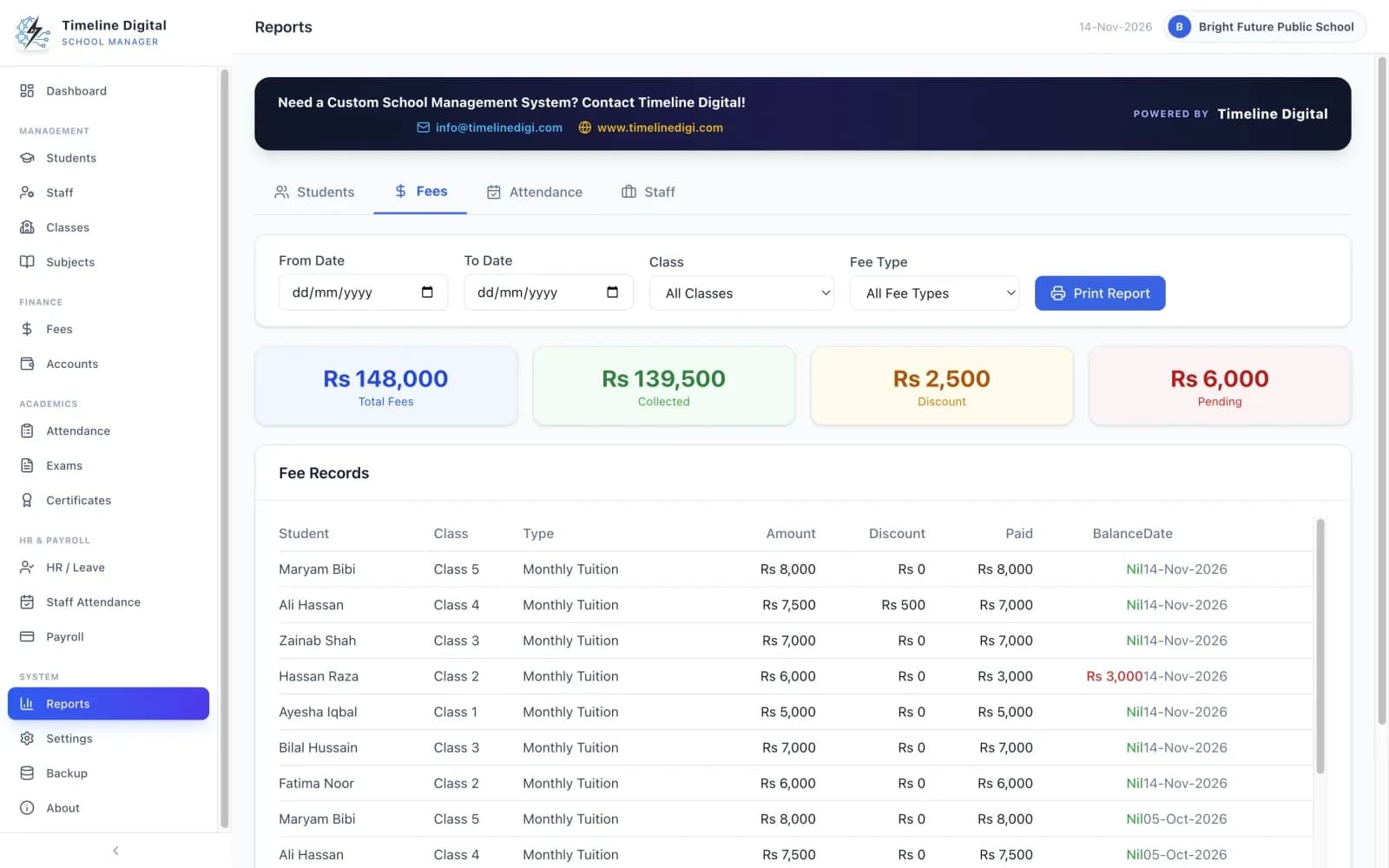
What does a month-end fee routine look like in the app?
Collect and print receipts through the month, then open the fee defaulters list for that month and collect the balances as parents return. Add the month's other income and expenses, run the Fee Report for the date range and print the accounts ledger. Every step uses a screen in the free app.
During the month: collect and print
Record each payment as the parent pays and print the two-copy receipt. Where a parent pays part of the fee, enter what was paid. The balance stays on the student's record.
Watch the dashboard reminder
The dashboard shows how many students have no fee recorded this month. Click the reminder to act on it. It also shows this month's collection, the total collected and the total outstanding.
Near month end: open the fee defaulters list
Choose the month. The list shows every student who has not paid, or has only partly paid, for that month. Print it for the principal or the class teachers, or export it to CSV.
Collect the balances
When a parent comes back, open the part-paid fee and collect the balance. The student's fee history shows total dues, discounts, amount paid and current balance.
Enter the month's other income and expenses
Fee payments and paid salaries are already in Accounts. Add what is left: the electricity bill, stationery, repairs, a donation or rent received.
Print the Fee Report and the accounts ledger
Run the Fee Report for the month's date range, for all classes or one class and fee type. Then print the accounts ledger, or export it to CSV, for the owner or the auditor. To keep a PDF, choose "Microsoft Print to PDF" on Windows or "Save as PDF" on a Mac in the print window.
The data is backed up automatically each day you open the app, and the latest 14 copies are kept. You can also make a manual backup to a USB drive before you close the month.
How do I collect a fee? Watch it.
Three of the 22 free video lessons cover fees and accounts. Each one is about two minutes long. Click a lesson to play it here.
Lesson 10: Collecting fees (2:01)
Record a payment, give a discount and print the receipt.
Lesson 11: Balances and fee defaulters (2:14)
Part payments, collecting a balance and the defaulters list.
Lesson 12: Accounts (2:03)
Income, expenses and the printed ledger.
All 22 lessons with written steps · Watch the playlist on YouTube
What does the fee software do, and what does it not do?
It records fee payments, prints receipts, tracks balances, lists defaulters and keeps an income and expense book, on one computer. It does not issue fee vouchers or challans, add late fees, take online payments or send SMS reminders. Read the table before you download.
| Area | What the app does | What it does not do |
|---|---|---|
| Receipts | Prints a fee receipt after a payment, with a School Copy and a Parent Copy on one sheet and a receipt number in sequence | No fee vouchers or bank challans issued before payment |
| Payment | Records a payment as Cash, Bank Transfer, Online and Cheque | No online payment. "Online" is only a label; the app does not take card, bank or mobile money payments |
| Late payers | Lists the defaulters for any month, to print or export | No automatic late fees or fines |
| Reminders | Shows a dashboard reminder for students with no fee recorded this month | No SMS, WhatsApp or email reminders to parents |
| Part payments | Tracks the remaining balance and lets you collect it later | Does not chase the balance for you, and adds no late fee to it |
| Accounts | Keeps an income and expense book with categories, a ledger and CSV export | Not a full accounting package: income, expenses and a balance only |
| Files | Exports fee records, fee defaulters and accounts to CSV, which opens in Excel | No direct Excel or PDF files. A PDF comes from the system print window |
| Computers | Runs on one computer for one office user at a time, with an optional password | No use on several computers at once and no separate staff logins |
What the app sends, and what stays on your computer
All school records (students, staff, fees, attendance, exams, payroll and accounts) are kept in a file on your own computer and are never uploaded. When you first set up the app, the registration details you type in (school name, principal's name, school type, country, city, phone and email) are sent once to Timeline Digital. No student, staff or fee records are ever sent.
Looking at other parts of the same app? See the free school attendance software page for the student and staff registers, and the free student management software page for student records, CSV import and promotion. Still comparing products? Read our guide to choosing school management software.
Custom version
Need Timeline School Manager across several campuses, or built around how you work?
The free edition is an offline desktop app for a single site. When you need it across several campuses, in the cloud, connected to your other systems or shaped around your own workflow, we build a custom version for you. The pilot is always free. We start with your most important modules, so you can judge the work before you commit.
How do you download and install it?
Download the Windows installer or the Mac disk image below and install it like any desktop app. First-time setup takes about a minute: enter your school's name, principal, country, city, phone and email. You can load sample data to try the fee screens before entering your own records.
Windows
Windows 10 or 11 (64-bit). The file is Timeline School Manager Setup 2.6.0.exe, about 101 MB. Open it and follow the steps. The installer is not code-signed, so Windows SmartScreen may warn you. Click More info, then Run anyway.
Mac
macOS 12 (Monterey) or newer, Apple Silicon or Intel. The file is Timeline-School-Manager-2.6.0-mac-universal.dmg, about 209 MB. Open it and drag the app into Applications. The app is not notarized, so macOS may say it could not verify it. Open System Settings, Privacy & Security and click Open Anyway. You do this once.
Version 2.6.0 · Free · Works offline
The SHA-256 checksums and full install steps are on the free offline school management software download page. Mac users can also read the free school management software for Mac page. Windows 7, Windows 8 and 32-bit Windows are not supported.
School fee management software questions
Is there free offline school fee management software for Windows 10?
Yes. Timeline School Manager is a free offline desktop app for Windows 10 and 11 (64-bit) and for macOS 12 or newer. Its Fees module records payments, prints receipts and lists defaulters, and it needs no internet for daily use. Both installers are on the free offline school management software download page.
Is the fee software a separate download?
No. There is no fee-only download. Fees and Accounts are two of the 16 modules in Timeline School Manager, and the whole app is free. You can use only the fee and accounts screens if that is all you need. You still add your classes and students first, because every payment belongs to a student.
Can it print fee receipts?
Yes. After you record a payment you can print a fee receipt. One sheet carries a School Copy and a Parent Copy, with your school name, logo, address and contact details and a receipt number that runs in sequence. It prints on any printer installed on the computer.
Can parents pay school fees online through it?
No. The app does not take online, card or mobile money payments. "Online" is one of four payment method labels (Cash, Bank Transfer, Online and Cheque) that you choose when you record a payment the parent has already made, so your records show how the money came in.
Does it make fee vouchers or challans?
No. The app does not print fee vouchers, challans or invoices to send home before payment. It prints a receipt after a payment is recorded, and a fee defaulters list that shows who still owes for a month.
Does it add late fees or fines automatically?
No. There are no automatic late fees or fines. The app shows who has not paid through the fee defaulters list and the dashboard reminder, and the office decides what to do next.
How do I find students who have not paid their fees?
Open the fee defaulters list and choose the month. It shows every student who has not paid, or has only partly paid, for that month. You can print the list or export it to CSV. Lesson 11 of the video tutorials shows it in about two minutes.
Can a parent pay part of the fee and the rest later?
Yes. Enter the amount the parent pays today. The app tracks the remaining balance, and you can collect it later. The fee history for each student shows total dues, discounts, amount paid and current balance.
Can I use it as school accounts management software?
Yes, for a simple income and expense book. Fee payments are posted as income and paid salaries as expenses automatically. You add other income and expenses under categories, see totals and a category summary, and print the ledger or export it to CSV. It is not a full double-entry accounting package.
Can I export fee records to Excel?
Yes, as CSV files, which open in Excel. You can export fee records, the fee defaulters list and the accounts. The app does not write Excel or PDF files directly. To save a printed document as a PDF, choose "Microsoft Print to PDF" on Windows or "Save as PDF" on a Mac in the print window.
Which currency does it use?
You choose your country from 84 options in Settings, and the currency, date format and number format are set to match. The screenshots on this page show the app's sample school with amounts in Rs because that is the sample data.
Can two people collect fees on two computers?
No. The free edition runs on one computer for one office user at a time, with no live sync and no separate staff logins. If your school needs several fee counters, online payment or fee vouchers, that is custom work. See the Timeline School Manager product page for how Timeline Digital builds custom school systems.
Download the free fee software
Install the app, load the sample data to practise, then set your class fees and collect the first payment. If you need online payment, fee vouchers, several fee counters or messages to parents, that is custom work: tell us how your fee office works and we will say what we would pilot.
Version 2.6.0 · Free · Works offline
About this page
Published by Timeline Digital, the maker of Timeline School Manager. Every feature described here was checked against version 2.6.0 of the app on . The screenshots show the app's sample school, "Bright Future Public School". It is not a real customer and the names and amounts in it are made up.
Author
Usama Asif
CEO and CTO, Timeline Digital.
More about Timeline School Manager
Timeline School Manager
The product page: all 16 modules, screenshots and system requirements.
Read this nextDownload for Windows and Mac
Both installers, the checksums and the install steps.
Read this nextSchool Management Software for Mac
The macOS version and how to open it the first time.
Read this nextVideo Lessons
22 short lessons, about 46 minutes in total.
Read this nextAll Features
Every module, from students to backup and restore.
Read this nextFree School Attendance Software
Student and staff attendance with a printed monthly register.
Read this nextFree Student Management Software
Student records, CSV import and promoting a class.
Read this nextSchool Management Software Guide
How to choose school management software.
Read this next