Free Offline School Management Software for Mac
Timeline School Manager is a free offline desktop app from Timeline Digital for Macs with macOS 12 or newer. One download works on Apple Silicon and Intel Macs.
Version 2.6.0 · Free · Works offline · Using Windows? Get the Windows version
Is there free school management software for Mac?
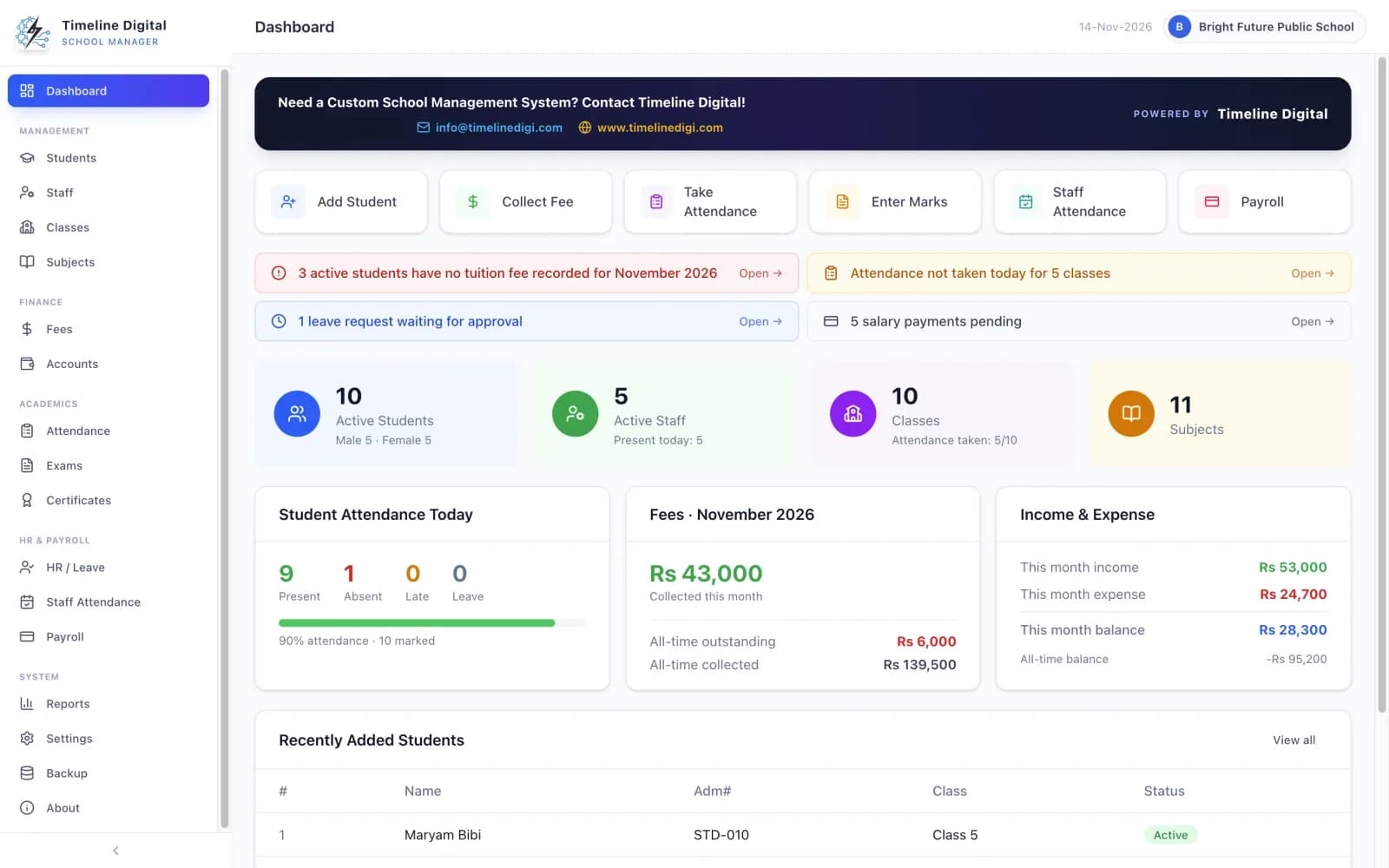
Yes. Timeline School Manager 2.6.0 is a free offline desktop app for Mac, made by Timeline Digital for small and medium-sized schools. It runs on macOS 12 Monterey or newer and has 16 modules for students, fees, attendance, exams, certificates, staff, payroll and accounts. There is no licence key, no trial period and no charge per student. It runs on one Mac, for one office user at a time.
You can read about the app on the Timeline School Manager product page, or see all 16 modules with screenshots.
This page is for Mac only. Using Windows? Get the Windows version.
- System
- macOS 12 (Monterey) or newer, Apple Silicon or Intel
- File name
- Timeline-School-Manager-2.6.0-mac-universal.dmg
- Size
- About 209 MB
- Version
- 2.6.0
- Price
- Free
- Last updated
- SHA-256
f80c81f6a8c916db7d63ce3ab82ae040b2b21ab62ba5c1b976f80b02263fb377
Which Macs does it run on?
It runs on any Mac with macOS 12 Monterey or newer, on Apple Silicon (M-series) or Intel. The download is one universal file of about 209 MB that works on both kinds of Mac, so you do not need to find out which chip your Mac has before you download.
| Requirement | Mac |
|---|---|
| Operating system | macOS 12 (Monterey) or newer |
| Not supported | macOS 11 or older |
| Processor | Apple Silicon (M-series) or Intel |
| Download | One universal .dmg file, about 209 MB |
| Screen | 1024 x 700 or larger |
| Printer | Any printer installed on the Mac |
| Internet | Needed once, to download. Not needed for daily use |
| Language | English |
| Users | One computer, one office user at a time |
The one thing to check is your macOS version. Click the Apple menu in the top-left corner and choose About This Mac. If it shows macOS 12 or a higher number, you are ready.
How do I install it on my Mac?
Download the .dmg file, open it, and drag Timeline School Manager into the Applications folder. Then open the app. The first time, macOS may say it could not verify the app. If so, open System Settings, choose Privacy & Security, scroll down and click Open Anyway. You only do this once.
- Download the Mac file. Click "Download for Mac". The file Timeline-School-Manager-2.6.0-mac-universal.dmg (about 209 MB) is saved to your Downloads folder. It is one universal file, so it is the right one for both Apple Silicon and Intel Macs.
- Open the .dmg file. Double-click the file. A small window opens with the app inside.
- Drag the app to Applications. Drag Timeline School Manager into the Applications folder and wait for the copy to finish.
- Open the app, and allow it once. Open your Applications folder and double-click Timeline School Manager. If macOS says it could not verify the app, follow the Open Anyway steps beside this list. You do it once.
If your Mac says it could not verify the app
macOS shows this message for apps that are not notarized by Apple, and ours is not.
- Close the message.
- Open System Settings and choose Privacy & Security.
- Scroll down and click Open Anyway.
- Open the app again. You only need to do this once.
Download the file only from timelinedigi.com. To be sure it is ours before you open it, check its SHA-256 checksum.
What happens when I first open it?
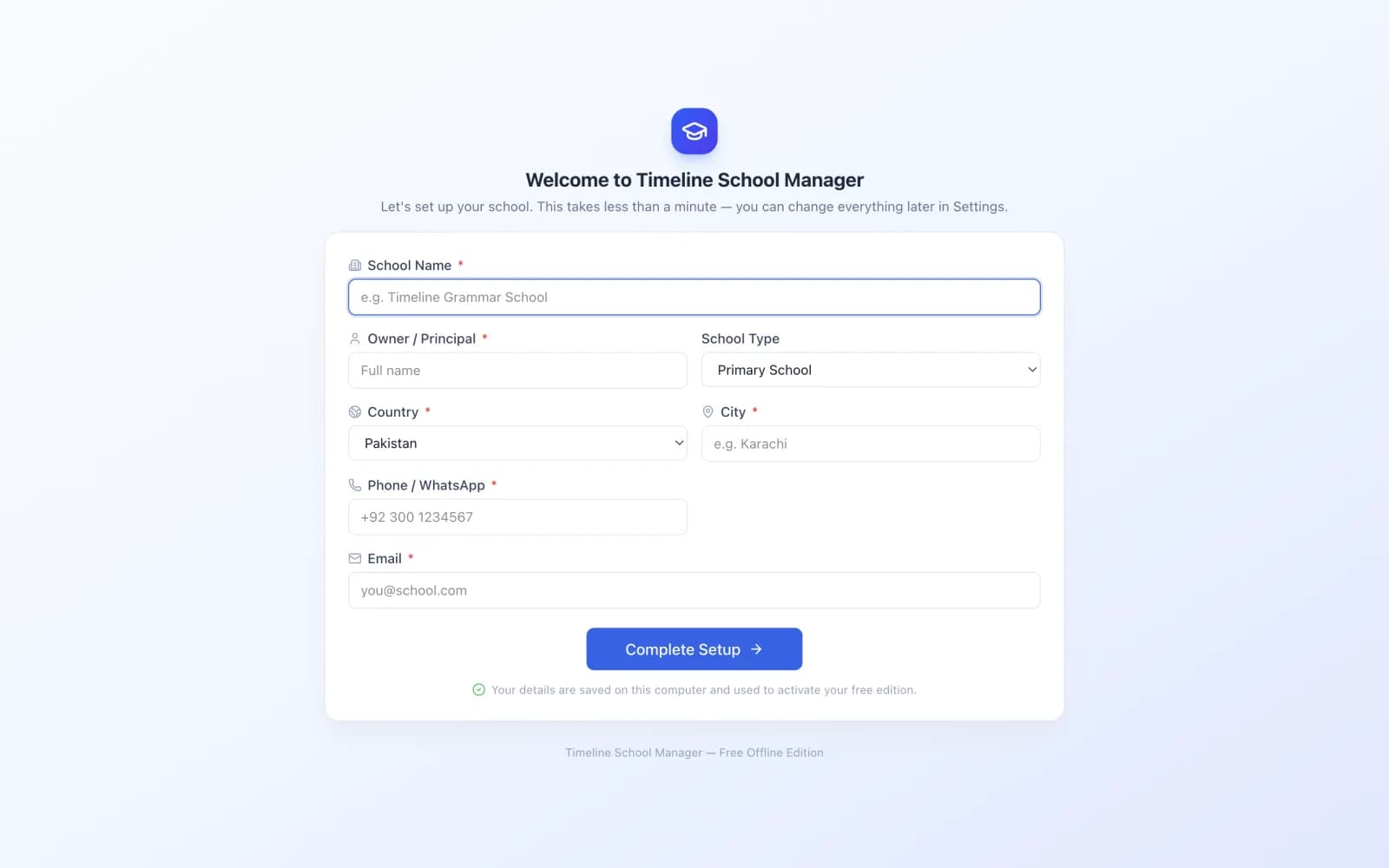
A short setup screen asks for your school's name, principal, country, city, phone and email. Setup takes about a minute. Pick your country from 84 options and the currency and date format are set to match. You can load sample data to try every feature first.
The details you type on this screen are sent once to Timeline Digital as your registration. Your student, staff and fee records are never sent.
What can a school do with it on a Mac?
The Mac app has 16 modules: students, staff, classes, subjects, fees, accounts, student attendance, exams and results, certificates, staff leave, staff attendance, payroll, reports, settings and backup. Fee payments and paid salaries go into the accounts for you.
| Area | What you can do |
|---|---|
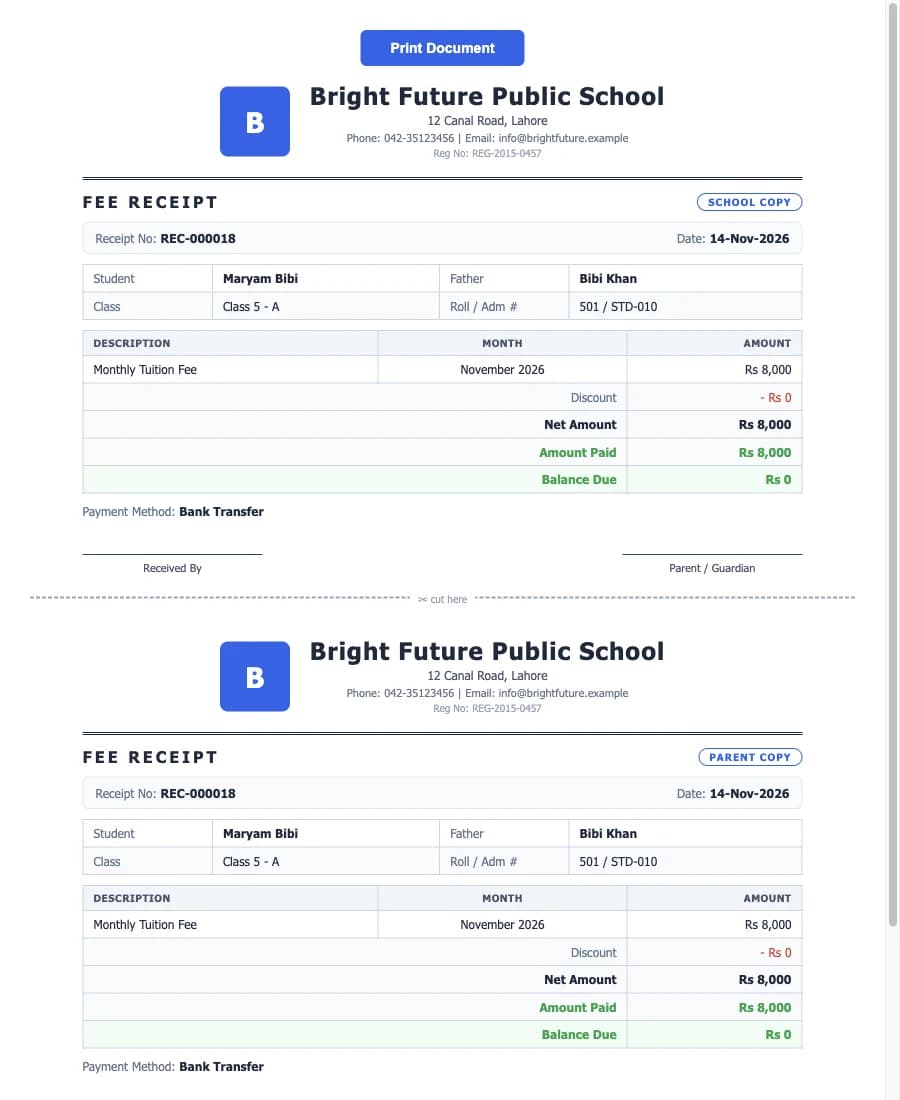
| Students | A record for every student from admission to leaving, with CSV import and export and promotion to a new class. Student records |
| Fees | Collect fees, give discounts, accept part payments, print receipts and see the fee defaulters list. Fee management |
| Attendance | Mark students Present, Absent, Late or on Leave, mark staff too, and print the monthly register. Attendance |
| Exams and results | Enter marks for a whole class on one screen. Grades (A+ to F), positions and result cards are worked out for you. |
| Certificates | 5 types: Character, Transfer, Bonafide, Study and School Leaving, each with a serial number. |
| Staff, leave and payroll | Staff records, leave requests, staff attendance, and salaries for all staff in one click with printed salary slips. |
| Accounts | A simple income and expense book. Fee payments and paid salaries are entered for you. |
| Reports | 7 printable reports for students, fees, attendance and staff. |
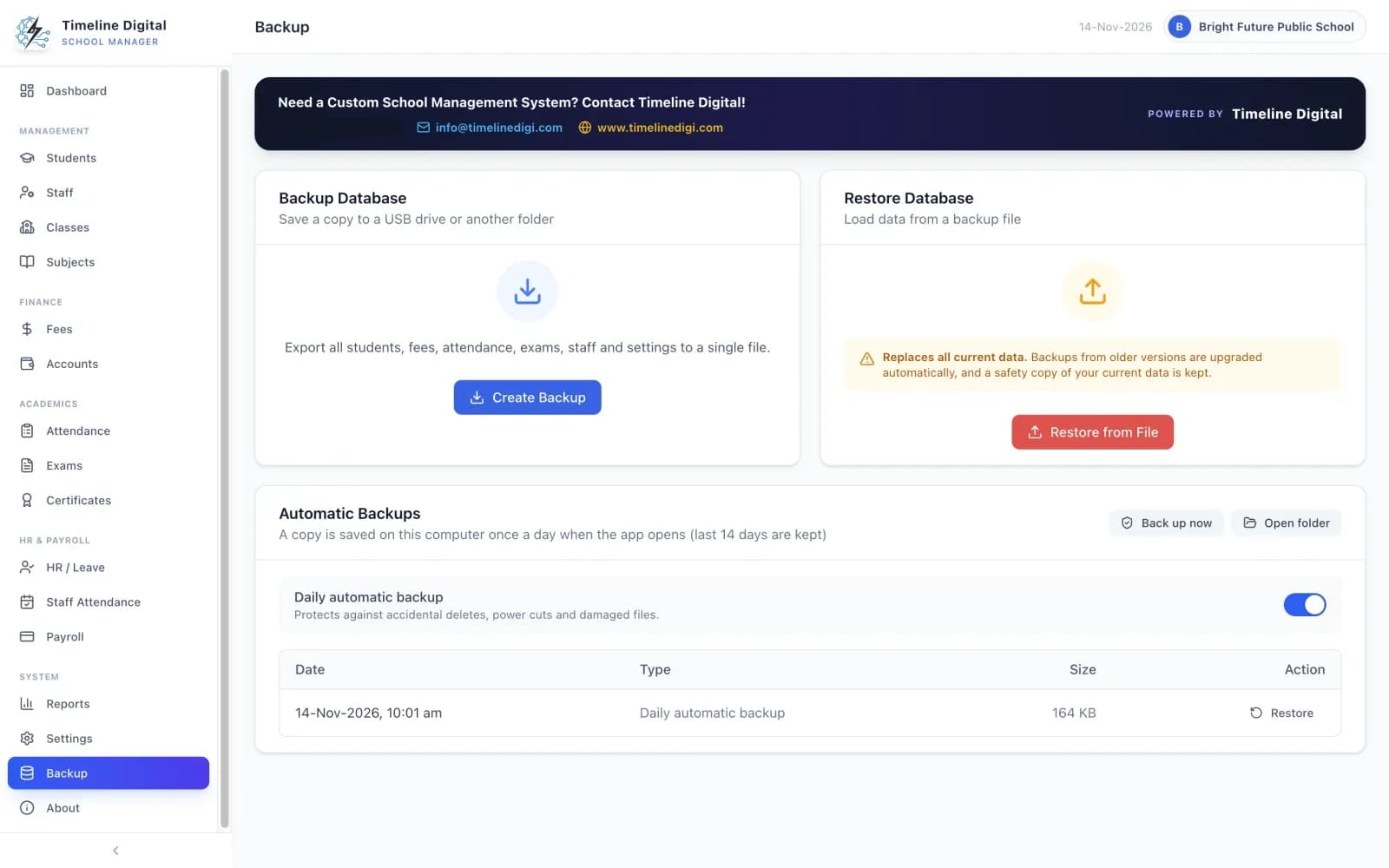
| Backup and password | An automatic backup each day you open the app (the latest 14 are kept), manual backup, restore, and a password with a recovery code. |
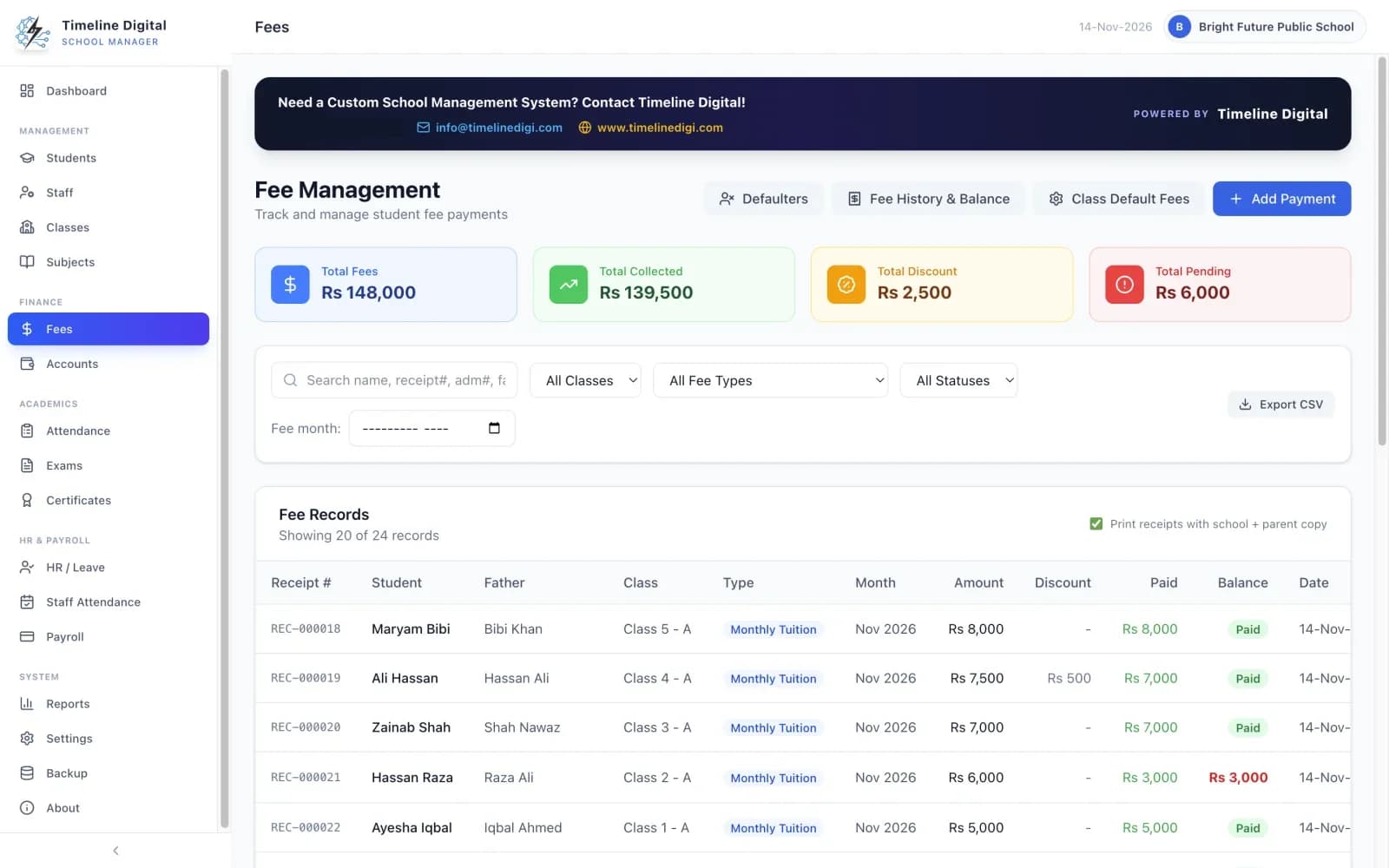
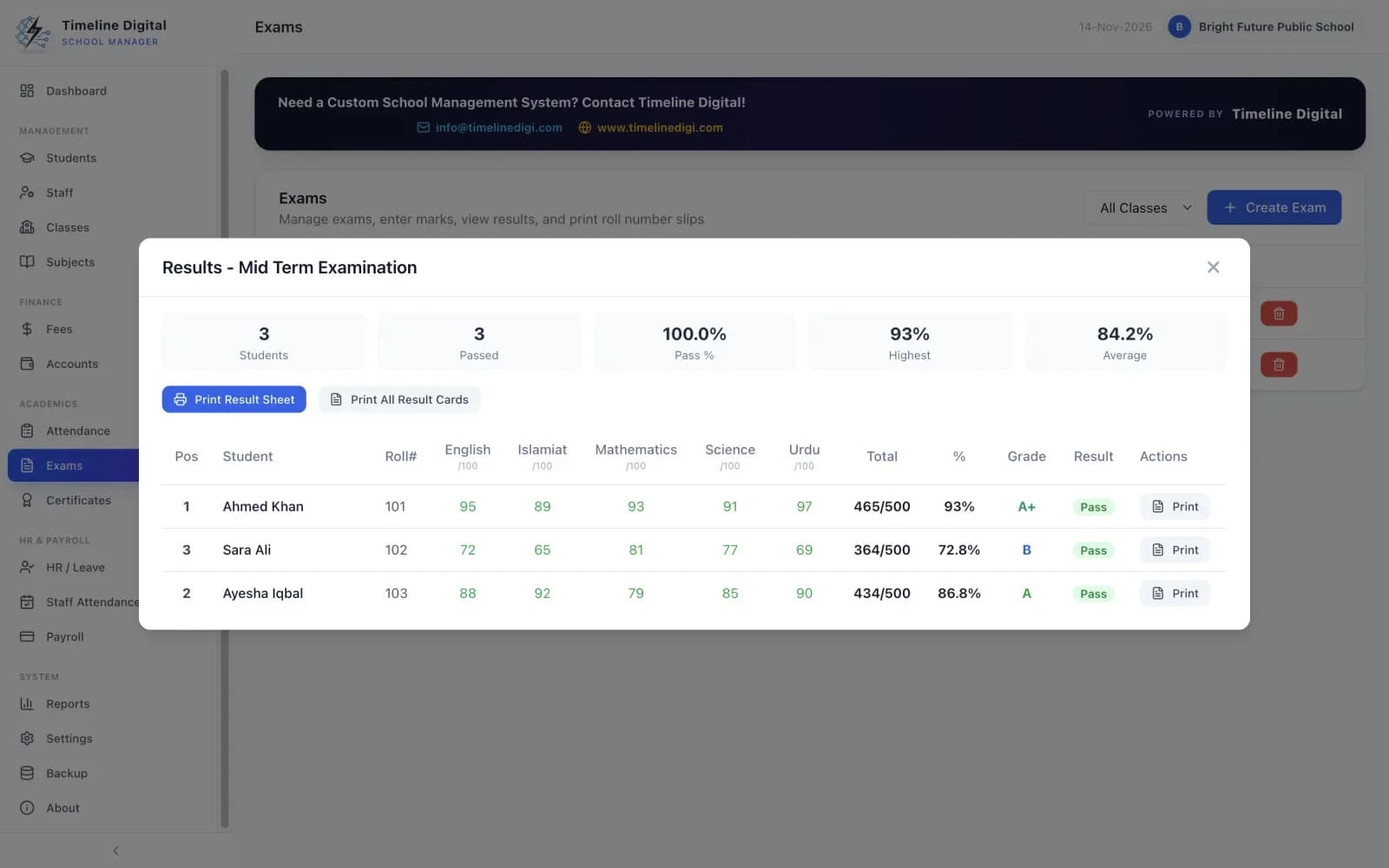
The screenshots show a made-up sample school. The names and amounts in them are not real.
How do I set up and back up the app? Watch it.
These three lessons show the real app: first setup, the dashboard, and backup and restore. The app has the same screens on a Mac. There are 22 lessons in all, about 46 minutes together.
Lesson 1: Getting started (1:45)
Install the app, enter your school details and load sample data.
Lesson 2: The dashboard (2:10)
Counts, today's attendance, fee totals, reminders and shortcuts.
Lesson 21: Backup and restore (2:03)
Automatic daily backups, manual backup and restore.
All 22 lessons with written steps · Watch the playlist on YouTube
How does printing work on a Mac?
The app prints to any printer that is installed on your Mac. Fee receipts, result cards, roll number slips, certificates, salary slips and registers open in the print window, with your school's name and logo. To keep a document as a PDF instead, choose “Save as PDF” in the print window.
The app does not create PDF or Excel files by itself. A PDF comes from the print window. Lists such as students, staff, fee records, fee defaulters, accounts and payroll can be exported as CSV files, which open in Excel or Numbers.
How do I verify the SHA-256 checksum on a Mac?
A checksum is a long code worked out from a file. If the code for your download is the same as the one printed here, your file is exactly the one Timeline Digital published. Run one command in Terminal, then compare the result with the value below.
- Open Terminal (Applications, then Utilities).
- Paste the command below and press Return.
- Compare the result with the expected SHA-256 below.
shasum -a 256 ~/Downloads/Timeline-School-Manager-2.6.0-mac-universal.dmgExpected SHA-256 for the Mac file
f80c81f6a8c916db7d63ce3ab82ae040b2b21ab62ba5c1b976f80b02263fb377The command assumes the file is in your Downloads folder with its original name. If the two values are different, do not open the file. Delete it and download it again from this page.
Where is my school data kept on the Mac?
All school records (students, staff, fees, attendance, exams, payroll and accounts) are kept in a file on your own computer and are never uploaded. When you first set up the app, the registration details you type in (school name, principal's name, school type, country, city, phone and email) are sent once to Timeline Digital. No student, staff or fee records are ever sent.
How do I back up to a USB drive?
The app saves a backup by itself each day you open it and keeps the latest 14. Make a manual backup as well, so a copy exists outside the Mac:
- Plug a USB drive into the Mac.
- Open Backup & Restore in the app.
- Make a manual backup and choose the USB drive as the folder.
- Eject the drive and keep it somewhere safe, away from the Mac.
To bring records back, choose Restore and pick a backup file. The app makes a safety copy of your current data first, so a restore can be undone. Lesson 21, "Backup and restore" (2:03), shows it.
Can I move from a Windows PC to a Mac?
The app has manual backup and restore, but we do not promise that a backup made on a Windows PC restores on a Mac. You can try it: make a manual backup on the old computer, copy the backup file to the Mac on a USB drive, install the app on the Mac, and choose Restore. Keep the old computer and the backup file as they are until you have checked your records on the Mac.
If a restore between the two systems does not work, Timeline Digital can help through the contact form.
What does the Mac app not do?
It is an offline app for one school office on one Mac, with one office user at a time. It has no online access, no iPad or phone app, no parent portal, no messages to parents, no online fee payment, no timetable and no ID cards. It is in English only.
- One Mac, one office user
- The app runs on a single Mac for one office user at a time. Two computers do not share or sync records, and there are no separate logins for different staff.
- No iPad or iPhone app
- It is a desktop app for a MacBook, iMac or Mac mini. There is no iPad, iPhone, Android or web version, and no parent or student portal.
- No messages to parents
- The app does not send SMS, WhatsApp or email messages, and it does not take online fee payments. "Online" is only a label you can put on a payment you have recorded.
- Not notarized by Apple
- The Mac app is not notarized, so macOS may say it could not verify the app the first time. You allow it once in System Settings, under Privacy & Security.
The full list of what the free edition leaves out
- Use on several computers at once, or separate logins for different staff
- Online access, a mobile app, or a parent or student portal
- SMS, WhatsApp or email messages to parents
- Online fee payment
- Timetable, library, transport, hostel or inventory management
- Student or staff ID cards
- Automatic late fees or fines
If your school needs some of these, a cloud product or a custom system will suit you better than this app. The school management software guide explains how to choose.
Questions from schools that use a Mac
Is there free school management software for Mac?
Yes. Timeline School Manager 2.6.0 is free and runs on a Mac with macOS 12 Monterey or newer. It is an offline desktop app with 16 modules for students, fees, attendance, exams, certificates, staff, payroll and accounts. There is no licence key, no trial period and no locked features.
Which Macs does it run on?
Any Mac that runs macOS 12 Monterey or newer, with an Apple Silicon (M-series) chip or an Intel processor. That includes a MacBook Air, MacBook Pro, iMac or Mac mini on a supported macOS version. The screen should be 1024 x 700 or larger. Older macOS versions are not supported.
Do I need to know if my Mac is Apple Silicon or Intel?
No. There is one universal download, Timeline-School-Manager-2.6.0-mac-universal.dmg, about 209 MB. The same file works on Macs with an Apple chip and on Macs with an Intel processor, so there is nothing to choose and no way to pick the wrong file.
How do I install the school management system on a MacBook?
Download the .dmg file, open it, and drag Timeline School Manager into the Applications folder. Then open the app. If macOS says it could not verify the app, open System Settings, choose Privacy & Security, scroll down and click Open Anyway. You only do this once.
Why does macOS say it could not verify the app?
The Mac app is not notarized by Apple, so macOS asks before it opens the app for the first time. Download the file only from timelinedigi.com. You can check it against the SHA-256 checksum on this page, then allow it once with Open Anyway in System Settings, under Privacy & Security.
How do I check that my Mac download is genuine?
Compare the SHA-256 checksum of your file with the one printed on this page. Open Terminal, run shasum -a 256 on the file, and compare the result. If the two values match, the file is the one we published. If not, delete it and download again.
Does it work offline on a Mac?
Yes. It is offline software. You need the internet to download the file. After that, daily work such as taking attendance, collecting fees, entering marks, running payroll and printing does not need an internet connection.
How do I print or save a PDF on a Mac?
The app prints to any printer that is installed on your Mac. Receipts, result cards, certificates, salary slips and registers open in the print window. To save a document as a PDF instead of printing it, choose "Save as PDF" in that print window.
Where is my school data kept on the Mac?
All school records (students, staff, fees, attendance, exams, payroll and accounts) are kept in a file on your own computer and are never uploaded. When you first set up the app, the registration details you type in (school name, principal's name, school type, country, city, phone and email) are sent once to Timeline Digital. No student, staff or fee records are ever sent.
Can I move my school records from a Windows PC to a Mac?
The app has manual backup and restore, but we do not promise that a backup made on a Windows PC restores on a Mac. You can try it: make a manual backup on the PC, copy the file to the Mac on a USB drive and choose Restore. Keep the PC and its records as they are, and contact Timeline Digital through the contact form if the restore does not work.
Is there a Windows version?
Yes. It is the same app, version 2.6.0, with the same 16 modules and the same printed documents. The Windows version has its own download and install steps. This page covers only the Mac. Free offline school management software for Windows 10 and 11.
Does it run on an iPad or iPhone?
No. Timeline School Manager is a desktop app. There is no iPad, iPhone, Android, Linux or web version, and no mobile app for parents or teachers.
Can I get a custom school system for Mac, iPad or the web?
Yes. Timeline Digital builds custom school management systems, for example with a parent portal, messages to parents, several campuses or online payment. The pilot is always free. We build 2 to 3 of your key modules first, and the full project starts only after you approve them.
Custom version
Need Timeline School Manager across several campuses, or built around how you work?
The free edition is an offline desktop app for a single site. When you need it across several campuses, in the cloud, connected to your other systems or shaped around your own workflow, we build a custom version for you. The pilot is always free. We start with your most important modules, so you can judge the work before you commit.
Download the free offline school software for Mac
All 16 modules, with no licence key and no trial period. One universal file for macOS 12 or newer.
Version 2.6.0 · Free · Works offline · Using Windows? Get the Windows version