Timeline School Manager
Offline school management system features, module by module
Timeline School Manager is free offline school management software from Timeline Digital for one Windows PC or Mac. This page shows what each of its 16 modules does, and what the app leaves out.
Version 2.6.0 · Free · Works offline
What modules does the offline school management system have?
Timeline School Manager has 16 modules, grouped in the side menu as Management, Finance, Academics, HR & Payroll, and System. Together they cover student records, staff, classes, subjects, fees, accounts, attendance, exams, certificates, leave, payroll, reports, settings and backup. The table lists each one.
| Module | Menu group | What it does |
|---|---|---|
| 1. Dashboard | Management | Today's attendance, fees, income and reminders on one screen. |
| 2. Students | Management | A full record for every student, with CSV import, export and promotion. |
| 3. Staff | Management | Records for teachers and all other employees, with role and salary. |
| 4. Classes & Sections | Management | Your classes and sections, in the order you choose. |
| 5. Subjects | Management | One subject list, and the subjects each class studies. |
| 6. Fees | Finance | Fee payments, receipts, balances and the defaulters list. |
| 7. Accounts | Finance | A simple income and expense book, filled in part by fees and salaries. |
| 8. Student Attendance | Academics | Daily attendance by class, a monthly summary and a printed register. |
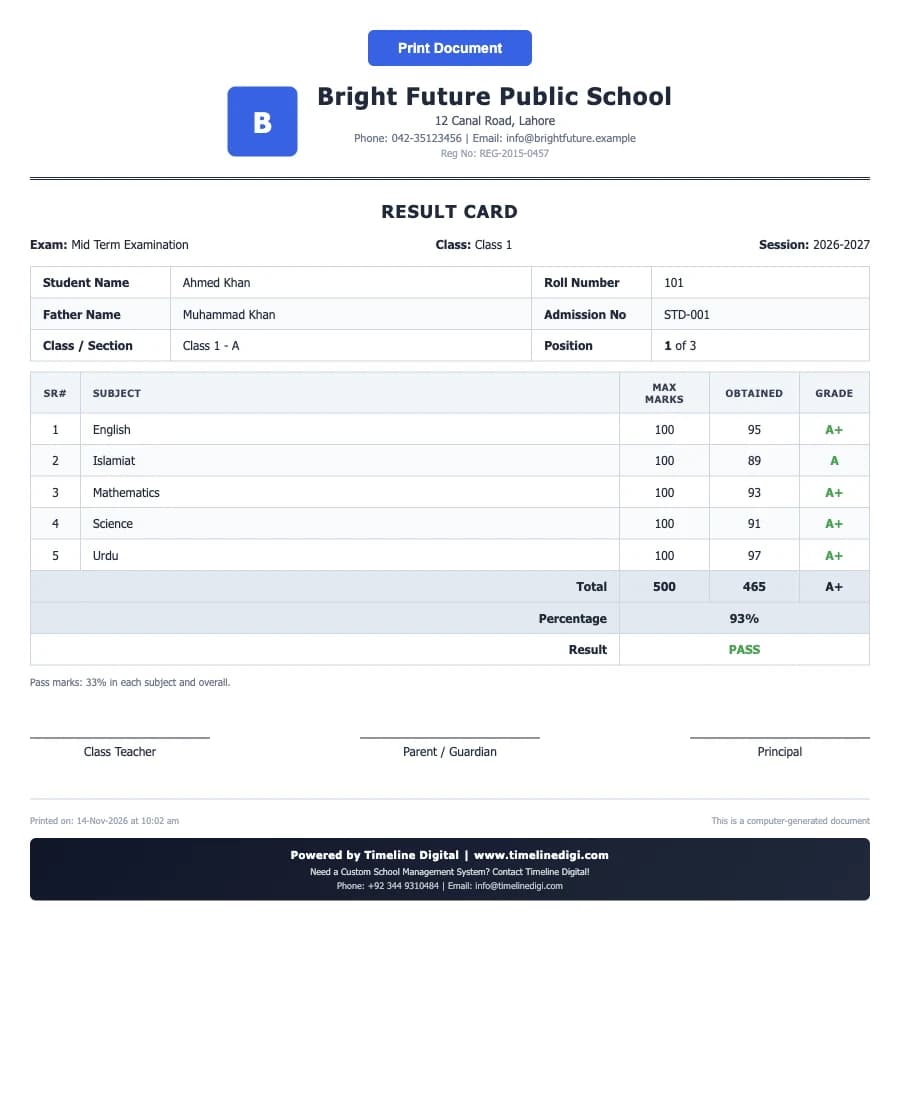
| 9. Exams & Results | Academics | Exams, marks entry, grades, positions and printed result cards. |
| 10. Certificates | Academics | Five kinds of certificate, printed with a serial number. |
| 11. HR / Leave | HR & Payroll | Staff leave requests, approved or rejected. |
| 12. Staff Attendance | HR & Payroll | Daily attendance for every staff member. |
| 13. Payroll | HR & Payroll | Monthly salaries, allowances, deductions and salary slips. |
| 14. Reports | System | Seven printable reports on students, fees, attendance and staff. |
| 15. Settings | System | School details, logo, country and currency, and the app password. |
| 16. Backup & Restore | System | Automatic daily backups, manual backups and restore. |
Also on this page: documents you can print, working with Excel, data and privacy, system requirements, what it does not include and common questions.
What does the app look like in use? Watch it.
These three lessons show the dashboard, collecting a fee and taking attendance in the real app. There are 22 lessons in all, about 46 minutes, and each module below names its own lesson.
Lesson 2: The dashboard (2:10)
Counts, today's attendance, fee totals, reminders and shortcuts.
Lesson 10: Collecting fees (2:01)
Record a payment, give a discount and print the receipt.
Lesson 13: Student attendance (2:06)
Mark a class, correct a past day and print the register.
All 22 lessons with written steps · Watch the playlist on YouTube
What does the dashboard show?
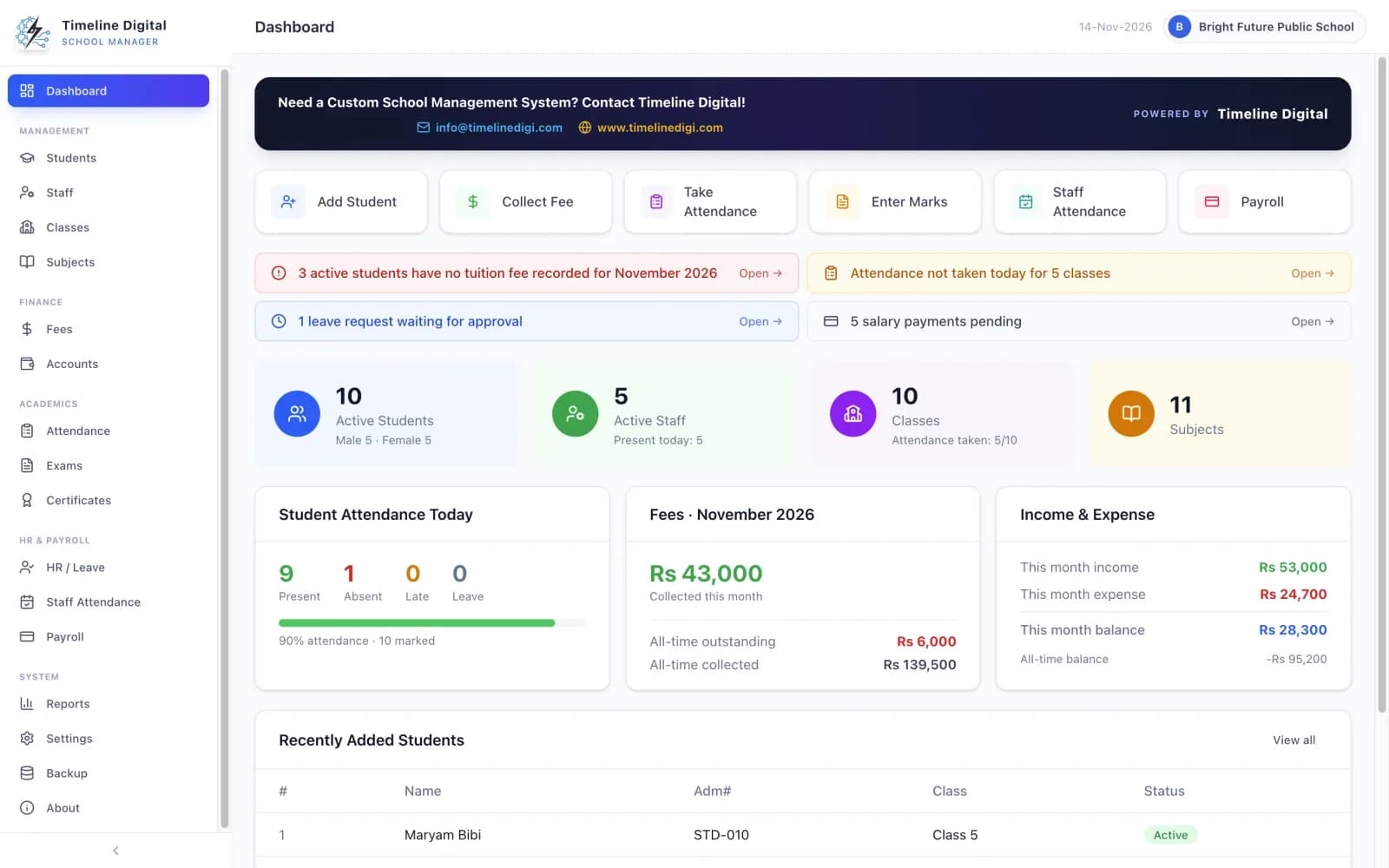
The dashboard is one screen that shows how the school is doing today. It counts active students, staff, classes and subjects, shows today's attendance with a percentage, this month's fee collection, and this month's income, expense and balance. Reminders and shortcut buttons take you straight to the jobs that are waiting.
Dashboard is module 1 of 16, in the Management menu. Watch lesson 2: The dashboard.
- Counts of active students (boys and girls), active staff, classes and subjects.
- Today's student attendance: present, absent, late and on leave, with a percentage.
- This month's fee collection, plus total collected and total outstanding.
- This month's income, expense and balance.
- Reminders you can click to act on: students with no fee recorded this month, classes whose attendance is not yet taken, leave requests waiting for approval, and salaries still pending.
- Shortcut buttons: Add Student, Collect Fee, Take Attendance, Enter Marks, Staff Attendance and Payroll.
- A list of recently added students.
Student management software: what does a student record hold?
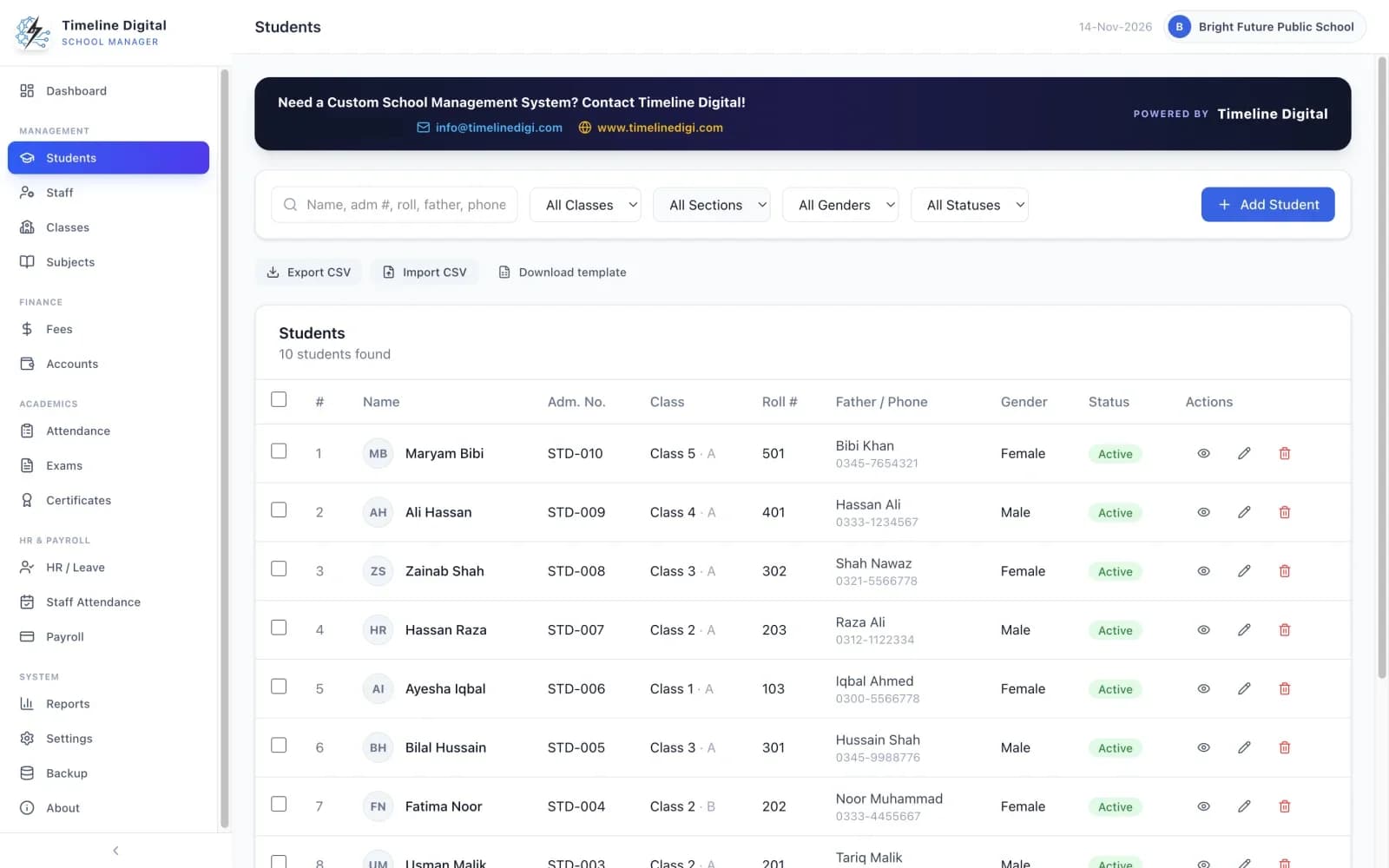
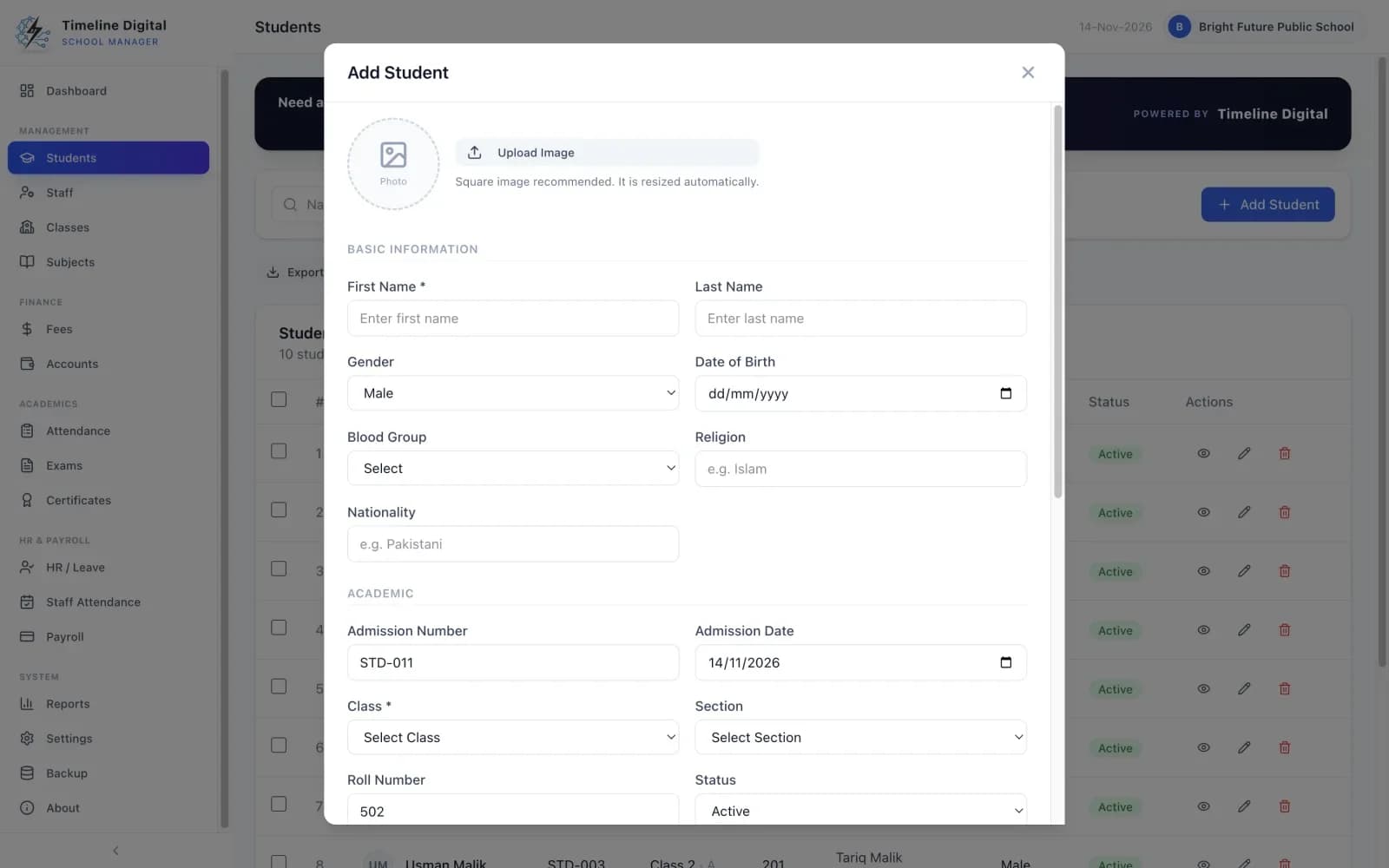
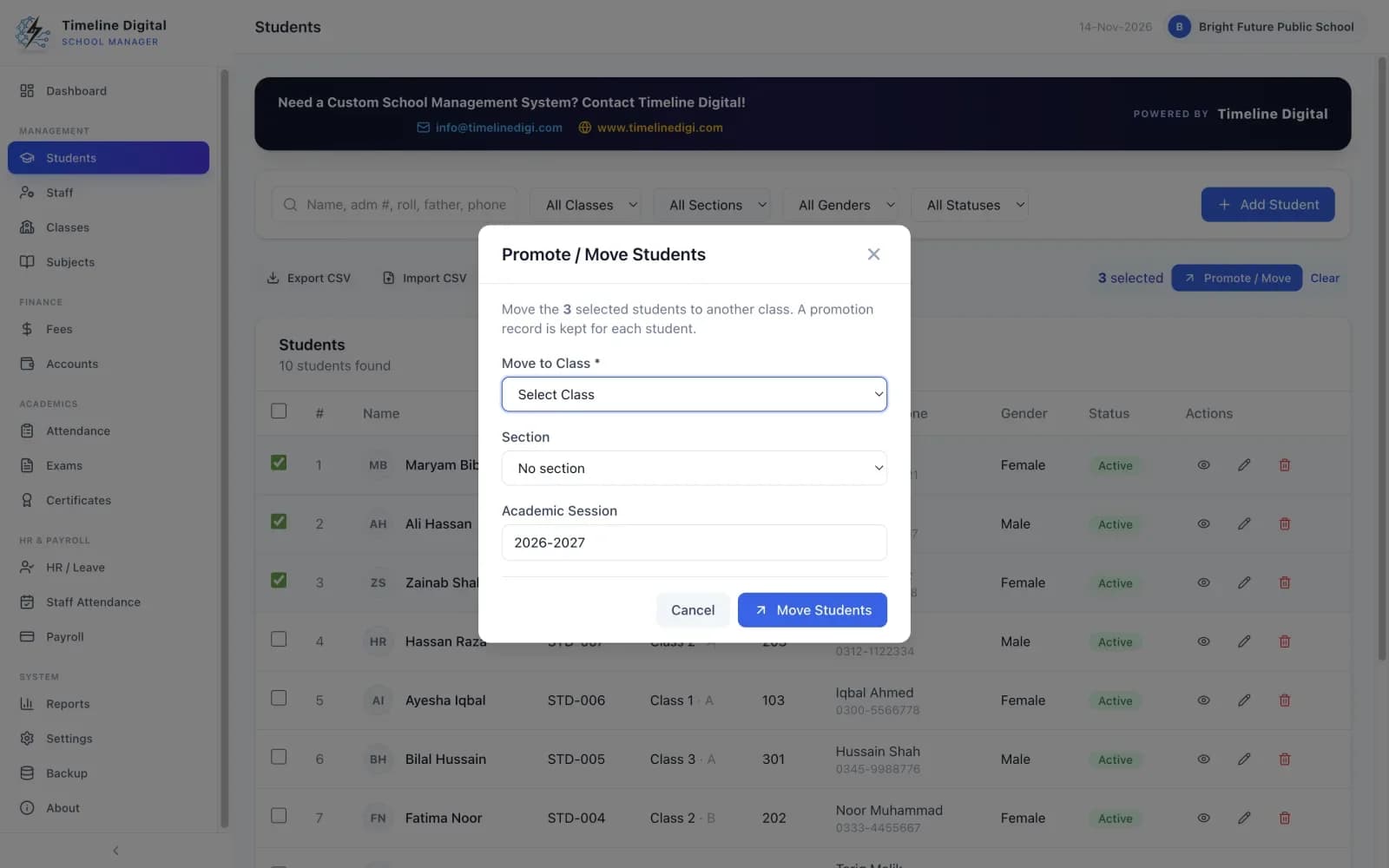
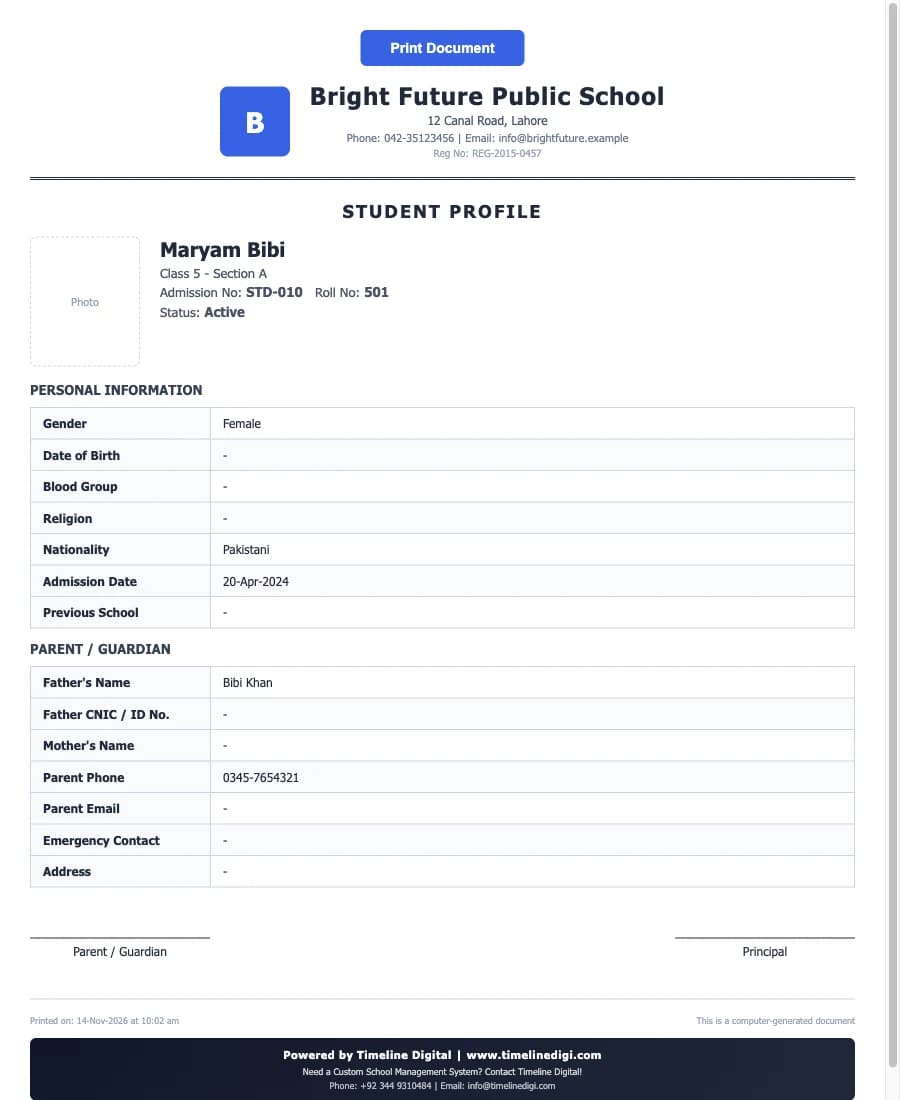
Each student has one complete record, from admission to leaving. It holds the student's personal details and photo, academic details such as admission number, class, section and roll number, and the parents' details. You can search and filter the list, import students from a CSV file, promote a class in one step and print a student profile.
Students is module 2 of 16, in the Management menu. Watch lesson 4: Adding a student, lesson 5: Managing students and lesson 6: Importing and promoting students.
- Student details: name, photo, gender, date of birth, blood group, religion and nationality.
- Academic details: admission number, admission date, class, section, roll number, previous school and status (Active or Inactive).
- Parent details: father's name and CNIC or ID number, mother's name, phone, email, emergency contact and address.
- The next roll number and admission number are suggested automatically, and you are warned if an admission number is already in use.
- Search by name, admission number, roll number, father's name or phone. Filter by class, section, gender and status.
- Import students from a CSV file (a ready-made template is included), and export the list to CSV to open in Excel.
- Promote or move several students to a new class and session in one step.
- View and print a student profile with signature lines for the parent and principal.
More on student records, admission details, import and promotion is on the free student management software page.
School staff management software: how are staff records kept?
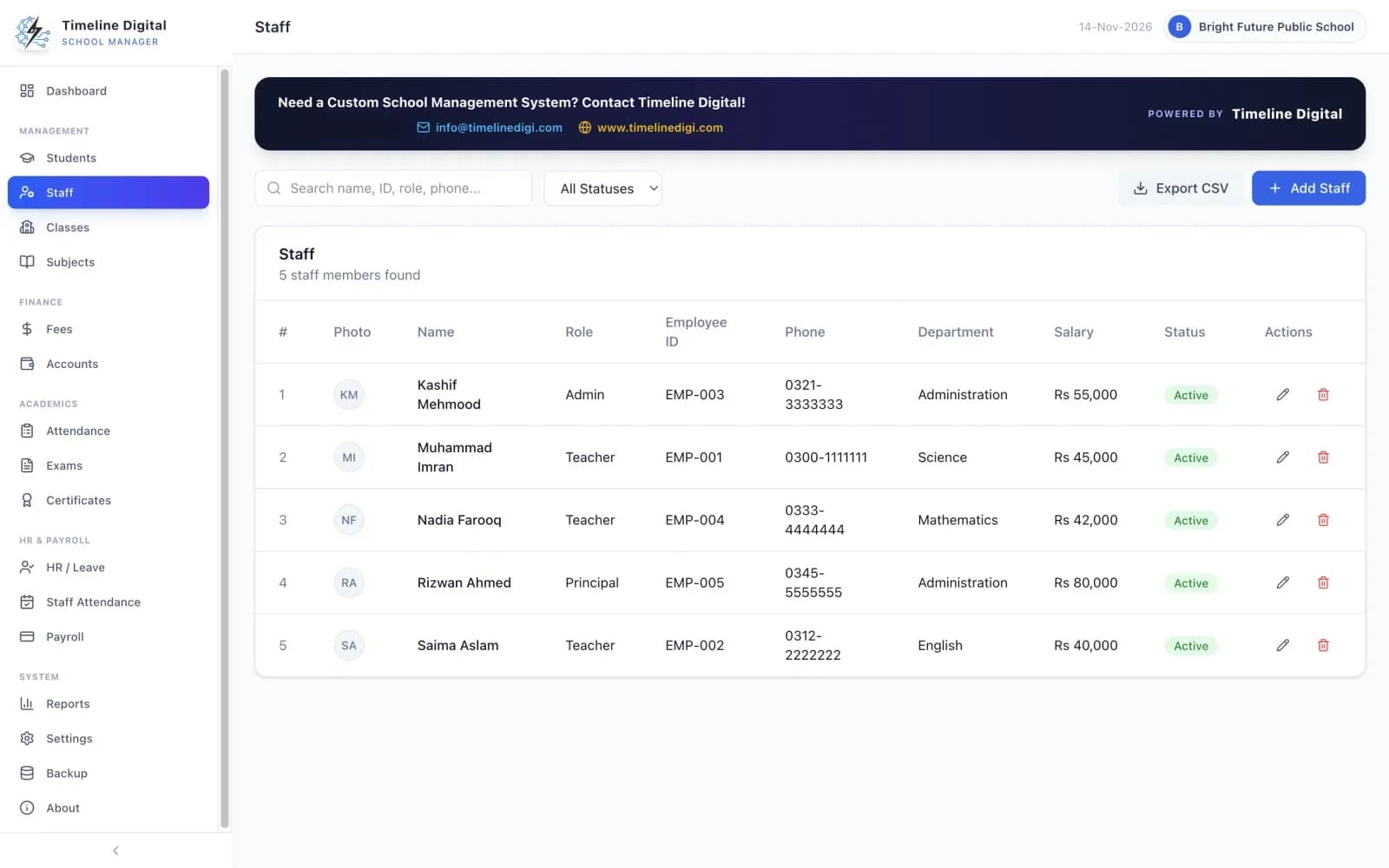
The Staff module keeps a record for every teacher and every other employee. Each record holds contact details, role, department, qualification, joining date, national ID, bank account and monthly salary. Employee IDs are suggested automatically, the list can be searched and filtered, and the monthly salary feeds straight into payroll.
Staff is module 3 of 16, in the Management menu. Watch lesson 9: Staff.
- Name, photo, role, department, qualification, phone, email, joining date, CNIC or national ID, bank account, address and monthly salary.
- Roles include Teacher, Principal, Vice Principal, Admin, Accountant, Coordinator, Librarian, Clerk, Driver, Guard and Support Staff.
- Employee IDs are suggested automatically (EMP-001, EMP-002 and so on).
- Search by name, ID, role or phone, and filter by status.
- Export the staff list to CSV.
How do you set up classes and sections?
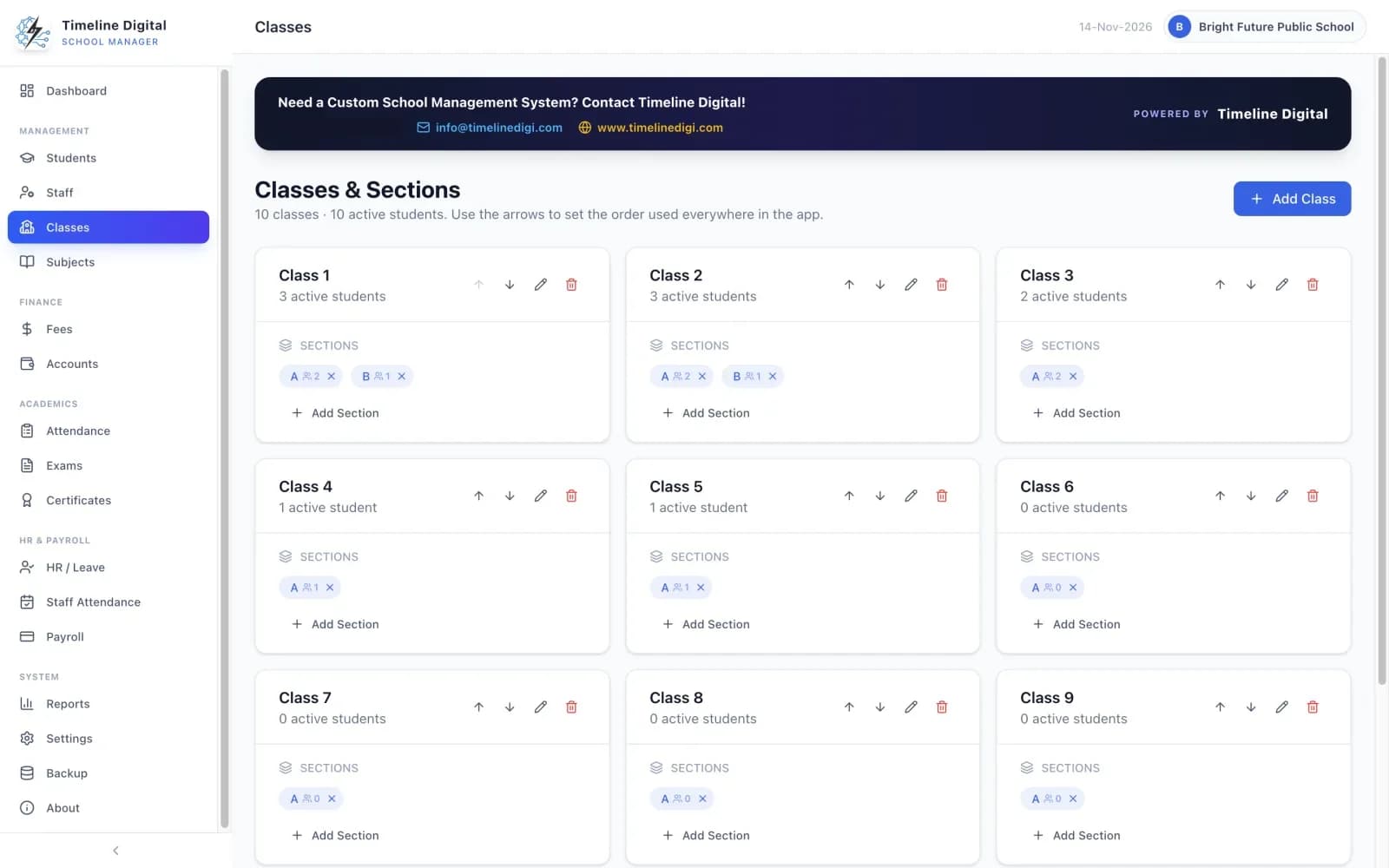
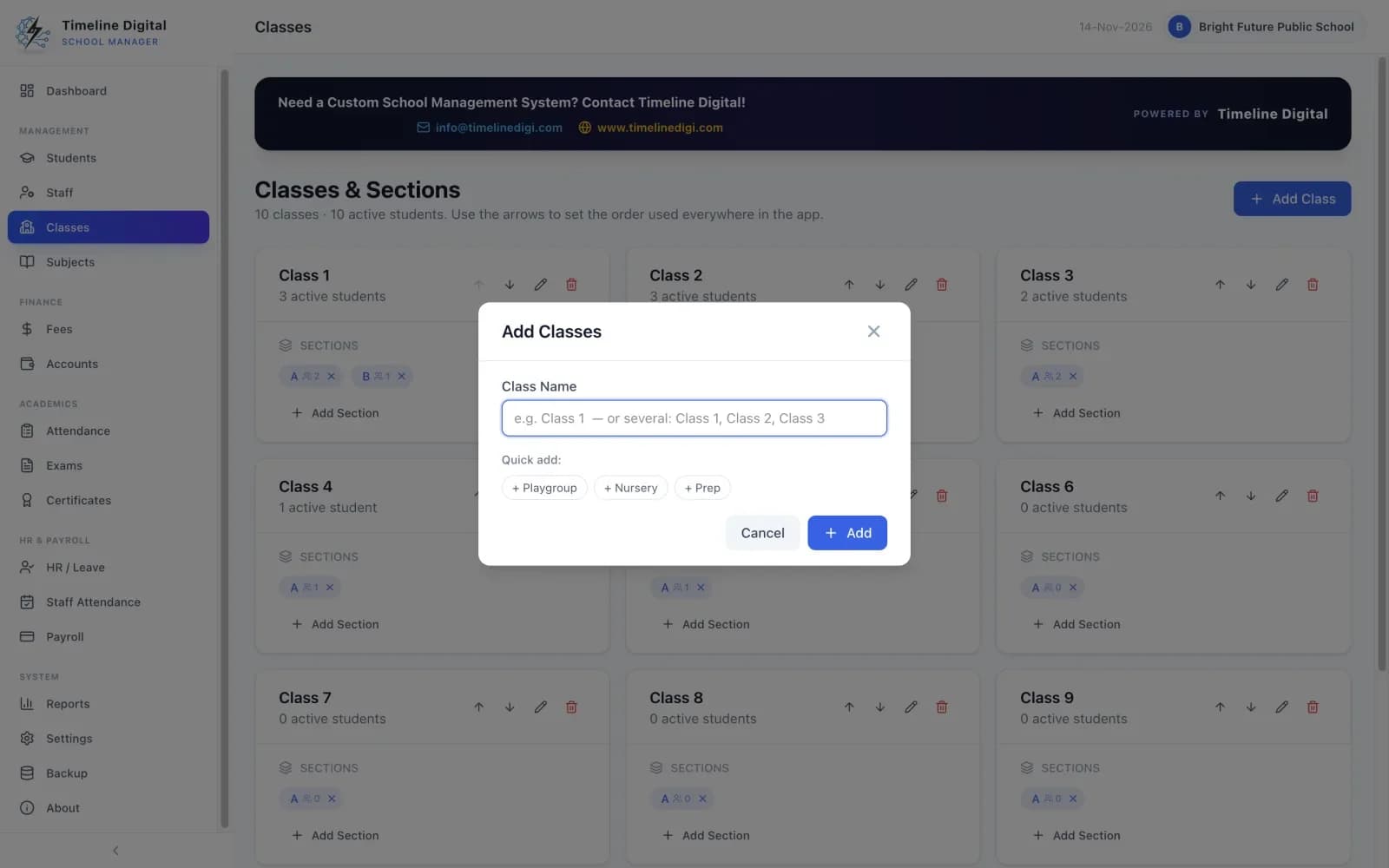
You set up the school's structure the way you run it. Add classes one at a time or many at once, with quick-add buttons from Playgroup, Nursery and Prep up to Class 10, then add as many sections as you need to each class. The class order you choose is used throughout the app.
Classes & Sections is module 4 of 16, in the Management menu. Watch lesson 7: Classes and sections.
- Add classes one at a time or many at once, with quick-add buttons from Playgroup, Nursery and Prep up to Class 10.
- Add as many sections as you need to each class.
- Rename classes and sections.
- Put classes in the order you want. That order is used throughout the app.
- Each class and section shows how many students it has.
How do subjects work?
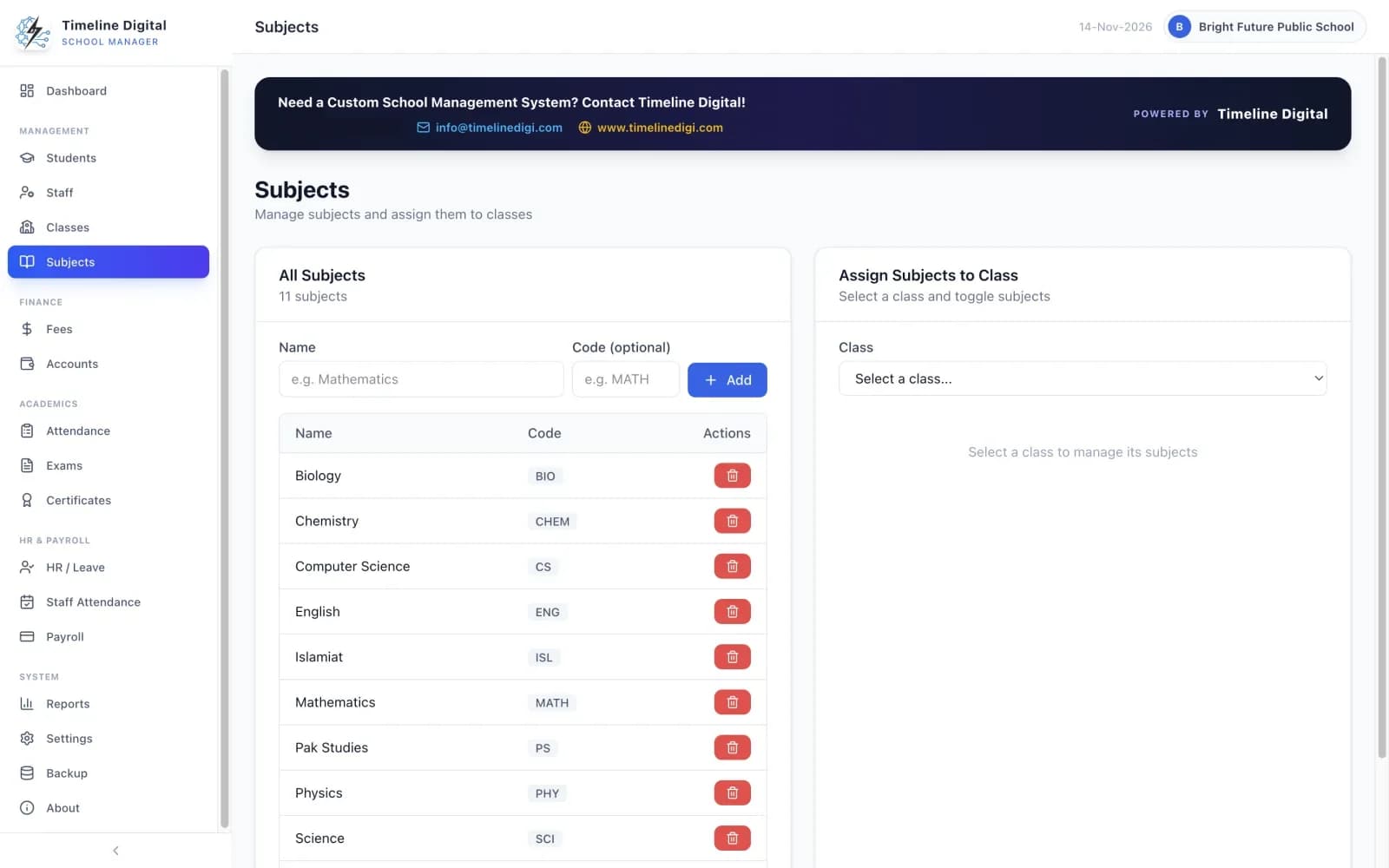
Subjects are kept in one list, each with a short code. You then choose which subjects each class studies. Those are the subjects that appear when you enter exam marks for the class, so marks entry only ever shows the subjects that class is taught.
Subjects is module 5 of 16, in the Management menu. Watch lesson 8: Subjects.
- Keep one list of subjects with short codes.
- Choose which subjects each class studies.
- The subjects you choose for a class are the ones that appear when you enter exam marks.
School fee management software: how does fee collection work?
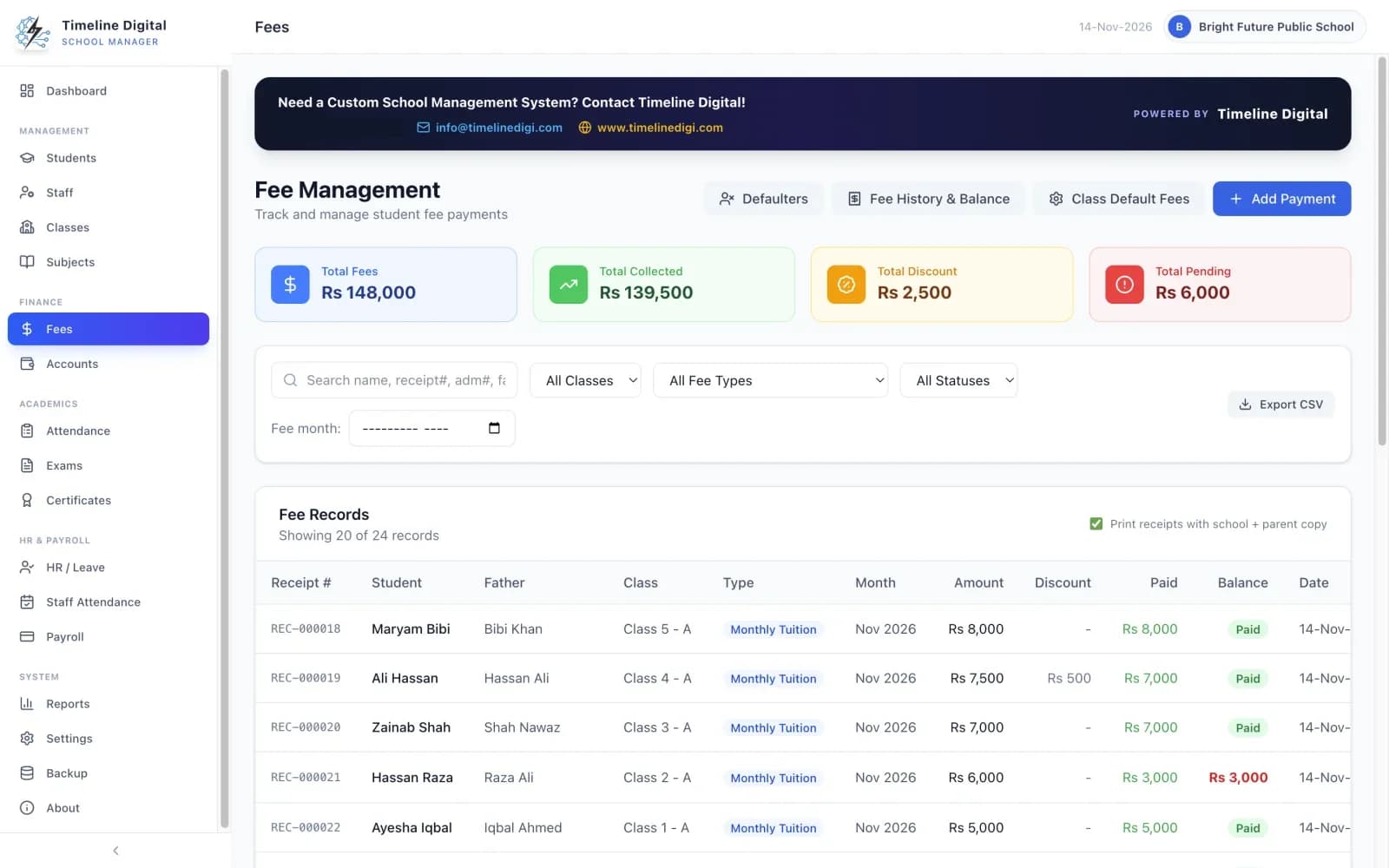
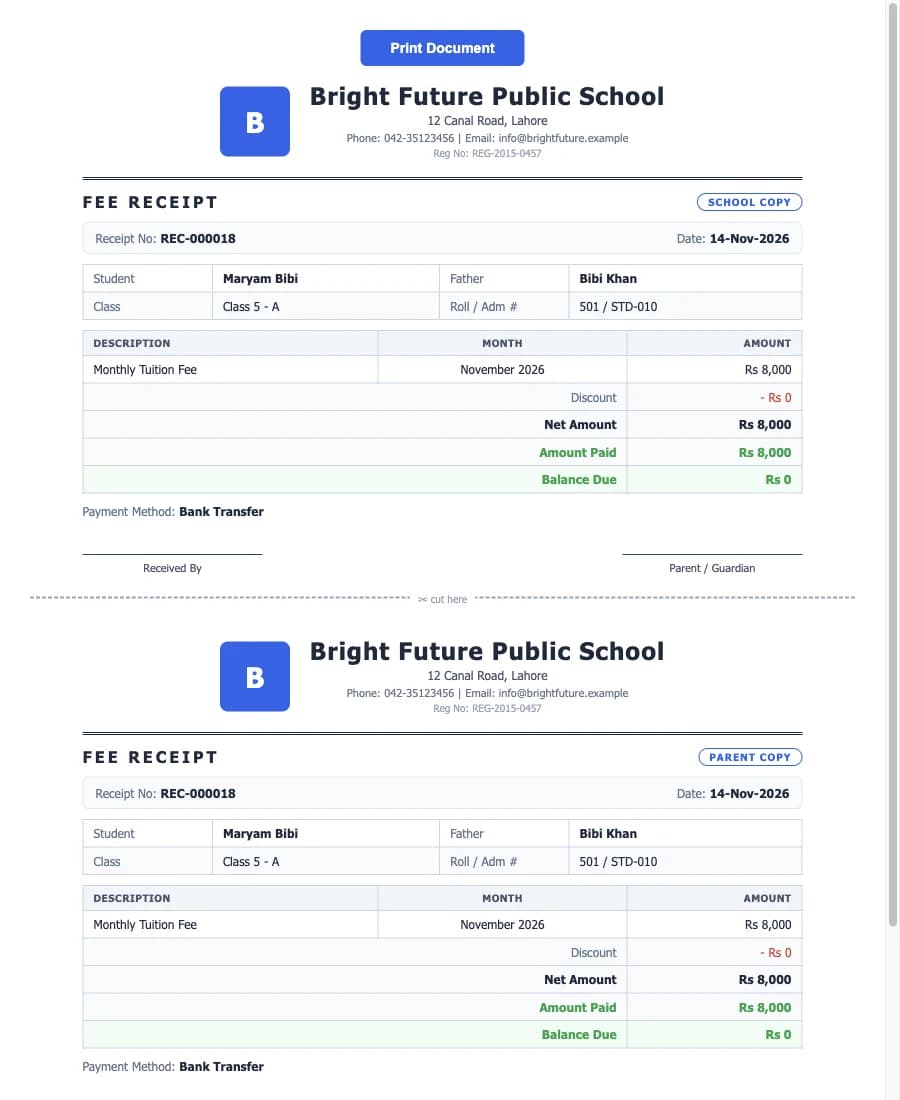
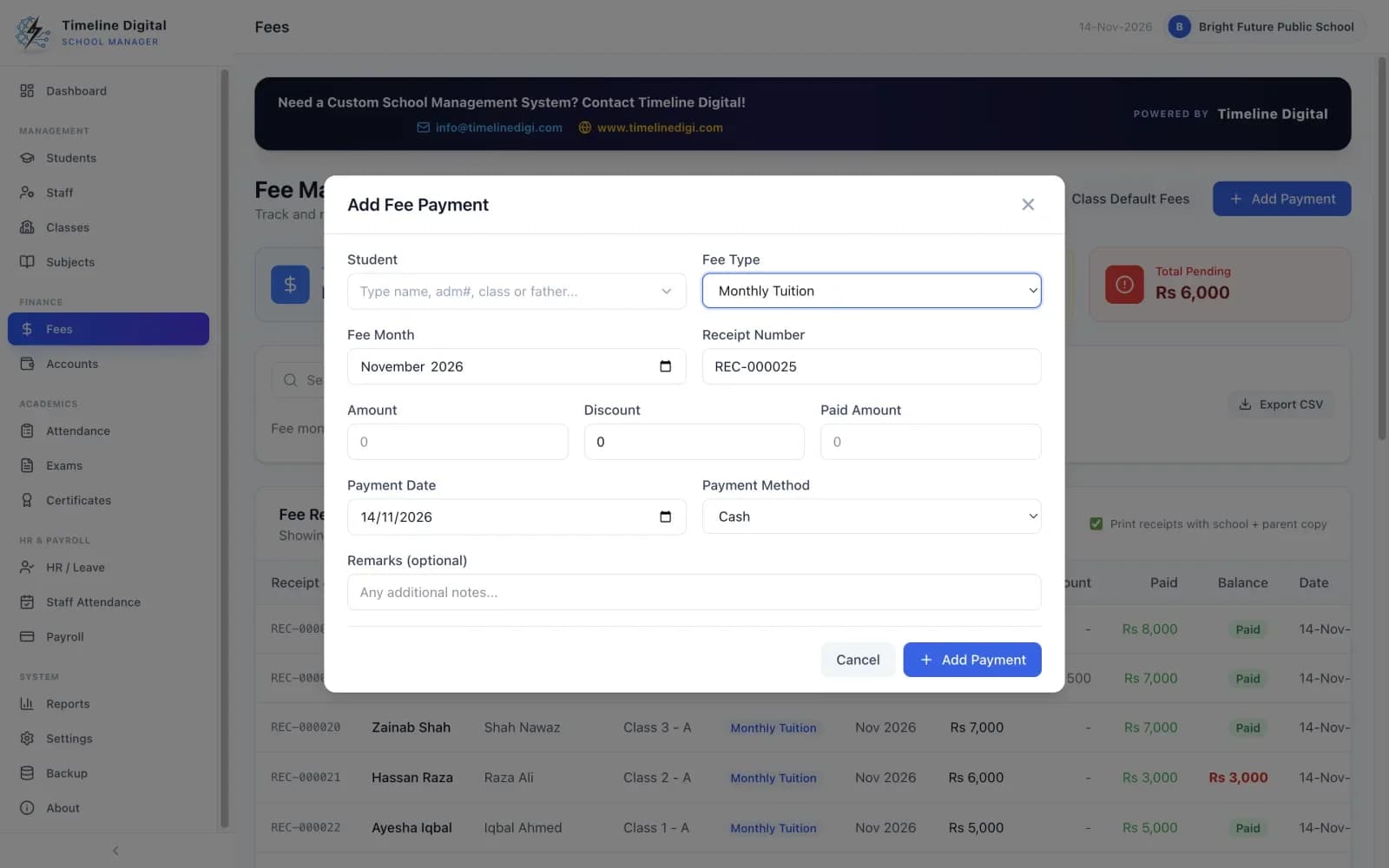
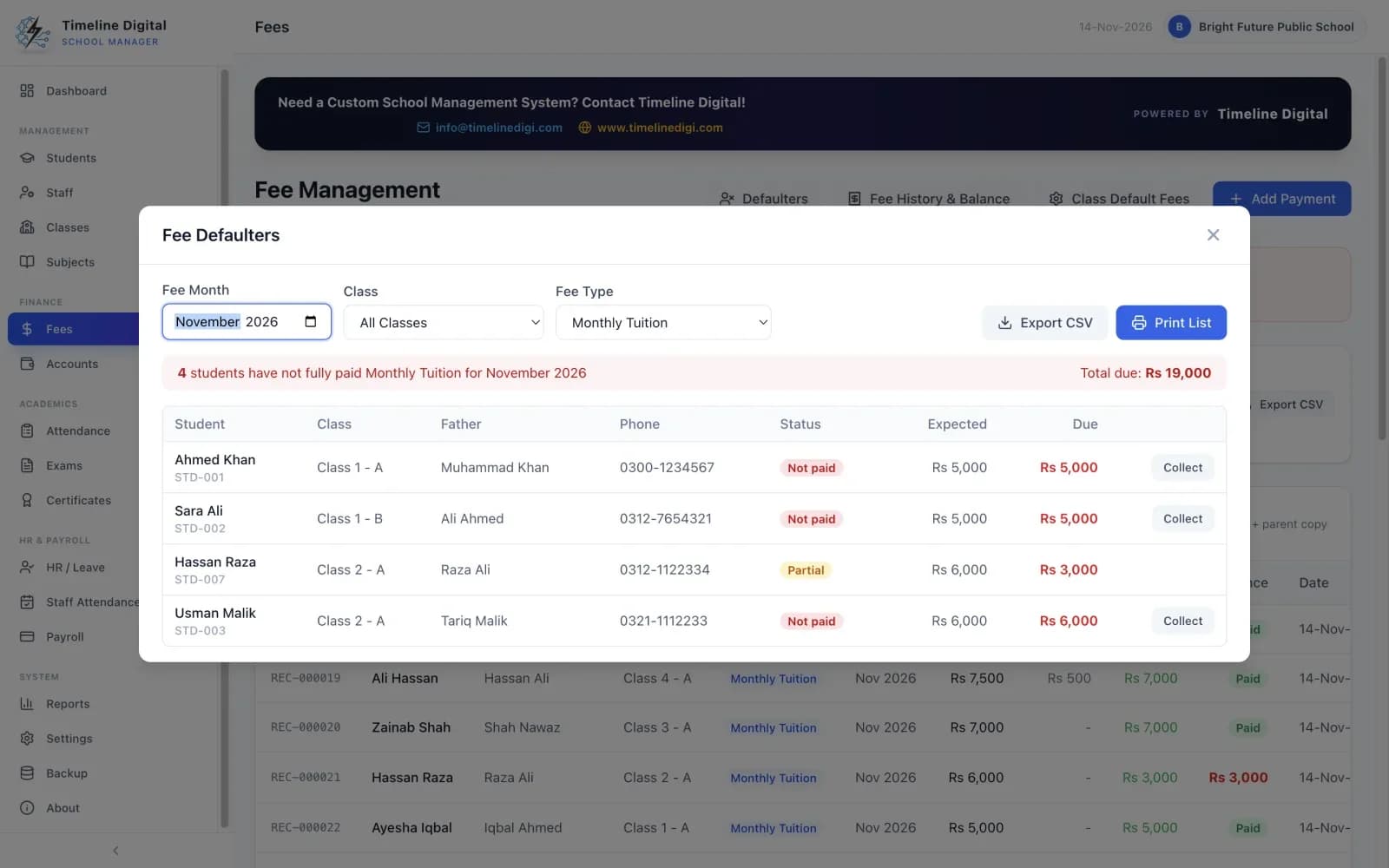
You record each fee payment against a student, fee type and month, then print a receipt with a School Copy and a Parent Copy on one sheet. You can set a default fee for each class, give discounts and accept part payments. A defaulters list shows who has not paid, and every payment goes into Accounts as income.
Fees is module 6 of 16, in the Finance menu. Watch lesson 10: Collecting fees and lesson 11: Balances and fee defaulters.
- Record payments for Monthly Tuition, Admission Fee, Exam Fee, Transport, Library, Sports and other charges.
- Set a default fee for each class, so the amount fills in by itself when you collect.
- Give a discount on any payment, and accept part payments. The remaining balance is tracked and can be collected later.
- Receipt numbers run in sequence automatically.
- Payment methods: Cash, Bank Transfer, Online and Cheque. "Online" is a label on a recorded payment; the app does not take payments over the internet.
- Print a fee receipt with a School Copy and a Parent Copy on one sheet.
- Fee defaulters list: see every student who has not paid, or has only partly paid, for any month. Print it or export it.
- Fee history and balance for any student: total dues, discounts, amount paid and current balance.
- Totals for fees, collection, discount and pending amounts, with search and filters by class, fee type, status and month.
- Export fee records to CSV.
- Every payment is added to Accounts as income automatically.
Receipts, balances, the defaulters list and accounts are covered in more detail on the free school fee management software page.
School accounts management software: how are income and expenses tracked?
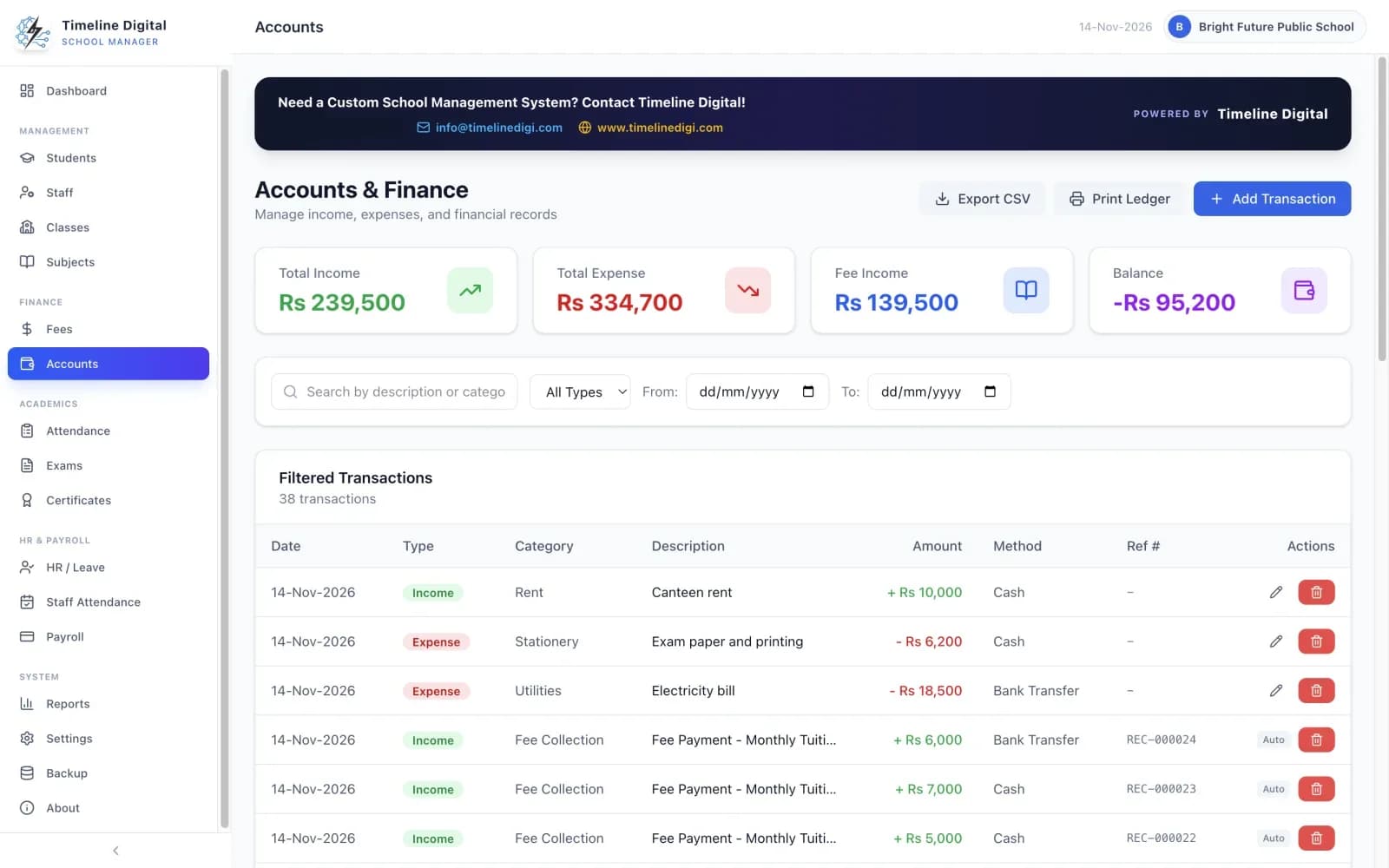
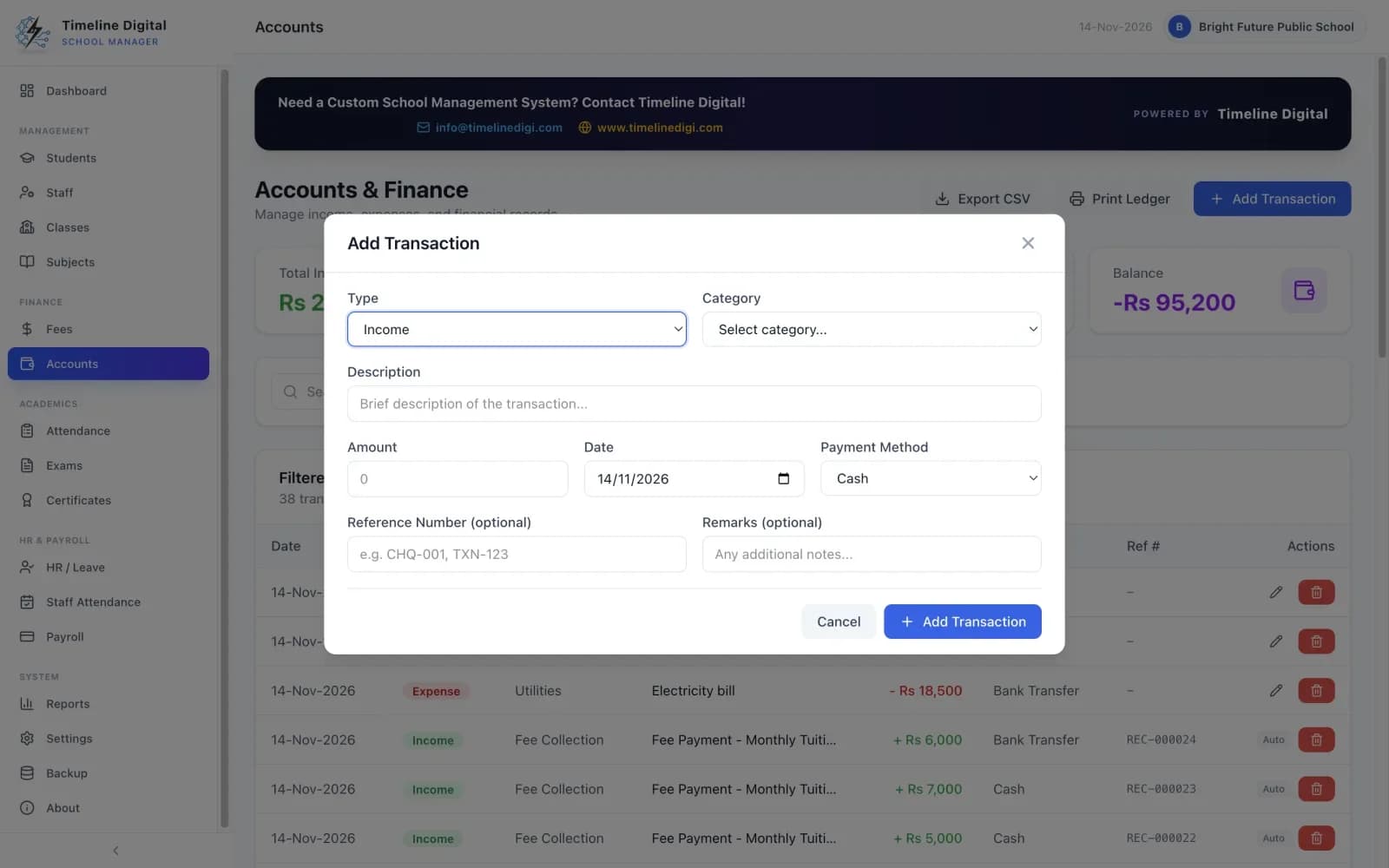
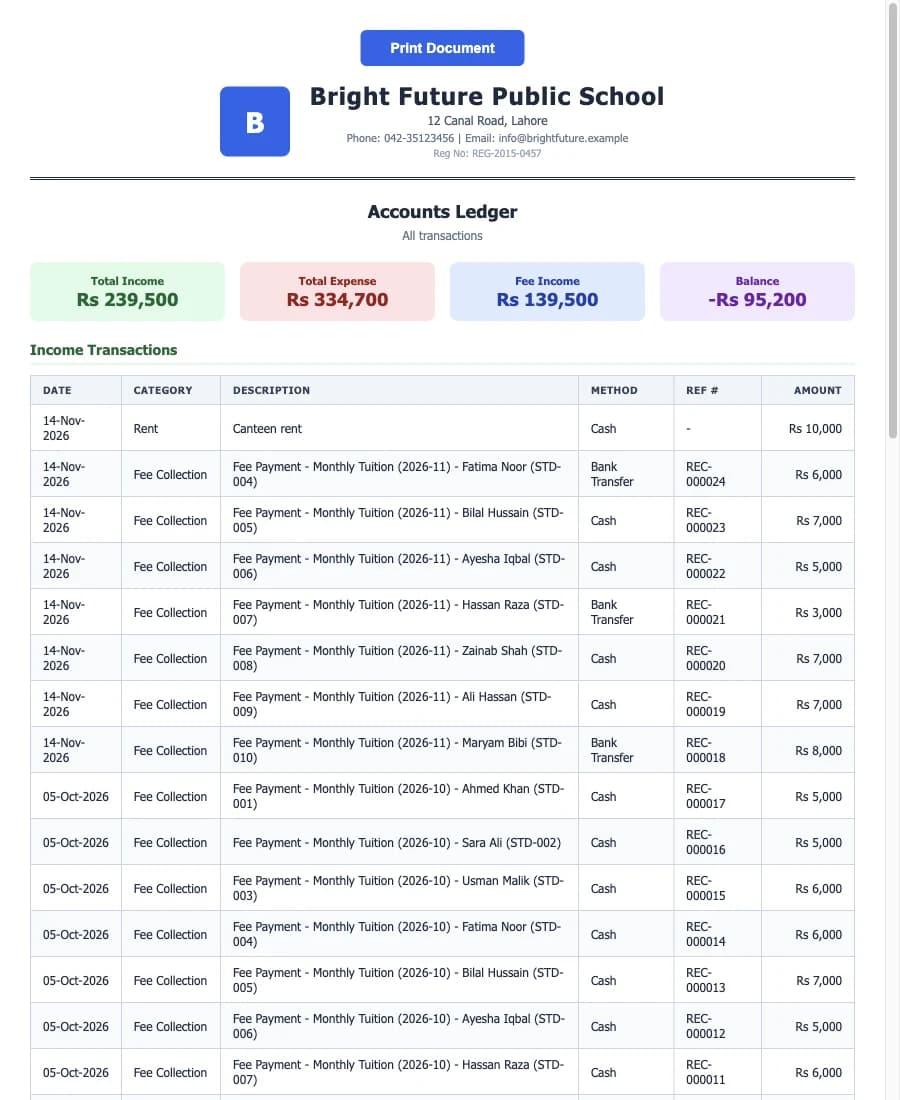
Accounts is a simple income and expense book for the school. You record other income, such as donations and rent, and expenses, such as utilities and stationery. Fee collections and paid salaries are entered for you. The module shows total income, total expense, fee income and balance, and prints an accounts ledger.
Accounts is module 7 of 16, in the Finance menu. Watch lesson 12: Accounts.
- Record income such as donations, admission fees, rent and grants.
- Record expenses such as utilities, maintenance, stationery, transport and equipment.
- Fee collections and paid salaries are entered for you, without typing anything twice.
- See total income, total expense, fee income and balance, with a summary for each category.
- Search and filter by type and date range.
- Print the accounts ledger or export it to CSV.
School attendance software: how is student attendance marked?
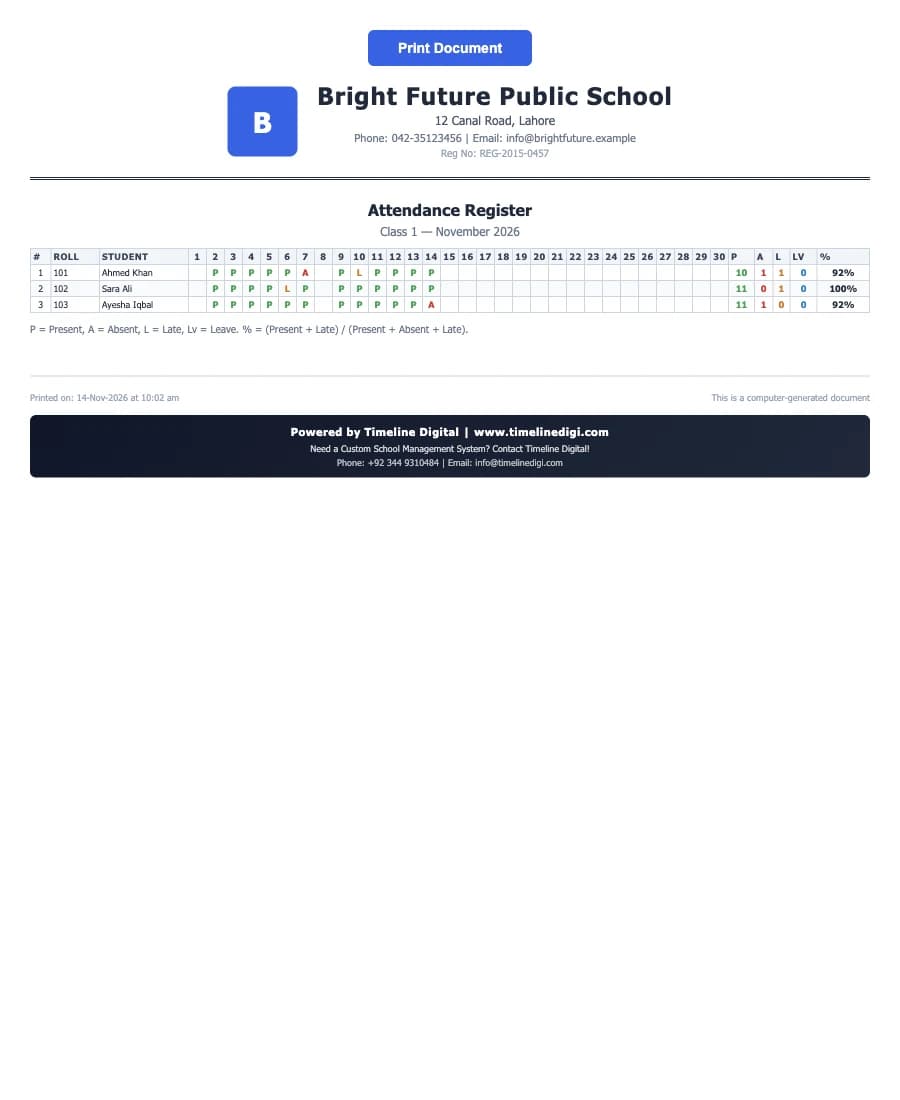
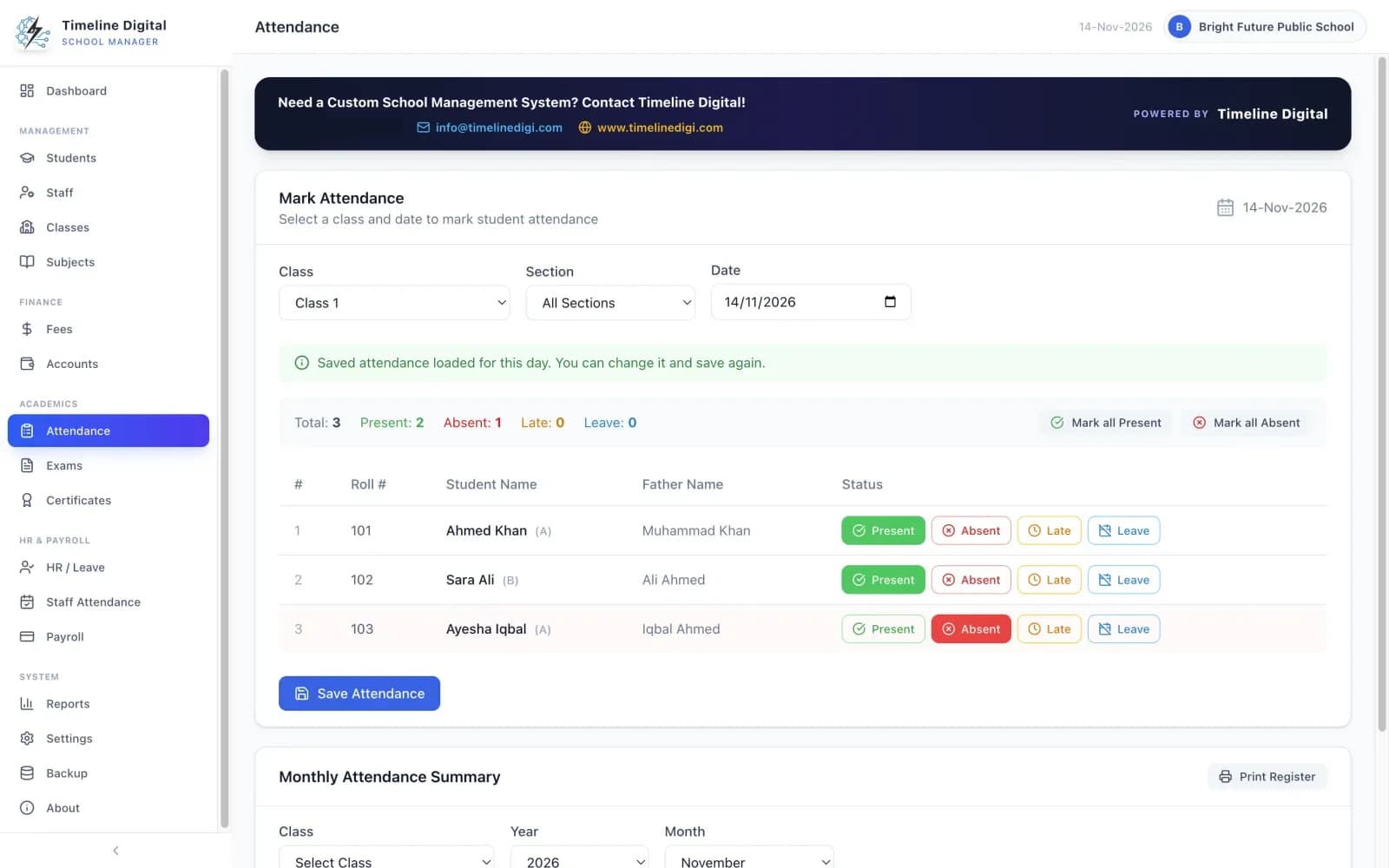
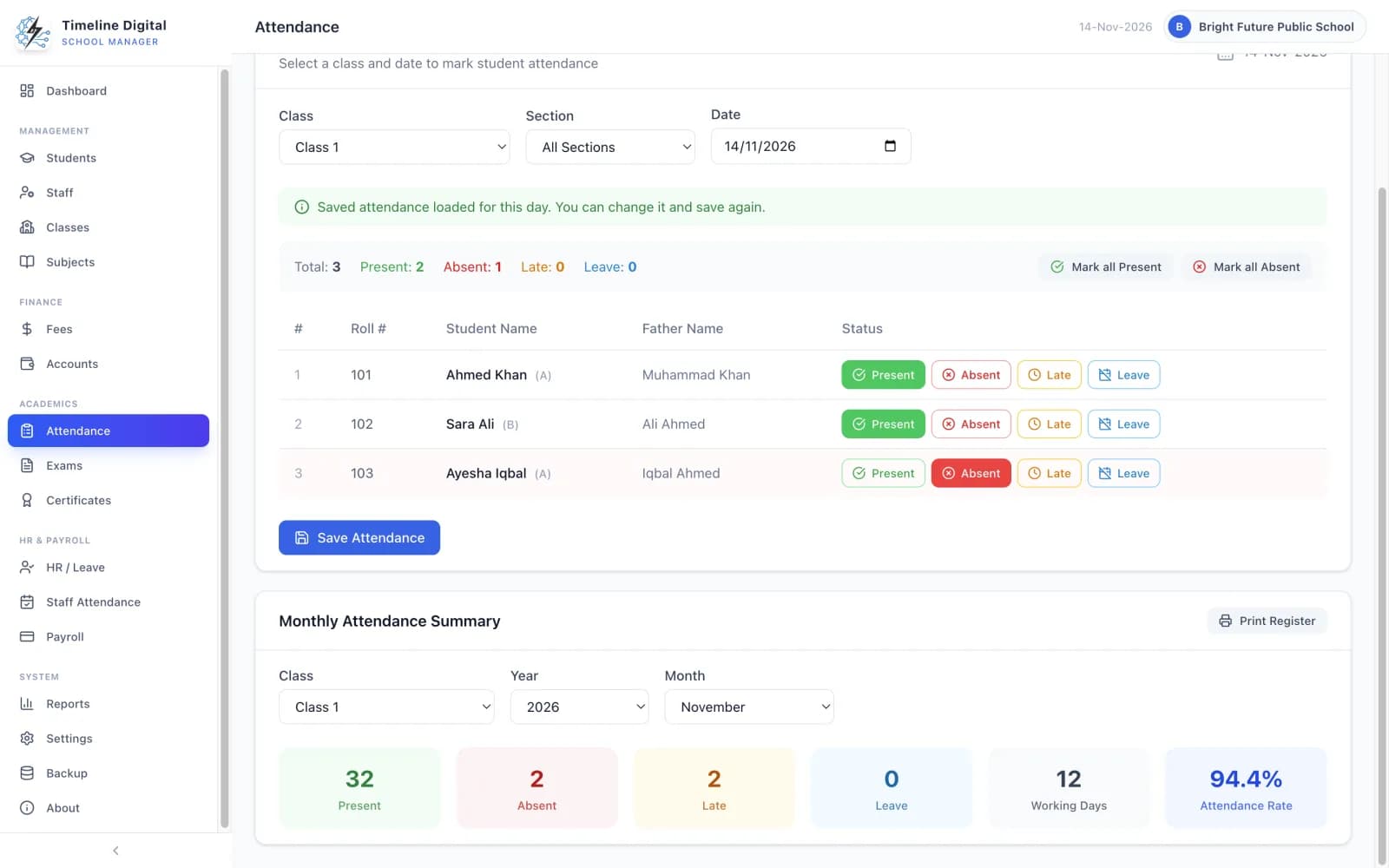
You choose a class, section and date, mark the whole class present or absent with one click, then change the exceptions. Each student can be Present, Absent, Late or on Leave, and a past day can be corrected at any time. A monthly summary shows the attendance rate, and the monthly register prints with every day.
Student Attendance is module 8 of 16, in the Academics menu. Watch lesson 13: Student attendance.
- Mark each student Present, Absent, Late or on Leave for any class, section and date.
- Mark the whole class present or absent with one click, then change the exceptions.
- Correct a past day whenever you need to.
- Monthly summary for each class: present, absent, late, leave, working days and attendance rate.
- Print the monthly attendance register, with every student and every day of the month.
Student and staff attendance are covered together on the free school attendance software page.
Exam result card software: how do exams and results work?
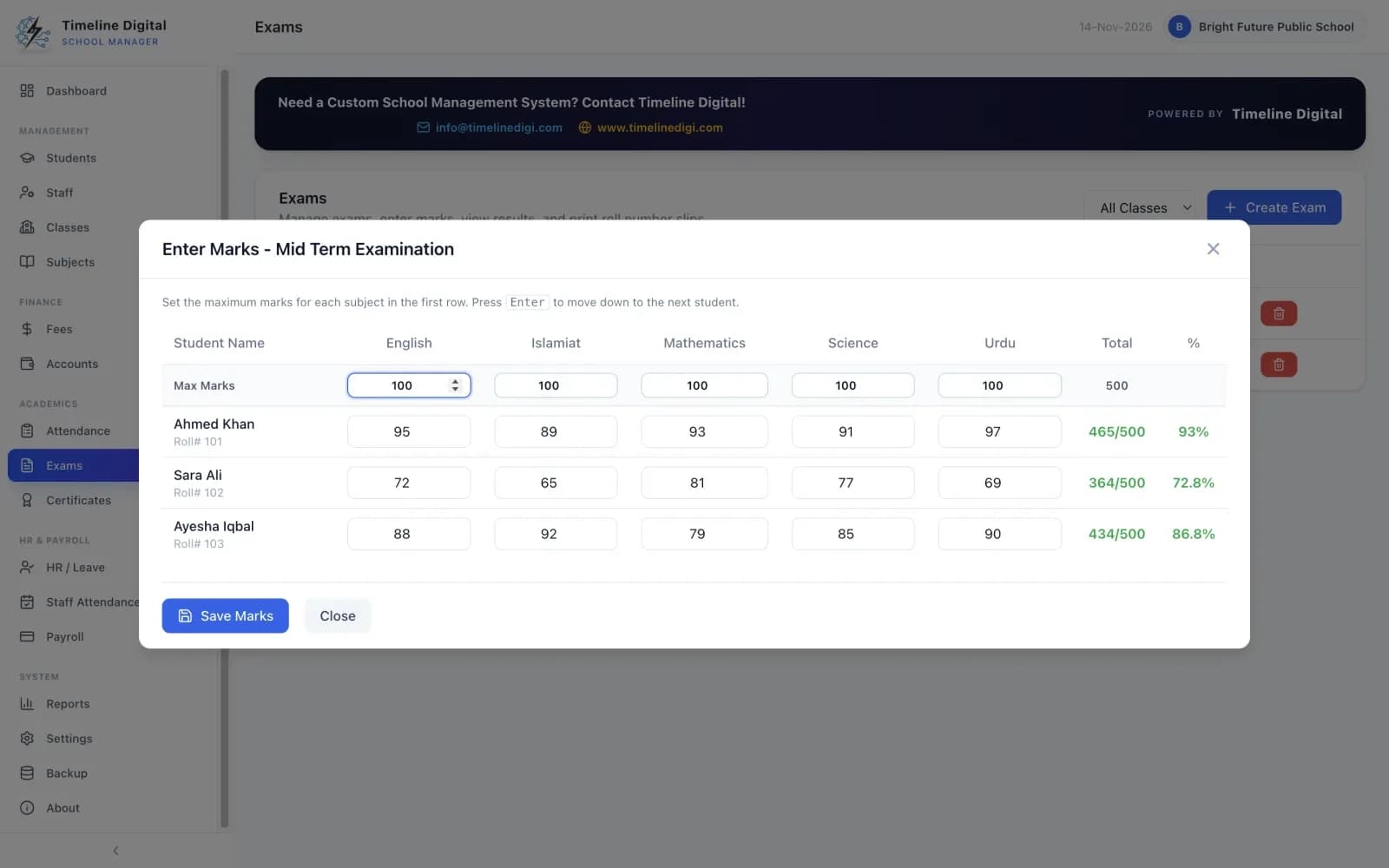
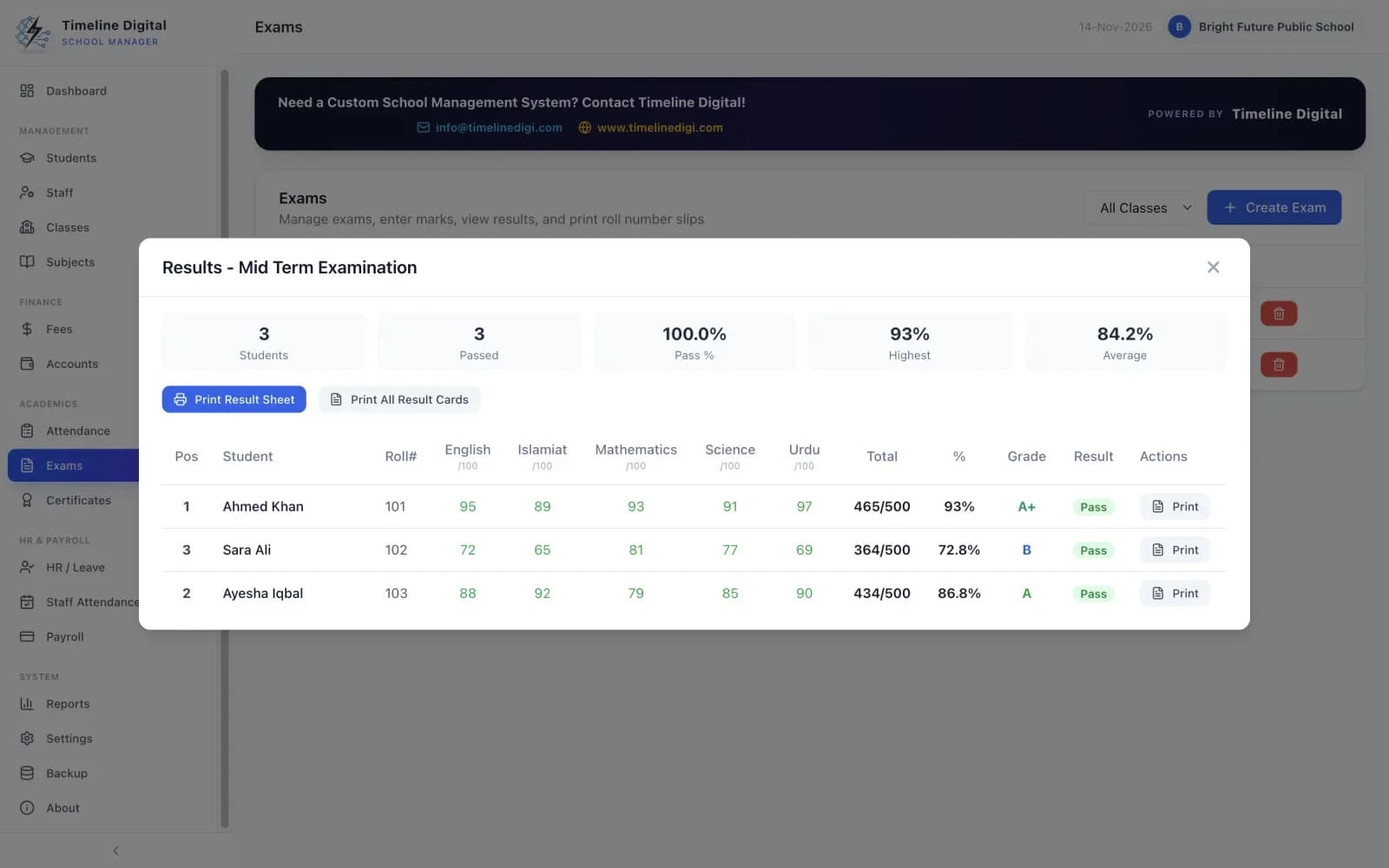
You create an exam for a class, enter marks for all students and subjects on one screen, and the app works out the rest: totals, percentages, grades from A+ to F, pass or fail, and class positions. You can then print result cards, the class result sheet and roll number slips.
Exams & Results is module 9 of 16, in the Academics menu. Watch lesson 14: Exams and entering marks and lesson 15: Exam results.
- Create exams for each class with a date and academic session.
- Enter marks for all students and subjects on one screen, and set the maximum marks for each subject.
- Totals, percentages, grades (A+ to F), pass or fail, and class positions are worked out automatically.
- Results screen with the number of students, number passed, pass percentage, highest score and average.
- Print result cards, one student at a time or the whole class at once.
- Print the class result sheet.
- Print roll number slips for every student in the exam.
School certificate software: which certificates can you print?
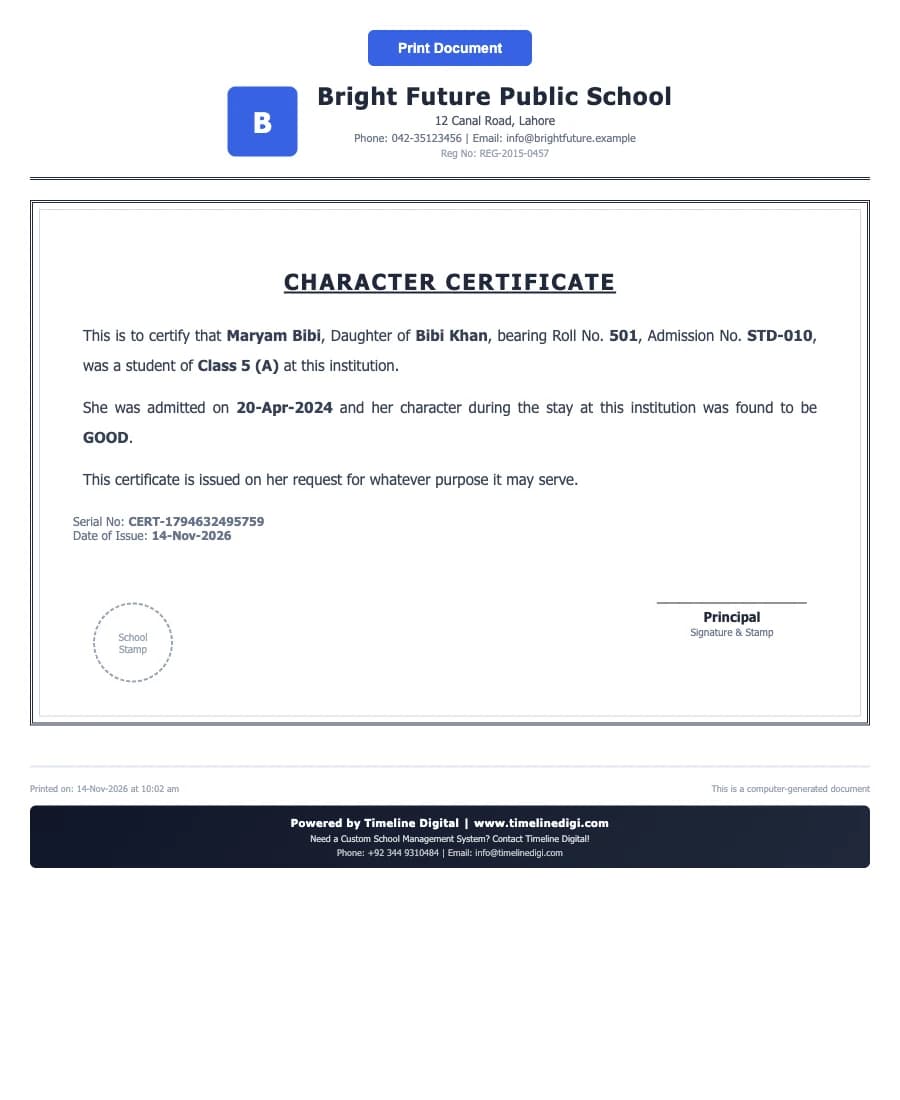
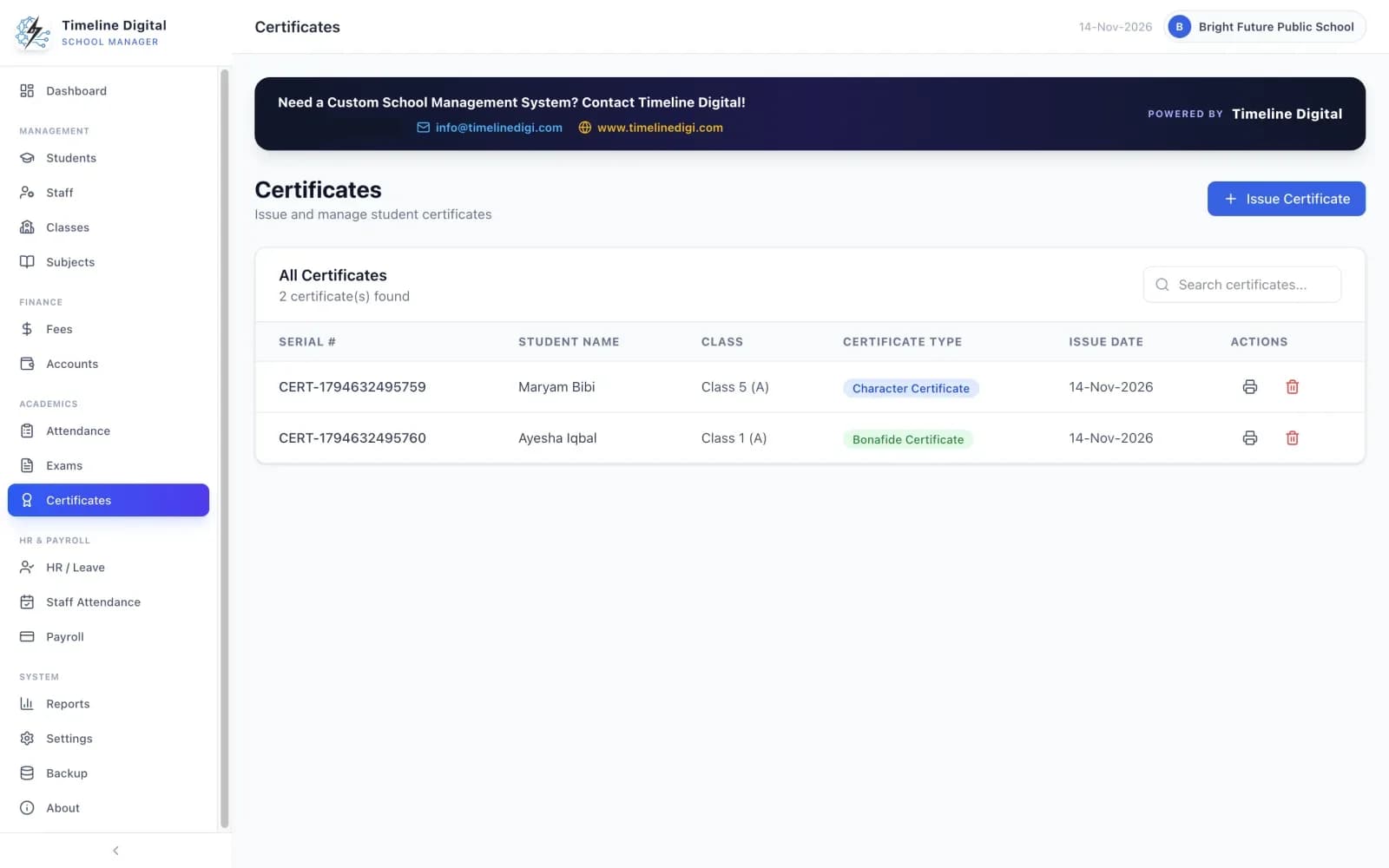
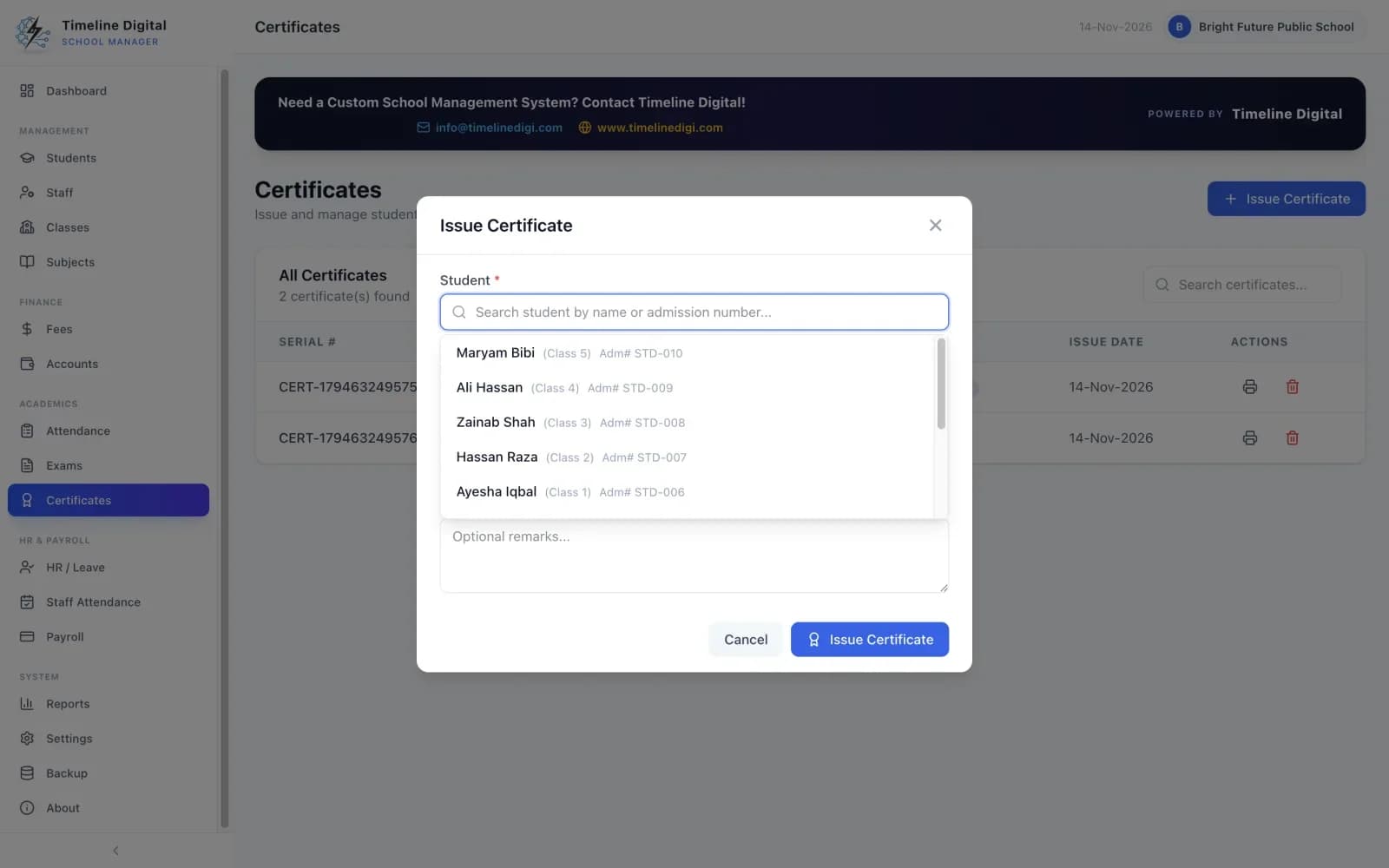
The app issues and prints five kinds of certificate: Character, Transfer, Bonafide, Study and School Leaving. Each one is printed with your school's name and logo, a serial number, the issue date, and space for the principal's signature and the school stamp. A searchable record of every certificate issued is kept.
Certificates is module 10 of 16, in the Academics menu. Watch lesson 16: Certificates.
- Character Certificate.
- Transfer Certificate.
- Bonafide Certificate.
- Study Certificate.
- School Leaving Certificate.
- Each certificate carries your school's name and logo, a serial number, the issue date, and space for the principal's signature and the school stamp.
- A record of every certificate issued is kept and can be searched.
How is staff leave recorded?
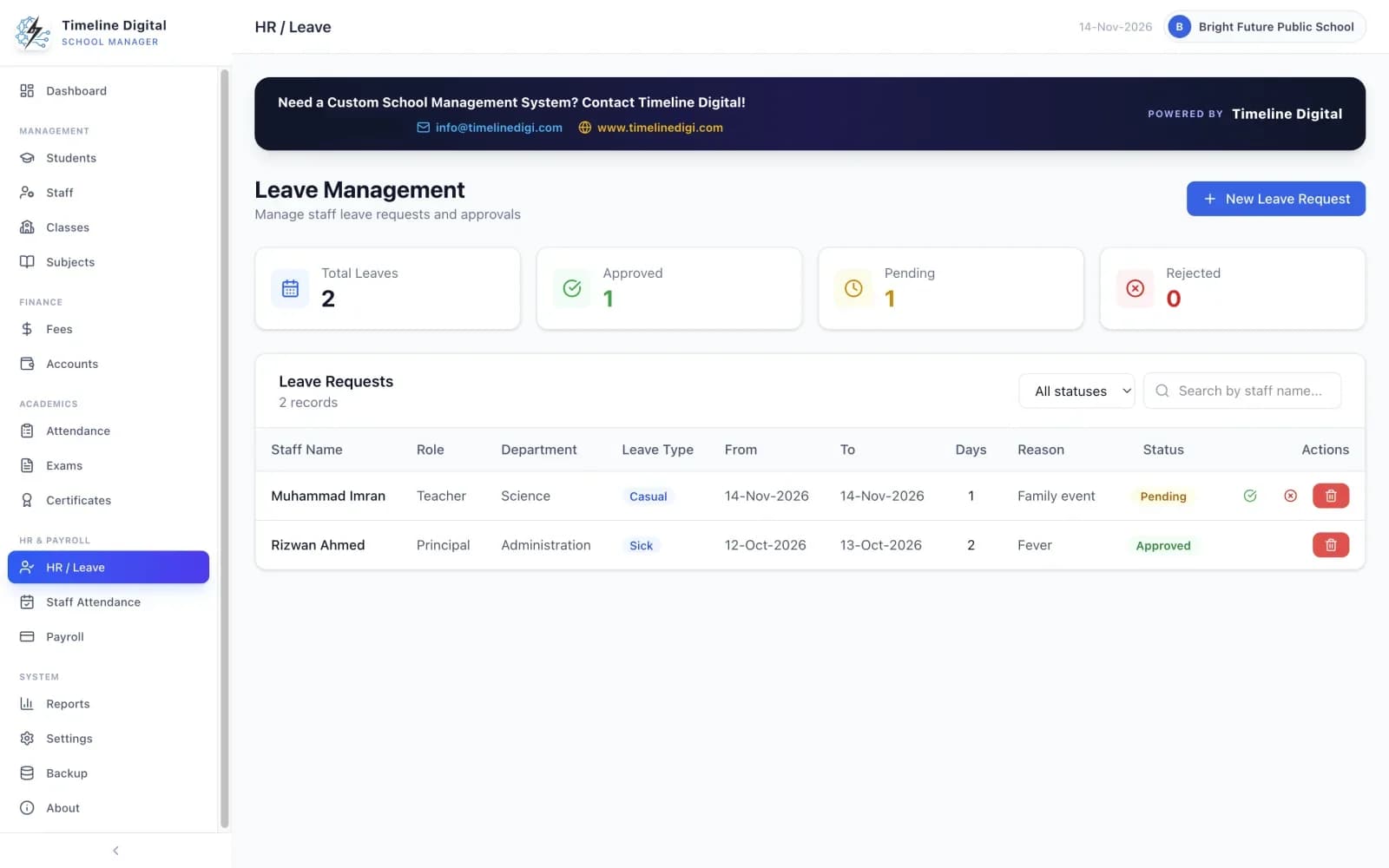
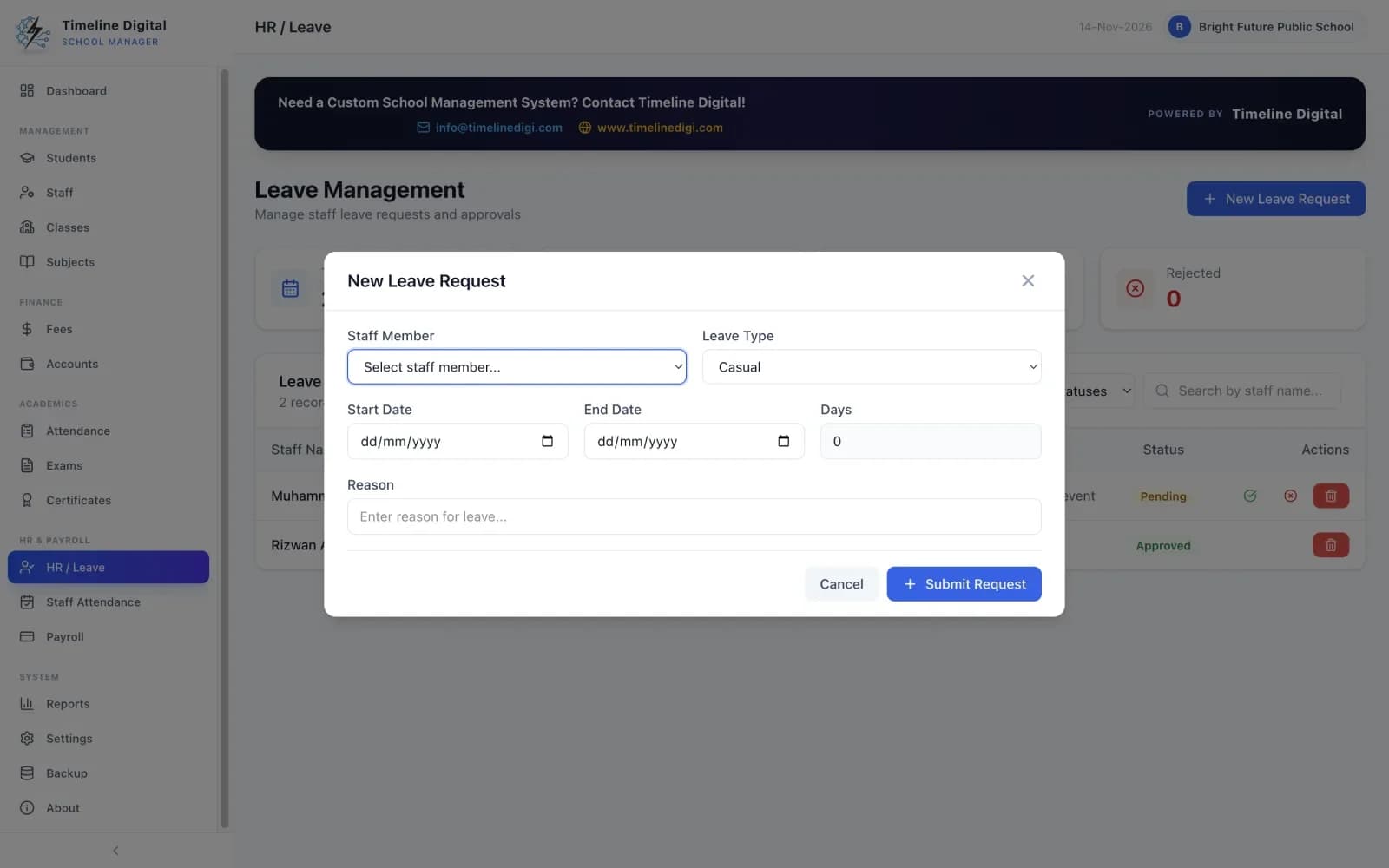
You record a leave request for a staff member, choose the type (Casual, Sick, Annual, Maternity or Other) and the app counts the number of days. You then approve or reject the request. An approved leave is marked in staff attendance automatically, and totals show approved, pending and rejected requests.
HR / Leave is module 11 of 16, in the HR & Payroll menu. Watch lesson 17: Staff leave.
- Record leave requests for staff: Casual, Sick, Annual, Maternity or Other.
- The number of days is counted for you.
- Approve or reject each request.
- An approved leave is marked in staff attendance automatically.
- See totals of approved, pending and rejected requests.
How is staff attendance marked?
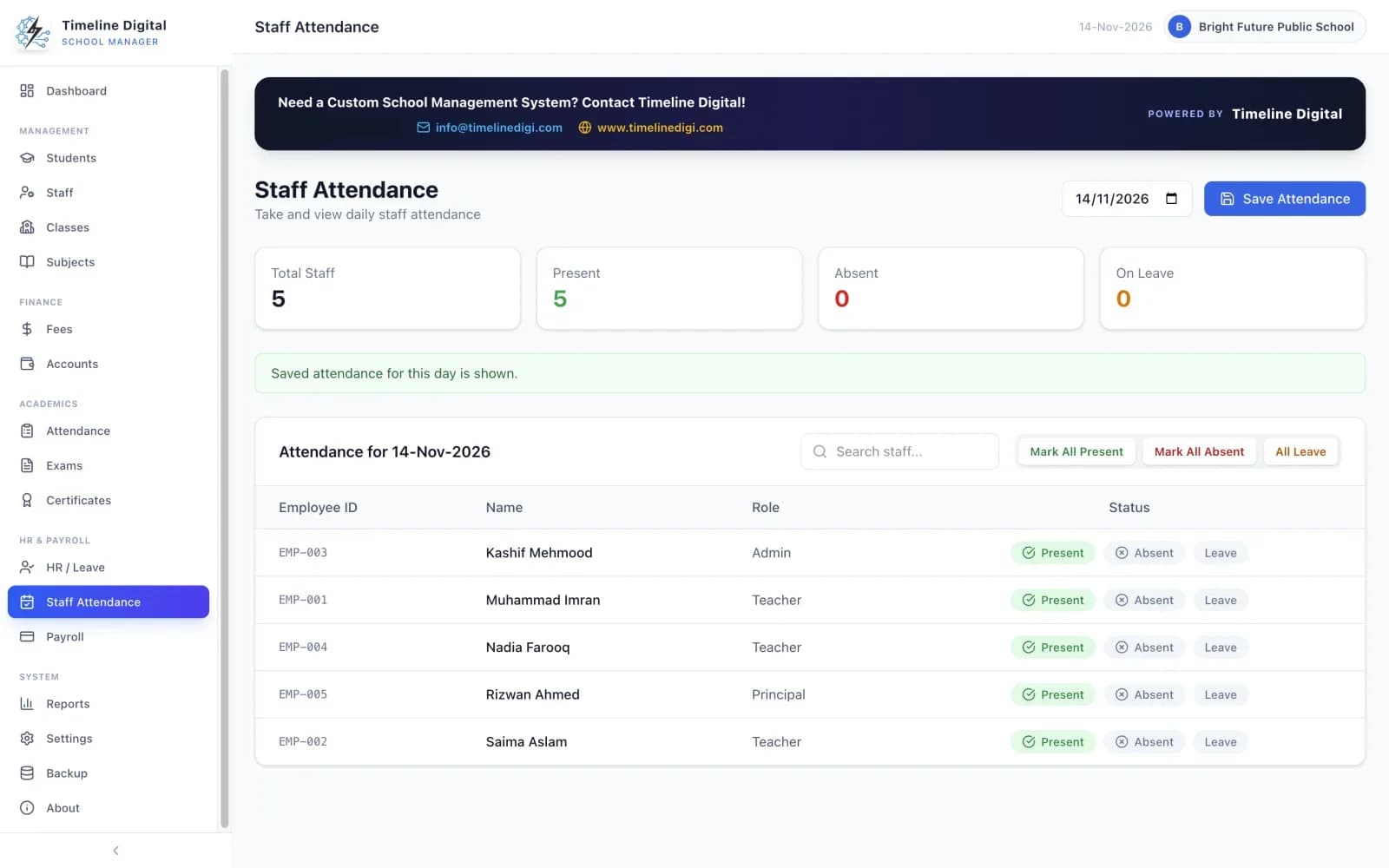
Staff attendance is marked for any date on one list. You mark everyone at once, then change the exceptions, so a normal day takes a few clicks. Each staff member can be Present, Absent or on Leave, approved leave is already marked for you, and the screen shows daily totals for all three.
Staff Attendance is module 12 of 16, in the HR & Payroll menu. Watch lesson 18: Staff attendance.
- Mark each staff member Present, Absent or on Leave for any date.
- Mark everyone at once, then change the exceptions.
- Daily totals of present, absent and on leave.
Staff and student attendance are covered together on the free school attendance software page.
School payroll software: how are salaries and salary slips made?
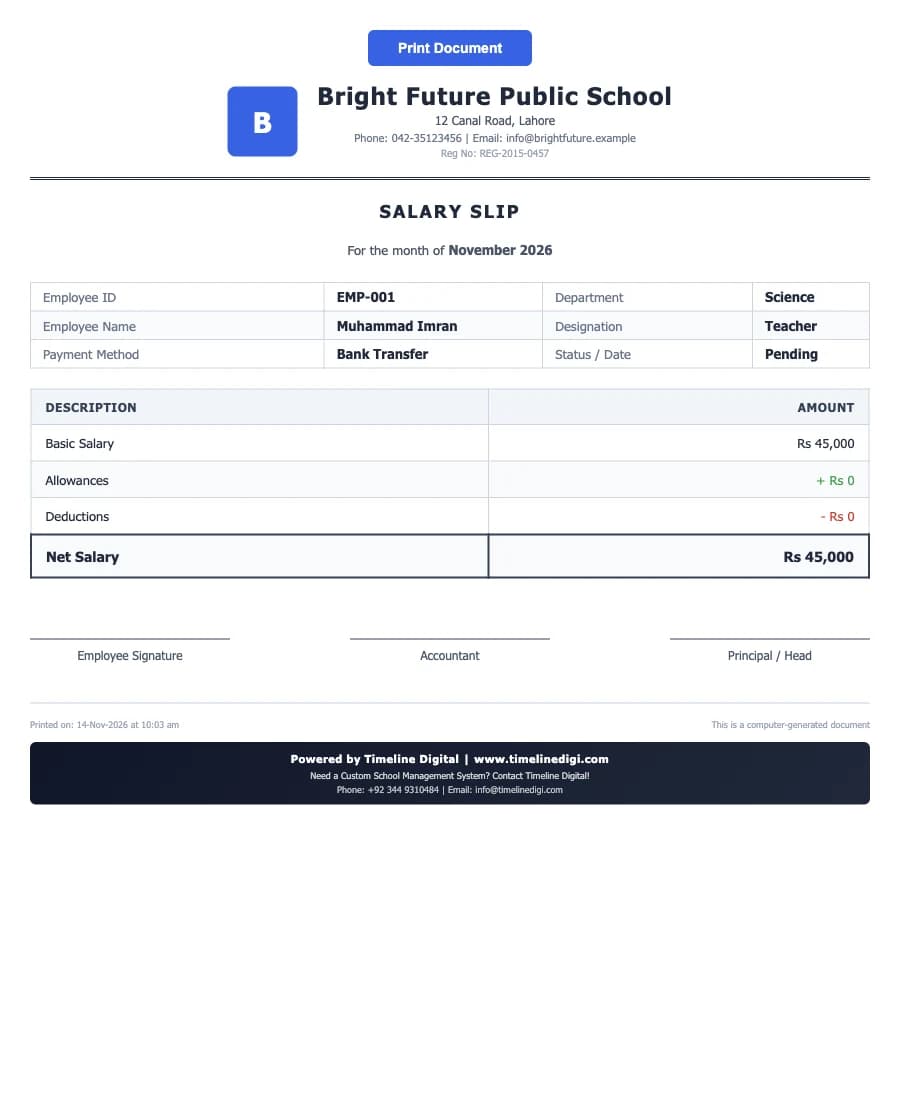
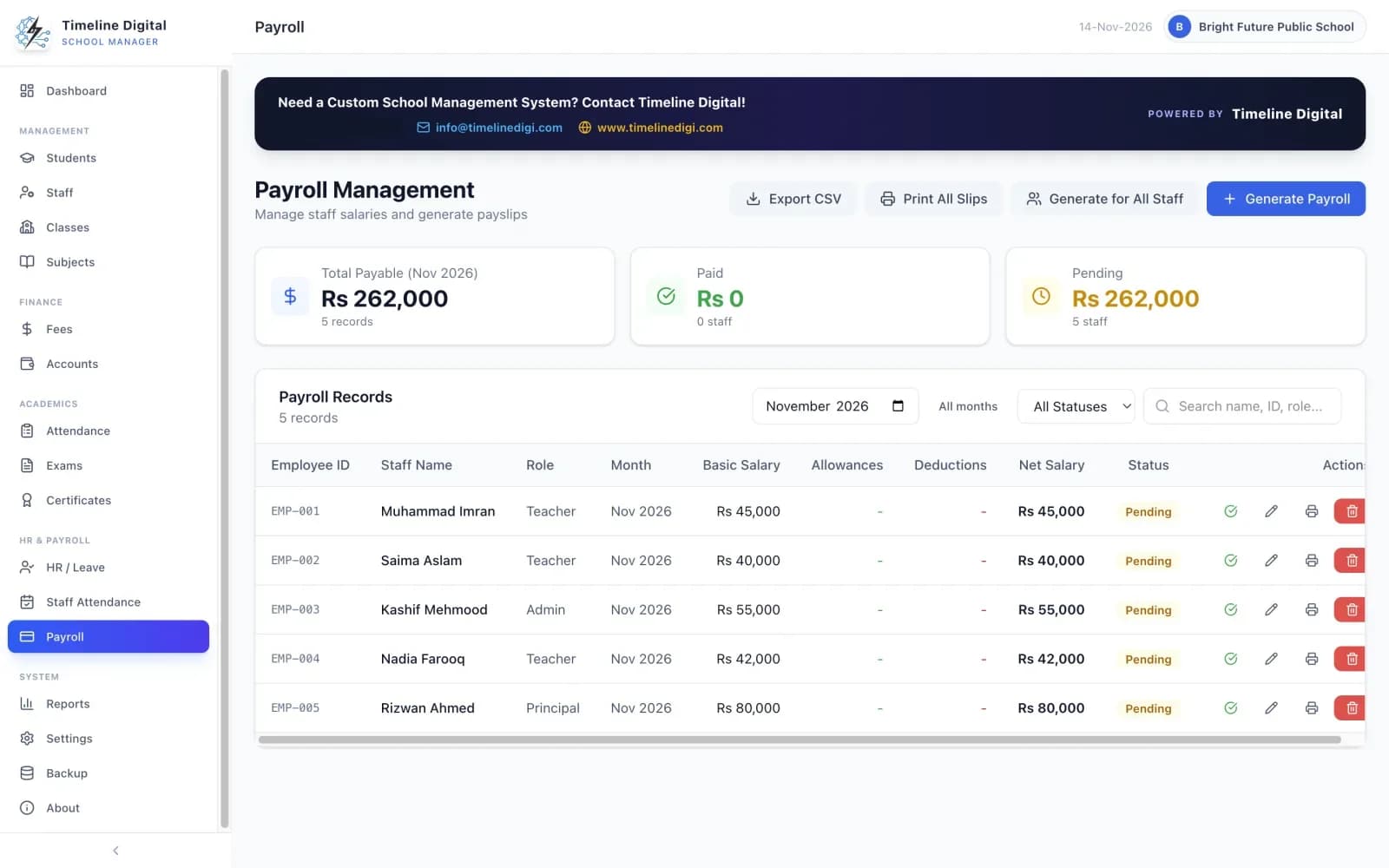
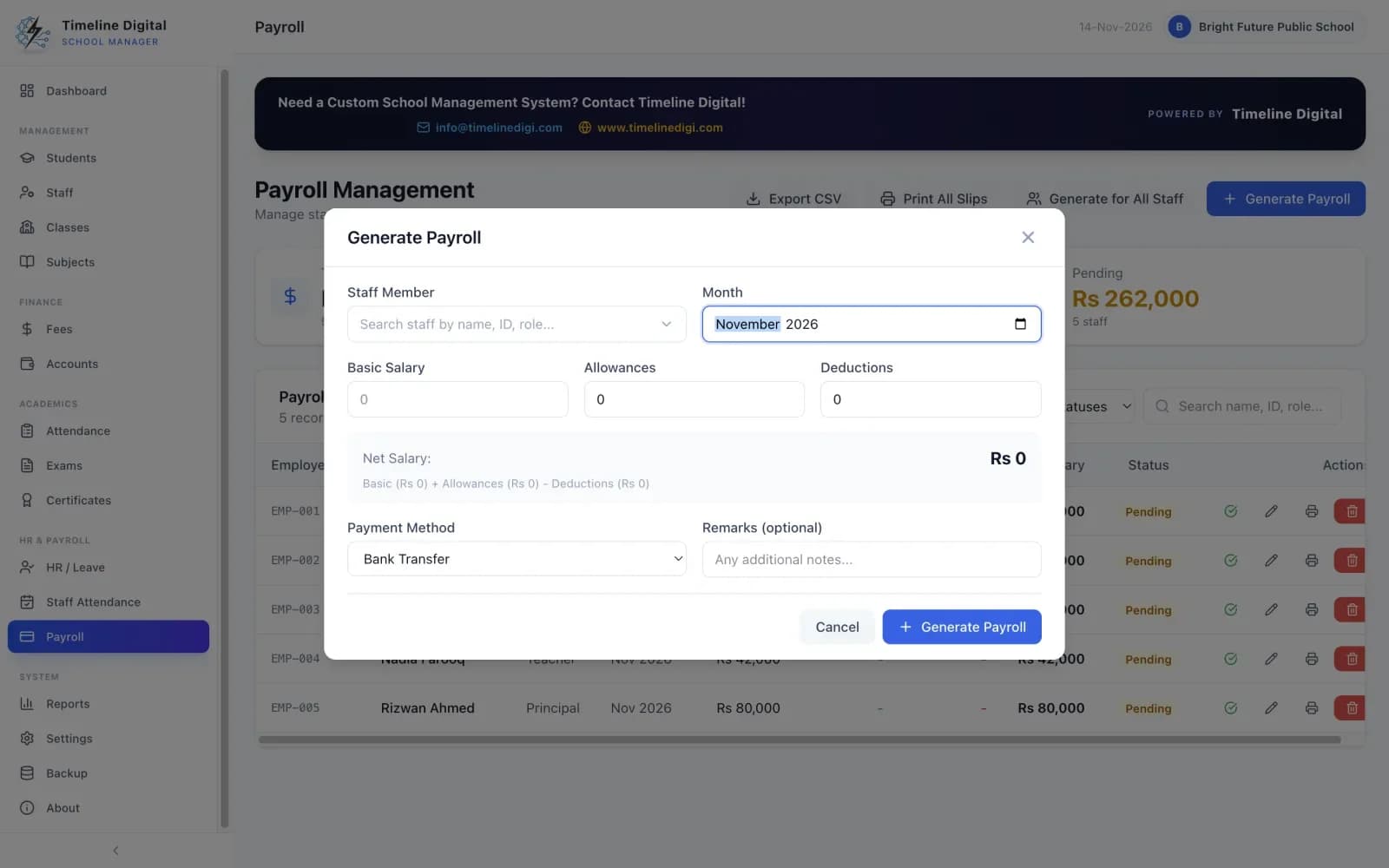
Each month you create salaries for all staff in one click, or for one person at a time. The basic salary comes from the staff record; you add allowances and deductions and the net salary is calculated. Mark a salary Paid and it is added to Accounts as an expense. Salary slips print one at a time or for everyone.
Payroll is module 13 of 16, in the HR & Payroll menu. Watch lesson 19: Payroll.
- Create salaries for all staff in one click each month, or one person at a time.
- The basic salary comes from the staff record. Add allowances and deductions, and the net salary is calculated.
- Mark salaries as Paid or Pending. A paid salary is added to Accounts as an expense automatically.
- Print salary slips, one at a time or for everyone.
- Totals of payable, paid and pending amounts, with filters by month and status.
- Export payroll to CSV.
Which reports can you print?
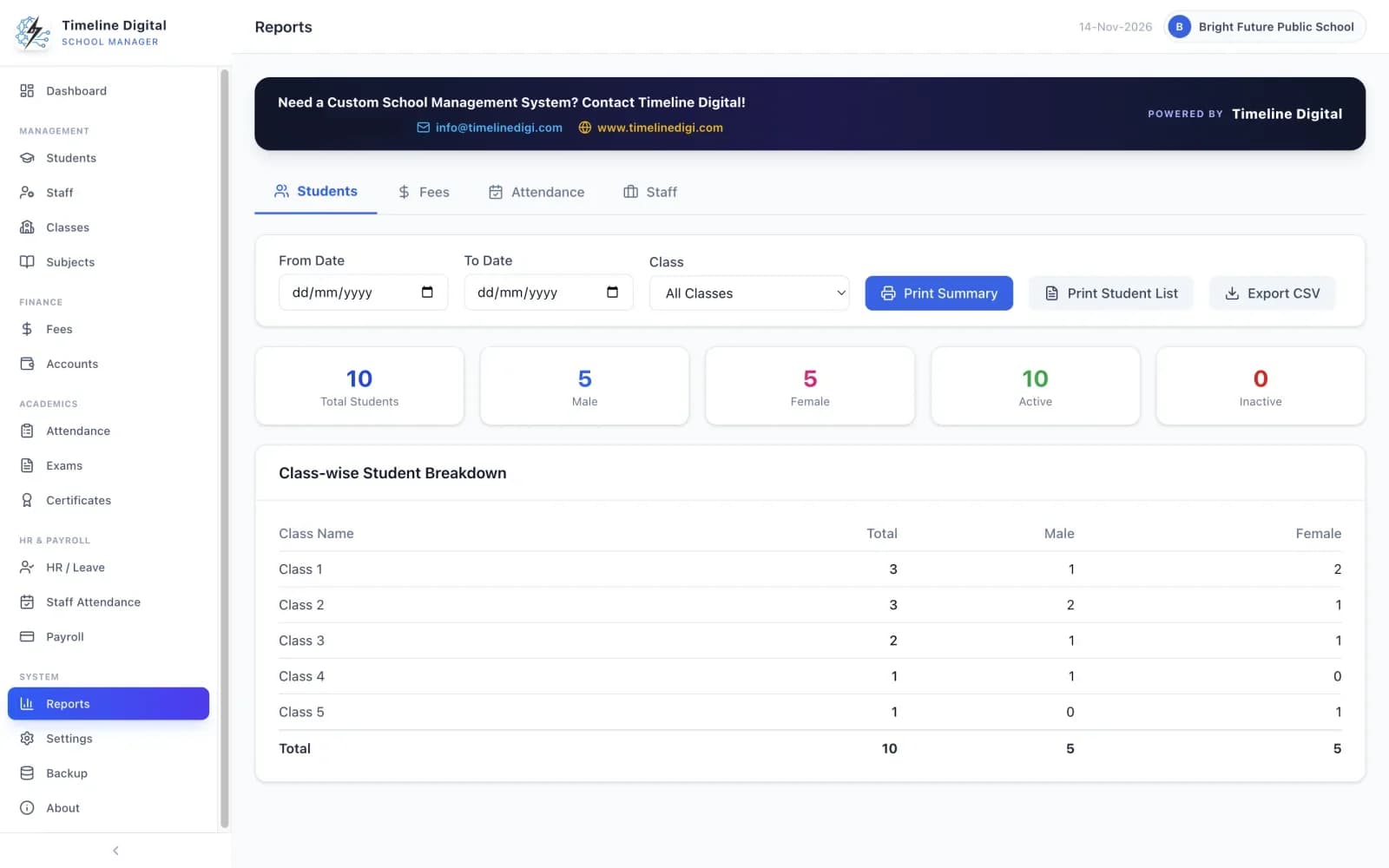
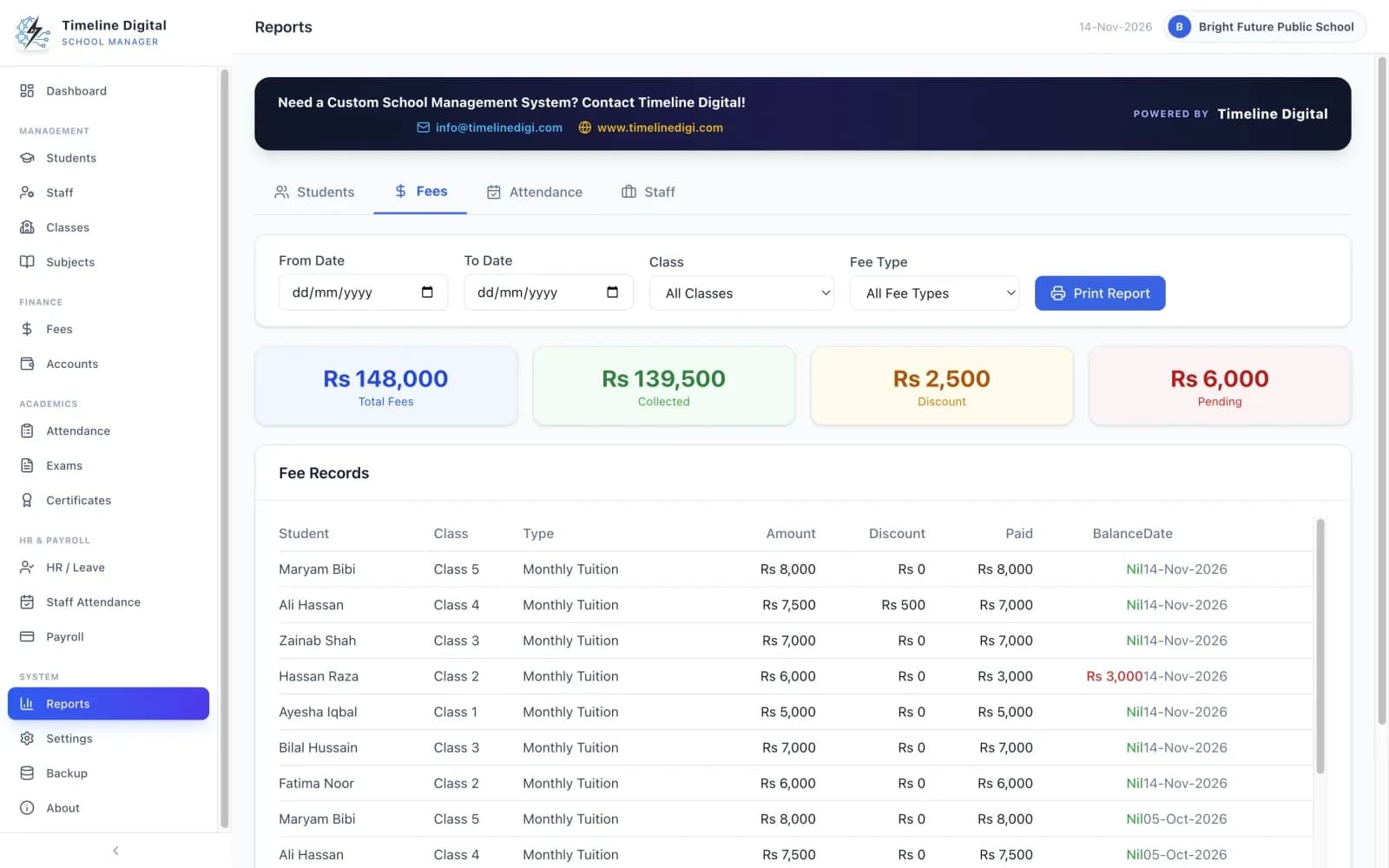
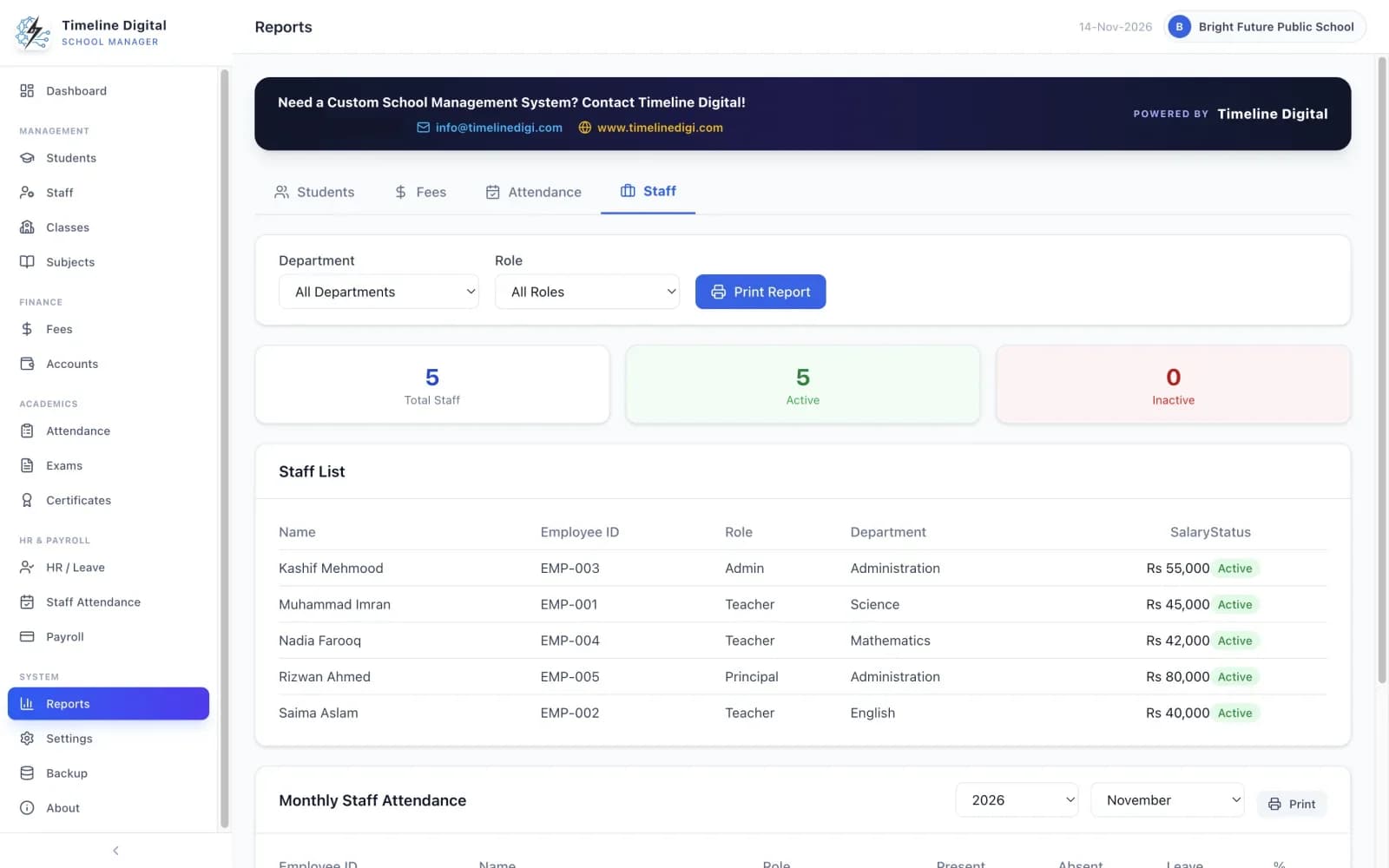
There are seven printable reports in four groups. Students: the Student Report (totals by class, boys and girls) and the Student List. Fees: the Fee Report, by date range, class and fee type. Attendance: the Attendance Report and the Attendance Register. Staff: the Staff Report and Monthly Staff Attendance.
Reports is module 14 of 16, in the System menu. Watch lesson 20: Reports.
- Students: Student Report (totals by class, boys and girls) and Student List.
- Fees: Fee Report, by date range, class and fee type.
- Attendance: Attendance Report and Attendance Register.
- Staff: Staff Report and Monthly Staff Attendance.
- The student report can also be exported to CSV.
What can you change in Settings?
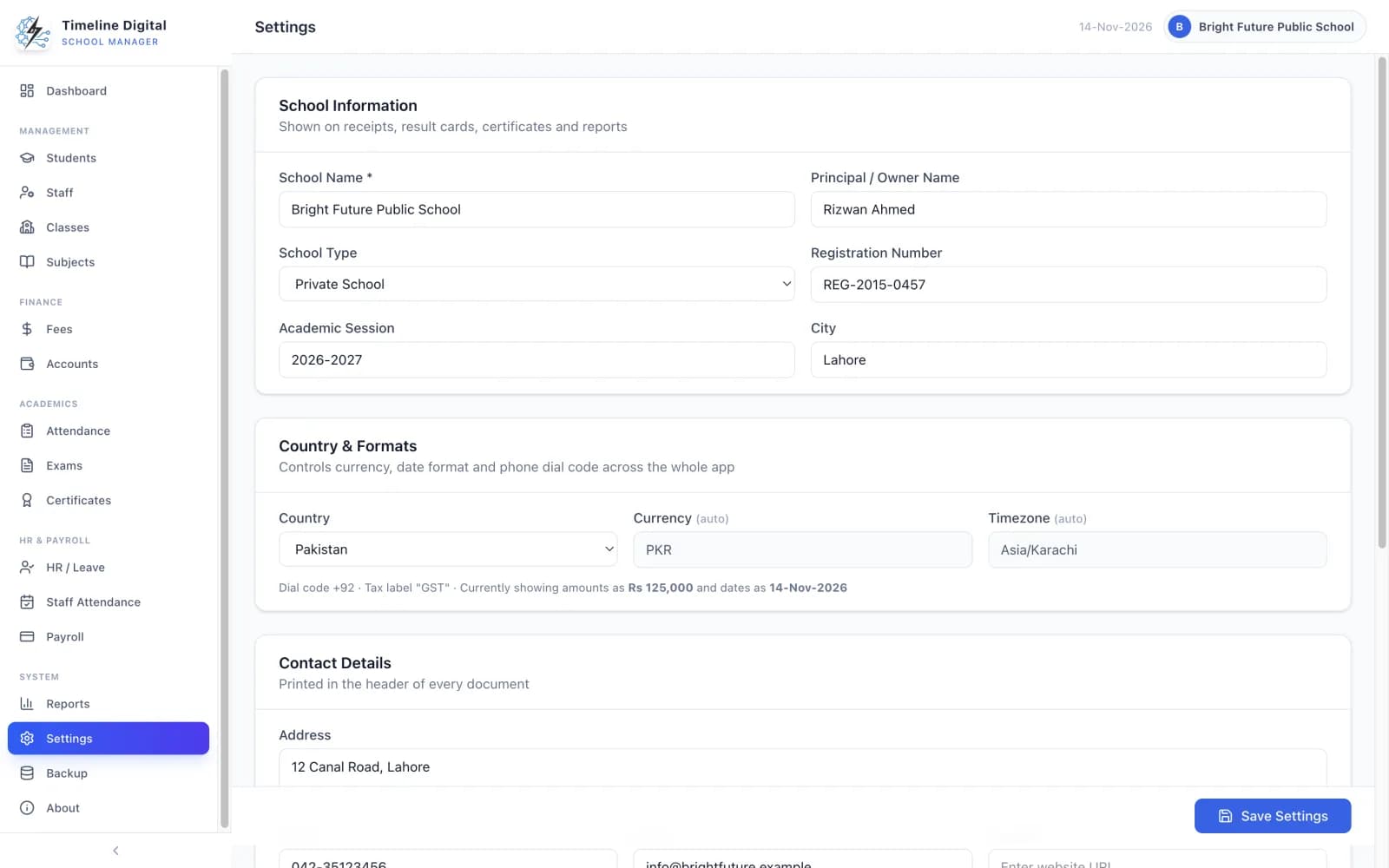
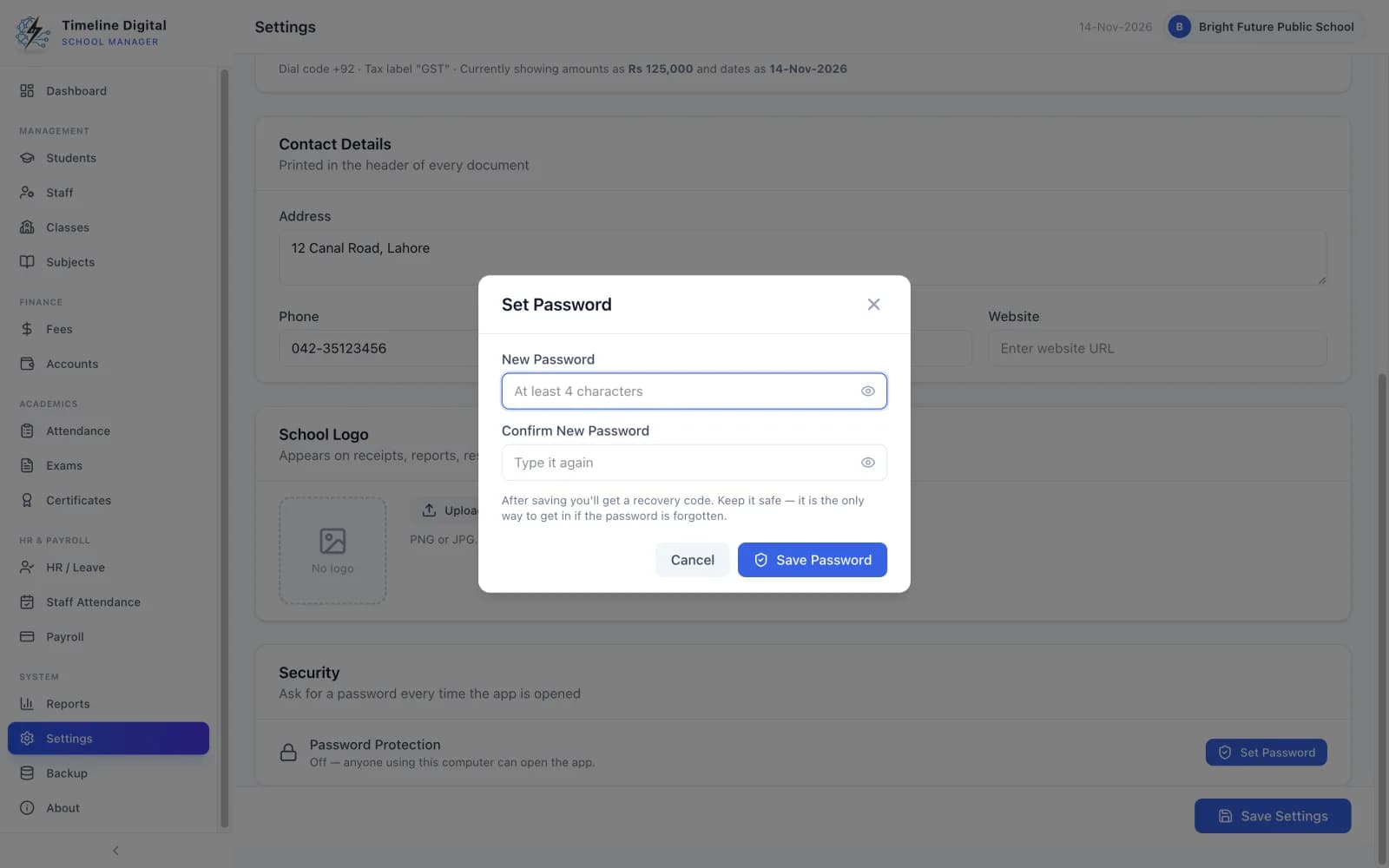
Settings holds your school details, logo, country and password. The logo appears in the app and on every printed document. Choosing your country from 84 options sets the currency, date format and number format to match. You can also lock the app with a password, with a recovery code in case you forget it.
Settings is module 15 of 16, in the System menu. Watch lesson 3: Settings and lesson 22: Password and security.
- School name, principal, registration number, academic session, school type, city, address, phone, email and website.
- Upload your school logo. It appears in the app and on every printed document.
- Choose your country from 84 options. The currency, date format and number format are set to match.
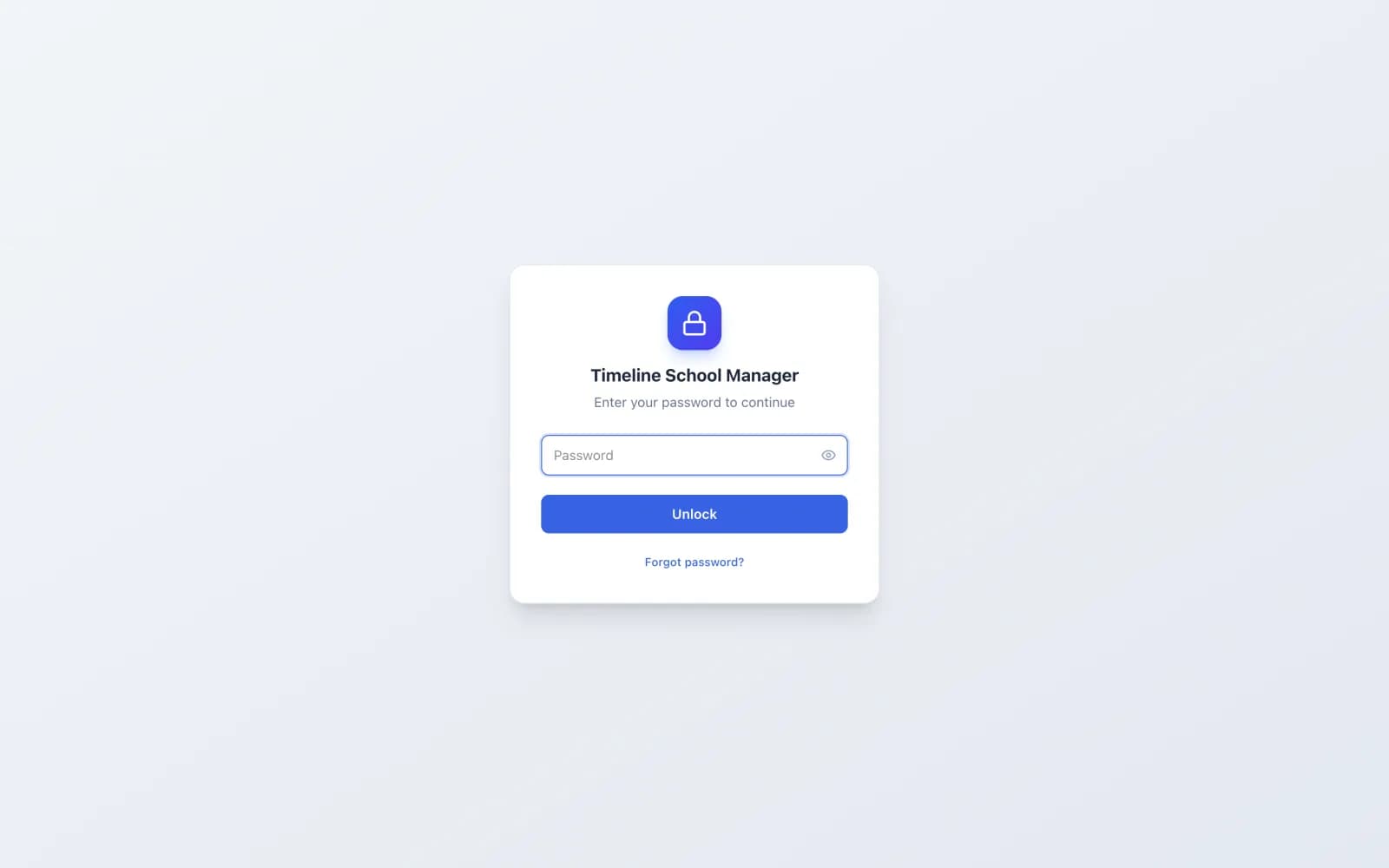
- Password protection: lock the app with a password that is asked for every time it opens.
- A recovery code is given to you when you set the password, in case you forget it.
How do backup and restore work?
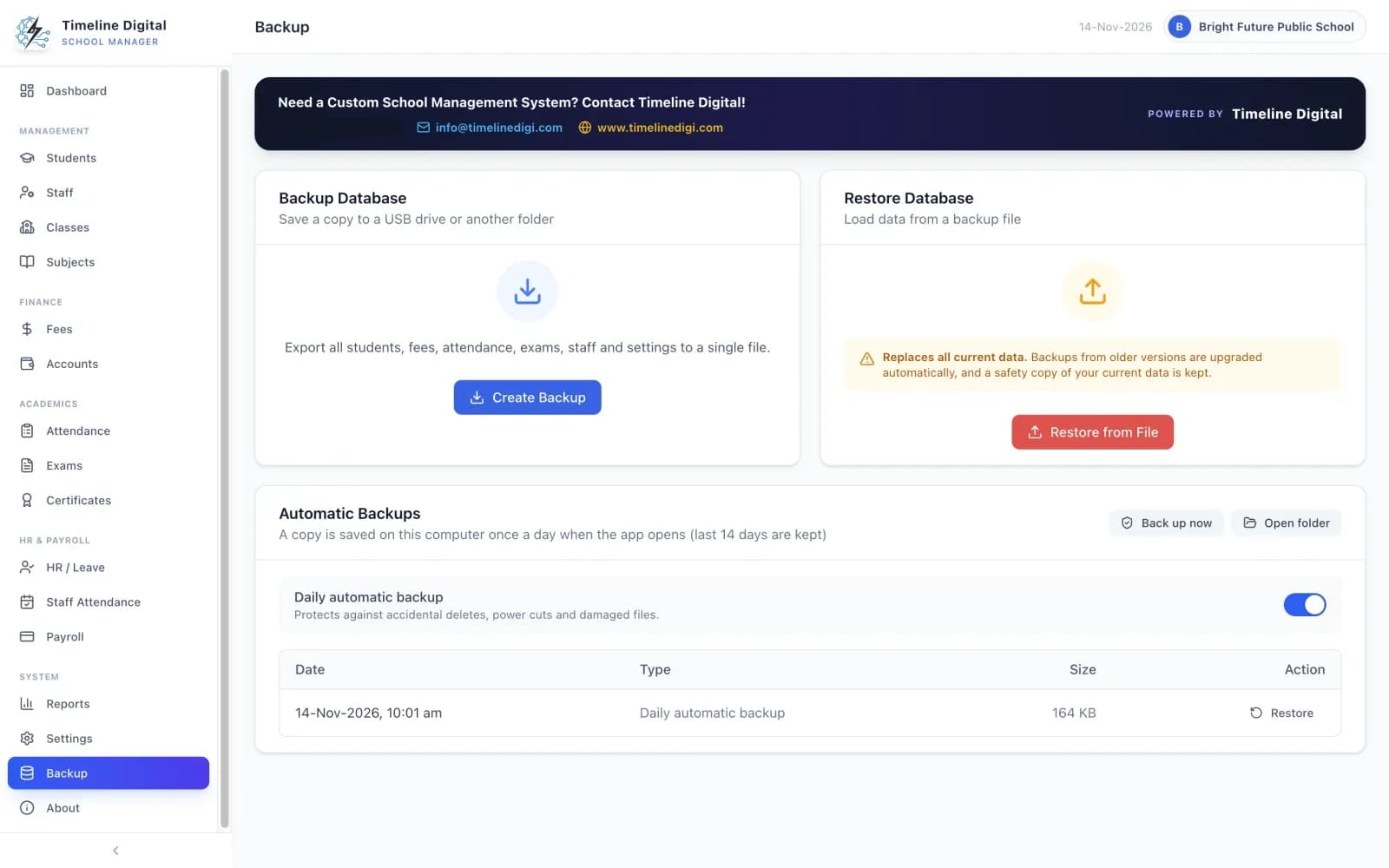
The app saves a copy of your data each day you open it and keeps the latest 14. You can also make a manual backup to any folder or USB drive whenever you want. To restore, you pick any backup file; a safety copy of your current data is made first, so a restore can be undone.
Backup & Restore is module 16 of 16, in the System menu. Watch lesson 21: Backup and restore.
- Automatic daily backup: a copy of your data is saved each day you open the app, and the latest 14 are kept.
- Manual backup to any folder or USB drive, whenever you want.
- Restore from any backup file. A safety copy of your current data is made first, so a restore can be undone.
Which school documents can you print?
Fee receipts, the fee defaulters list, student profiles, student lists, attendance registers, result cards, class result sheets, roll number slips, five kinds of certificate, salary slips, the accounts ledger and reports. Every document carries your school's name, logo, address and contact details, and prints on any printer installed on the computer.
| Document | Where it comes from |
|---|---|
| Fee receipt (school copy and parent copy) | Fees |
| Fee defaulters list | Fees |
| Student profile | Students |
| Student list and student report | Reports (Students group) |
| Attendance register and attendance report | Student Attendance and Reports (Attendance group) |
| Result card | Exams & Results |
| Class result sheet | Exams & Results |
| Roll number slip | Exams & Results |
| Character, Transfer, Bonafide, Study and School Leaving certificates | Certificates |
| Salary slip | Payroll |
| Accounts ledger | Accounts |
| Fee report | Reports (Fees group) |
| Staff report and monthly staff attendance | Reports (Staff group) |
To save a document as a PDF instead of printing it, choose "Microsoft Print to PDF" (Windows) or "Save as PDF" (Mac) in the print window.
School data entry software: can you bring in a student list from Excel?
Yes. You can import your existing student list from a CSV file, using the ready-made template included in the app, so you do not type every student in by hand. You can also export students, staff, fee records, fee defaulters, accounts and payroll to CSV files that open in Excel.
| Data | Import from CSV | Export to CSV |
|---|---|---|
| Students | Yes, with the included template | Yes |
| Staff | No | Yes |
| Fee records | No | Yes |
| Fee defaulters | No | Yes |
| Accounts | No | Yes |
| Payroll | No | Yes |
The student report in Reports can also be exported to CSV. The app does not write Excel or PDF files directly: exports are CSV, and a PDF comes from the system print window. Lesson 6 on the how to use it page shows the import, and the student management software page explains it in more detail.
Where is the school's data kept?
All school records are kept in a file on your own computer and are never uploaded. The app does not need an internet connection for daily work, and it can be locked with a password. The only details sent to Timeline Digital are the registration details you type in at first-time setup, sent once.
What stays on your computer, and what is sent
All school records (students, staff, fees, attendance, exams, payroll and accounts) are kept in a file on your own computer and are never uploaded. When you first set up the app, the registration details you type in (school name, principal's name, school type, country, city, phone and email) are sent once to Timeline Digital. No student, staff or fee records are ever sent.
Keeping the data safe
- Lock the app with a password that is asked for every time it opens. Keep the recovery code you are given.
- A backup is saved each day you open the app, and the latest 14 are kept.
- Make a manual backup to any folder or USB drive whenever you want.
- Restore from any backup file. A safety copy of your current data is made first.
What do you need to run it?
One computer: a PC with Windows 10 or 11 (64-bit), or a Mac with macOS 12 (Monterey) or newer, Apple Silicon or Intel. The Mac download is one universal file for both kinds of Mac. A screen of 1024 x 700 or larger and any installed printer are enough. The internet is not needed for daily use.
| Requirement | Windows | Mac |
|---|---|---|
| Operating system | Windows 10 or 11, 64-bit | macOS 12 (Monterey) or newer |
| Processor | Any 64-bit Intel or AMD | Apple Silicon (M-series) or Intel |
| Download size | About 101 MB | About 209 MB |
| Screen | 1024 x 700 or larger | 1024 x 700 or larger |
| Printer | Any printer installed on the computer | Any printer installed on the computer |
| Internet | Not needed for daily use | Not needed for daily use |
Windows 7, Windows 8 and 32-bit Windows are not supported, and there is no Linux, iPad, Android, web or portable version. The Windows installer is not code-signed, so SmartScreen may warn on first run: click More info, then Run anyway. The Mac app is not notarized, so macOS may say it could not verify the app: open System Settings, choose Privacy & Security and click Open Anyway, once. Full install steps and file checksums are on the download page and the Mac page.
What does the free edition not include?
The free edition is built for one school office working on one computer. It has no multi-computer use or separate staff logins, no online access or parent portal, no messages to parents, no online fee payment, no timetable, no ID cards and no automatic late fees. Check this list before you download.
- Use on several computers at once, or separate logins for different staff
- Online access, a mobile app, or a parent or student portal
- SMS, WhatsApp or email messages to parents
- Online fee payment
- Timetable, library, transport, hostel or inventory management
- Student or staff ID cards
- Automatic late fees or fines
Transport and Library appear in the app only as fee types, and "Online" is only a label for a recorded payment. The app is in English only.
Need one of these?
Timeline Digital builds custom school management systems, with the parts the free edition leaves out, such as a parent portal, SMS messages, several campuses, a timetable or online fee payment. The pilot is always free. Tell us what your school needs: see custom school software development, or read the guide to choosing school management software first.
Common questions about the features
Is every feature on this page free?
Yes. All 16 modules are free. There is no licence key, no trial period, no locked features and no per-student charge.
Does the school management system work without internet?
Yes. It is offline desktop software. You can take attendance, collect fees and print receipts when the internet is down. You need the internet to download the app, and the registration details you type at first-time setup are sent once to Timeline Digital.
Which computers does it run on?
Windows 10 or 11 (64-bit), and macOS 12 (Monterey) or newer, Apple Silicon or Intel. Windows 7, Windows 8 and 32-bit Windows are not supported. There is no Linux, iPad, Android, web or portable version.
Can several staff use it at the same time?
No. The free edition is for one computer and one office user at a time. It does not have separate logins for different staff or use on several computers at once. The app can be locked with one password.
Can I import my students from Excel?
Yes. Save your student list as a CSV file using the ready-made template included in the app, then import it. You can also export students, staff, fee records, fee defaulters, accounts and payroll to CSV files that open in Excel.
Does it export to PDF or Excel files?
Not directly. Exports are CSV files, which open in Excel. To save a printed document as a PDF, choose "Microsoft Print to PDF" on Windows or "Save as PDF" on a Mac in the print window.
Can parents pay fees online or get SMS messages?
No. The free edition has no online fee payment, no parent or student portal, and no SMS, WhatsApp or email messages to parents. "Online" in the fee form is only a label for a payment you have recorded. Timeline Digital can build these as a custom system.
Does it add late fees automatically?
No. There are no automatic late fees or fines. The app tracks part payments and balances, and the fee defaulters list shows every student who has not paid, or has only partly paid, for any month.
Does it make a timetable or print ID cards?
No. The free edition does not include a timetable, student or staff ID cards, or library, transport, hostel or inventory management. Transport and Library exist only as fee types.
Which certificates can it print?
5 kinds: Character, Transfer, Bonafide, Study and School Leaving. Each is printed with your school's name and logo, a serial number, the issue date, and space for the principal's signature and the school stamp.
Which countries and currencies does it support?
84 countries, each with its own currency and date format. Choose your country in Settings and the currency, date format and number format are set to match. The app itself is in English.
Where is my school data stored?
All school records (students, staff, fees, attendance, exams, payroll and accounts) are kept in a file on your own computer and are never uploaded. When you first set up the app, the registration details you type in (school name, principal's name, school type, country, city, phone and email) are sent once to Timeline Digital. No student, staff or fee records are ever sent.
What happens if my computer breaks?
Restore from a backup. The app saves a backup each day you open it and keeps the latest 14. You can also make a manual backup to any folder or USB drive, and restore from any backup file. Keep a manual backup on a USB drive, away from the computer.
How do I learn to use all of this?
There are 22 short video lessons, about 46 minutes in total, each with written steps. You can also load sample data at setup to try every feature before entering your own records.
Download Timeline School Manager and try every module
It is free, with no licence key, no trial period and no locked features. Setup takes about a minute, and you can load sample data to try every feature before entering your own records.
Version 2.6.0 · Free · Works offline
Install steps and file checksums are on the download page. You can also watch all the lessons on the YouTube playlist.
More about Timeline School Manager
- Timeline School ManagerThe product page: what the app is and who it is for.
- Download pageGet the Windows or Mac file, check the checksums and see how to install it.
- School management software for MacThe Mac download and the first-run steps on macOS.
- How to use it22 short video lessons, about 46 minutes in total.
- School fee management softwareFees, receipts, defaulters and accounts in more detail.
- School attendance softwareStudent and staff attendance in more detail.
- Student management softwareStudent records, admission details, import and promotion.
- School management software guideHow to choose school management software for your school.