Free offline student management software
One record for every student: admission details, parent contacts and a photo, on one Windows PC or Mac. Part of Timeline School Manager, a free desktop app from Timeline Digital.
Version 2.6.0 · Free · Works offline
Who this is for
- A small or medium-sized school that keeps its student list in a register or a spreadsheet.
- A school office where one person enters and looks up student records on one computer.
- A school that wants admission details, fees, attendance and exam marks tied to the same student record.
- A school with no software budget, or with an internet connection it cannot rely on.
Not a fit if
- Several staff need to work on the records at the same time, each with their own login.
- Parents or students need to log in to see records.
- Parents should fill in an admission form online.
- You need student ID cards printed from the system.
Key facts
- App
- Timeline School Manager, version 2.6.0, published by Timeline Digital
- Price
- Free. No licence key, no trial period, no locked features and no per-student charge.
- Runs on
- Windows 10 or 11 (64-bit), or macOS 12 (Monterey) or newer, Apple Silicon or Intel
- Internet
- Not needed for daily use. You need it to download the app.
- Users
- One computer, one office user at a time
- Language
- English
- Where records live
- In a file on your own computer
There is no separate student-only download. Students is one of 16 modules in the app, and the whole app is free. It is described on the Timeline School Manager product page, and install steps for both systems are on the download page.
What does a student record hold?
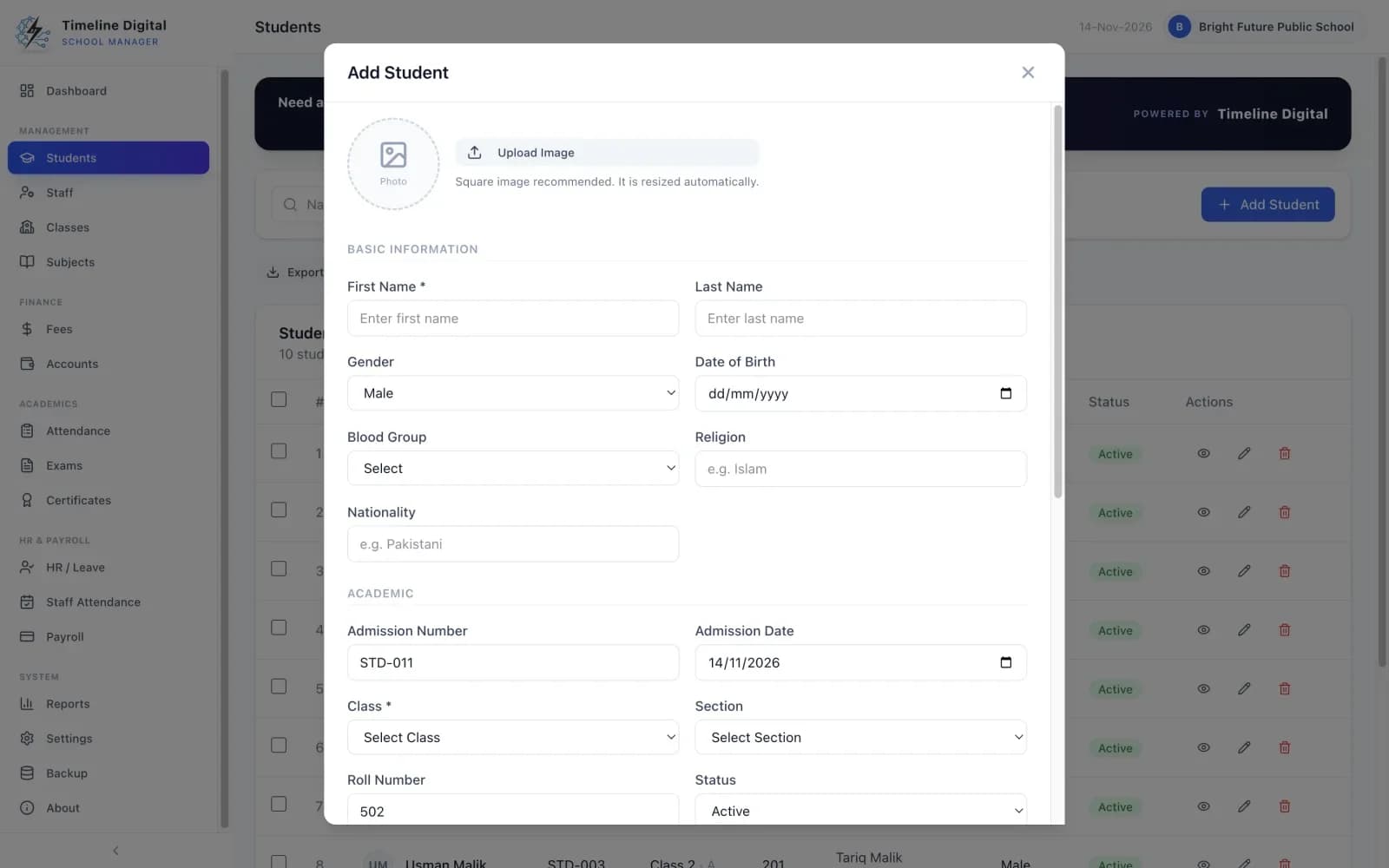
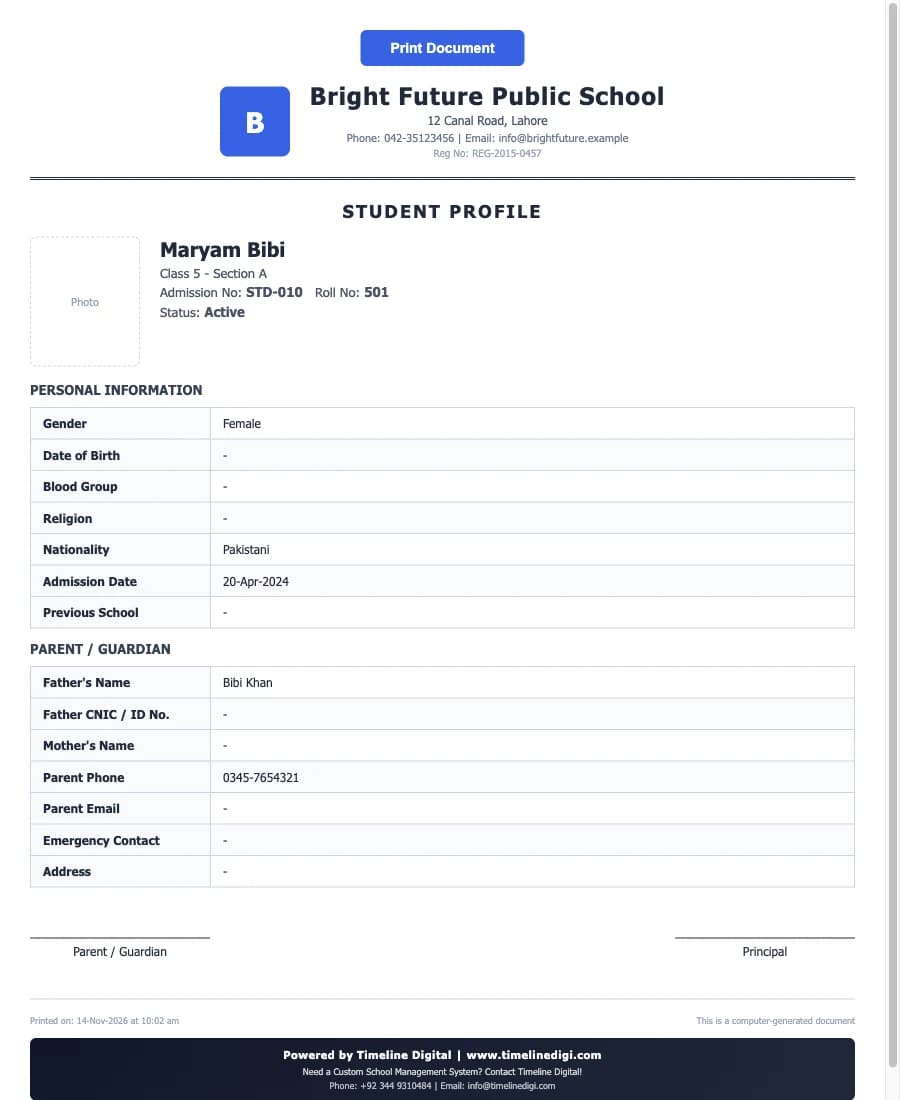
Each student has one record in three parts: student details, academic details and parent details. It holds the name, photo, gender and date of birth, the admission number, admission date, class, section and roll number, and the parents' names, phone, email, emergency contact and address.
- Student details
- Name, Photo, Gender, Date of birth, Blood group, Religion, Nationality
- Academic details
- Admission number, Admission date, Class, Section, Roll number, Previous school, Status: Active or Inactive
- Parent details
- Father's name and ID number, Mother's name, Phone, Email, Emergency contact, Address
Lesson 4 of the video lessons, Adding a student, walks through the form in 1:13.
How are admission and roll numbers given?
When you add a student, the app suggests the next roll number and the next admission number, so you do not have to look up the last one used. If you type an admission number that already belongs to another student, the app warns you, which helps stop two students sharing one number.
How do I find a student quickly?
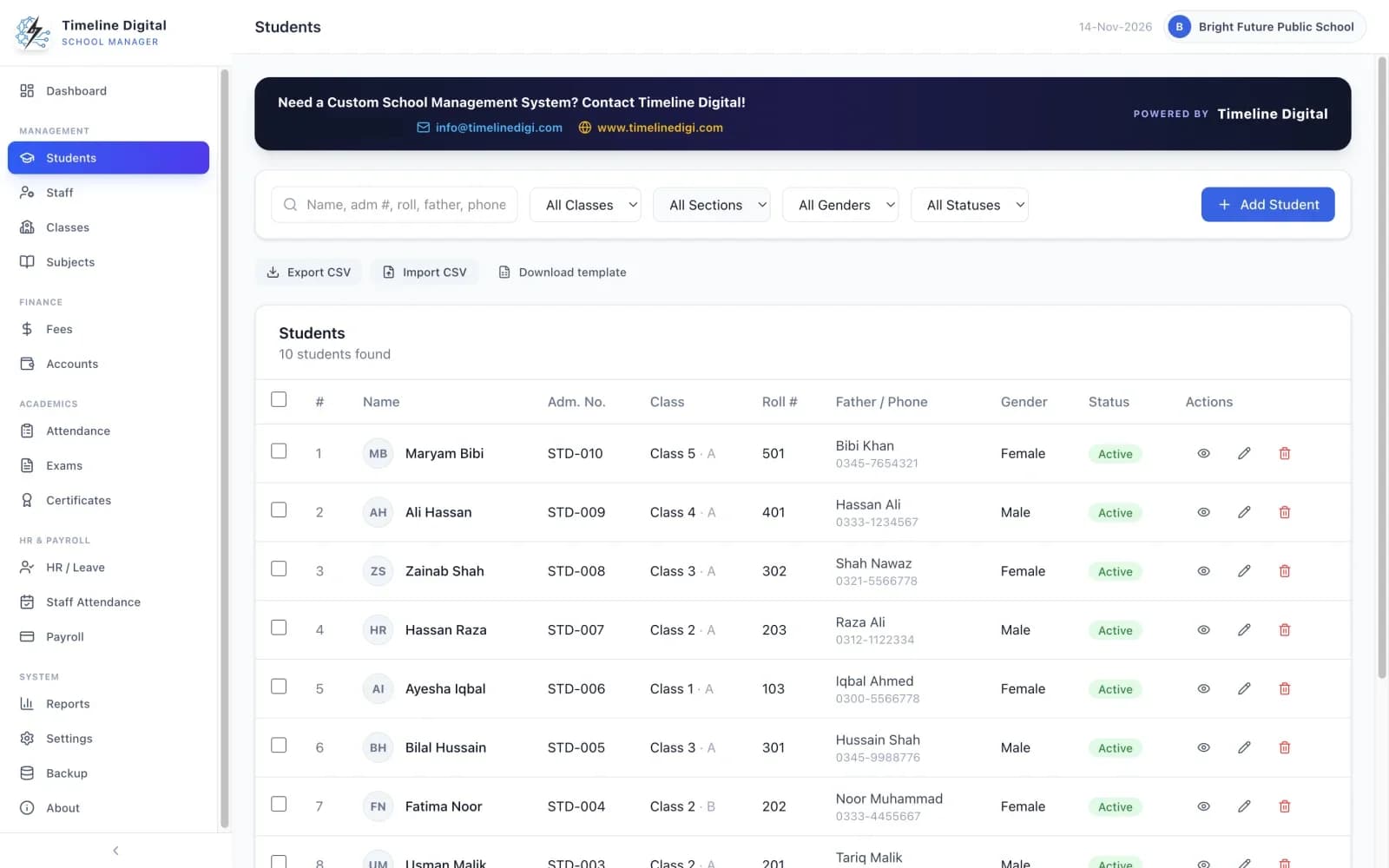
Use the search on the student list. The app searches by name, admission number, roll number, father's name or phone. You can also filter the list by class, section, gender and status, for example to see only the active students of one section.
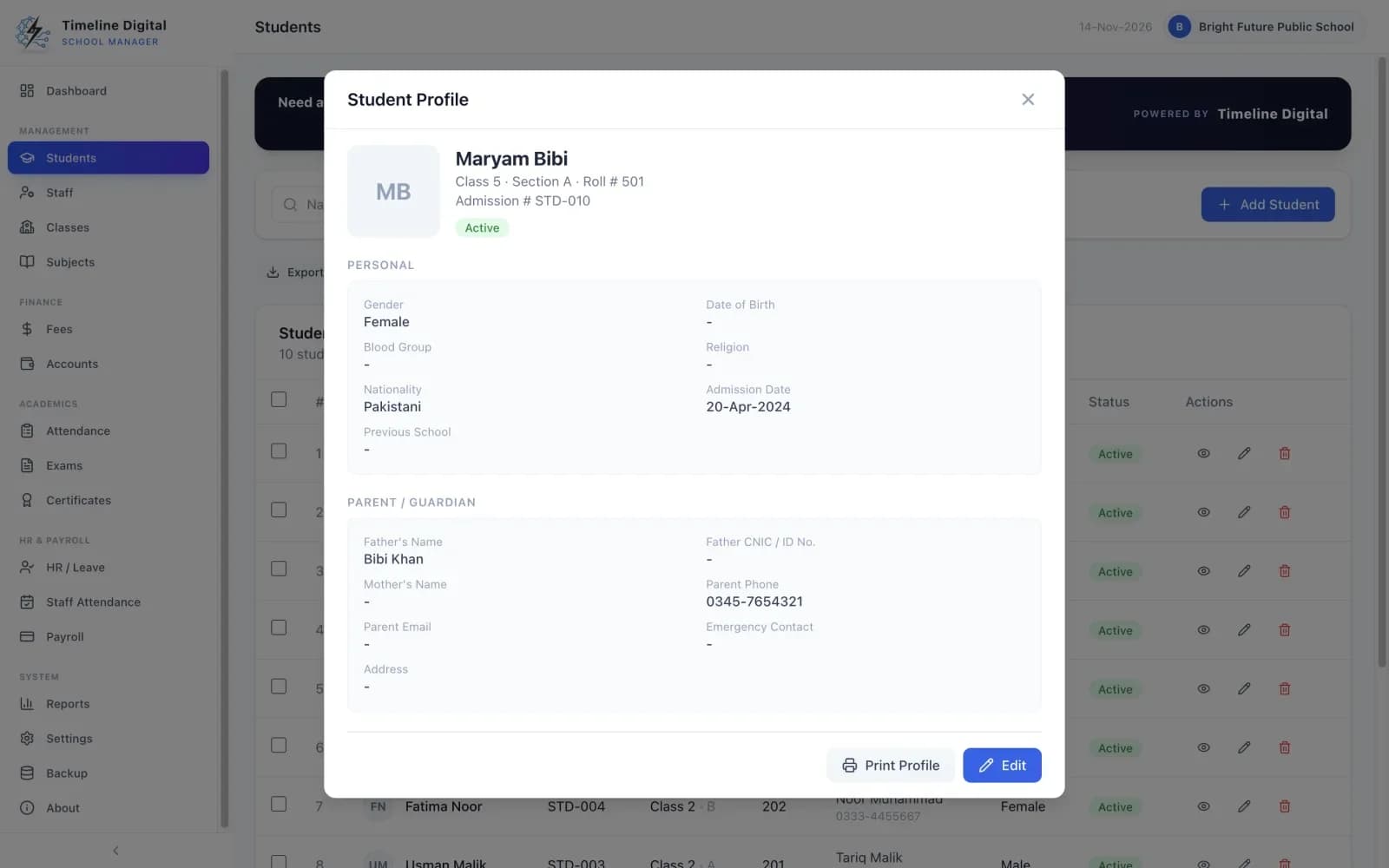
Every student is either Active or Inactive. The status is part of the academic details, it is one of the filters on the list, and the dashboard counts active students. Viewing, editing and printing a profile are shown in lesson 5, Managing students.
Is this school registration software?
It depends what you mean by registration. If you mean recording admissions and enrolment, yes: each new student is entered with an admission number, admission date, class and section. If you mean the daily register, the Student Attendance module marks each student and prints a monthly register.
- Registering a new student
- The office types the admission into the student form, or imports many students from a CSV file. The admission number and roll number are suggested, and the previous school can be recorded.
- Taking the register
- Mark each student Present, Absent, Late or on Leave for any class, section and date, and print the monthly attendance register. The details are on the free school attendance software page.
- What it is not
- There is no online admission form and no way for parents to apply or log in. The app does not produce UK census or CTF returns or US state reports, and it makes no GDPR or FERPA compliance claim.
How do I move my student list from Excel?
Save the sheet as a CSV file, match it to the template that comes with the app, import it in the Students module, then check the result. Your students are added without typing each one again.
Save your sheet as CSV
Open your student list in Excel or another spreadsheet program and save or export it as a CSV file. Keep the original sheet as it is.
Use the included template
The app comes with a ready-made CSV template for students. Arrange your columns to match the template so each detail lands in the right place.
Import the file
In the Students module, import the CSV file. Your students are added to the list without typing each one again.
Check the result
Filter the list by class and section and compare the counts with your old sheet. Open a few students and read their details. Fix anything that needs it in the student form.
What import and export can do
- Import students from a CSV file. A ready-made template is included.
- Export the student list to a CSV file that opens in Excel.
- The app does not read or write Excel files directly. CSV is the format in both directions.
- You can load sample data first to see how a filled-in list looks before you import your own.
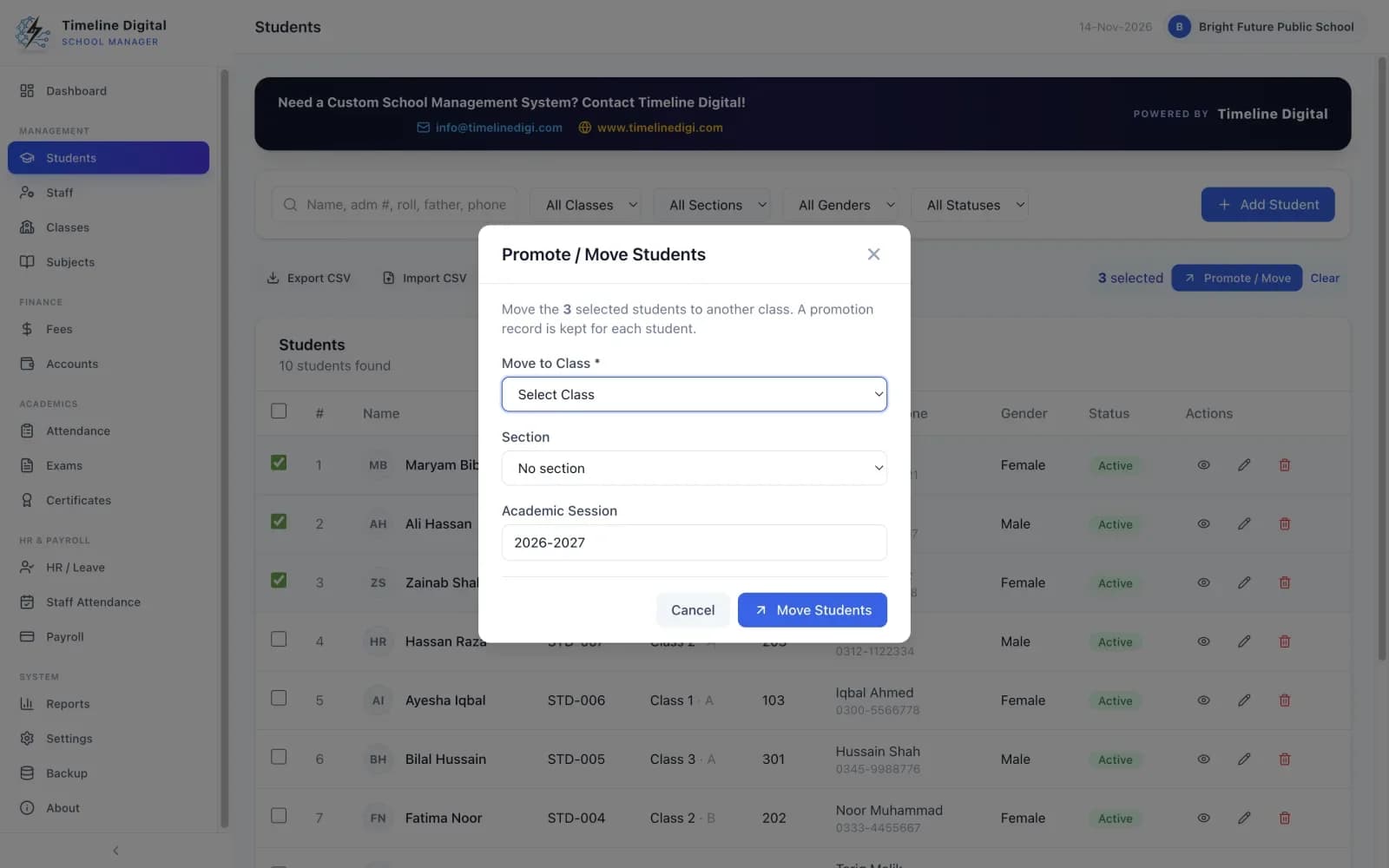
Lesson 6, Importing and promoting students (1:54), shows the import, the export and the promotion on screen.
How do I promote students to the next class?
Use Promote or move in the Students module. You choose the students and the new class and session, and the app moves all of them in one step. The same tool moves students to a different class, so nobody has to be edited one at a time.
A printed profile is there for the file or for the parent to sign. It carries your school's name and logo and has signature lines for the parent and the principal. To save it as a PDF, choose "Microsoft Print to PDF" on Windows or "Save as PDF" on Mac in the print window.
Classes, sections and subjects in brief
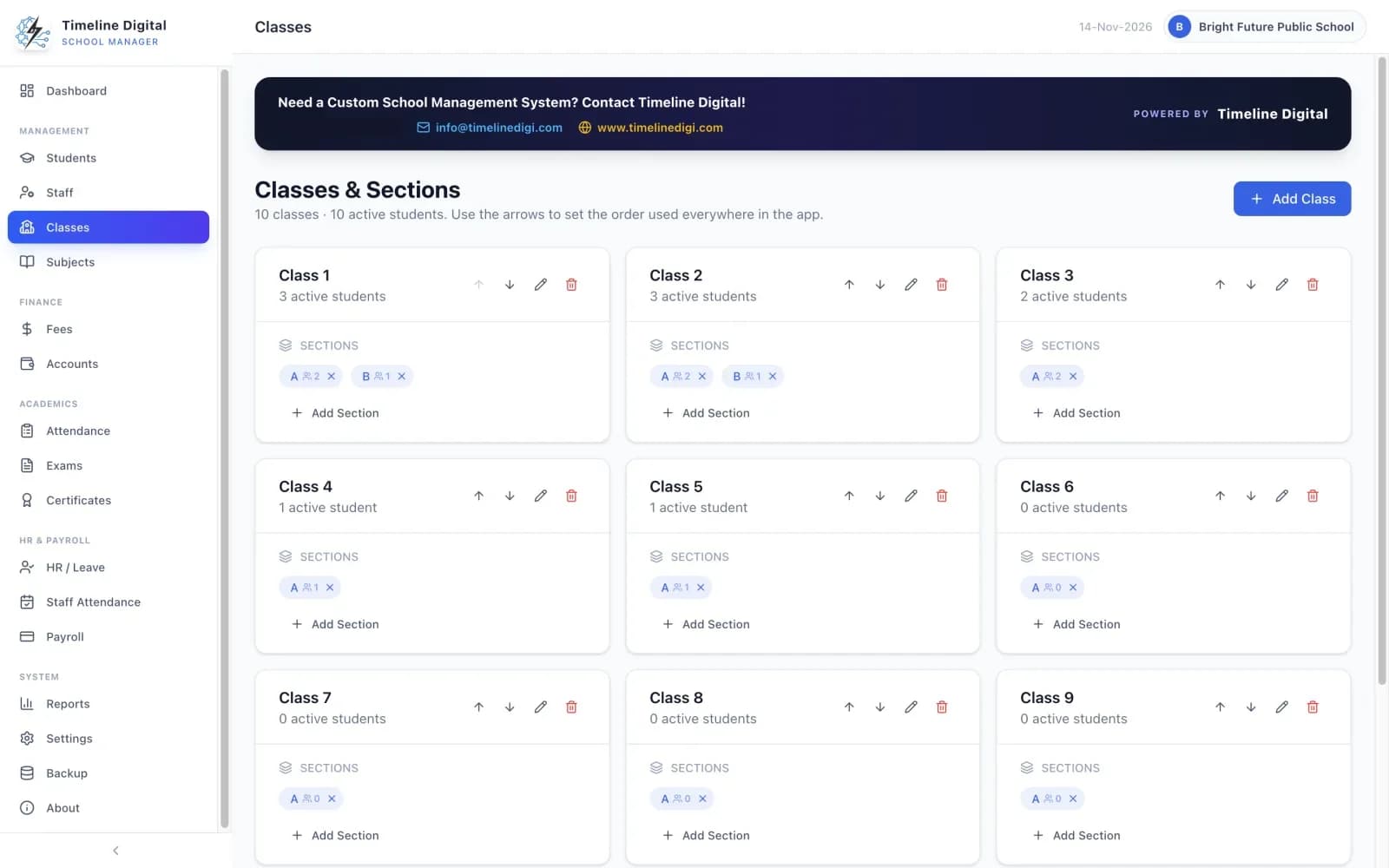
A student belongs to a class and a section, so the school's structure is set up first.
Classes & Sections
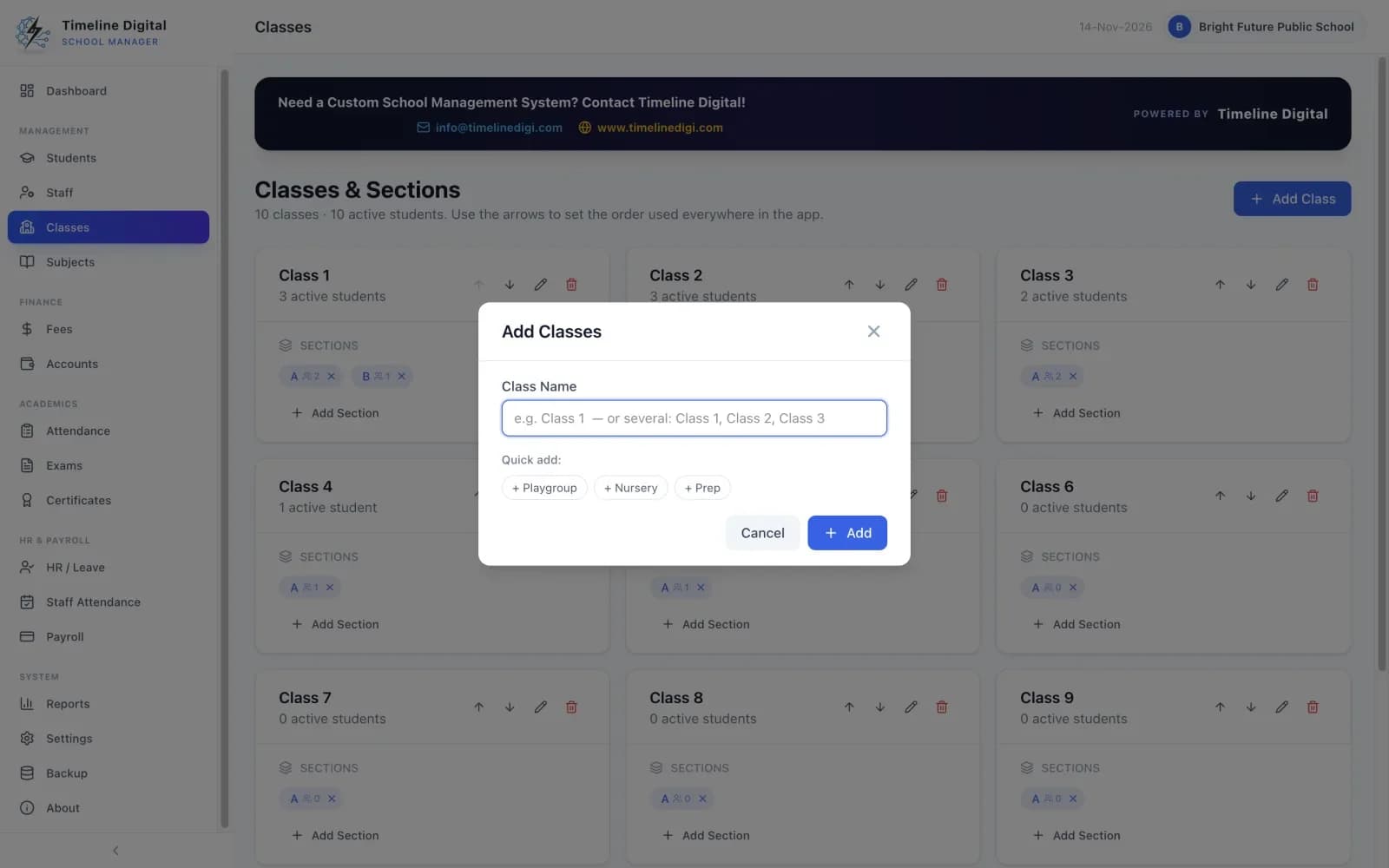
Add classes one at a time or many at once, with quick-add buttons from Playgroup, Nursery and Prep up to Class 10. Add as many sections as you need to each class. Rename classes and sections, and put the classes in the order you want; that order is used throughout the app. Each class and section shows how many students it has.
Subjects
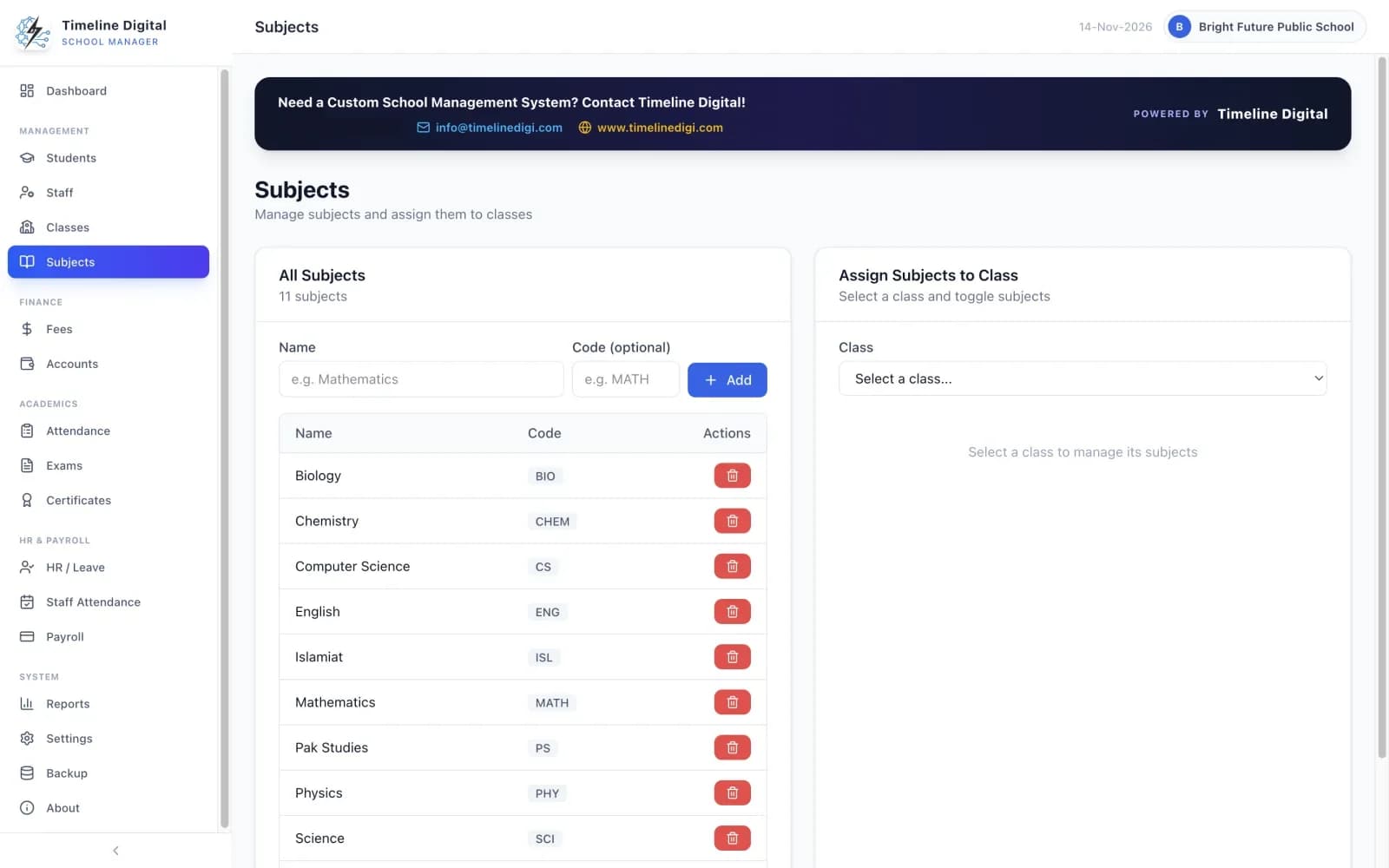
Keep one list of subjects with short codes and choose which subjects each class studies. Those are the subjects that appear when you enter exam marks.
How does the student record connect to fees, attendance, exams and certificates?
You enter a student once. The other modules work from the same list of students, classes and sections, so you do not type the student list again.
Fees
Fee payments are recorded against the student. You can set a default fee for each class so the amount fills in by itself, and see any student's fee history and balance: total dues, discounts, amount paid and current balance. Receipts and the defaulters list are covered on the free school fee management software page.
Attendance
Attendance is marked for a class, section and date, using the students you have placed in that class. The monthly summary and the printed register list every student. See the free school attendance software page for the register and the staff side.
Exams and results
Exams are created for a class, and marks are entered for all its students and subjects on one screen. Totals, percentages, grades (A+ to F), pass or fail and class positions are worked out automatically, and result cards and roll number slips are printed for each student. The features page shows each screen.
Certificates
The Certificates module issues 5 kinds of certificate: Character, Transfer, Bonafide, Study and School Leaving. Each is printed with your school's name and logo, a serial number and the issue date, and a searchable record of every certificate issued is kept. All 16 modules are listed on the features page.
Which student reports can I print?
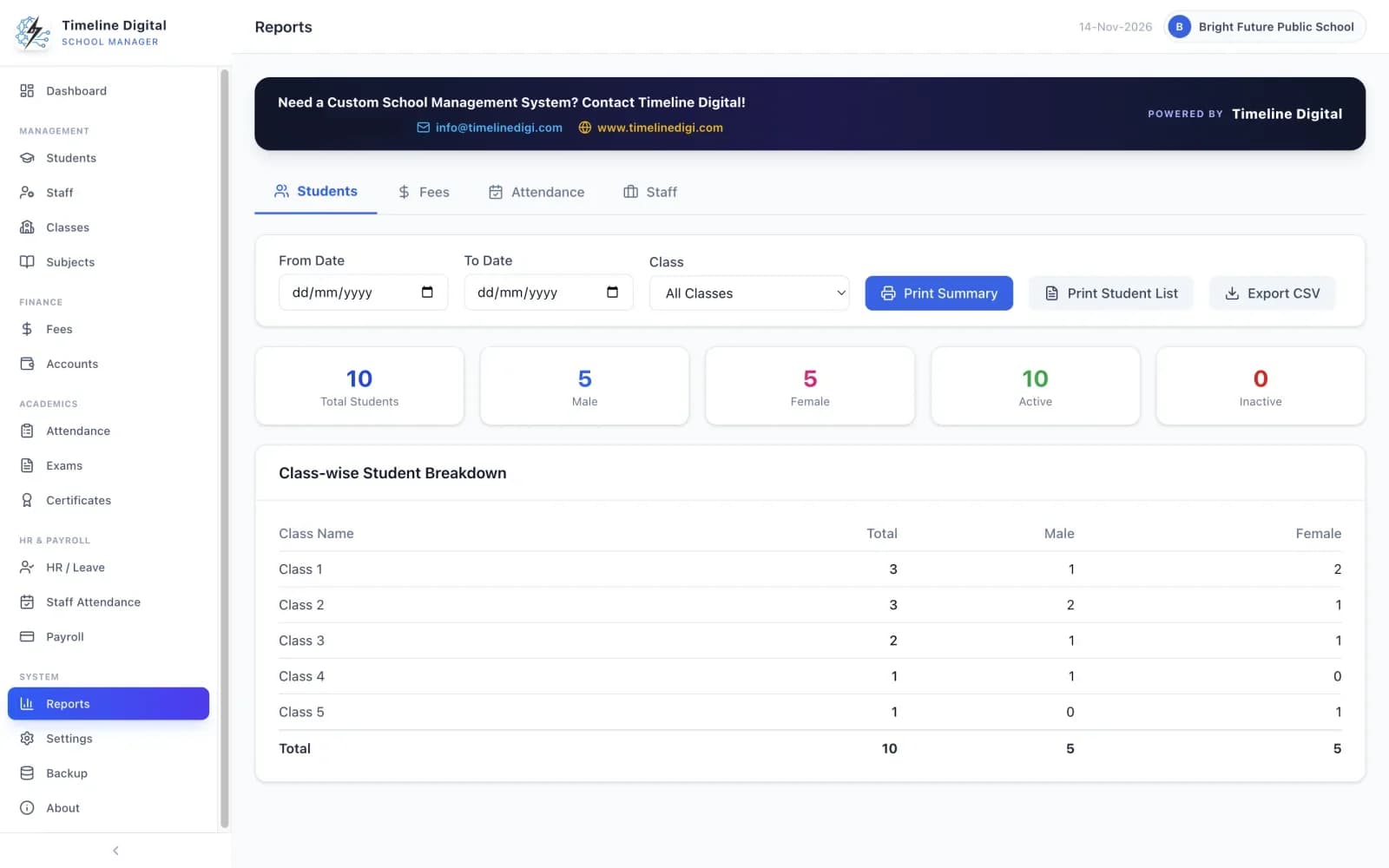
Two of the app's 7 printable reports are about students. The Student Report gives totals by class, with boys and girls, and can also be exported to CSV. The Student List prints the list of students. Both carry your school's name, logo, address and contact details.
How do I add and manage students? Watch it.
Three of the 22 free video lessons cover adding a student, managing the list, and importing and promoting students. Each one is about two minutes long. Click a lesson to play it here.
Lesson 4: Adding a student (1:13)
Student, academic and parent details.
Lesson 5: Managing students (2:04)
Search, filter, view, edit and print a profile.
Lesson 6: Importing and promoting students (1:54)
CSV import, CSV export and moving a class to a new session.
All 22 lessons with written steps · Watch the playlist on YouTube
Is this better than keeping students in a spreadsheet?
For one office computer, usually yes: the app gives you numbering, a duplicate warning, search, promotion, printed profiles and automatic backups that a plain sheet does not. A shared online spreadsheet is still better when several people must edit at once.
| Task | A spreadsheet | Timeline School Manager |
|---|---|---|
| Next admission and roll number | You work it out and type it | Suggested automatically for each new student |
| Duplicate admission numbers | Easy to miss unless you check by hand | The app warns you if the number is already in use |
| Finding a student | Find or filter on columns you set up | Search by name, admission number, roll number, father's name or phone; filter by class, section, gender and status |
| Student photo | Kept in a separate folder | Stored on the student record |
| New session | Edit the class column row by row or by copy and paste | Promote or move several students to a new class and session in one step |
| Printed profile | You design the layout yourself | Printed with your school name and logo and signature lines for the parent and principal |
| Fees, attendance and exams | Separate sheets you keep in step by hand | The same student record is used by the Fees, Student Attendance and Exams modules |
| Backups | Whatever you remember to copy | Automatic daily backup on each day the app is opened, with the latest 14 kept, plus manual backup and restore |
| Lock | Depends on the spreadsheet program | Optional password asked every time the app opens, with a recovery code |
| Several people editing | Possible with a shared online sheet | No. One computer, one office user at a time |
| Getting your data out | It is already a sheet | Export the student list to CSV, which opens in Excel |
What does the free app not do?
It is built for one school office working on one computer. Read this before you download, so the app is the right size for your school.
- One computer, one user
- The app runs on a single Windows PC or Mac for one office user at a time. There is no sharing between computers, no live sync and no separate logins for different staff.
- No parent or student portal
- Nobody outside the office can log in. There is no online access and no mobile app.
- No ID cards
- The app does not print student or staff ID cards. It prints a student profile, a student list and a student report.
- No online admission form
- Admissions are typed in by the office, or imported from a CSV file. Parents cannot apply through the app.
- English only
- The app is in English. There are no other languages.
- CSV, not Excel or PDF files
- Exports are CSV files, which open in Excel. To get a PDF, choose "Microsoft Print to PDF" on Windows or "Save as PDF" on Mac in the print window.
What the app sends, and what stays on your computer
All school records (students, staff, fees, attendance, exams, payroll and accounts) are kept in a file on your own computer and are never uploaded. When you first set up the app, the registration details you type in (school name, principal's name, school type, country, city, phone and email) are sent once to Timeline Digital. No student, staff or fee records are ever sent.
You can lock the app with a password that is asked for every time it opens. A recovery code is given to you when you set the password, in case you forget it. A copy of your data is saved automatically each day you open the app, and the latest 14 copies are kept.
Before the first run
The Windows installer is not code-signed, so Windows SmartScreen may warn you: choose "More info", then "Run anyway". The Mac app is not notarized, so macOS may say it could not verify the app: open System Settings, then Privacy & Security, scroll down and click "Open Anyway". You only do this once. The SHA-256 checksums are on the download page, and Mac steps are on the Mac page.
When a school needs more than the free app
The free app is built by Timeline Digital, a custom software development company founded in 2013 in Islamabad. Several users on several computers, a parent or student portal, an online admission form or ID cards are custom work, delivered as a managed project. Timeline Digital does not publish prices for custom software, because every project is custom. You choose 2 to 3 key modules and test them in a free pilot before the full build. The steps are below, and the service is described on custom software development.
How the free pilot works
Before you commit to the full project, we build 2 to 3 of your key modules as working software, free of charge, ready in about 2 days. Your team tests the pilot, and the full build starts only after you approve it.
See how the free pilot worksUnderstand
We learn your requirements and how your organisation works today.
Select pilot modules
Together we choose 2 to 3 key modules that prove the solution.
Build the working pilot
We build those modules as real, working software, free of charge.
You test it
Your team uses the pilot. The full project starts only after you approve it.
Student management software questions
Is there free student management software that works offline?
Yes. Timeline School Manager is free and works without internet on Windows 10 or 11 (64-bit) and on macOS 12 (Monterey) or newer, Apple Silicon or Intel. Its Students module keeps a record for every student with personal, academic and parent details. There is no licence key, no trial period and no per-student charge.
Is the student management software a separate download?
No. There is no student-only download. Students is one of the 16 modules in Timeline School Manager, and the whole app is free. You can use only the student screens if that is all you need. Both installers are on the free offline school management software download page.
Is this school registration software?
It depends what you mean by registration. For recording admissions and enrolment, yes: each student gets an admission number, admission date, class and section. For the daily register, the Student Attendance module marks each student and prints a monthly register; see free school attendance software. There is no online admission form for parents.
Can I import my student list from Excel?
Yes, through a CSV file. Save your sheet as CSV, arrange it to match the ready-made template that comes with the app, and import it in the Students module. The app does not read Excel files directly, so the sheet has to be saved as CSV first.
Can I get my student data out again?
Yes. The student list exports to a CSV file that opens in Excel, and the Student Report can also be exported to CSV. You can also make a manual backup of all your data to any folder or USB drive whenever you want.
How are admission numbers and roll numbers given?
When you add a student, the app suggests the next roll number and the next admission number automatically. If you type an admission number that another student already has, the app warns you.
How do I move a class to the next year?
Use Promote or move in the Students module. It moves several students to a new class and session in one step, so you do not edit each student one by one. Lesson 6 of the video lessons shows it.
What happens to a student who leaves the school?
Each student has a status of Active or Inactive, and you can filter the list by status. The dashboard counts active students. If the student needs a leaving document, the Certificates module issues Transfer and School Leaving certificates, among others.
Can several staff use it at the same time?
No. The free app is for one computer and one office user at a time. There are no separate staff logins and no sharing between computers. A school that needs that should look at a custom system; see custom software development.
Is there a limit on the number of students?
The app has no per-student charge and no paid tier. We do not quote a maximum number of students, because no tested maximum has been published. Load the sample data, or import your own list, and try it on your own computer before you rely on it.
Does it print student ID cards?
No. The app does not print ID cards. From the student side it prints a student profile with signature lines for the parent and principal, a Student List and a Student Report with totals by class, boys and girls.
Where are the student records stored?
All school records (students, staff, fees, attendance, exams, payroll and accounts) are kept in a file on your own computer and are never uploaded. When you first set up the app, the registration details you type in (school name, principal's name, school type, country, city, phone and email) are sent once to Timeline Digital. No student, staff or fee records are ever sent.
Does it run on Mac as well as Windows?
Yes. There is a Windows installer (about 101 MB) and one Mac download (about 209 MB) that works on Apple Silicon and Intel Macs with macOS 12 or newer. See free school management software for Mac. There is no Linux, iPad, Android or web version.
Download the free student management software
Install the app, load the sample data to practise, then import your own student list. If you need something the free app does not do, tell us how your office works and we will say what we would pilot.
Version 2.6.0 · Free · Works offline
About this page
Published by Timeline Digital, the maker of Timeline School Manager. Every feature described here comes from the information sheet for version 2.6.0 of the app, last checked on . The screenshots show a made-up sample school, and the students, names and amounts in them are not real.
Author
Usama Asif
CEO and CTO, Timeline Digital.
Related school software pages
Timeline School Manager
The product page: all 16 modules, screenshots and system requirements.
Read this nextDownload for Windows and Mac
Both downloads, install steps and checksums on one page.
Read this nextSchool Management Software for Mac
The Mac download and the first-run steps on macOS.
Read this nextHow to Use: Video Lessons
22 short lessons, about 46 minutes in total.
Read this nextAll Features
Every module and every printed document.
Read this nextFree School Fee Management Software
Receipts, part payments, defaulters and accounts.
Read this nextFree School Attendance Software
Student and staff attendance and the printed register.
Read this nextSchool Management Software Guide
Free, subscription or custom: how to choose.
Read this next