Fast food and takeaway
Free offline POS for fast food and takeaway restaurants
Timeline Restaurants POS is a free counter POS from Timeline Digital. It runs offline on one Windows PC or Mac, prints kitchen tickets and numbers each order.
Version 2.0.1 · Free · Works offline
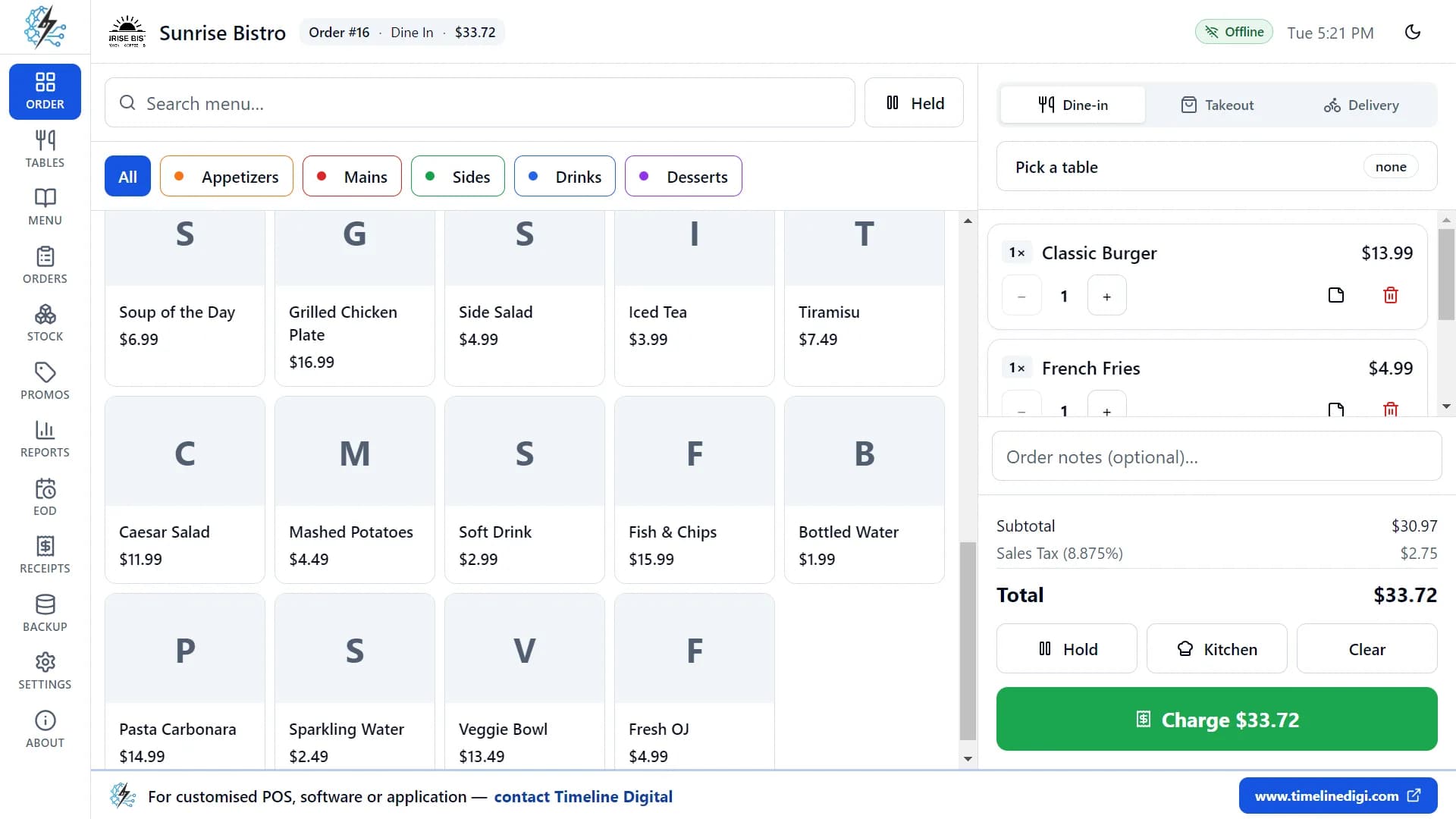
The download, the system requirements and the full feature list are on the Timeline Restaurants POS page. To learn the screens before a busy shift, see how to use Timeline Restaurants POS.
Who this is for
- Burger, fried chicken, shawarma, sandwich and kebab counters where the customer orders, pays and waits for a number.
- Takeaways that take walk-in and phone orders on one computer and print a ticket for the kitchen.
- Owners who want to stop paying a monthly software fee for a single till, or who are replacing a cash register and a paper pad.
Not a fit if
- Shops that need two or more tills, a tablet or a phone sharing the same orders. The app runs on one computer only.
- Kitchens that work from a kitchen display screen, or that need tickets split between a grill station and a fry station.
- Businesses that take orders from a website, a QR menu or a delivery app and want them to arrive in the POS. There is no online ordering link.
Key facts
- Product
- Timeline Restaurants POS, version 2.0.1, a free point-of-sale app made by Timeline Digital
- Price
- Free. No subscription, no paid plan, no trial period and no account.
- Runs on
- One Windows 10 or 11 PC (64-bit, installer about 96 MB) or one Mac with Apple Silicon or an Intel processor
- Internet
- Not needed to take orders, print or close the day. You need it only to download the app.
- Order types
- Dine-in, Takeout and Delivery
- Limits
- One till, no kitchen display screen, no split bills, and card payments are recorded only.
How does a fast food order go through the POS?
A counter order takes five steps: keep the order type on Takeout, tap the items, pick sizes and extras, print the kitchen ticket and take payment, then call the order number. Simple items go in with one tap, so a short order is rung up in a few taps.
Leave the order type on Takeout
The order screen has three order types: Dine-in, Takeout and Delivery. The app remembers the type you used last, so a counter that sells to go stays on Takeout without a tap per order.
Tap the items
An item with no options goes into the order in one tap. Tap it again to add one more. Categories filter the menu, and the search box finds an item by part of its name.
Pick the size and extras
An item with sizes or extras opens a side panel: size, extras such as sauces or toppings, a note and the quantity. A modifier group can be required, so the item cannot be added until the choice is made.
Send it to the kitchen and take payment
Tap Kitchen to print the kitchen ticket, then Charge. Cash shows the change to give. Card and other payments are recorded after the customer pays on your own terminal.
Call the number
Order numbers start again at 1 every day and print on the receipt and on the kitchen ticket, so you can hand the customer a numbered receipt and call that number when the food is ready.
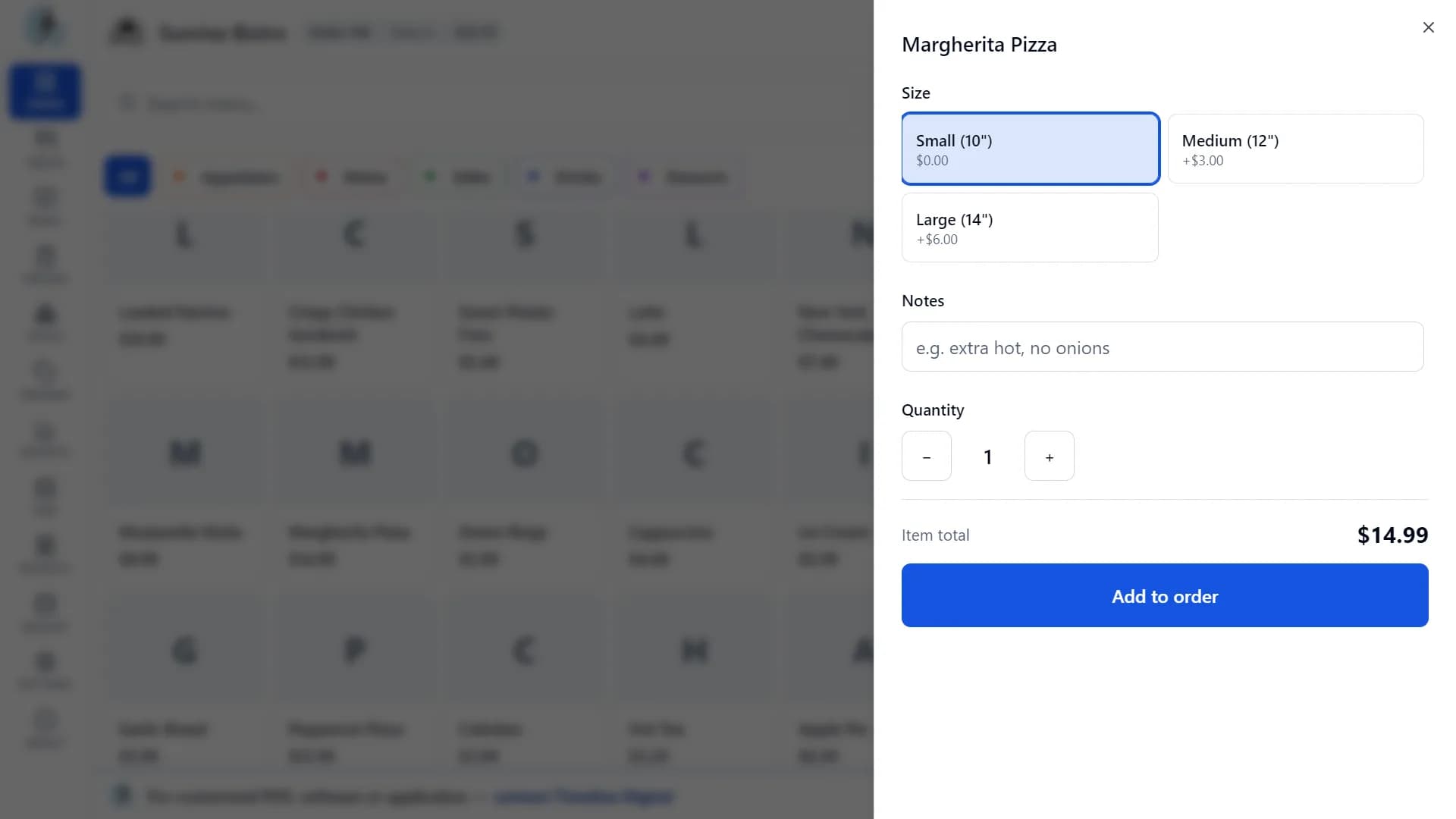
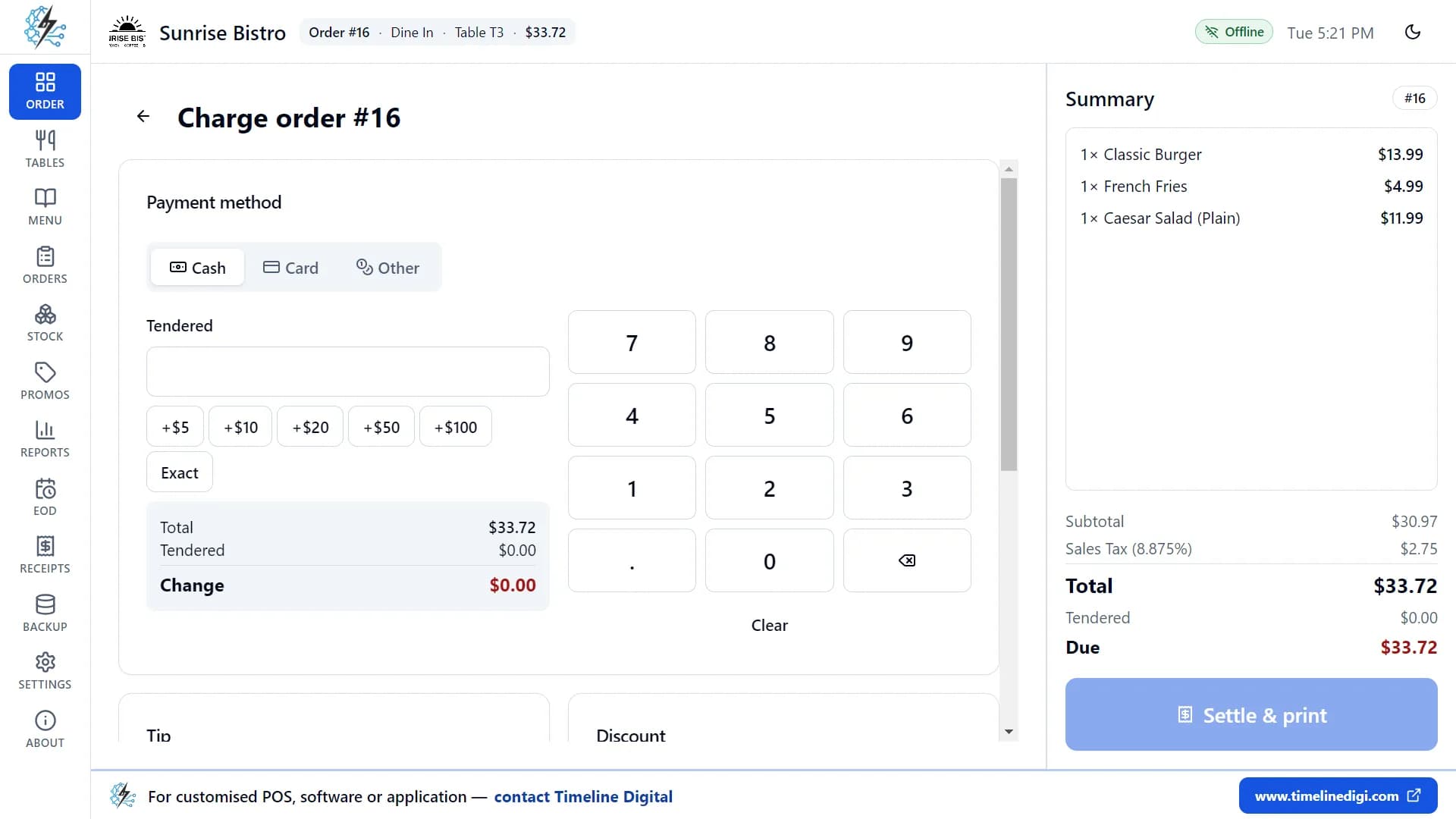
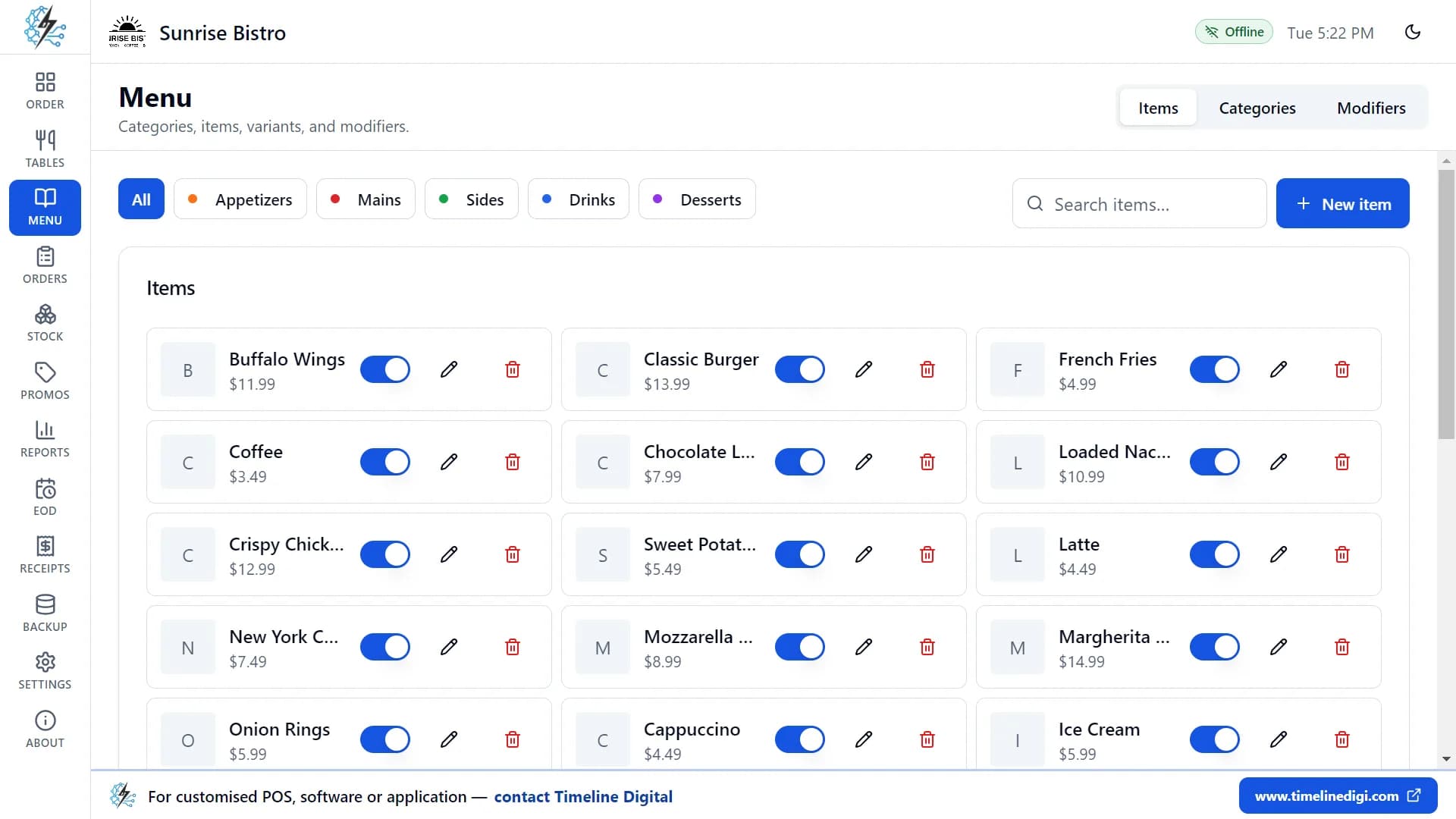
The screenshots show the app's demo restaurant, and the data in them is made up. Sizes and extras are set up once under Menu, as modifier groups you attach to as many items as you like, for example a required "Choose your sauce" group on every wrap.
What does the free fast food POS cover at the counter?
It covers the jobs of a single counter: orders, order numbers, kitchen tickets, phone and delivery orders, held orders, sold-out items, promotions, payment and the end-of-night cash count. The table gives how each one works in the app and where it stops.
| Counter job | How it works in the app | Where it stops |
|---|---|---|
| Counter orders | Takeout as the remembered order type, one-tap items, sizes and extras through modifier groups with required choices, and live subtotal, tax and total. | One order screen on one computer. A second cashier cannot ring up at the same time on another device. |
| Order numbers | Numbers restart at 1 each day and print on the receipt and the kitchen ticket. | There is no customer-facing screen that shows ready numbers. You call them out. |
| Kitchen tickets | Tap Kitchen on an order to print a ticket with the order number, order type, time, every item with its size, extras and notes, and the order note. It prints on the receipt printer or on a separate kitchen printer. | Tickets are printed when you tap Kitchen, not automatically, and they are not routed to different stations. There is no kitchen display screen. |
| Phone and delivery orders | Choose Delivery, add the items, and type the customer name, phone number and address in the order note. The note prints on the kitchen ticket. | No customer database, no caller ID, no address lookup, no driver screen, and no link to delivery apps or online ordering. |
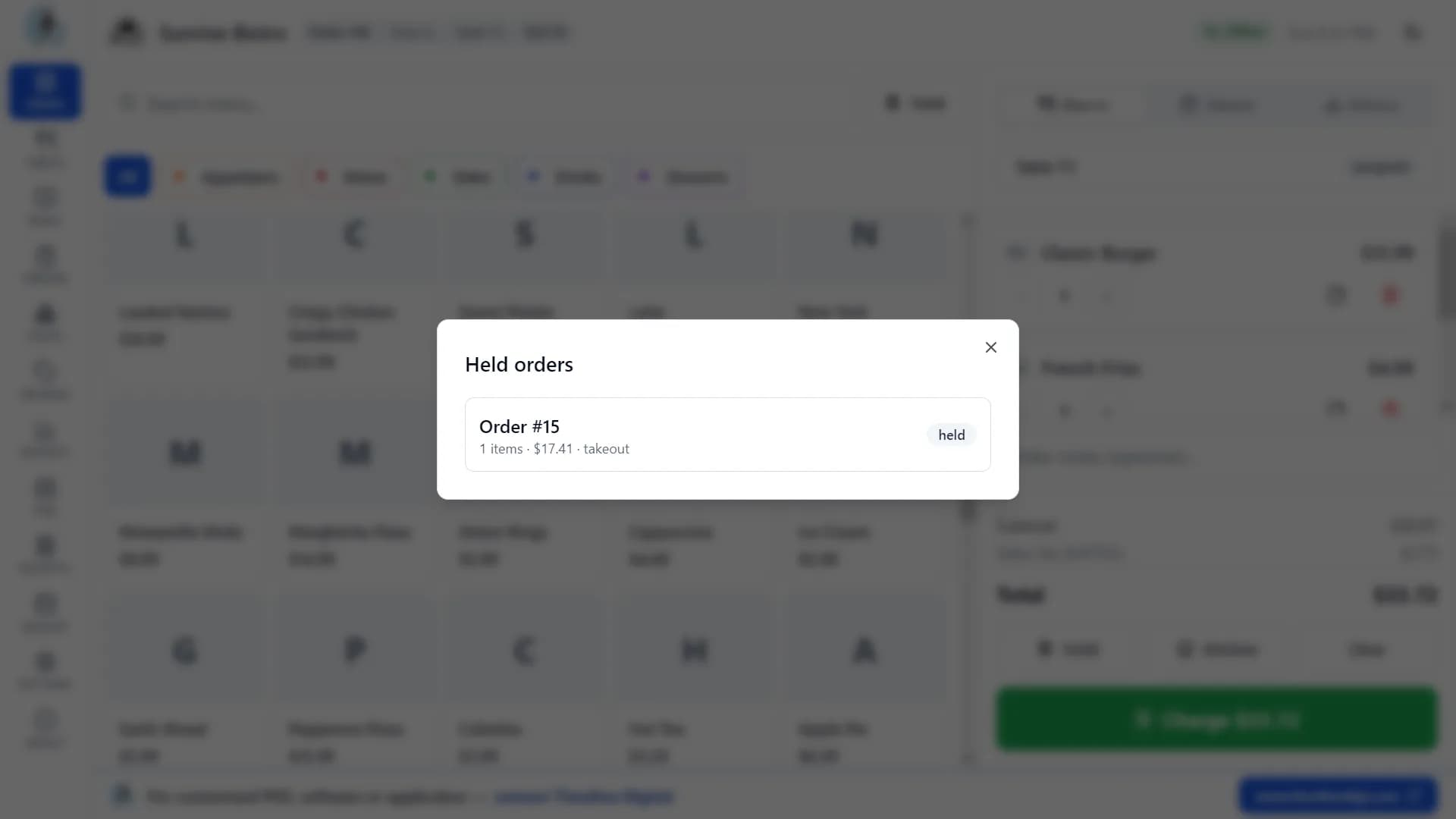
| Hold and resume | Tap Hold to park an order and clear the screen for the next customer. Held lists every parked order with its item count, total and order type, and one tap brings it back. | Held orders stay on the same computer. |
| Sold out | Switch an item off in the menu list and it disappears from the order screen at once. Switch it back on when it is available again. | The switch is manual. You turn the item off and back on yourself. |
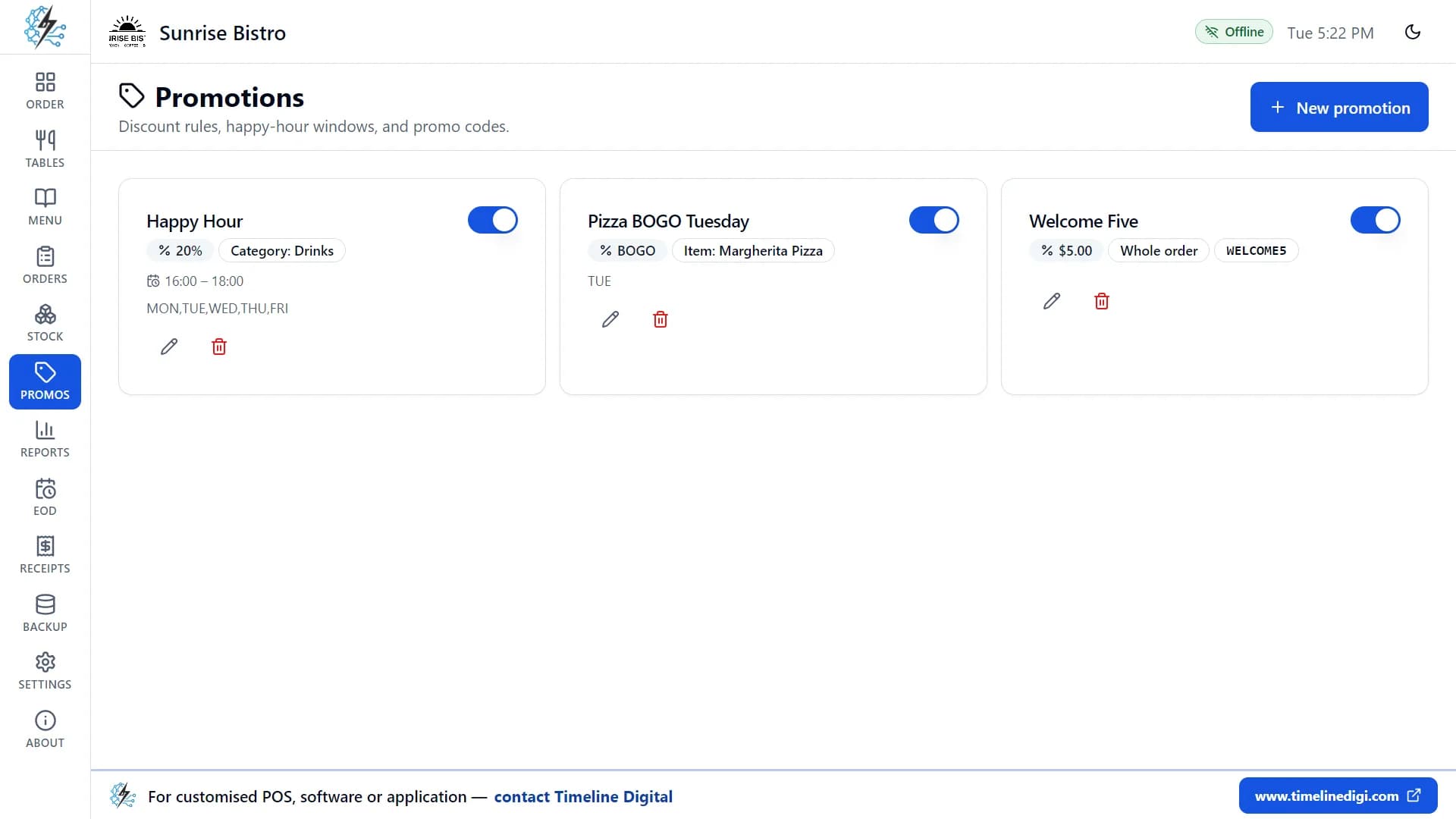
| Lunch deals and promo codes | Promotions give a percentage off, a fixed amount off or buy one get one free, on the whole order, one category or one item, limited to the dates, days and hours you set. A promotion with a code applies only when the code is typed at checkout. | There is no combo or meal-deal builder that bundles several items under one price. |
| Payment | Cash with a change calculator, card, and other methods such as vouchers. Settling prints the receipt and can open a connected cash drawer on cash payments. | Card payments are recorded only. The app does not connect to a card terminal, and one order takes one payment method, so a bill cannot be split. |
| End of the night | Open a shift with the starting cash, record cash paid in and out with a reason, count the drawer and print a Z-report with expected cash, counted cash and the difference. | There is no mid-shift X-report and no report per cashier, because the app has no staff logins. |
Tables, the floor plan, stock by ingredient and the sales reports are part of the same download. A counter with a few seats can use the Dine-in order type for them, and a shop with no tables can ignore that screen.
How does it handle kitchen tickets, phone orders, held orders and sold-out items?
These four jobs matter most when the counter is busy. Each one says what the app does, then the limit to know about before you rely on it.
- A ticket the kitchen can read
- Each line can carry its own note, such as "no onions" or "extra sauce", and the whole order can carry one more. Both print on the kitchen ticket with the size and extras, so the cook reads the order instead of hearing it shouted.Limit: You tap Kitchen to print each ticket. Nothing is sent to a screen in the kitchen.
- Phone and delivery orders
- When the phone rings, switch the order type to Delivery, add the items and type the name, phone number and address in the order note. The type can be changed at any time, even after items are added.Limit: The details live in that one order note. The app keeps no customer list, shows no caller ID and has no delivery-app or online-ordering link.
- Hold an order when a customer steps aside
- Someone is still choosing, or went to fetch a wallet. Tap Hold, serve the next person, then open Held and bring the order back with one tap. The Orders page also has a Held tab for the same list.Limit: Held orders are parked on the one computer and cannot be picked up on another device.
- Mark an item sold out in one switch
- The last portion of wings is gone. Go to the menu items list and switch the item off. It leaves the order screen straight away, so nobody rings it up by mistake, and it returns when you switch it back on.Limit: It is a manual switch per item. You turn it off and back on yourself.
How do you take a takeout order and get paid? Watch it.
Three lessons recorded in the real app: takeout, delivery and held orders, billing and payment, then order history and reprints.
Lesson 4: Takeout, delivery and held orders (4:26)
Order types, customer notes, hold and resume.
Lesson 5: Billing and payment (4:57)
Cash, card, tips, discounts and receipts.
Lesson 6: Order history and reprints (3:17)
Open, held and closed orders; reprinting.
All 18 lessons with written steps · Watch the playlist on YouTube
Can a free POS run lunch deals and promo codes?
Yes, through Promotions. A promotion is a percentage off, a fixed amount off or buy one get one free, applied to the whole order, one category or one item, on the dates, days and hours you choose. Promotions without a code apply themselves at checkout.
- Weekday lunch deal
- A percentage off one category, for example all burgers, on Monday to Friday between 12:00 and 14:00. It applies itself at checkout while those hours are running.
- Buy one, get one free
- On one item or one category. In each pair, the cheaper item is the free one.
- Promo code
- Give a promotion a code for a flyer or a social post. It applies only when the cashier types the code at checkout, in upper or lower case.
When more than one automatic promotion is valid, the app applies the best one for the customer. There is no combo builder: to sell a meal at one price, add it to the menu as its own item and attach a required modifier group for the drink or side.
How do you close the till at the end of the night?
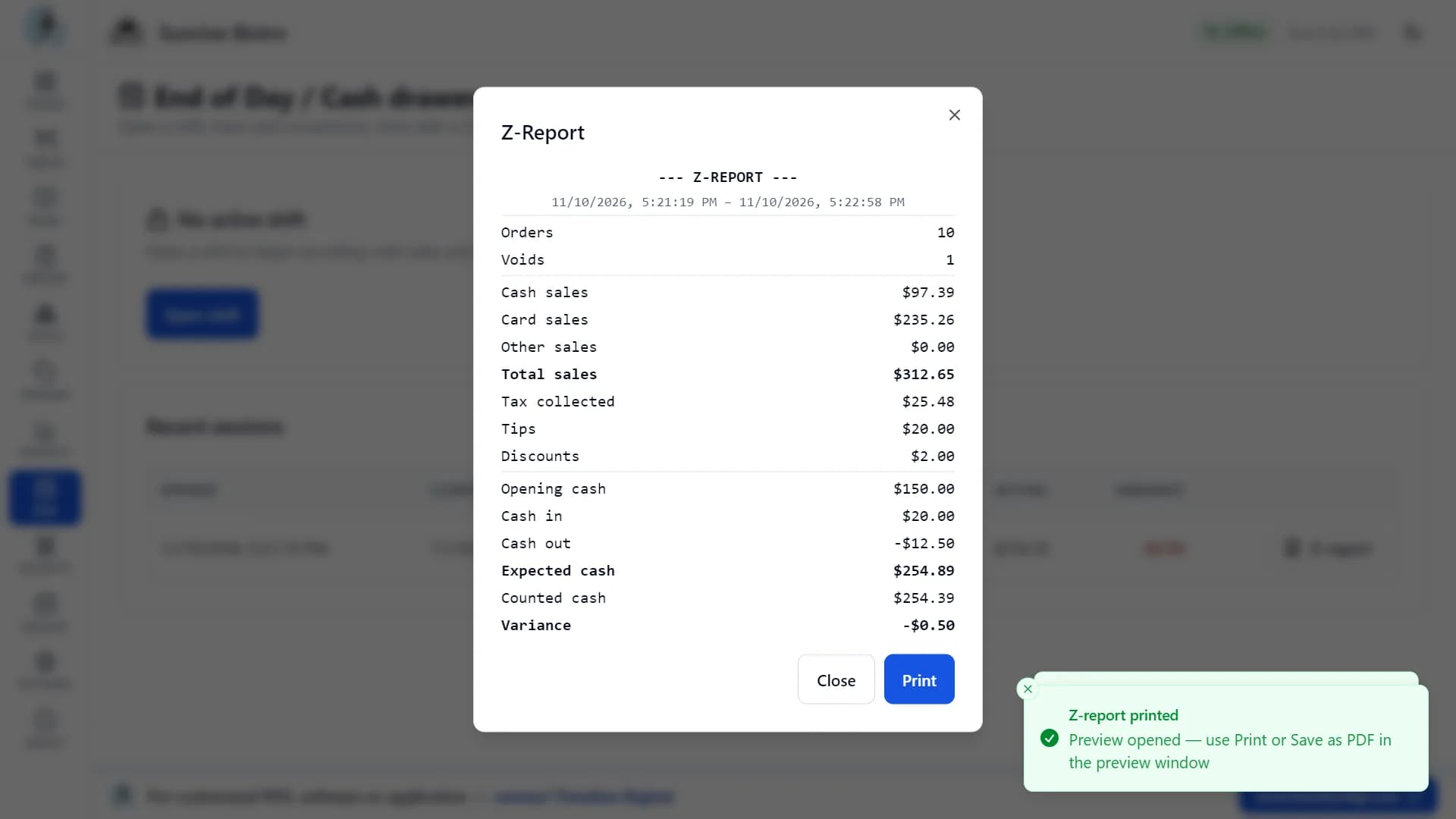
You close the shift. Count the cash in the drawer and enter it, and the app compares it with the cash it expects from the opening float, cash sales and cash paid in or out. Then print the Z-report and make a backup.
- Open the shift with the cash you start with in the drawer.
- During service, record cash paid in or paid out, each with a reason, such as change brought from the bank or a supplier paid in cash.
- At close, count the drawer and enter the amount. The app shows the expected cash, your counted cash and any difference.
- Print the Z-report: orders, cash, card and other sales, tax, tips, discounts, opening cash, cash in and out, and the cash count.
- Back up. One tap saves the database and menu photos into a single zip file, and you can set the app to back up every time it closes.
What does the free fast food POS not do?
It is a single-till app. It does not share orders between devices, has no kitchen display screen, cannot split a bill, records card payments without processing them, and takes no orders from websites or delivery apps. If any of these is essential, this app is the wrong choice.
| Limit | What it means at your counter |
|---|---|
| A single till | The app runs on one computer at one counter. It does not share orders with a second till, a tablet or a phone, and it has no cloud sync or remote access. |
| No kitchen display screen | The kitchen works from printed tickets. Tickets print when you tap Kitchen and are not split by station. |
| No split bills | Each order is paid with one payment method. Splitting a bill or taking a part payment is not available. |
| Cards are recorded only | The customer pays on your own card terminal and you mark the order as paid by card. The app does not connect to terminals or payment providers. |
| No online or delivery-app orders | Orders are typed in at the counter. There is no website ordering, QR menu or delivery-app integration. |
| No staff logins | Anyone at the computer can use the app. There are no cashier names, user roles or time clock, and the app is in English only. |
What if you need several tills, branches or delivery-app orders?
Then the free app is not the answer, and a system built for your operation is. Timeline Digital builds restaurant software to order as a managed project. That work is separate from the free download and starts with a free pilot.
The free app is made by Timeline Digital, a custom software development company founded in 2013 and headquartered in Islamabad, Pakistan. Multi-branch reporting, several tills on one database, a kitchen display or orders arriving from other platforms are scoped on our restaurant management software development page, with the till itself covered under custom POS software development. Timeline Digital does not publish prices for custom software, because every project is custom. The price is agreed after requirements analysis and the free pilot.
How the free pilot works
Before you commit to the full project, we build 2 to 3 of your key modules as working software, free of charge, ready in about 2 days. Your team tests the pilot, and the full build starts only after you approve it.
See how the free pilot worksUnderstand
We learn your requirements and how your organisation works today.
Select pilot modules
Together we choose 2 to 3 key modules that prove the solution.
Build the working pilot
We build those modules as real, working software, free of charge.
You test it
Your team uses the pilot. The full project starts only after you approve it.
Fast food and takeaway POS questions
Is there free POS software for a fast food restaurant?
Yes. Timeline Restaurants POS 2.0.1 is free for fast food and takeaway counters, with no subscription, no paid plan and no trial period. It runs on one Windows PC or Mac, works without internet, and covers takeout and delivery orders, sizes and extras, kitchen tickets, promotions and an end-of-day Z-report. Get it from the Timeline Restaurants POS download page.
Is there free takeaway EPOS software?
Yes. EPOS, short for electronic point of sale, is the usual UK name for a POS system, and Timeline Restaurants POS is free EPOS software for a takeaway with one till. You choose your country from 173 countries and regions, and tax can be included in your prices. It does not connect to card terminals or delivery apps.
Can I download fast food POS software for a PC?
Yes. The Windows installer is about 96 MB and runs on Windows 10 and 11 (64-bit). Windows may show a blue "Windows protected your PC" message because the app is not yet code-signed; click More info, then Run anyway. Mac downloads for Apple Silicon (116 MB) and Intel (123 MB) are on the free restaurant POS for Mac page.
What is the best fast food POS system for a PC?
It depends on how many tills you run. For one counter on one PC, a free offline app such as Timeline Restaurants POS covers orders, kitchen tickets and the cash count with no monthly fee. If you need several tills, a kitchen display, online ordering or built-in card payments, compare paid systems that include them, because this app does not.
Does it work without internet during a rush?
Yes. The app runs on your own computer and every feature works offline, so a dropped connection does not stop orders, printing or the end-of-day count. Your orders, sales, menu, stock and reports are stored on that computer. You need the internet only to download the app.
How do I take phone and delivery orders?
Choose the Delivery order type, add the items, and type the customer name, phone number and address in the order note, which prints on the kitchen ticket. There is no customer database, no caller ID and no link to delivery apps or online ordering, so every phone order is typed in by hand.
Does it print kitchen tickets, and is there a kitchen display?
It prints kitchen tickets and has no kitchen display screen. Tap Kitchen to print a ticket with the order number, items, sizes, extras and notes, on the receipt printer or a separate kitchen printer. It supports ESC/POS thermal printers on 58 mm and 80 mm paper; a Mac prints to a network thermal printer. See the printer setup guide.
Can I set up meal deals and combos?
Partly. There is no combo builder that bundles several items under one price. You can add a meal to the menu as its own item with its own price and attach a required modifier group for the drink or side. Timed discounts, buy one get one free and promo codes are set up under Promotions.
Does it take card payments?
It records them. The customer pays on your own card terminal, then you mark the order as paid by card and can type a reference such as the last four digits. The app does not connect to card terminals or payment providers, and it takes no fee on your sales.
Can I use it on two tills or in several branches?
Not with shared data. The app is made for one computer at one counter, and each installation keeps its own separate data. If you need several tills, branches reporting to head office or delivery-app orders arriving in the system, that is custom work, described on our restaurant management software development page.
Is it a good low-cost POS for a small quick service restaurant?
For one counter, yes: the software is free and has no monthly fee, so your costs are the computer, a receipt printer and your own card terminal. The 18 short video tutorials, about 74 minutes in total, are on the how to use Timeline Restaurants POS page.
Download the free fast food POS
Install the app and load the sample menu to practise before your next shift. It is free, with no subscription, and works offline on one computer.
Version 2.0.1 · Free · Works offline
The Windows installer is not code-signed, so Windows may ask you to click More info, then Run anyway. The Mac app is not notarized, so right-click it and choose Open the first time. If you run several tills or branches, tell us how your orders arrive on the contact page. We reply with the modules we would pilot, or tell you the free app is enough.
Updated
About this page
Published by Timeline Digital, the maker of Timeline Restaurants POS. Everything here describes version 2.0.1 of the app. The Windows installer is not code-signed and the Mac app is not notarized, and no certification is claimed.
Privacy. Your orders, payments, menu, stock, reports and backups are stored only on your computer and are never uploaded. When you finish setting up the app, it sends Timeline Digital your registration details once (restaurant name, type, country and city, owner name, phone or WhatsApp number, email, currency, tax settings and app version) so we know who is using it and can offer support. If you are offline, they are sent the next time the computer is connected. We do not sell or share these details.
Author
Usama Asif
CEO and CTO, Timeline Digital.
Related restaurant POS pages
Timeline Restaurants POS
The product page: download, system requirements, screenshots and the full feature list.
Read this nextFree POS System for Restaurants
The general restaurant page, for venues with tables and waiters.
Read this nextFree Restaurant POS System Download
The direct download and what happens when you first open the app.
Read this nextFree POS for Pizza Restaurants
Size and topping modifier groups, slices and whole pies, and delivery orders.
Read this nextFree POS for Food Trucks
A single laptop at the window, working with no connection.
Read this nextFree POS for Cafes
Milk and size choices, quick counter orders and a few tables.
Read this nextFree Offline Restaurant POS
How the app works without internet and where your data is stored.
Read this nextRestaurant Management Software Development
Custom systems for several tills, branches or delivery-integrated operations.
Read this next